Article Name: Auto-allocation of Students to Subjects
Category/Module: Administration, Institutions
Tags: Subjects
Version: 3.10.7
Date Updated: 07 Dec 2017
This feature allows auto-allocation of students to subjects.
- Setting Up Subjects
- Adding Subjects to an Education Grade
- Adding Students to a Class
- Adding Students to Subjects
Setting Up Subjects
1) Go to Administration > System Setup > Education Structure
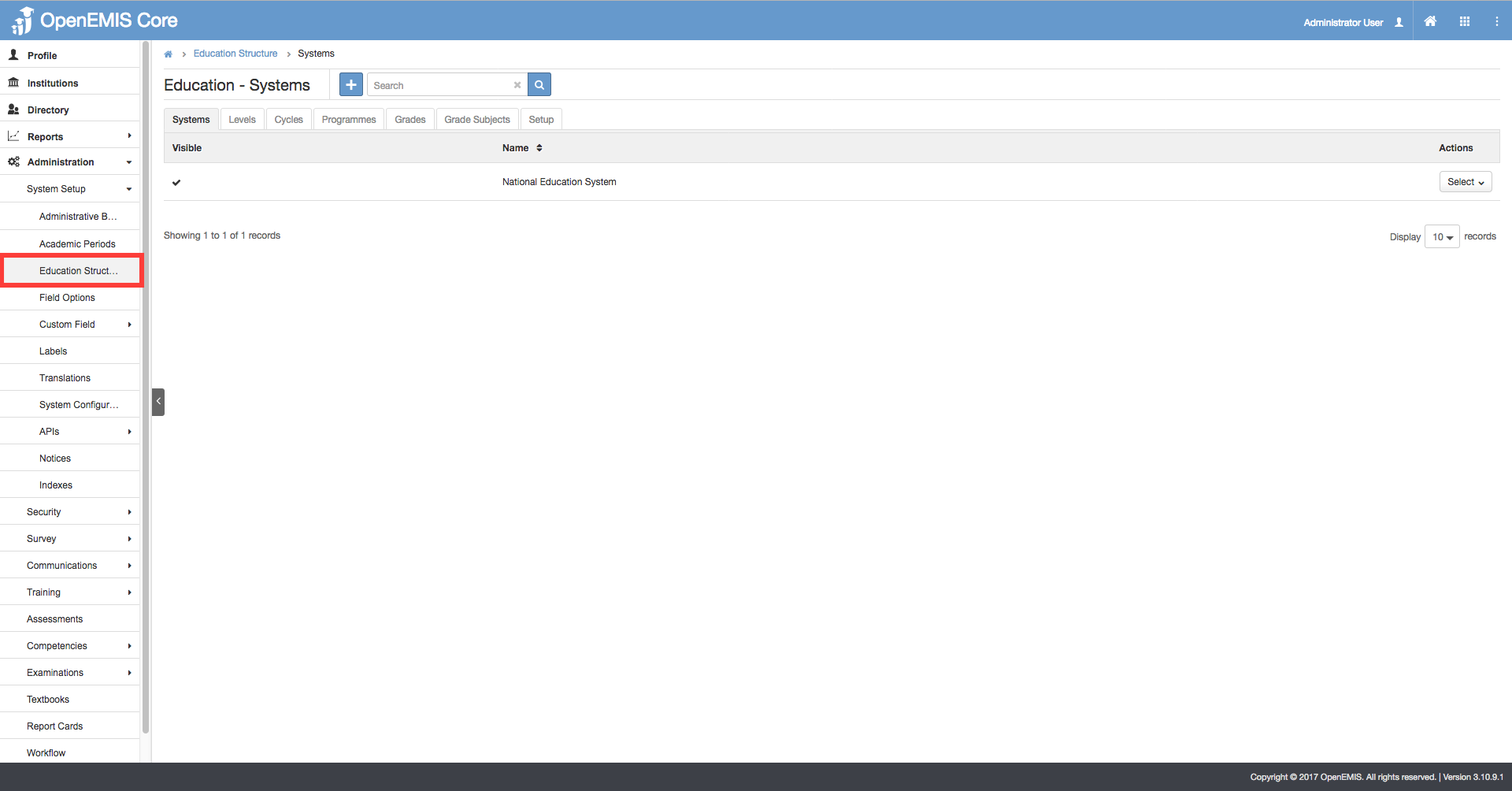
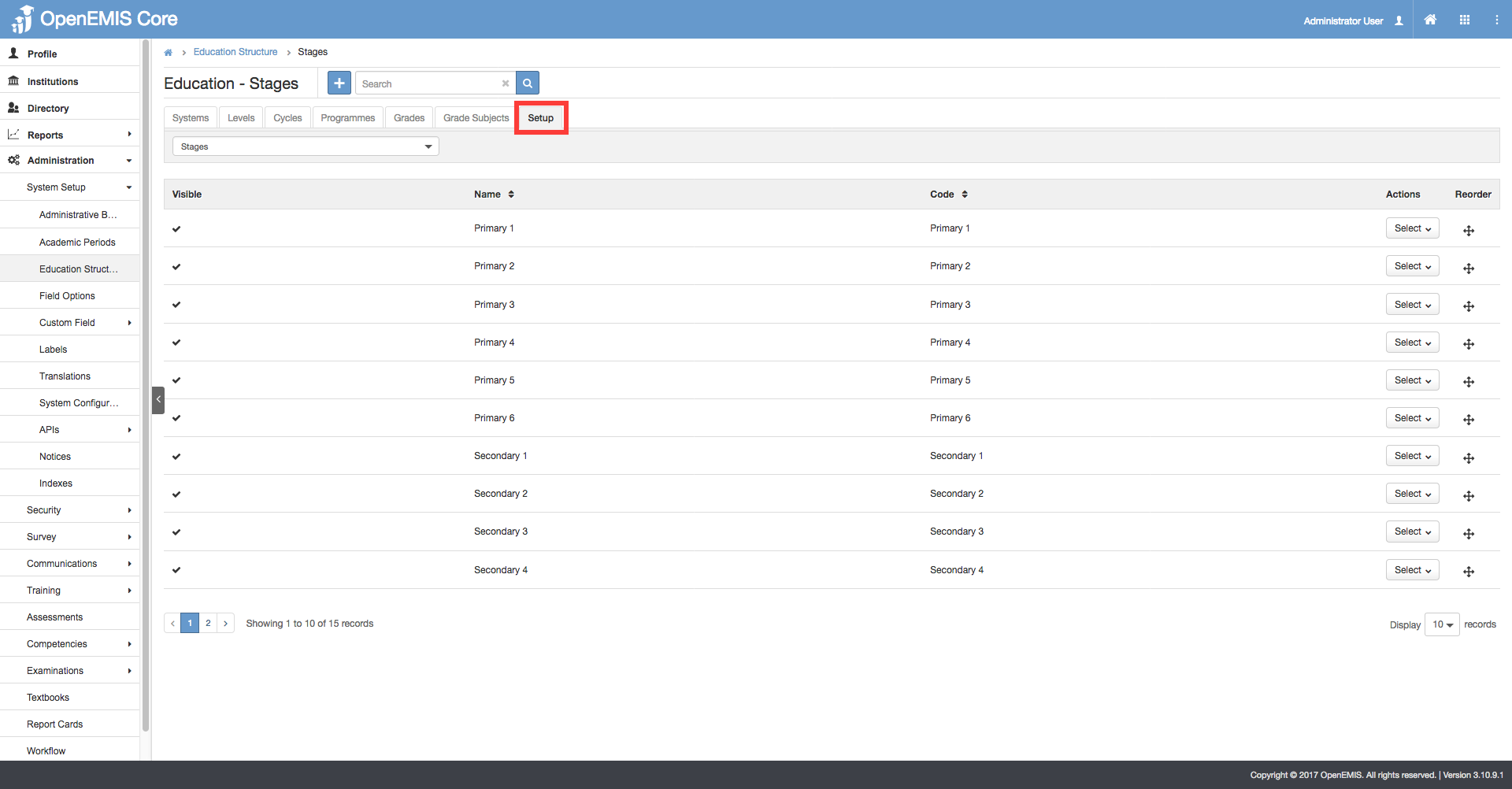
2) Click on ‘Setup’ tab
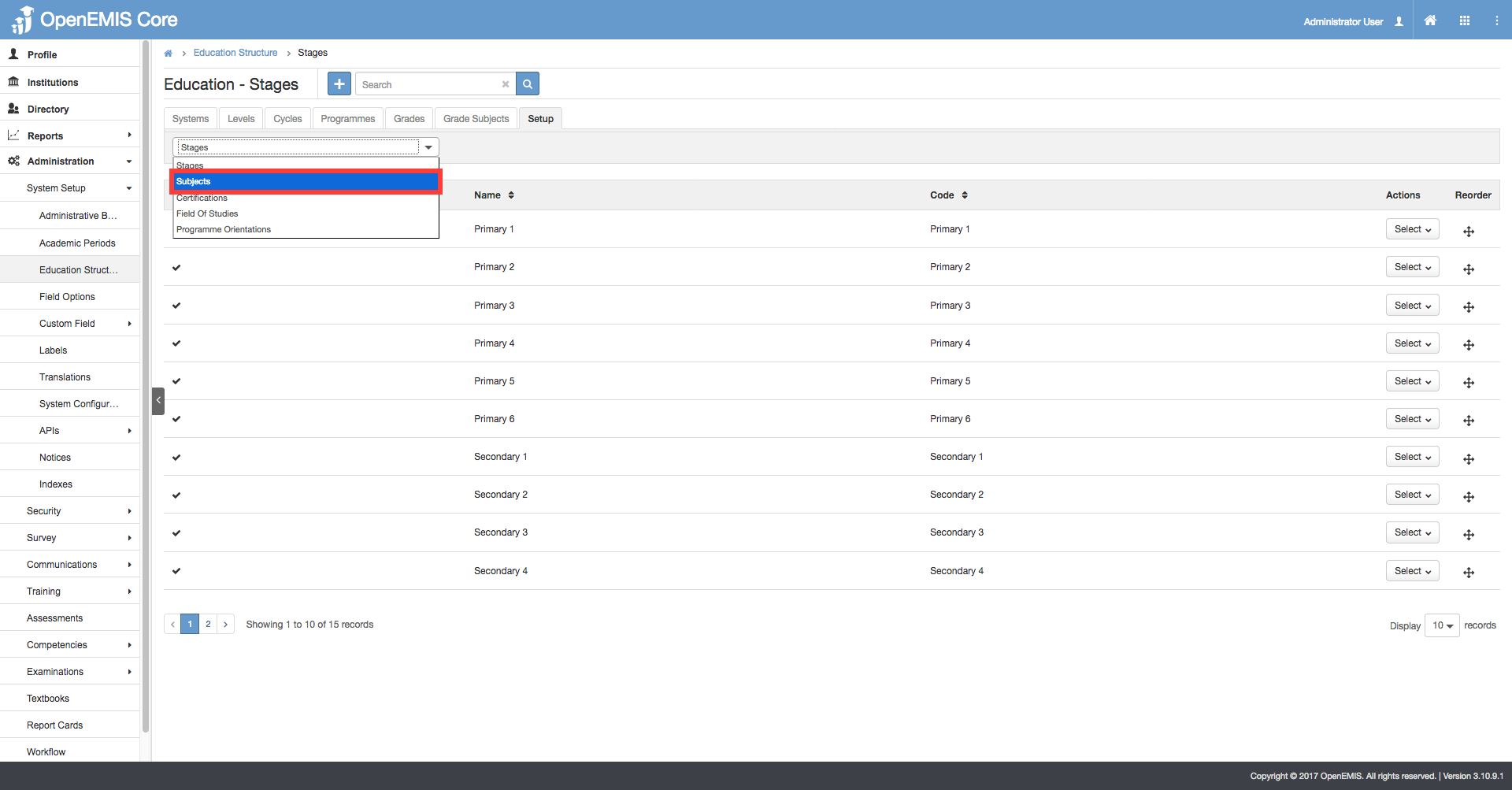
3) Select ‘Subjects’ from the dropdown list
4) Click ‘Add’
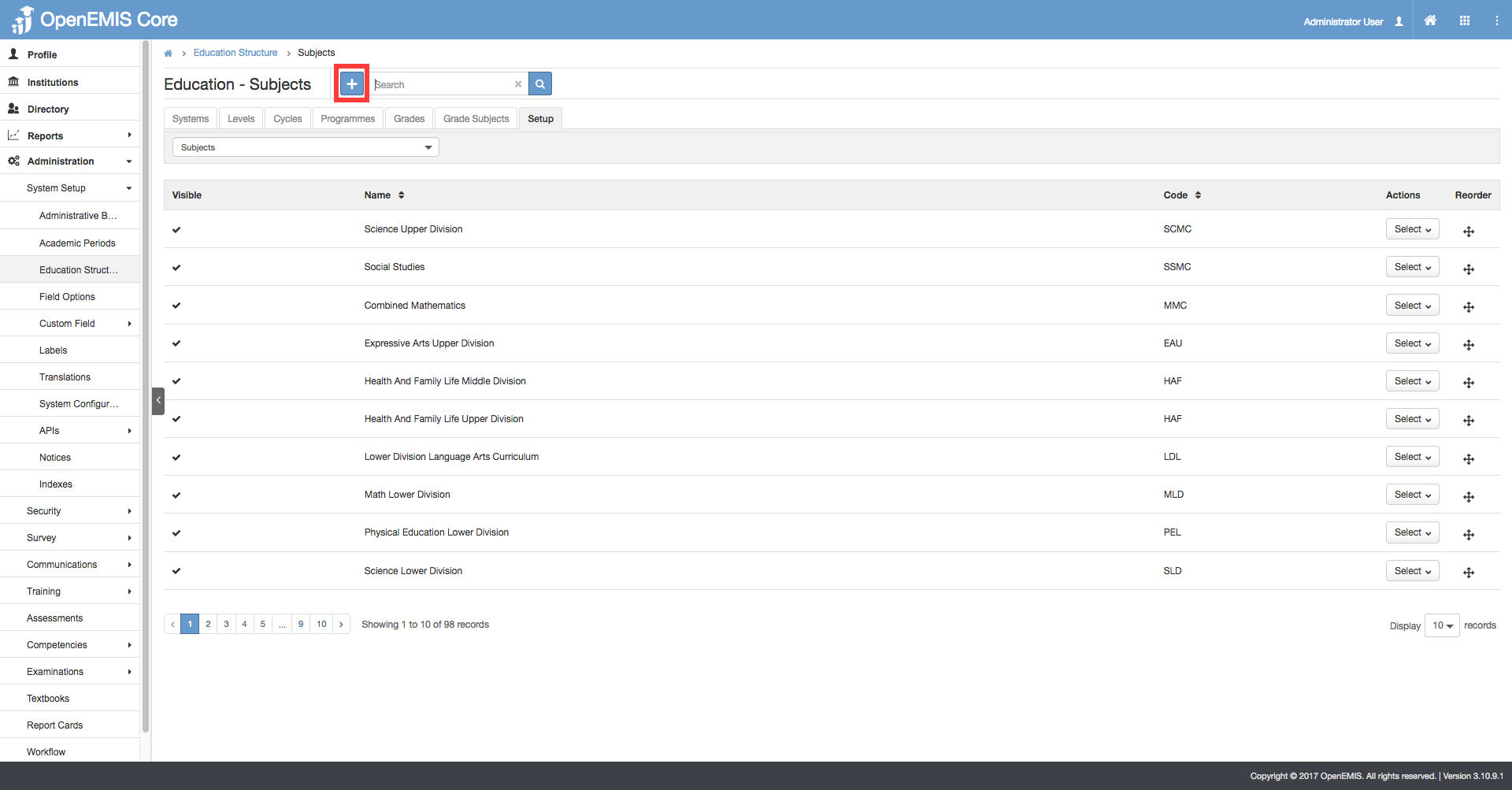
5) Enter the Name, Code and Field of Study (optional) for the subject that you would like to add. Click ‘Save’.

Adding Subjects to an Education Grade
1) Go to Administration > System Setup > Education Structure

2) Click on ‘Grade Subjects’ tab
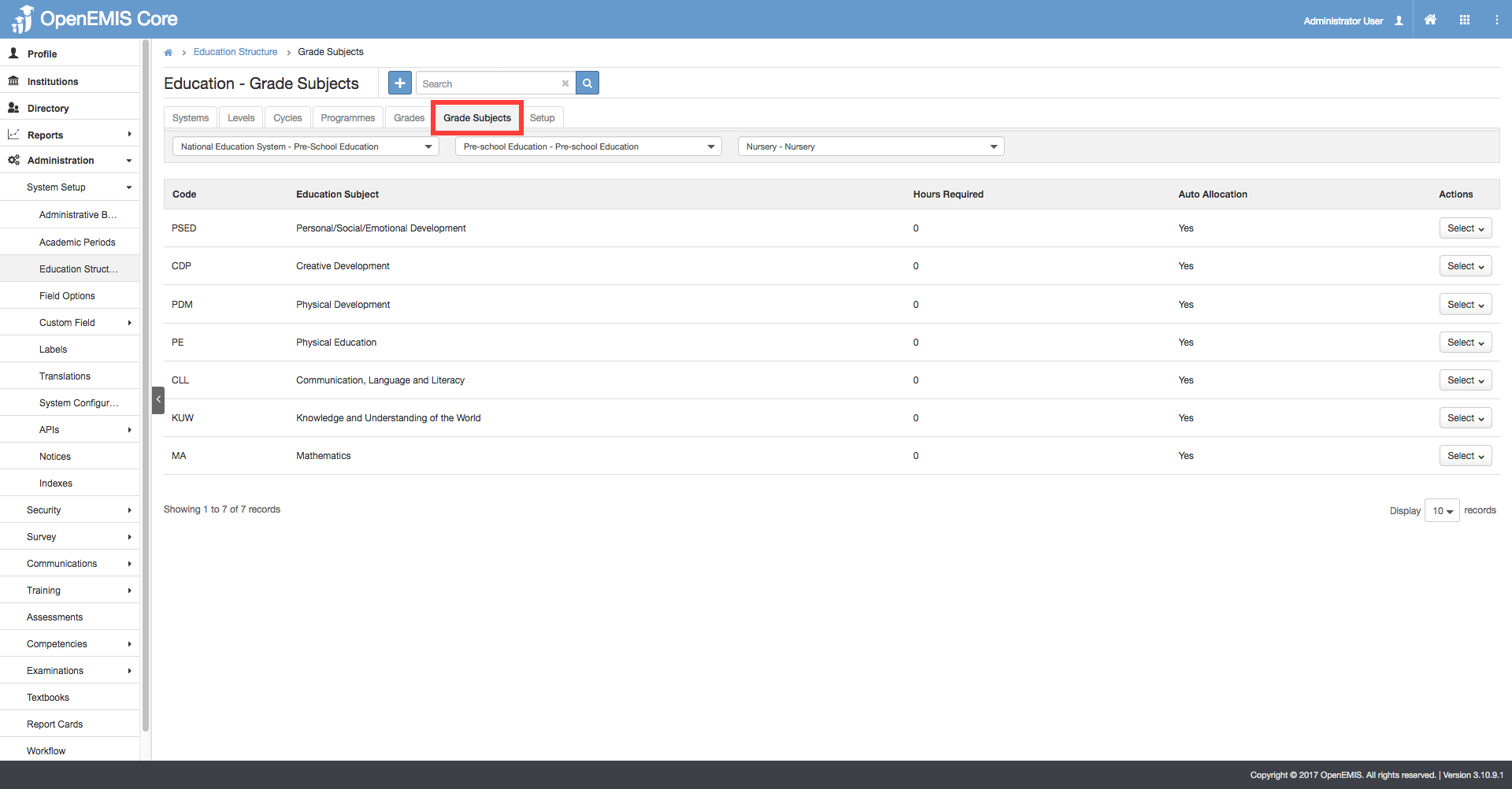
3) Using the filters, select the Education Grade that you would like to add subjects to

4) Click ‘Add’ button
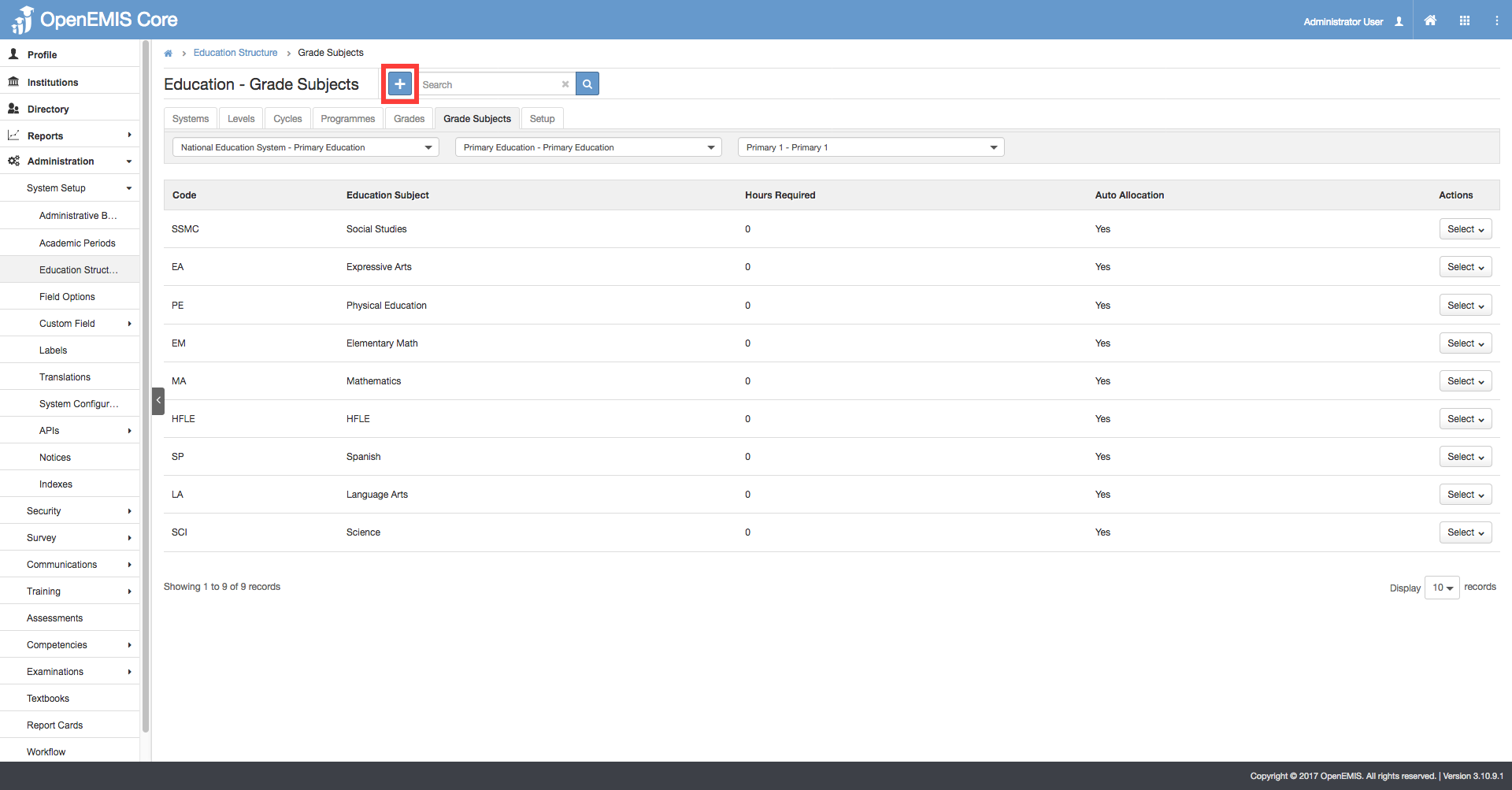
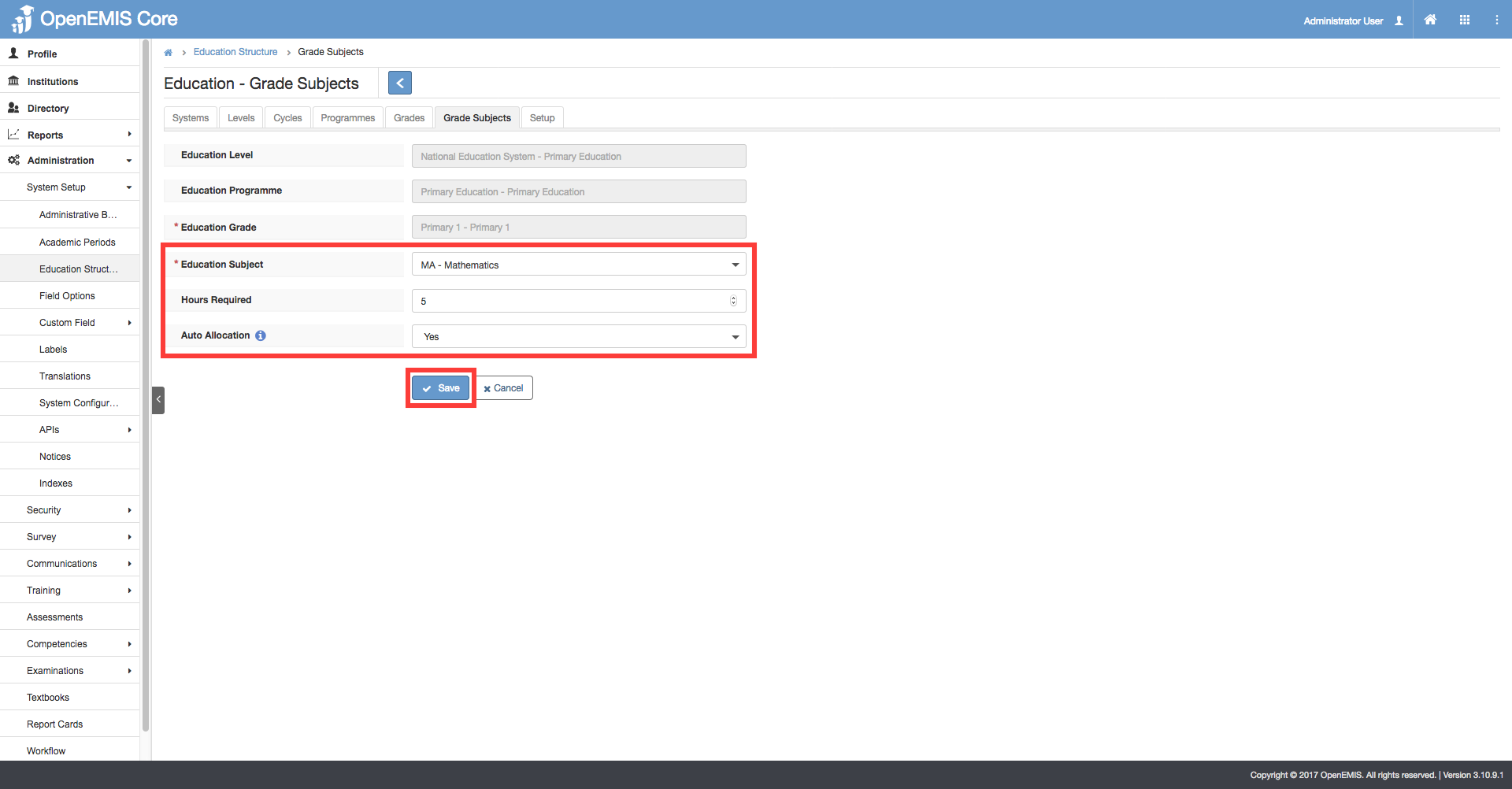
5) For the ‘Education Subject’ field, select the subject that you would like to add. Set the ‘Auto Allocation’ field to ‘Yes’ if you want the students to be allocated automatically to the selected subject. Click ‘Save’.
Adding Students to a Class
1) Go to Institutions > Academic > Classes
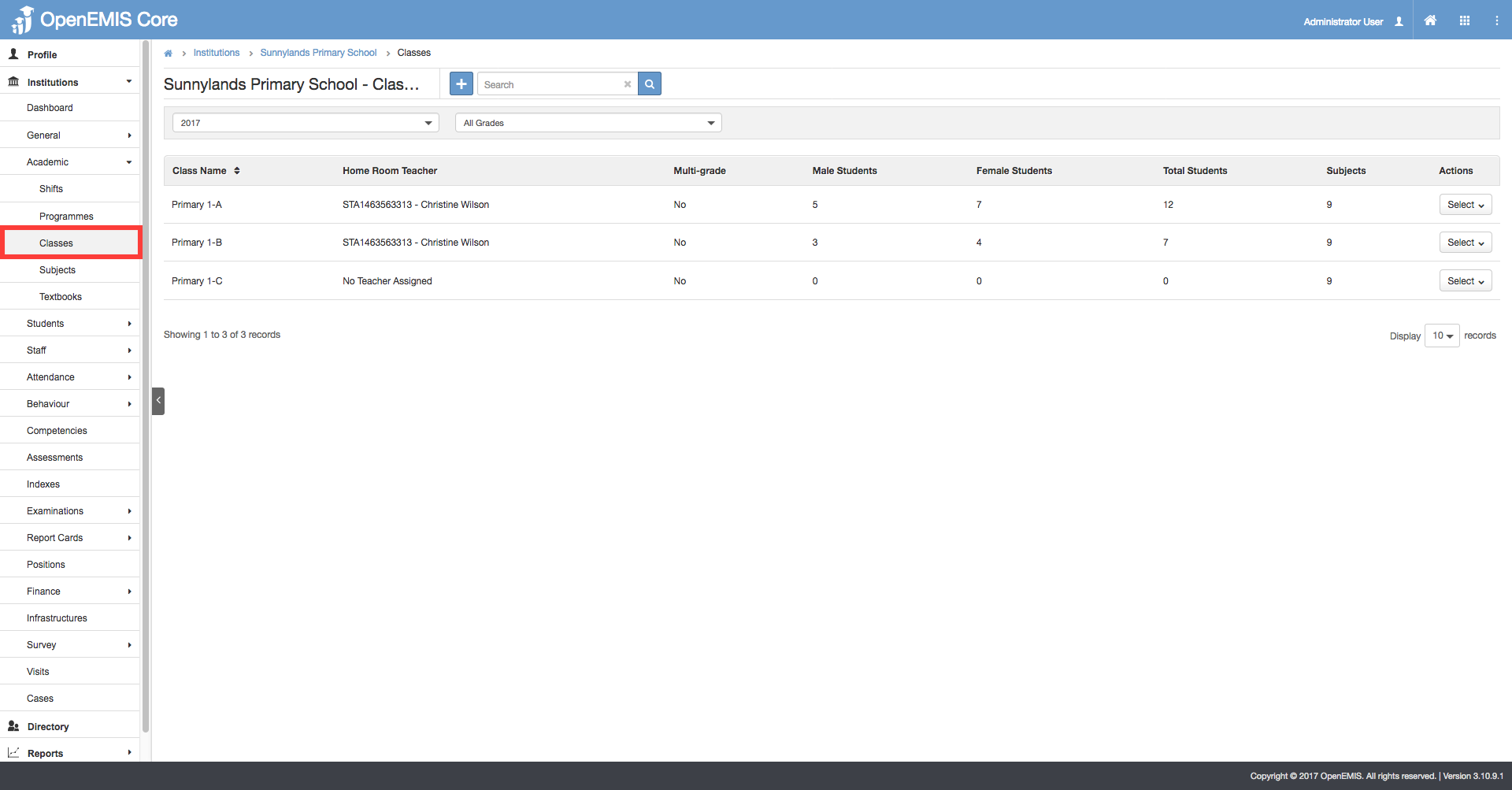
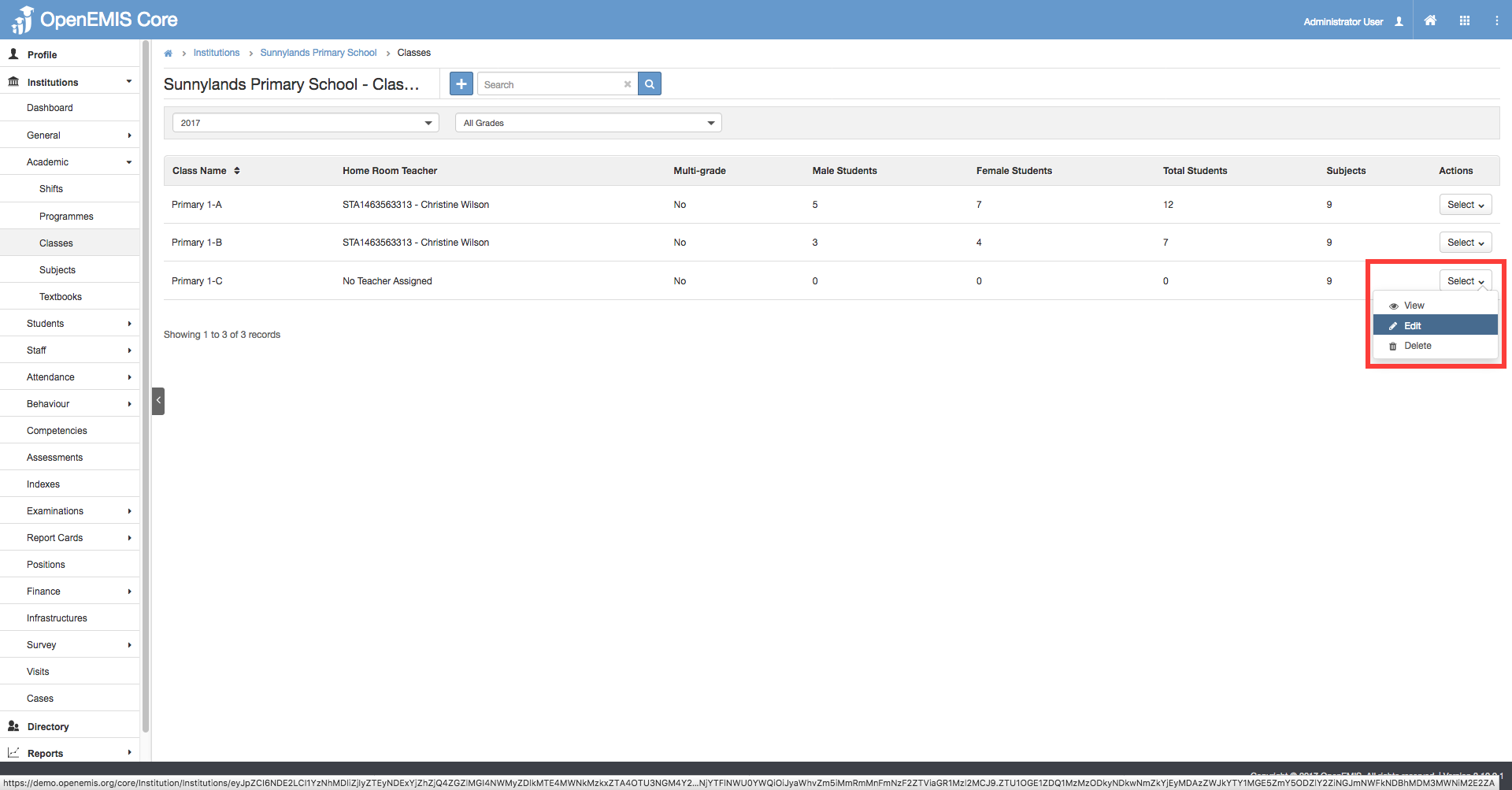
2) Select the Class that you would like to add students to. Select ‘Edit’ from the Actions bar.
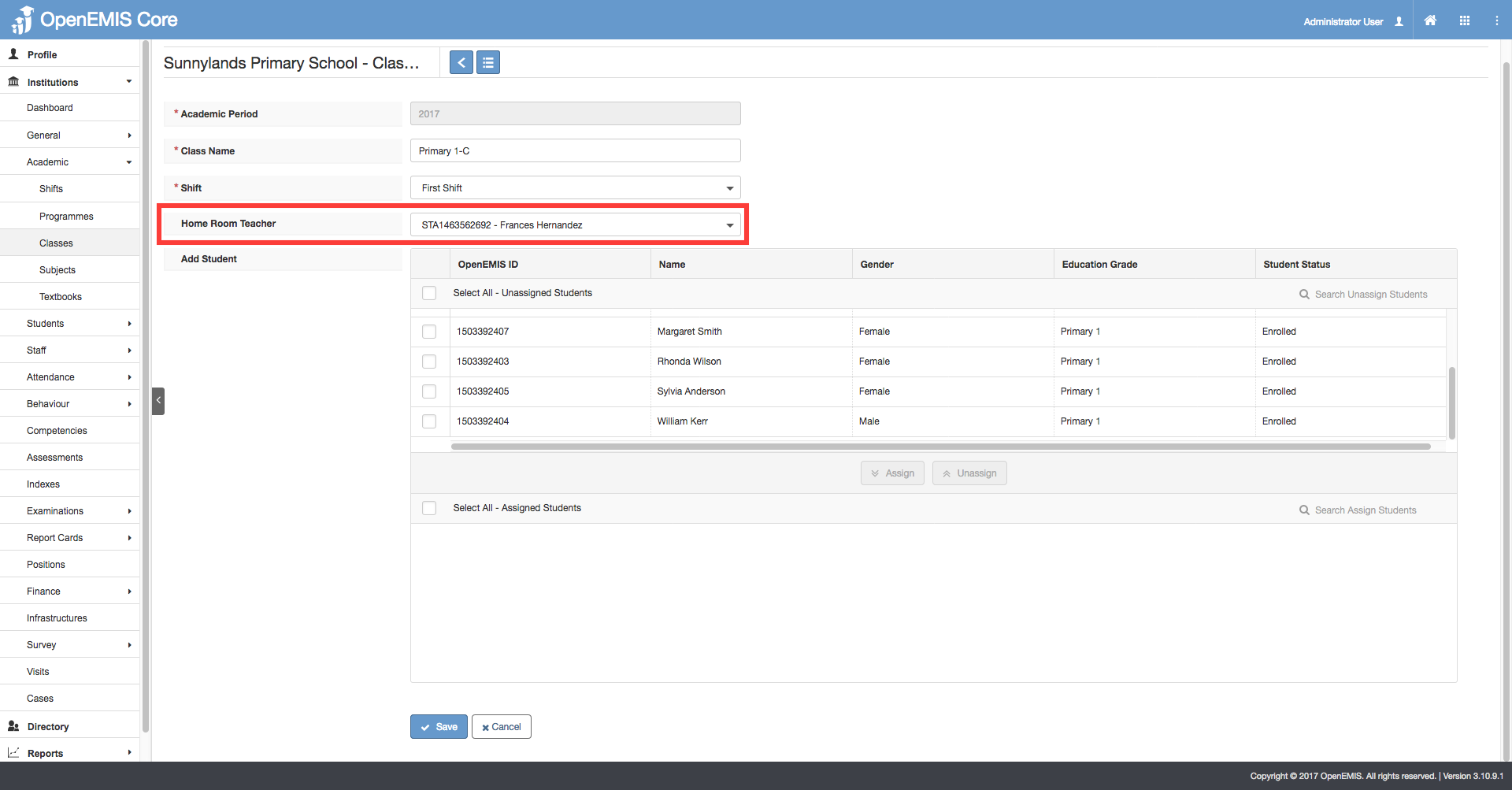
3) You may assign a Home Room Teacher (optional) to the class.
4) Select the students that you would like to assign into the class. Click ‘Assign’. Only students (with no class) that have been added into the Institution will be displayed.

5) Click ‘Save’
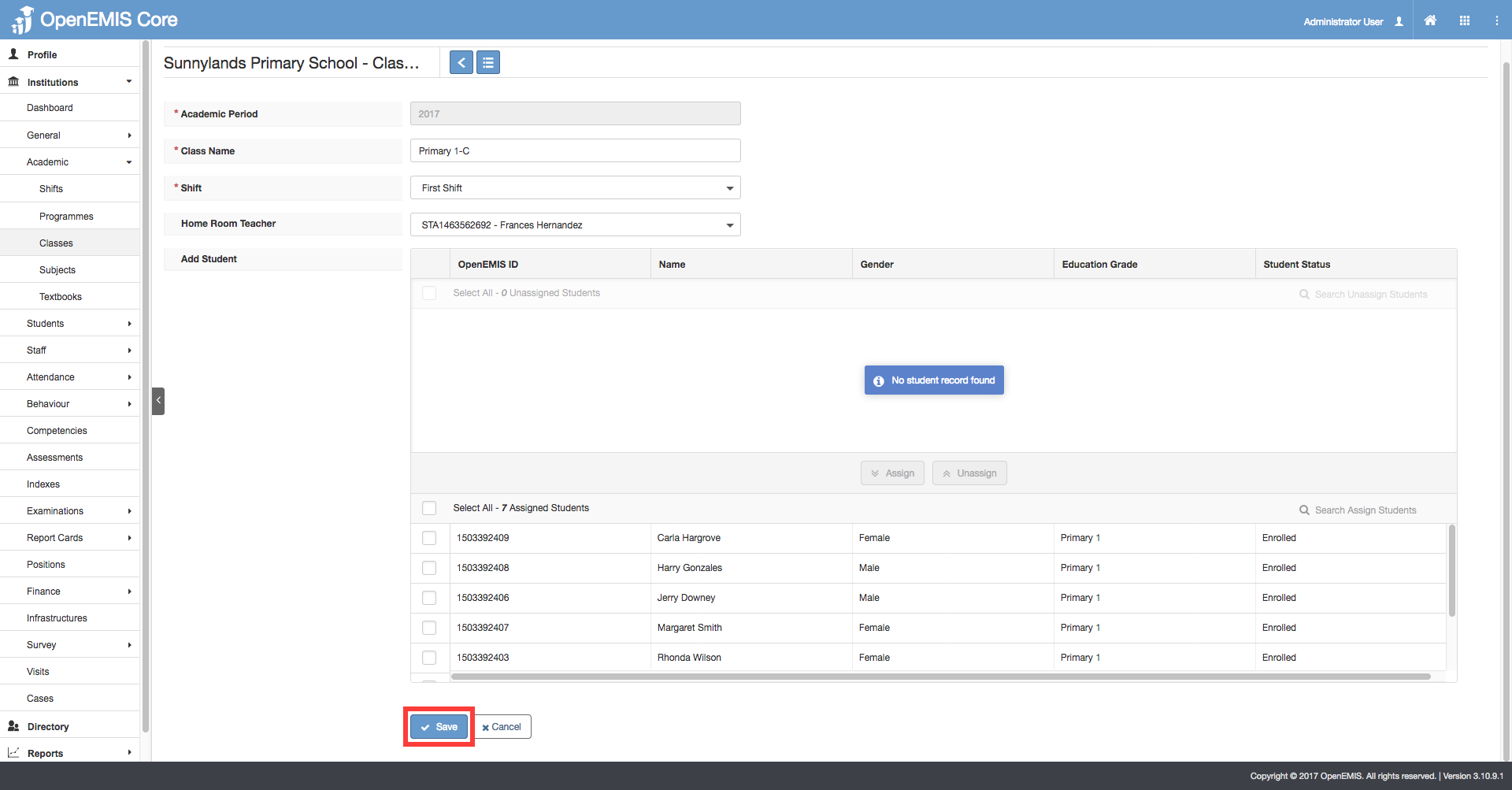
6) A message will be displayed if the students have been added into the class successfully.
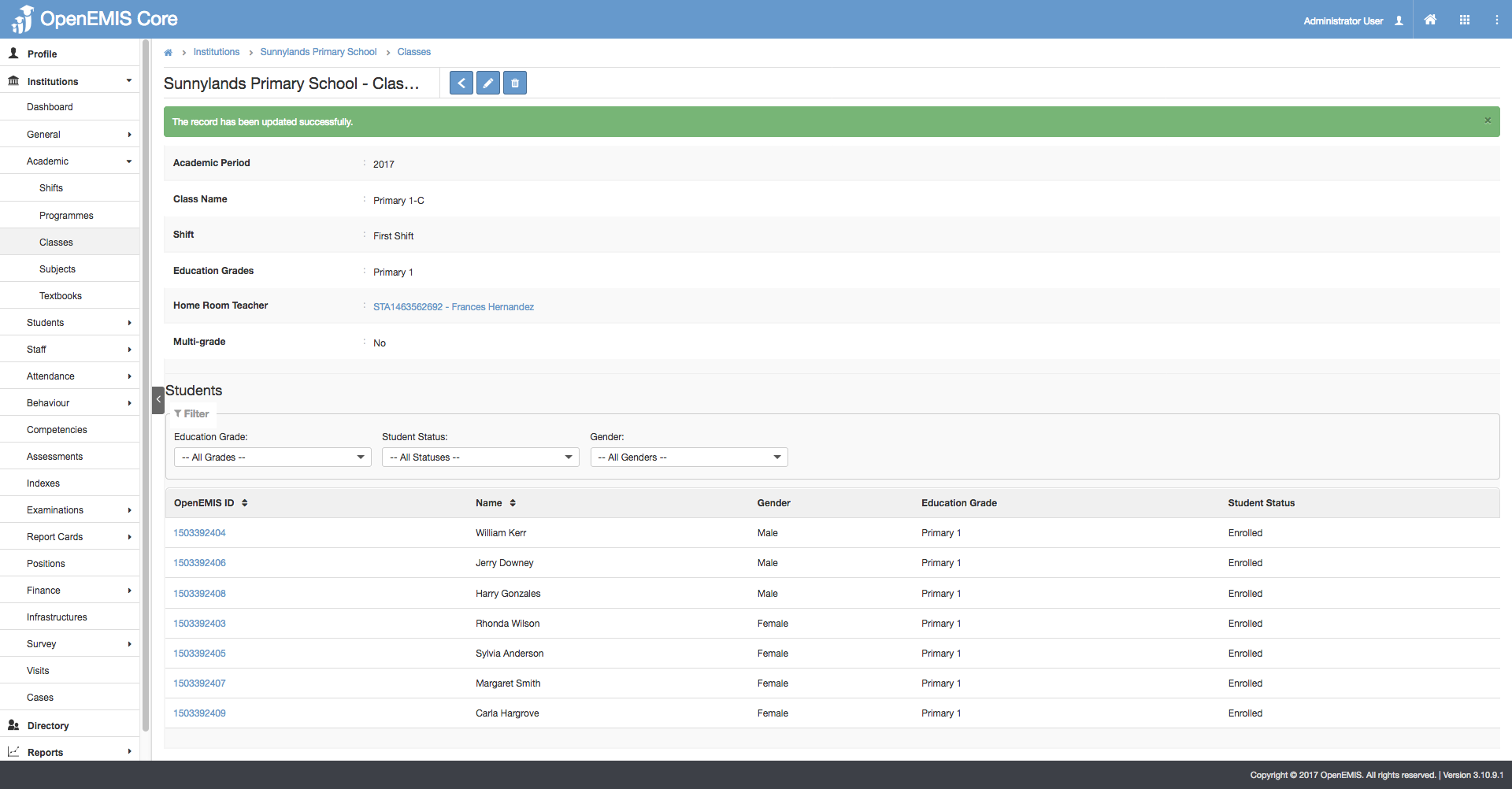
Adding Students to Subjects
Scenario A: If Auto-Allocation for the Subject is set to ‘Yes’
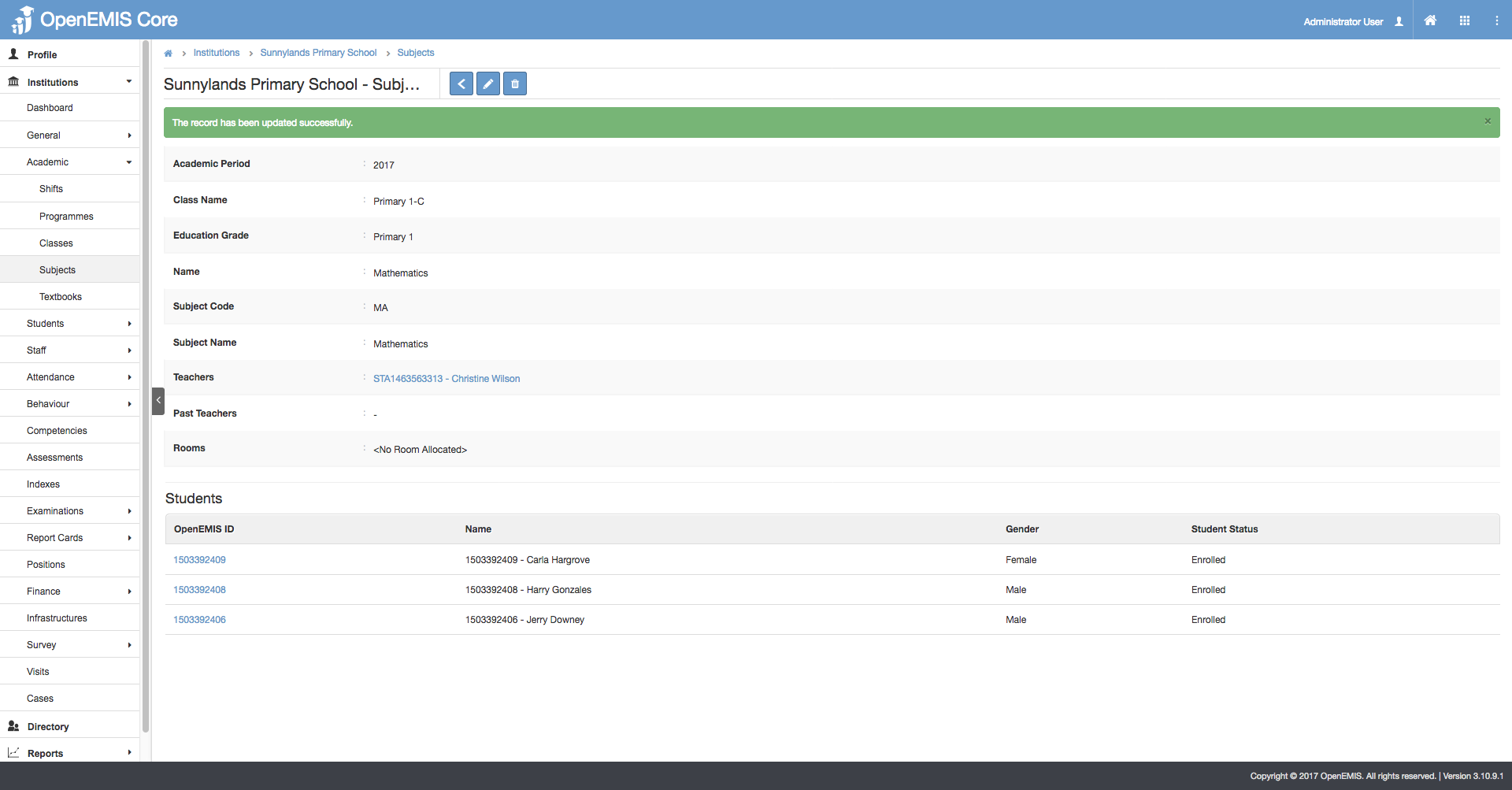
- Students added into the class will be added automatically to the Subject(s)
When a new student is added into a class, this student will be added automatically to the subjects which were configured to have ‘Auto-Allocation = Yes’ in Administration > System Setup > Education Structure – Grade Subjects
Scenario B: If Auto-Allocation for the Subject is set to ‘No’
- Administrator has to add students to the subjects manually
1) Go to Institutions > Academic > Subjects
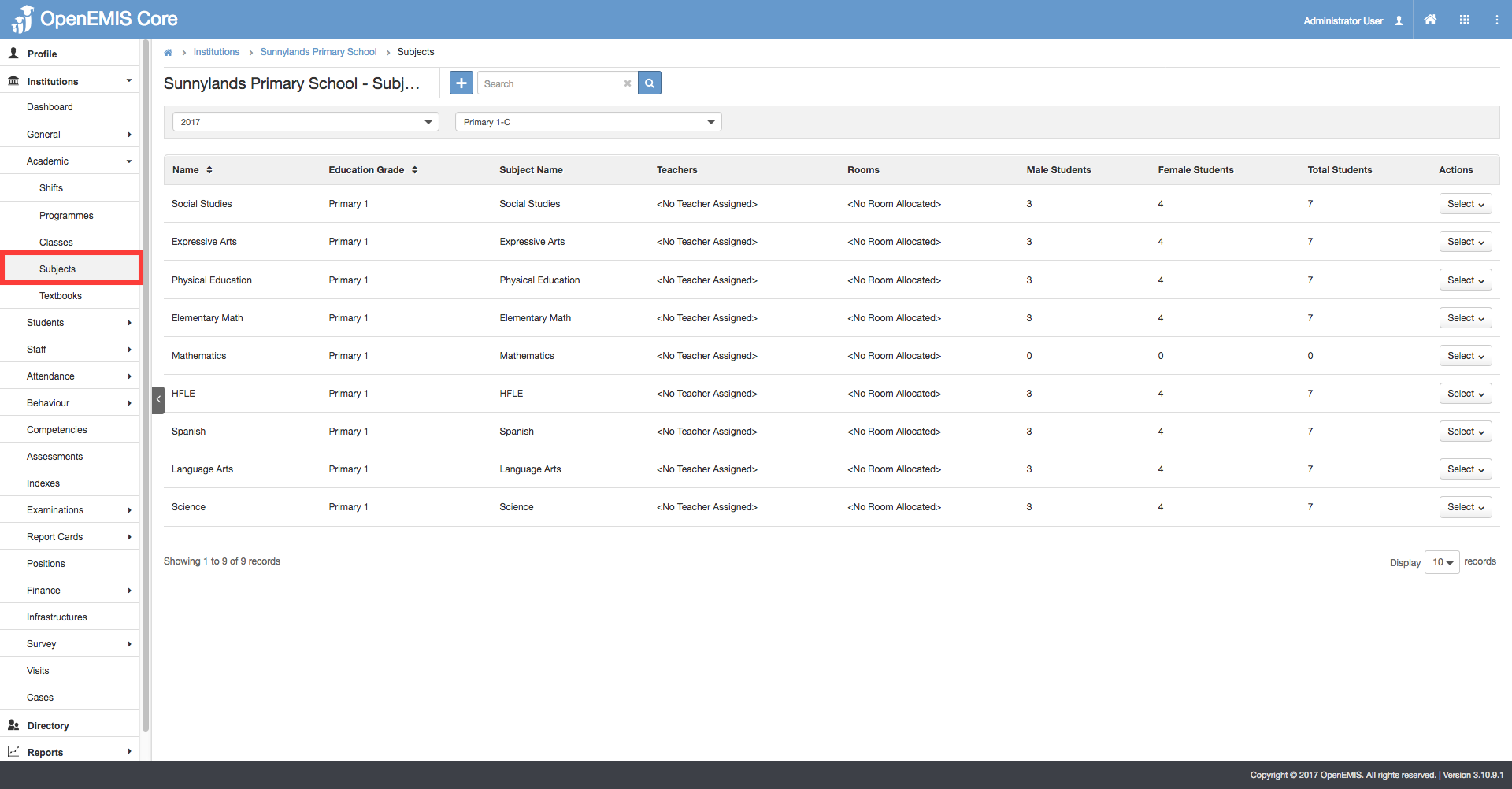
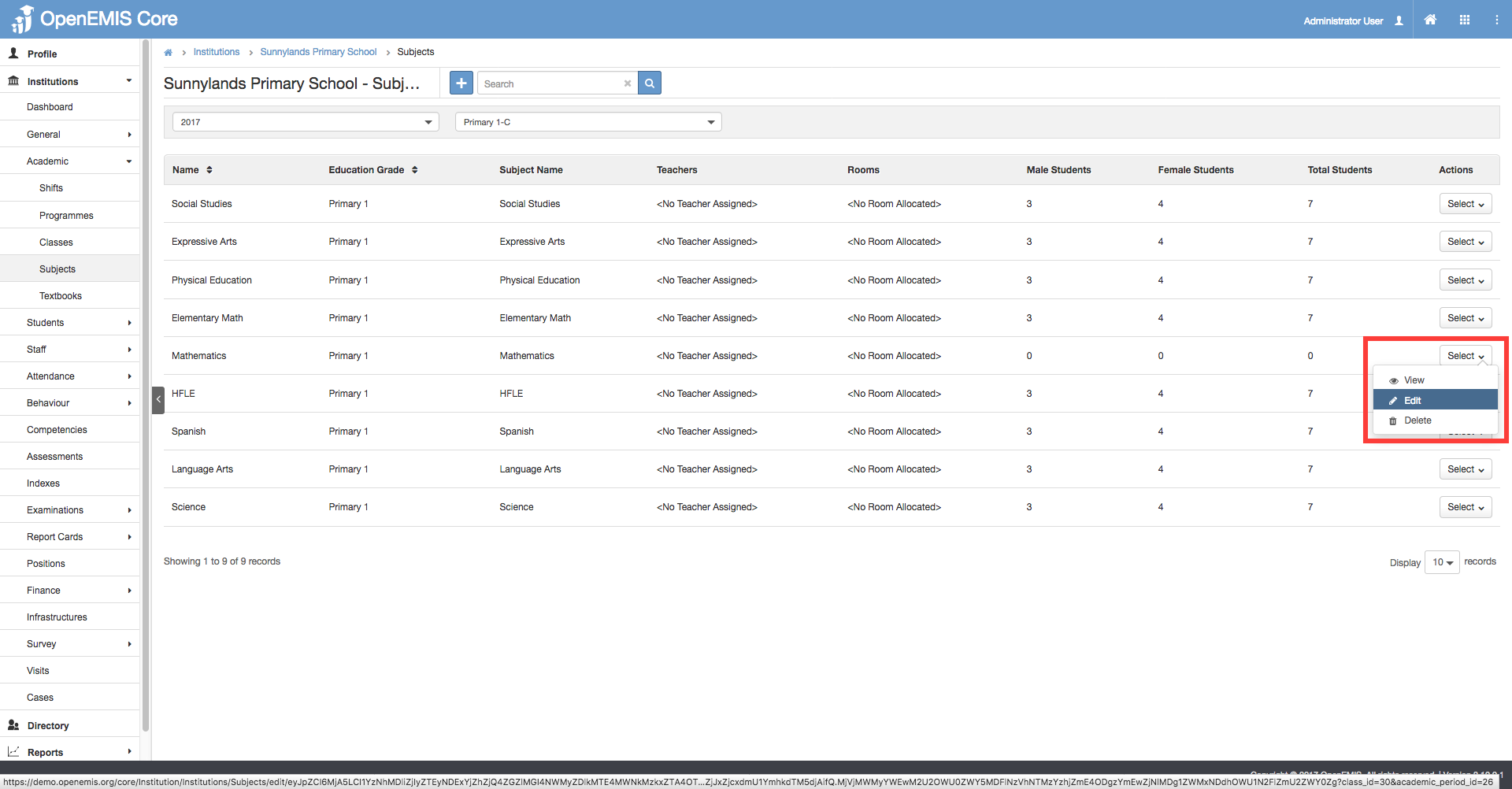
2) Select the Subject that you would like to add students to. Select ‘Edit’ from the Actions bar.
3) Assign a Teacher and Classroom for the subject (optional)

4) Select the students that you would like to assign into the subject. Click ‘Assign’.

5) Click ‘Save’
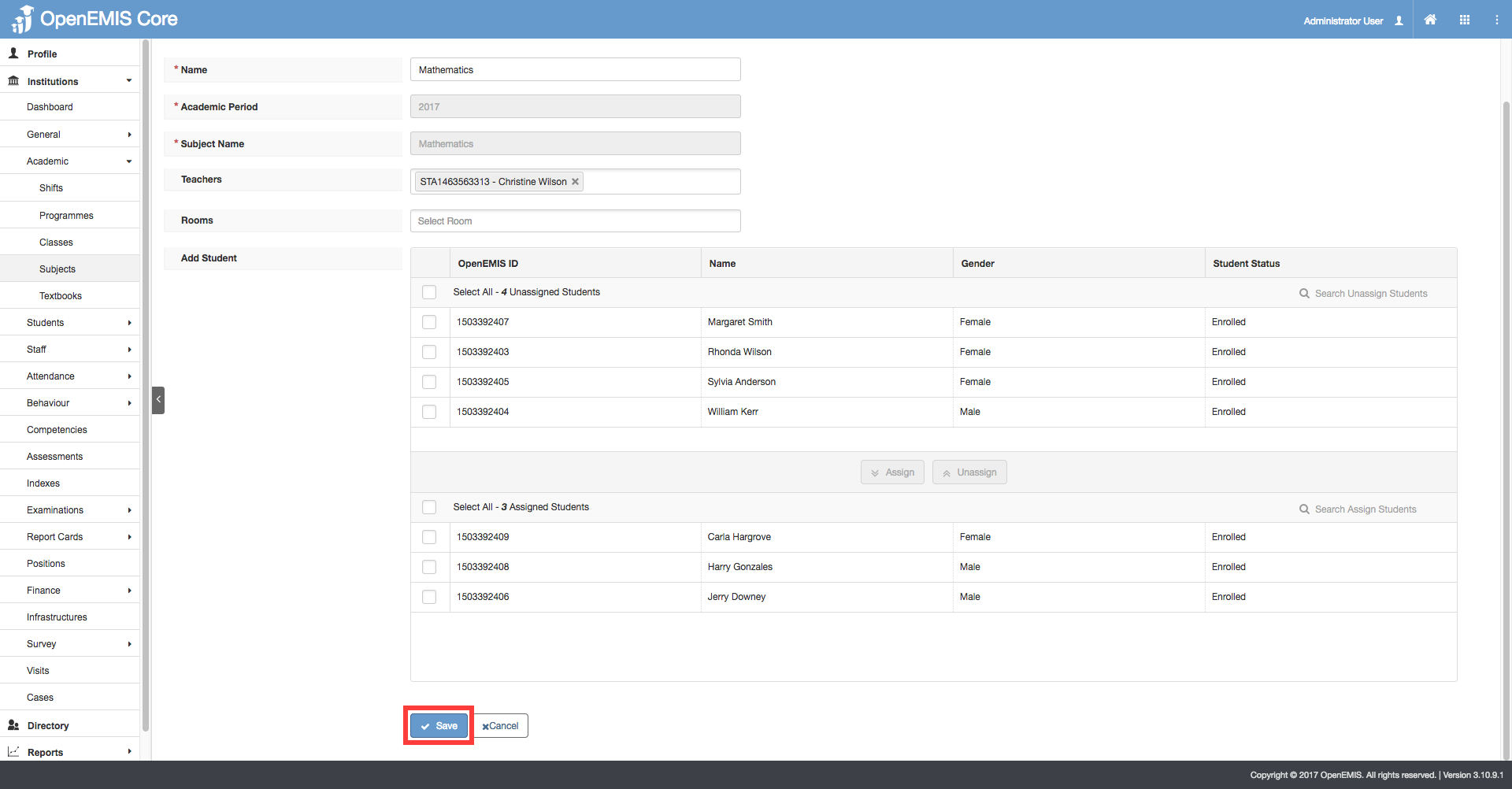
6) A message will be displayed if the students have been added into the subject successfully.