Article Name: Institutions Profile
Category/Module: Institutions,Administration
Version: 3.75.15
Date Updated: 13 July 2022
This feature allows user
– School Principals/School Admin level
– Ministry Officers level:
1. Generating Institution Profile one by one
2. Generating all Institution Profile
Add Profile
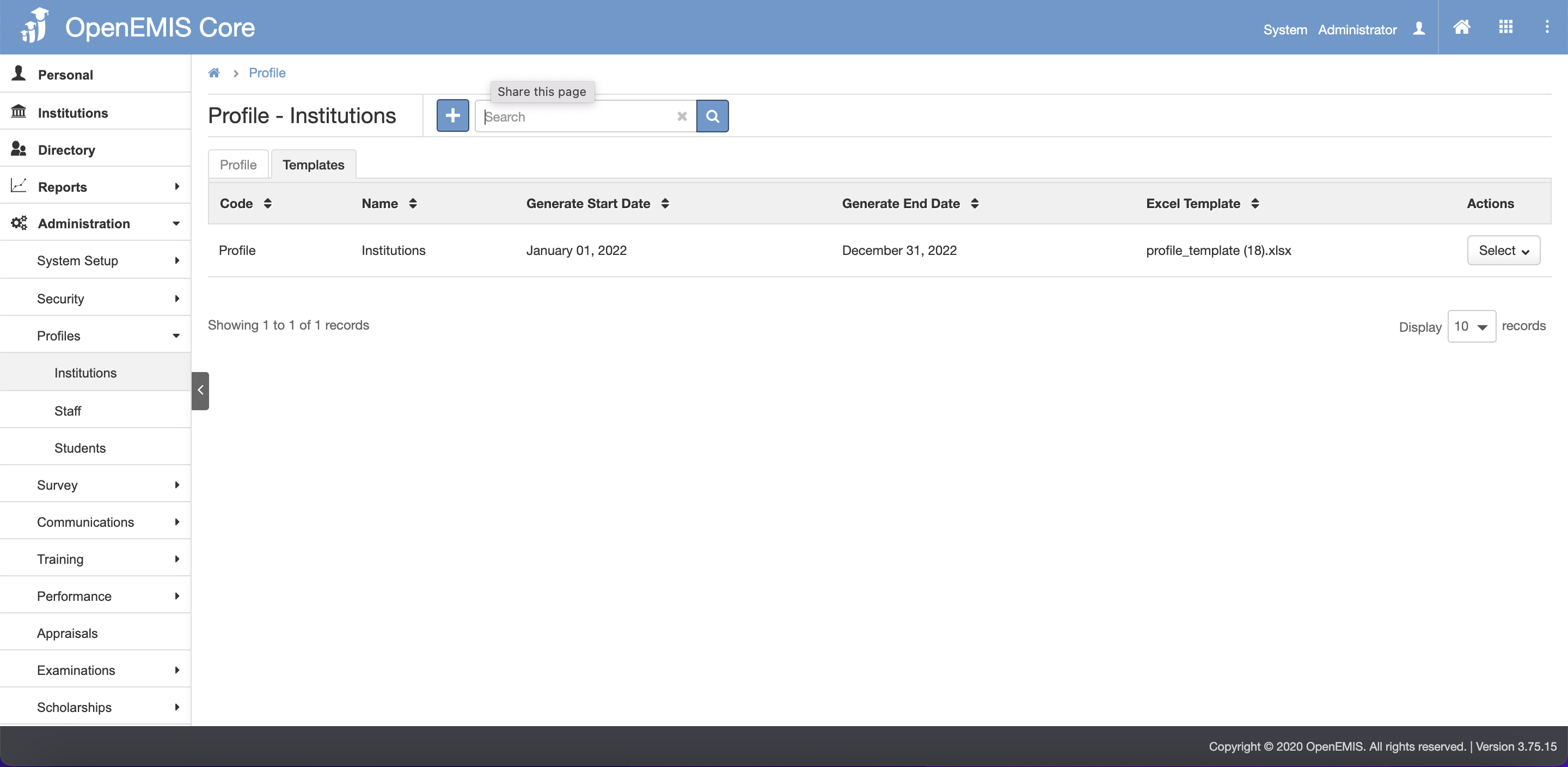
1. Go to Administration > Profiles > Institutions on the left menu.
2. Click the “+(add)” button.
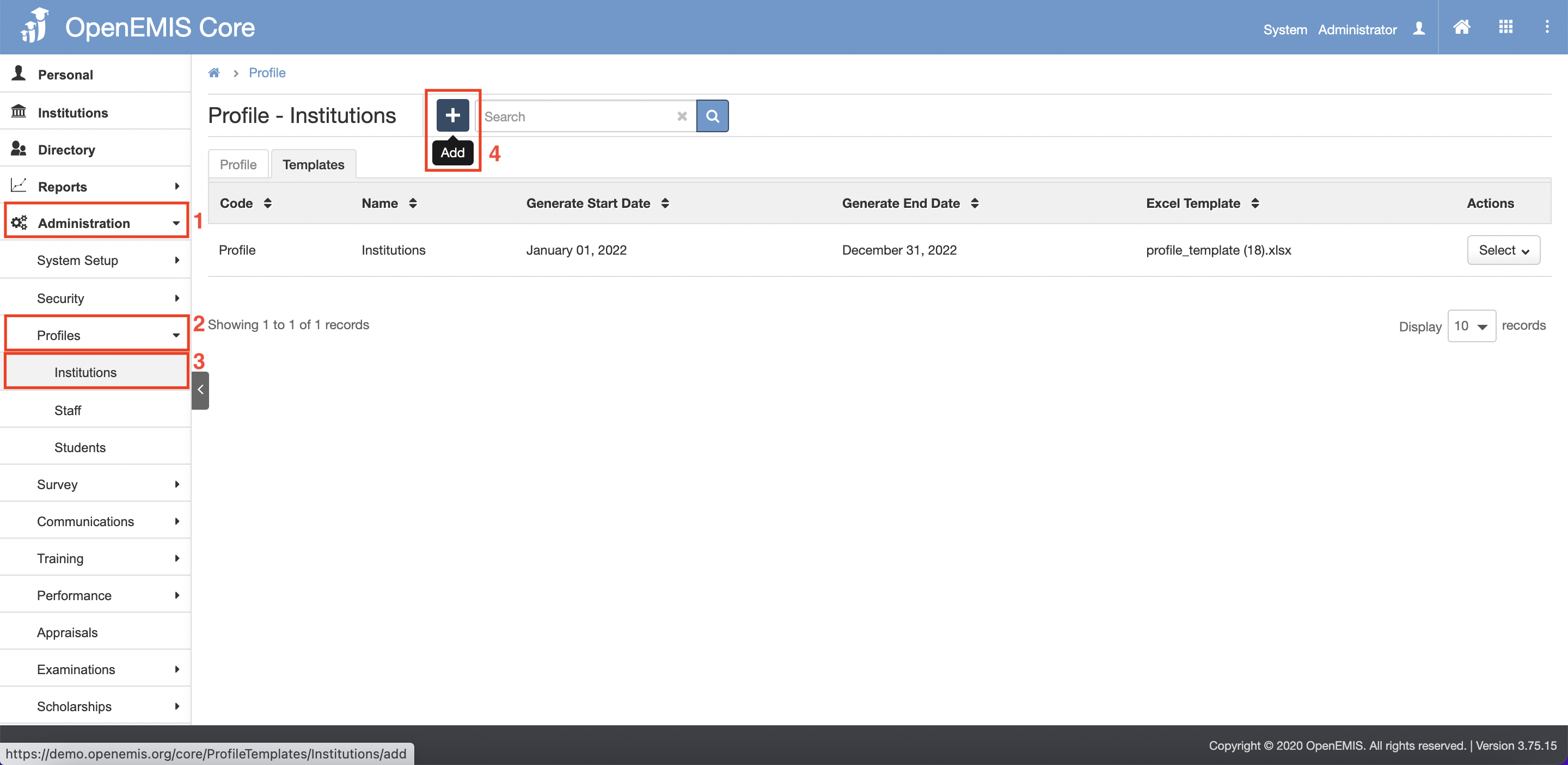
3. Click the download template button.
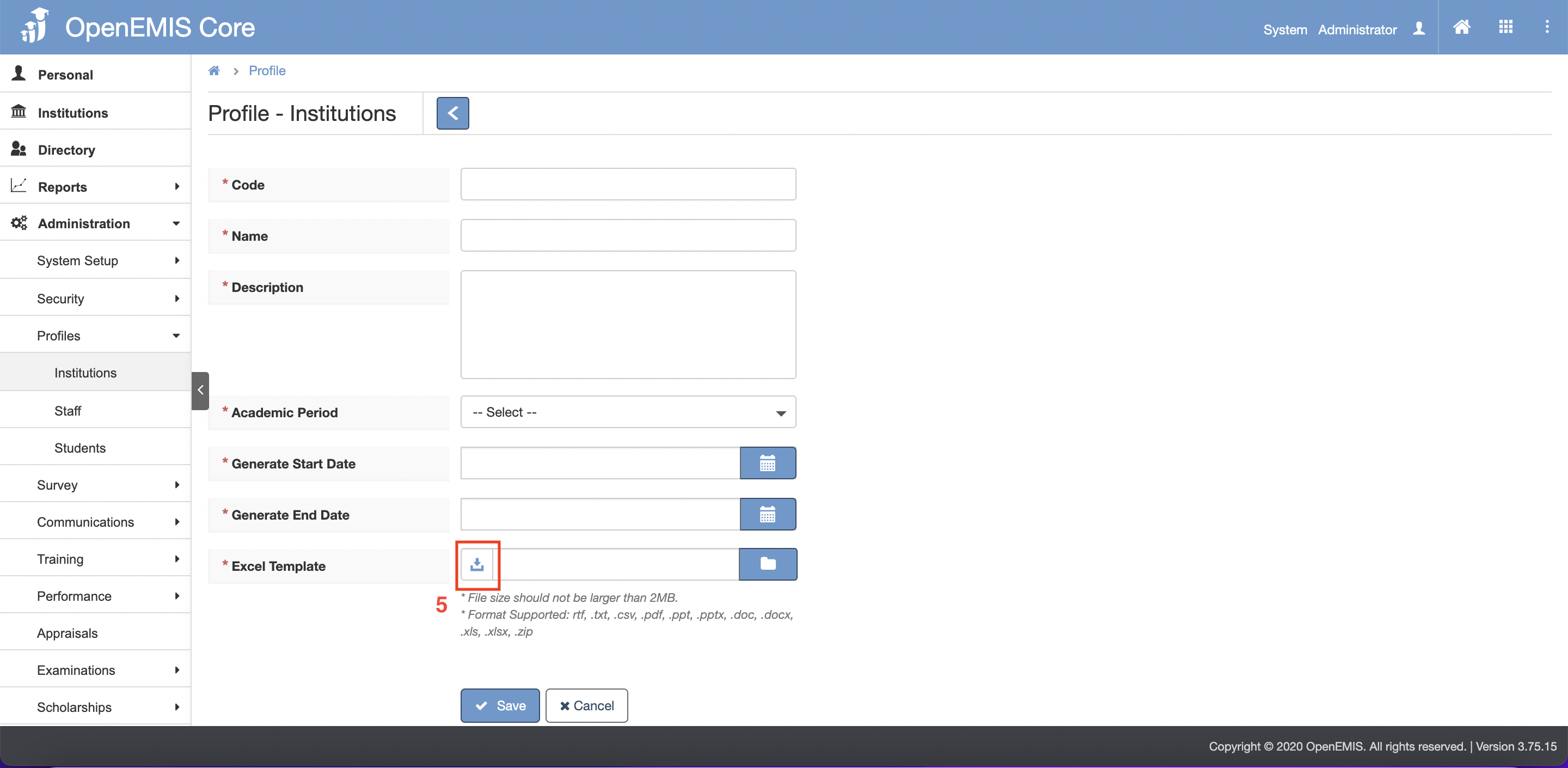
4. After template have been downloaded, click the browse button.
5. Select the template that have been downloaded earlier.
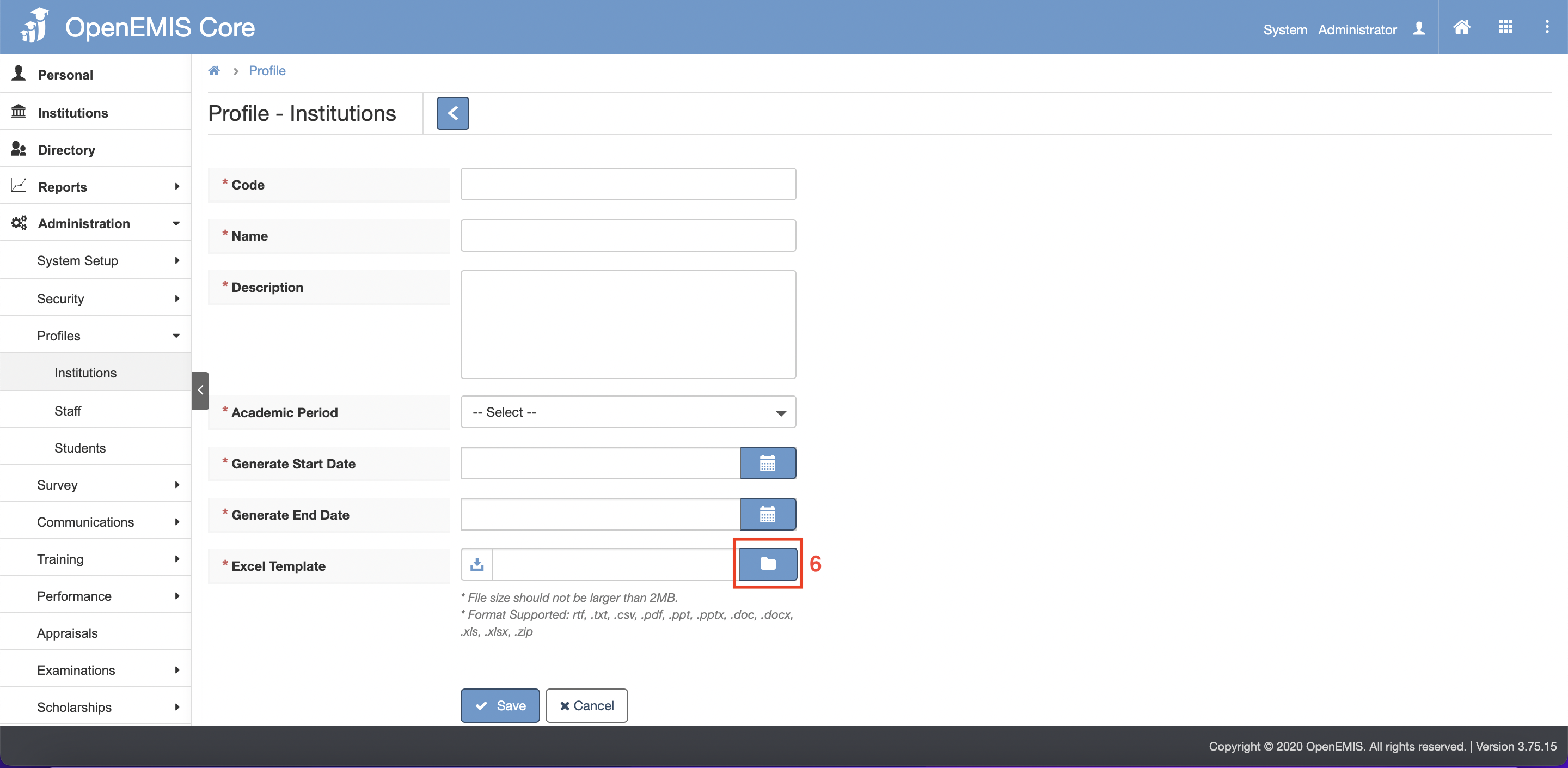
6. Fill up the necessary and mandatory fields.
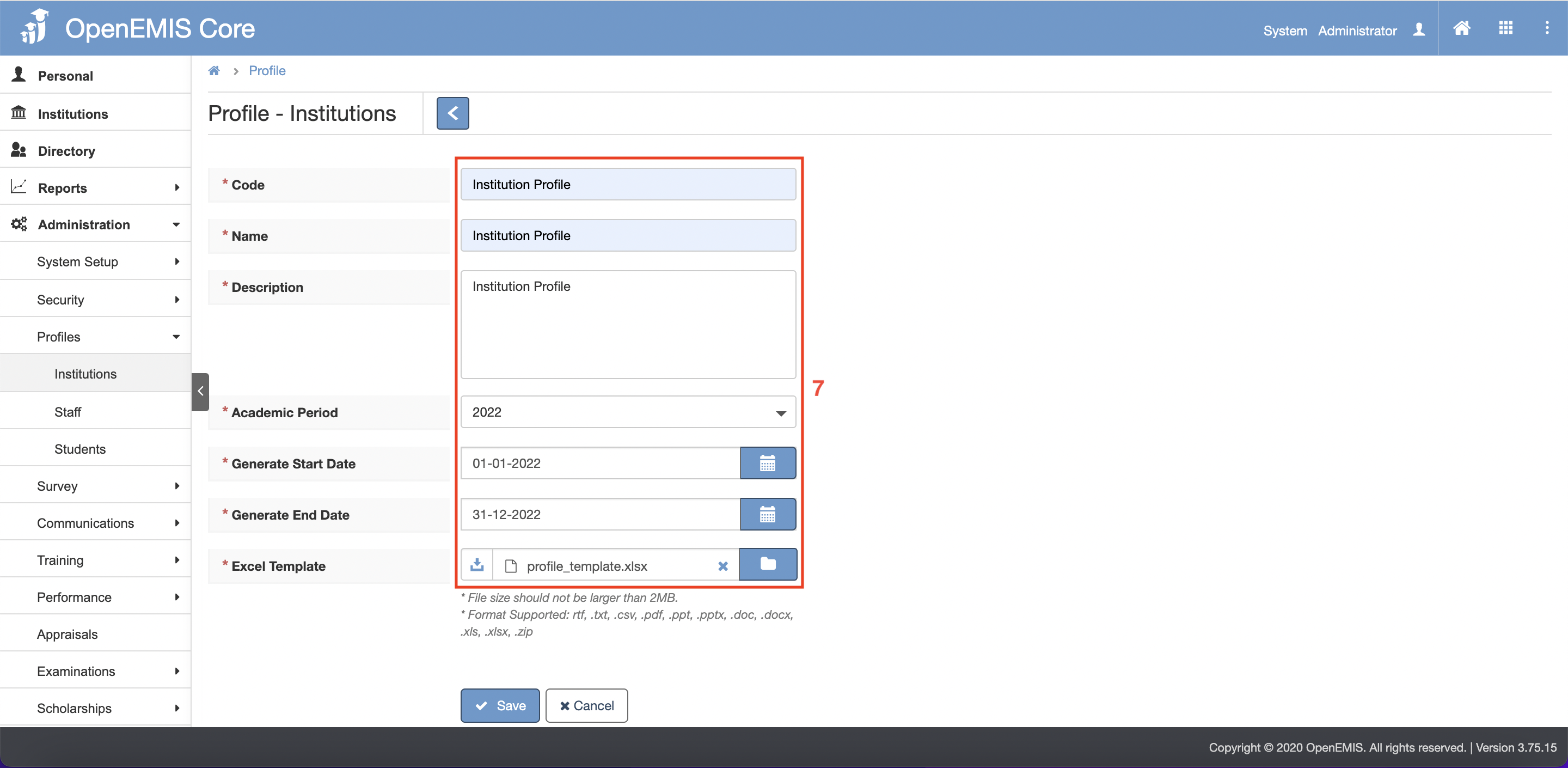
7. After filling up the fields, click the save button.
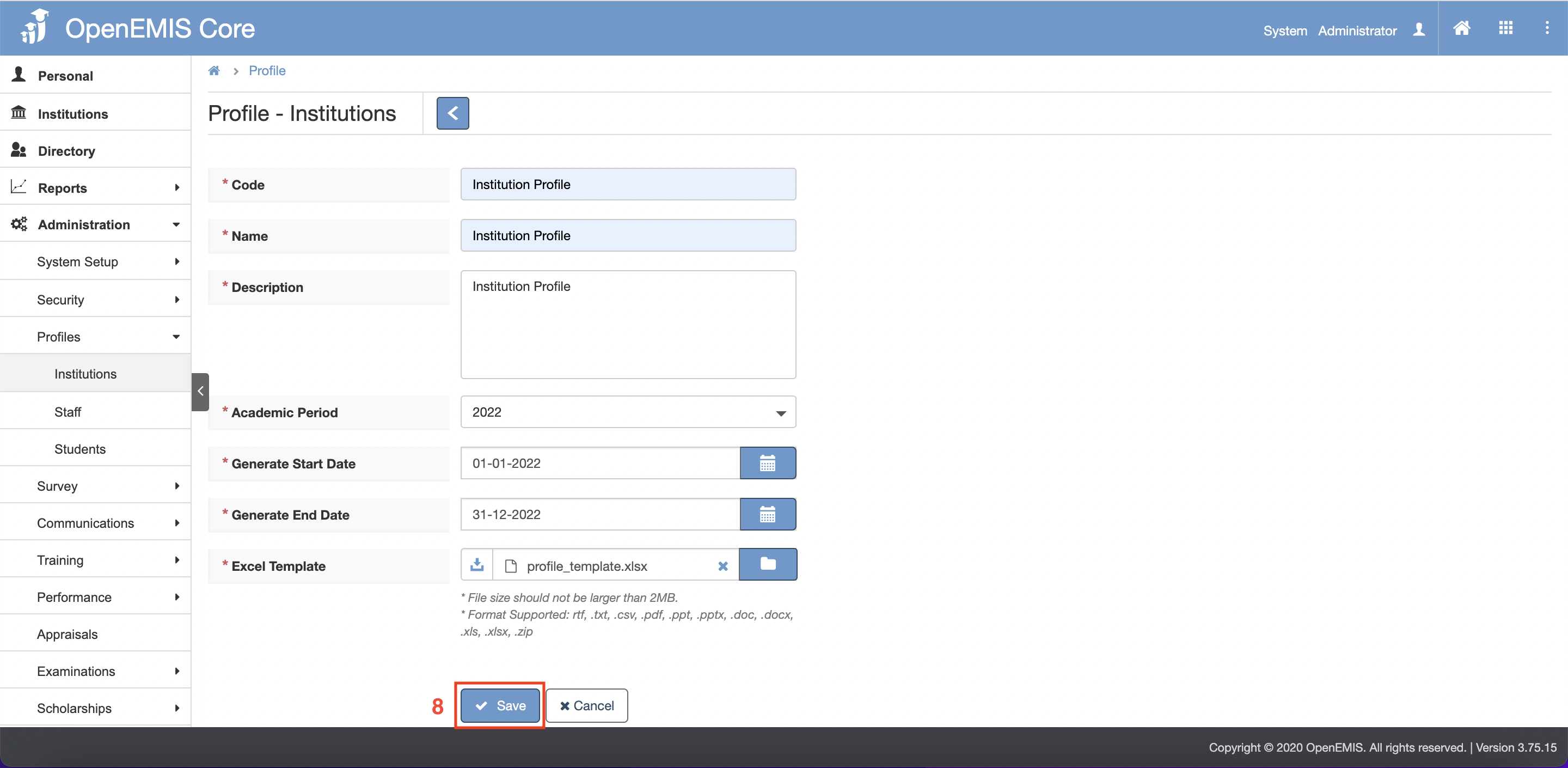
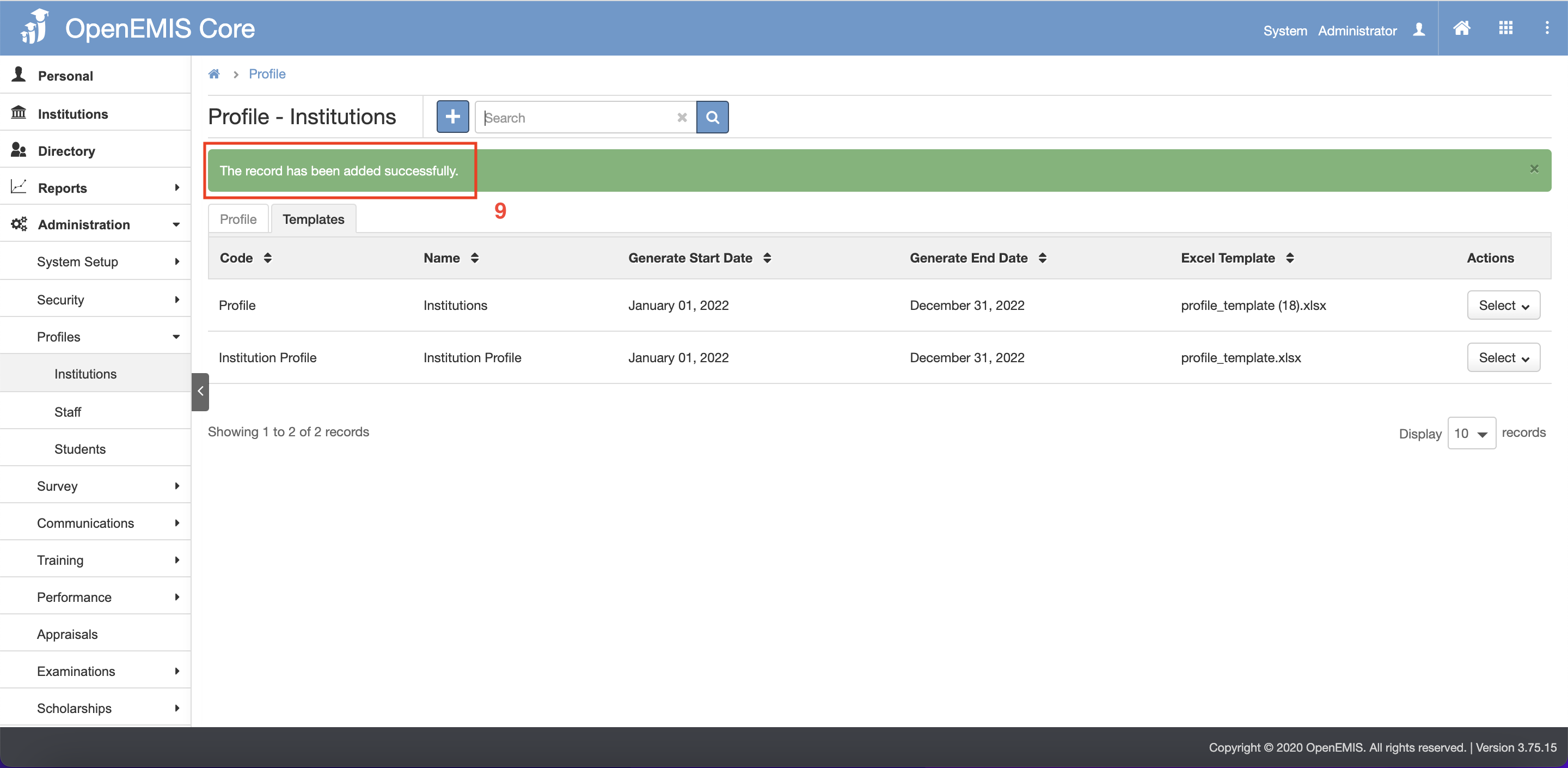
8. There will be a pop up message indicating that profile have been added.
Edit Profile
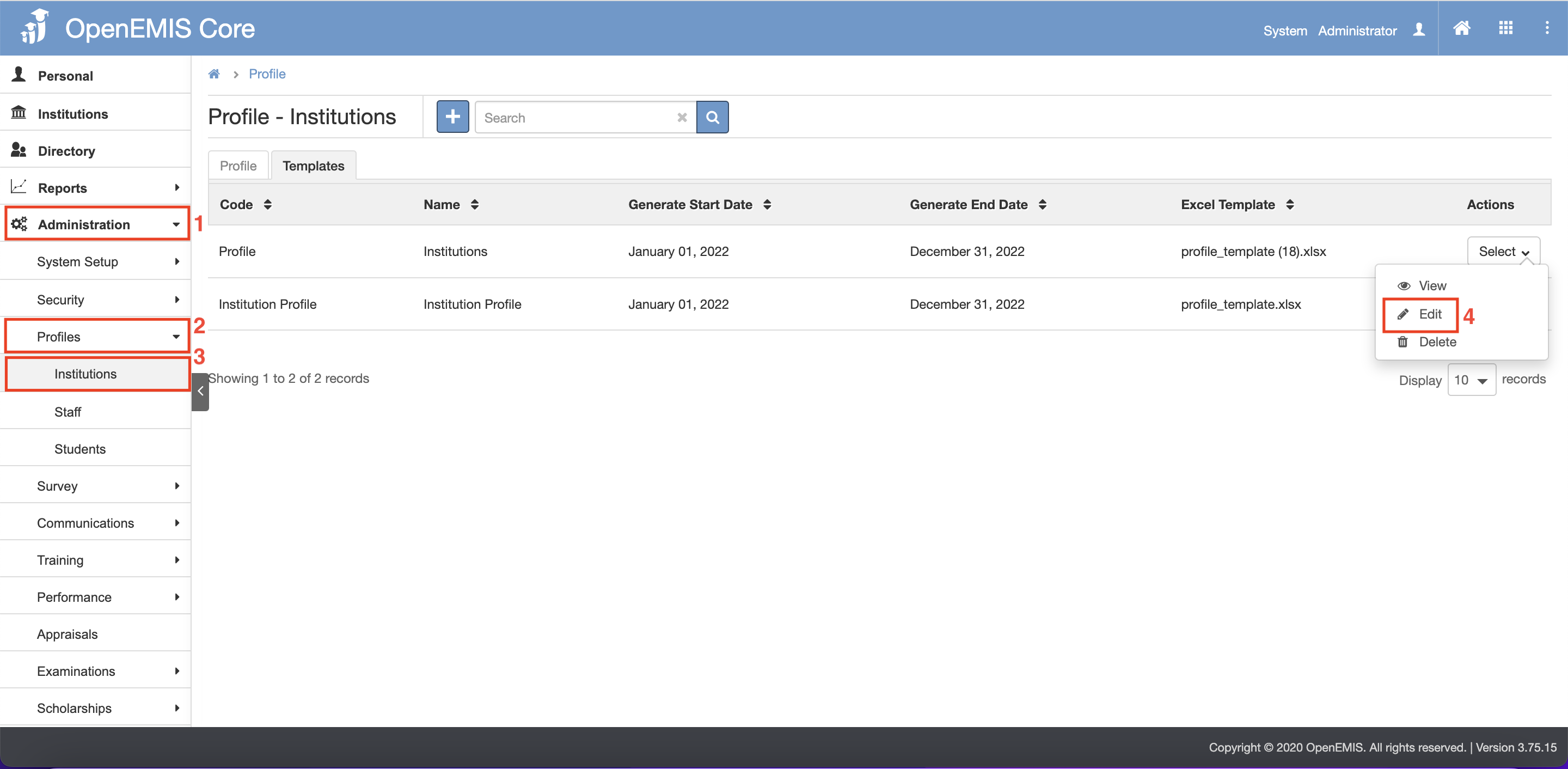
1. Go to Administration > Profiles > Institutions on the left menu.
2. Under Action column, select Edit from the dropdown.
3. Edit the necessary fields.
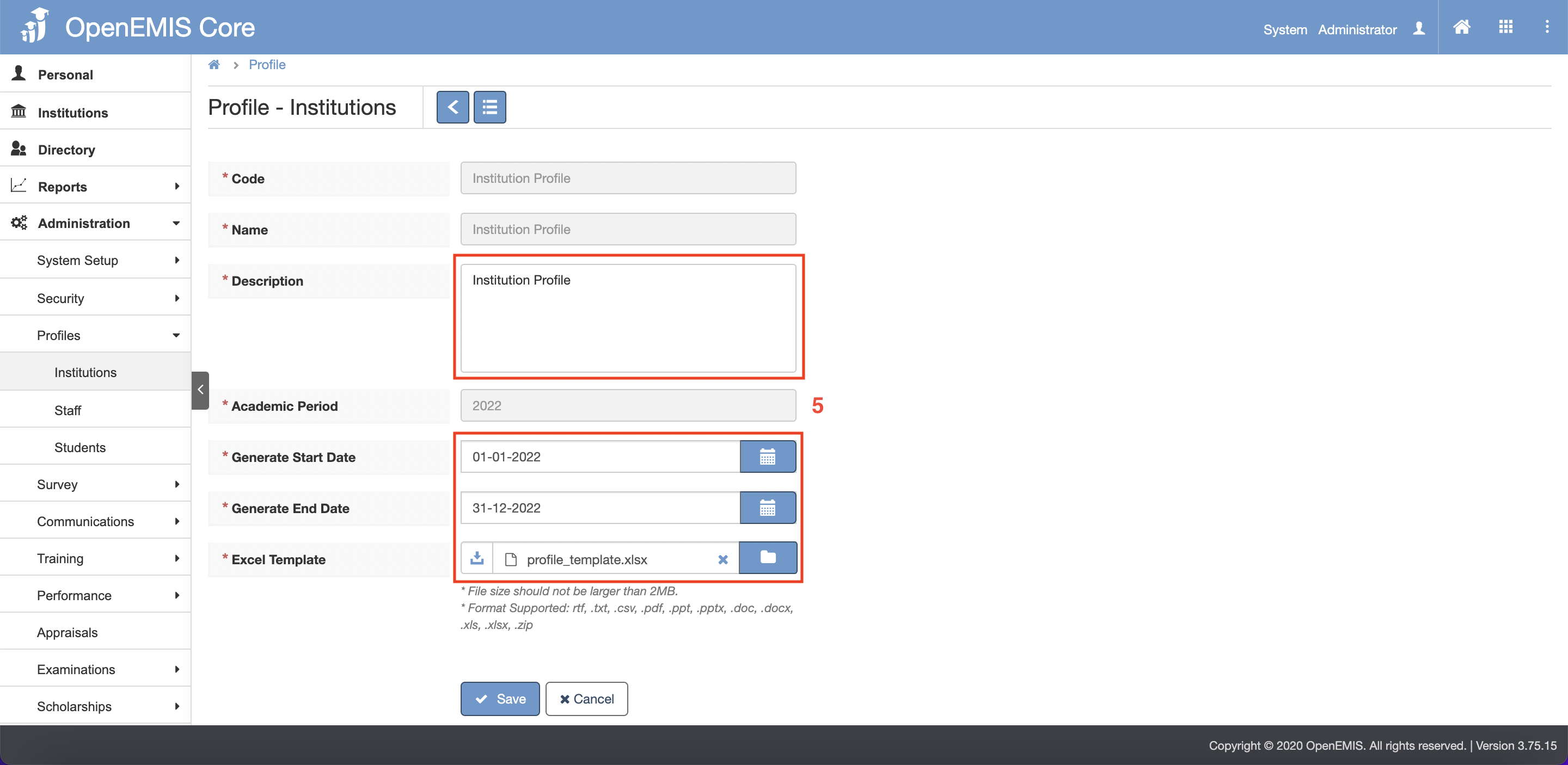
– Only Description, Generate Start Date, Generate End Date and Excel Template can only be edited
– If need to edit Code, Name or Academic Period, a new profile is to be created.
4. After editing the fields, click the save button.
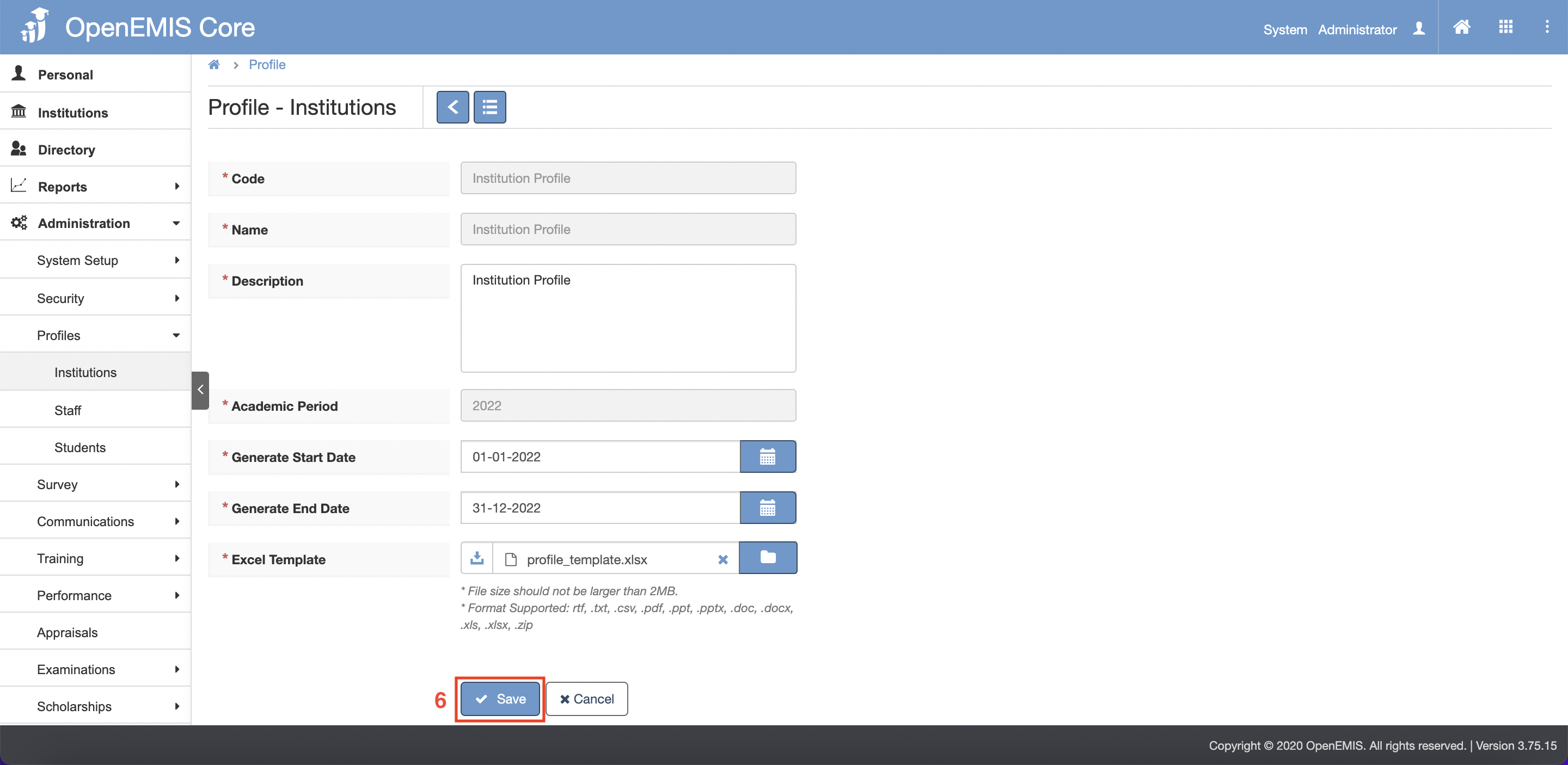
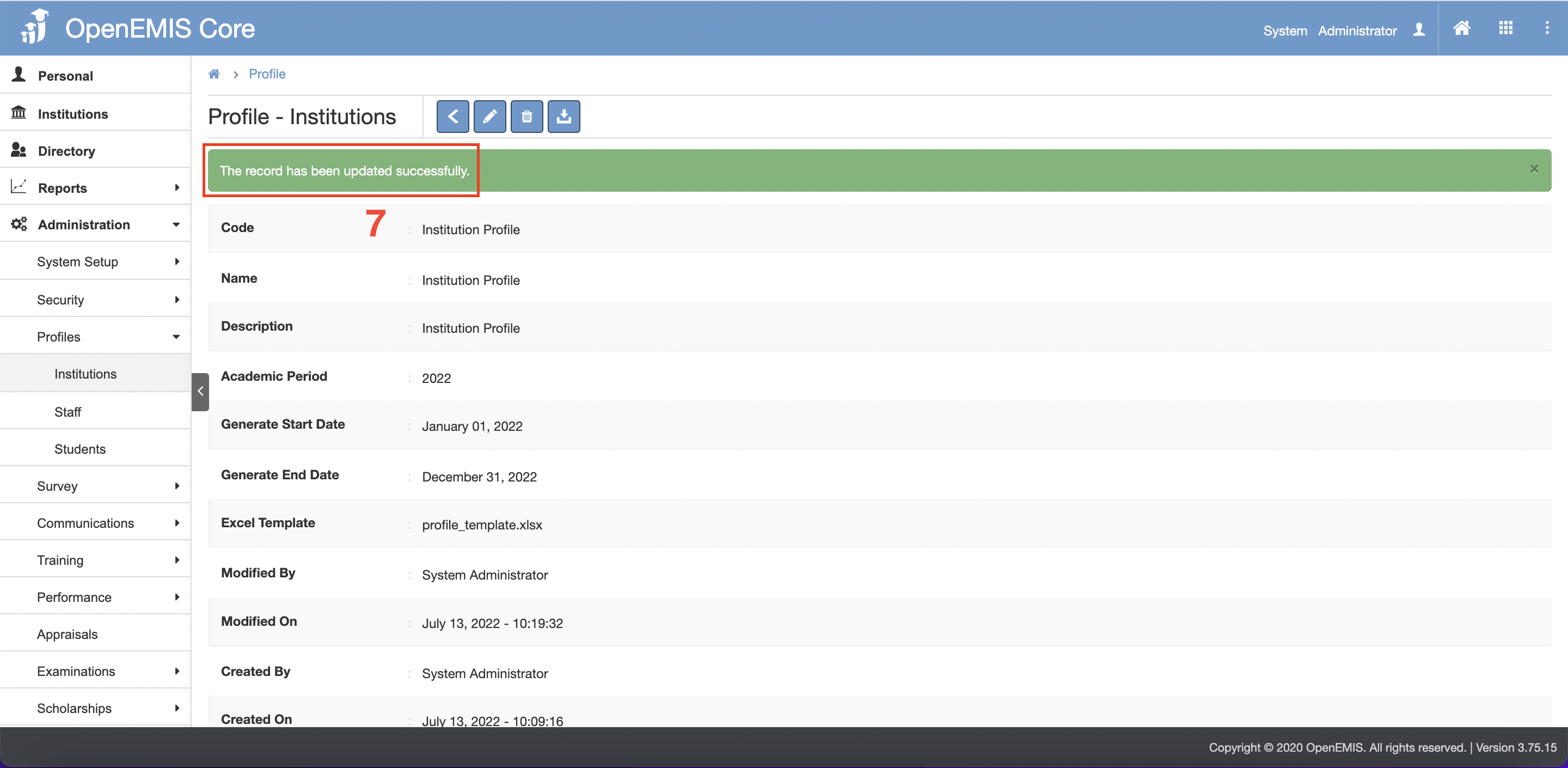
5. There will be a pop up message indicating that profile have been updated successfully.
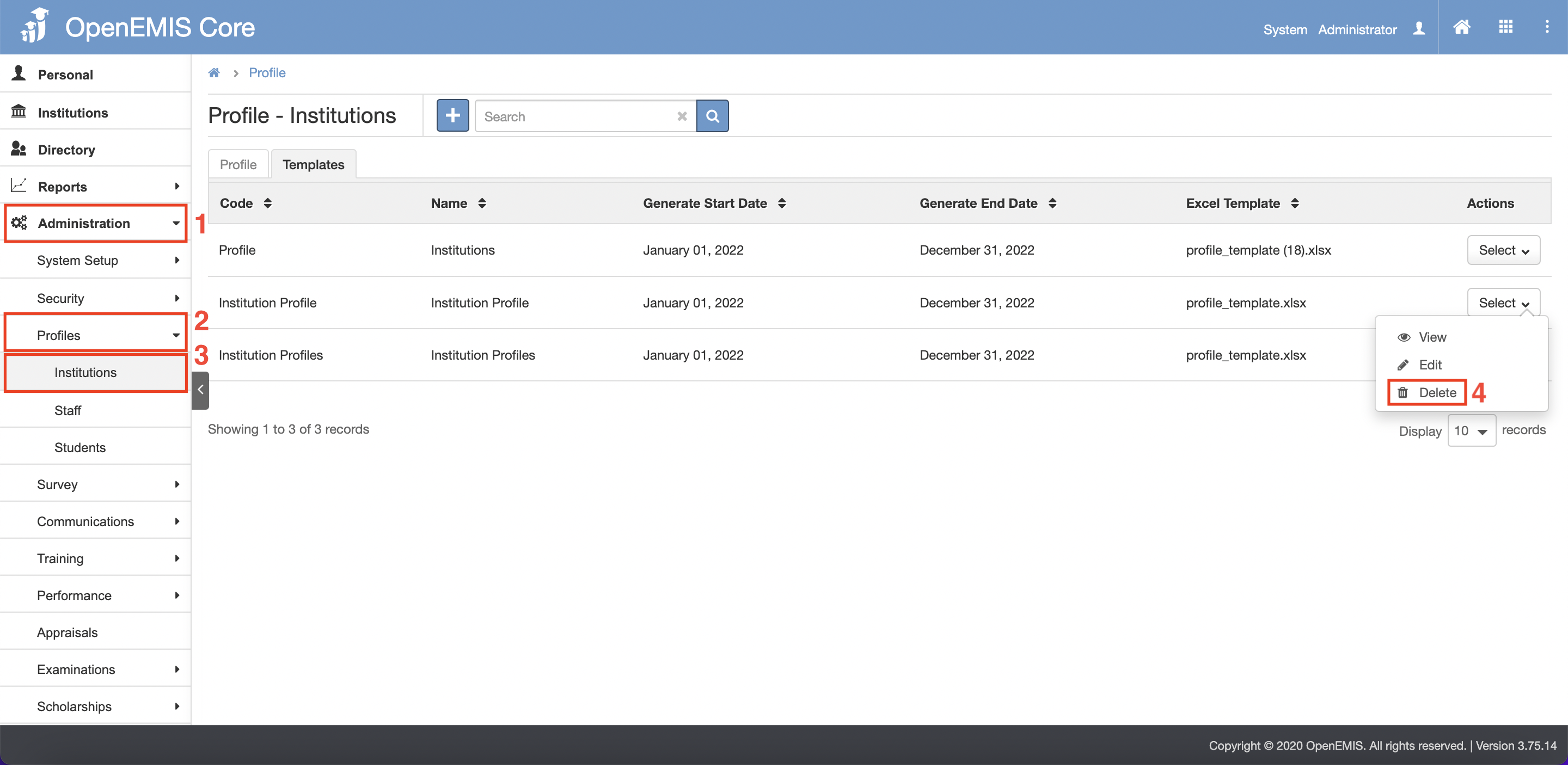
Delete Profile
- Go to Administration > Profiles > Institutions on the left menu.
- Under Action column, select Delete from the dropdown.
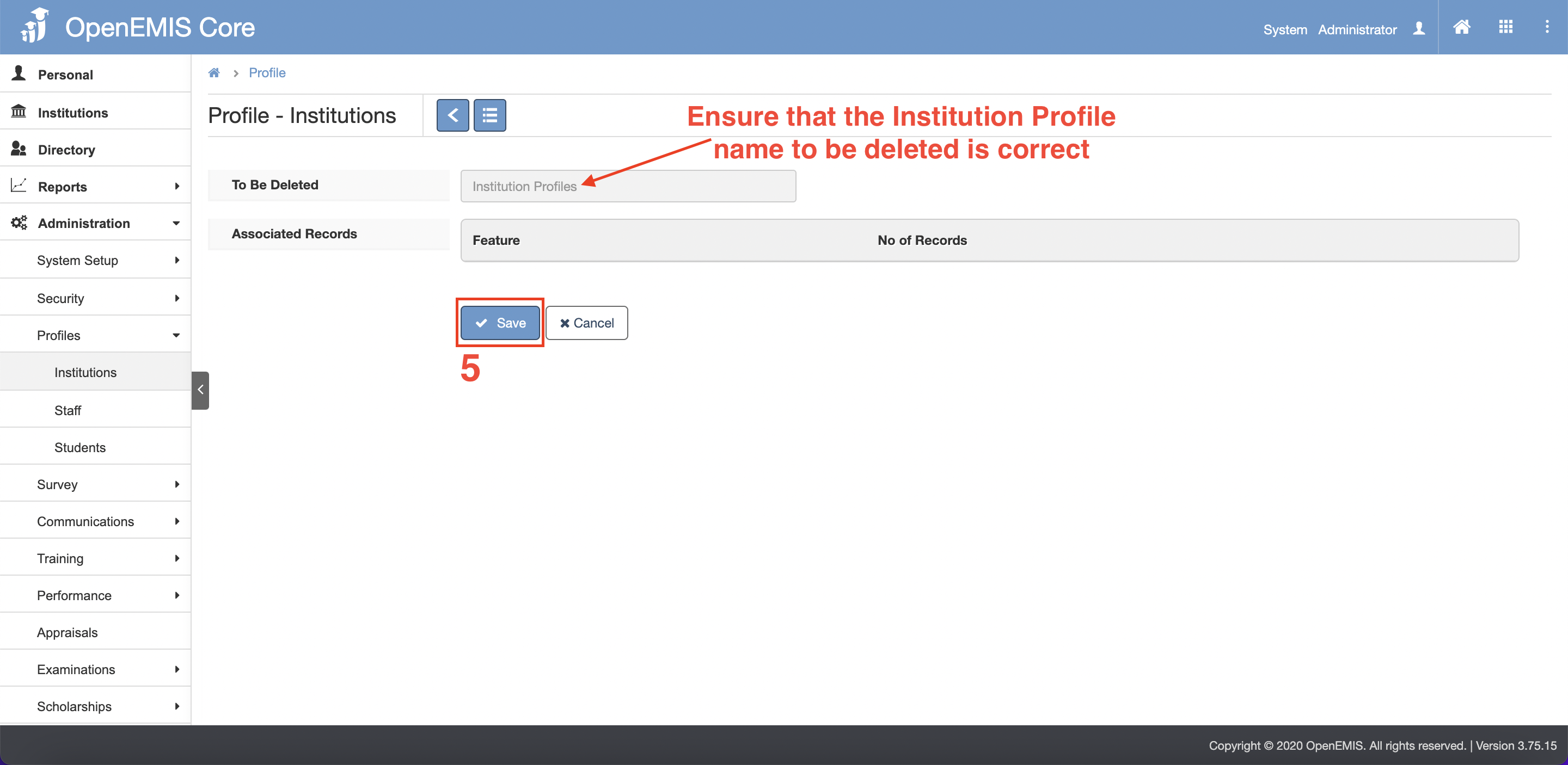
3. Ensure that the name of the profile selected in the To Be Deleted field is correct before proceeding to click Save.
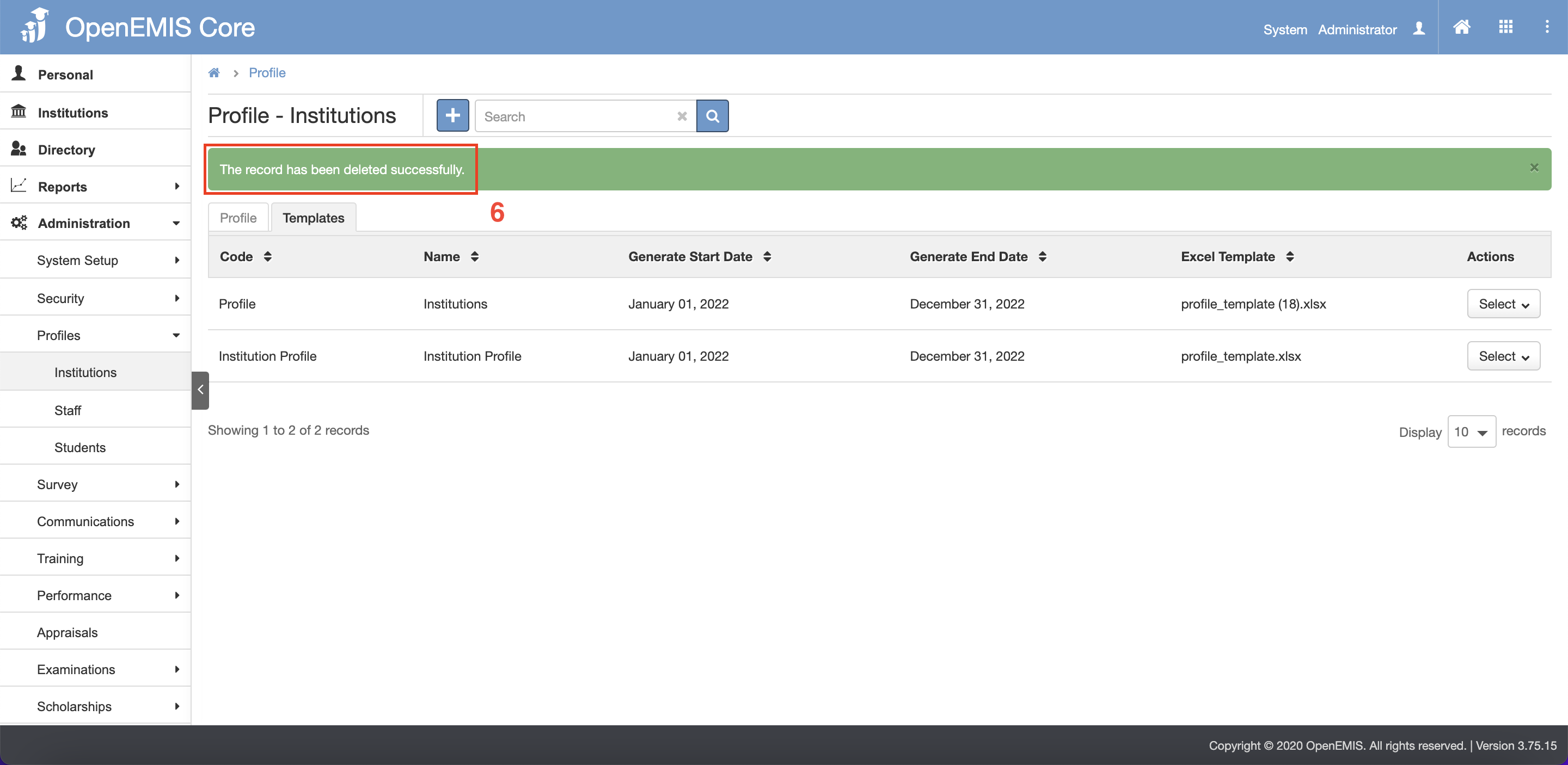
4. There will be a pop up message indicating that profile have been deleted successfully.
Generating Profile
School Principal/School Admin Level
- Go to Institutions > General > Profiles > Institutions on the left menu.
- Select the profile you want to generate.
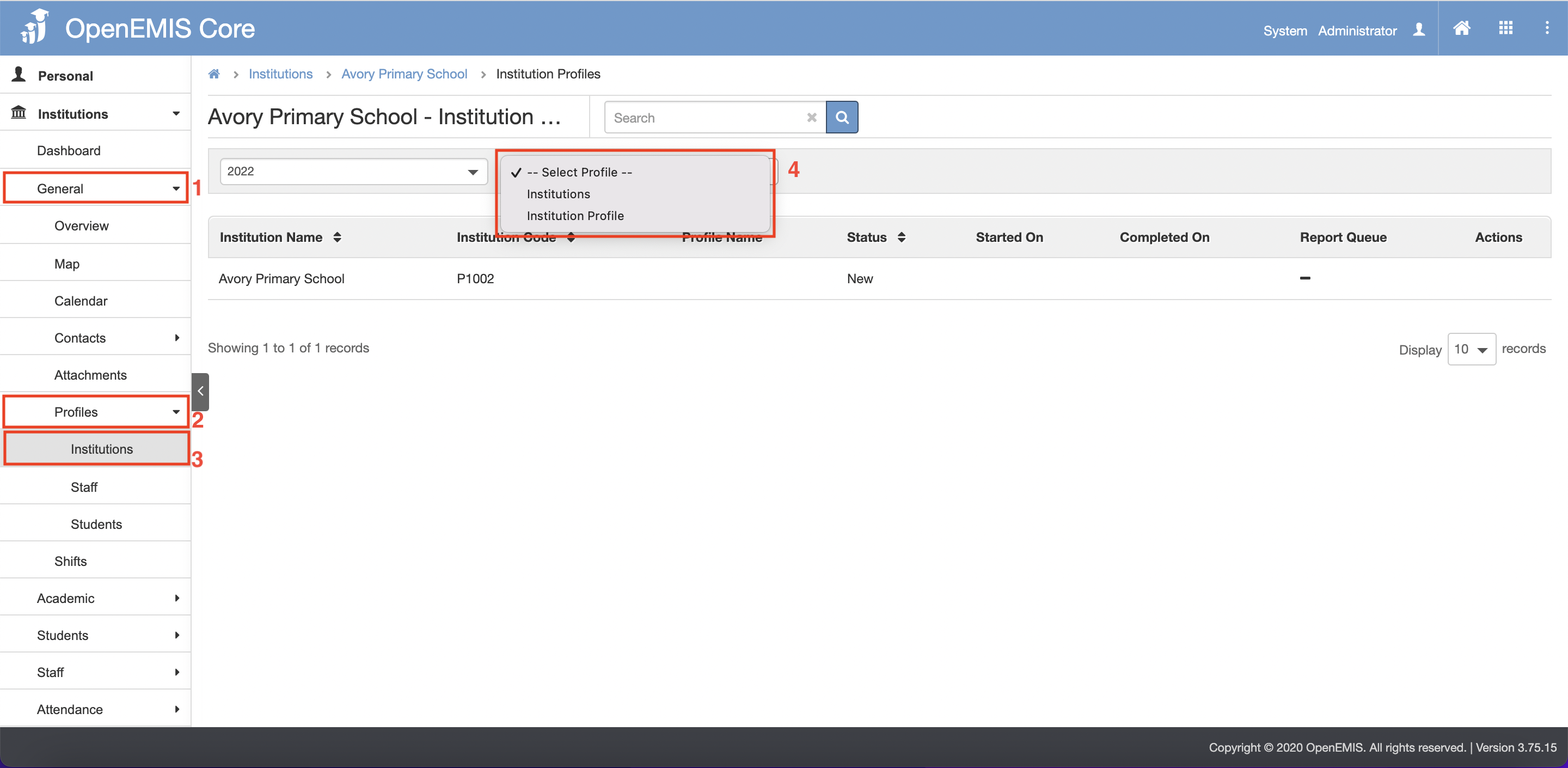
3. Under Action column, click on the select button to Generate.
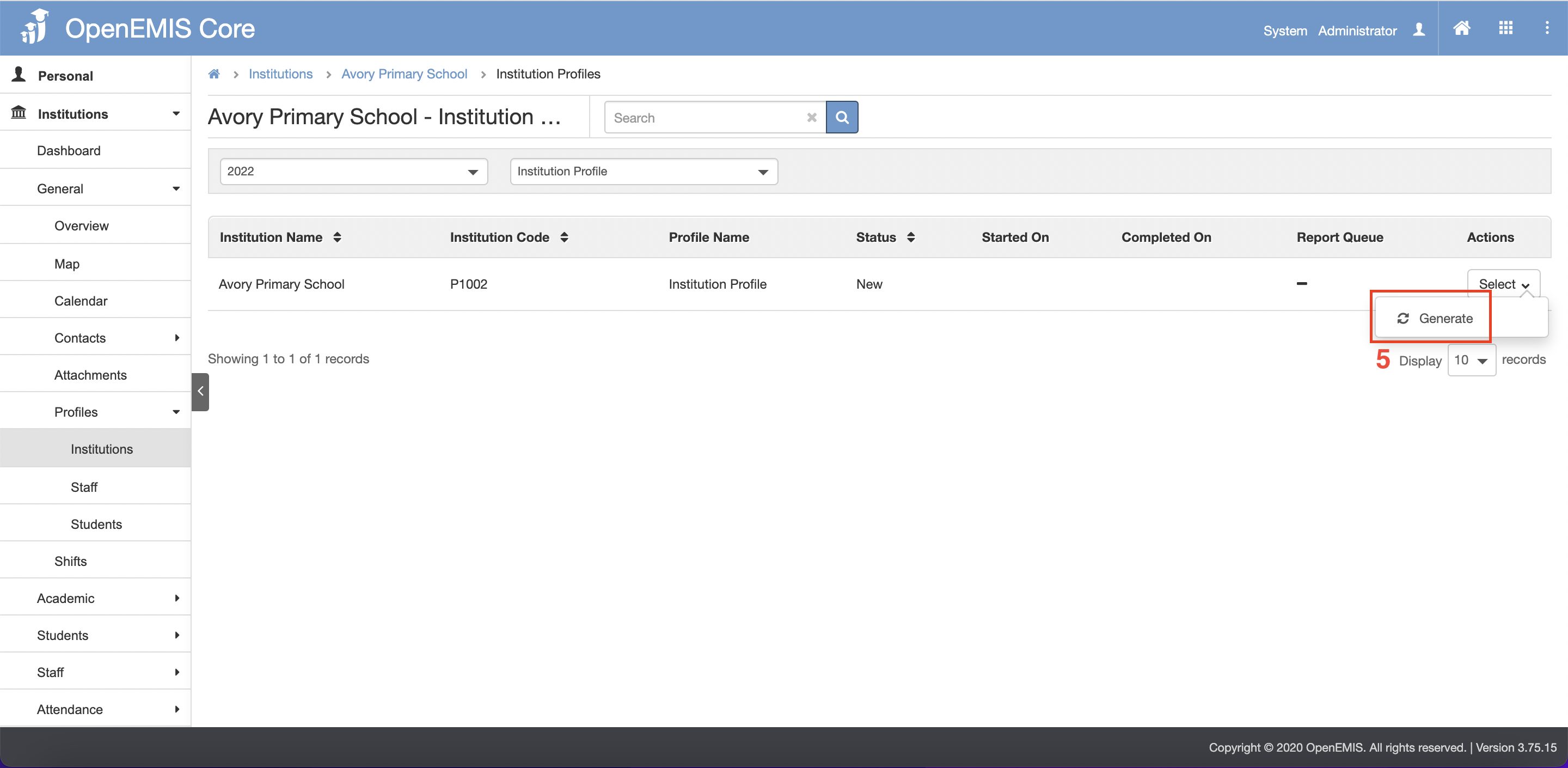
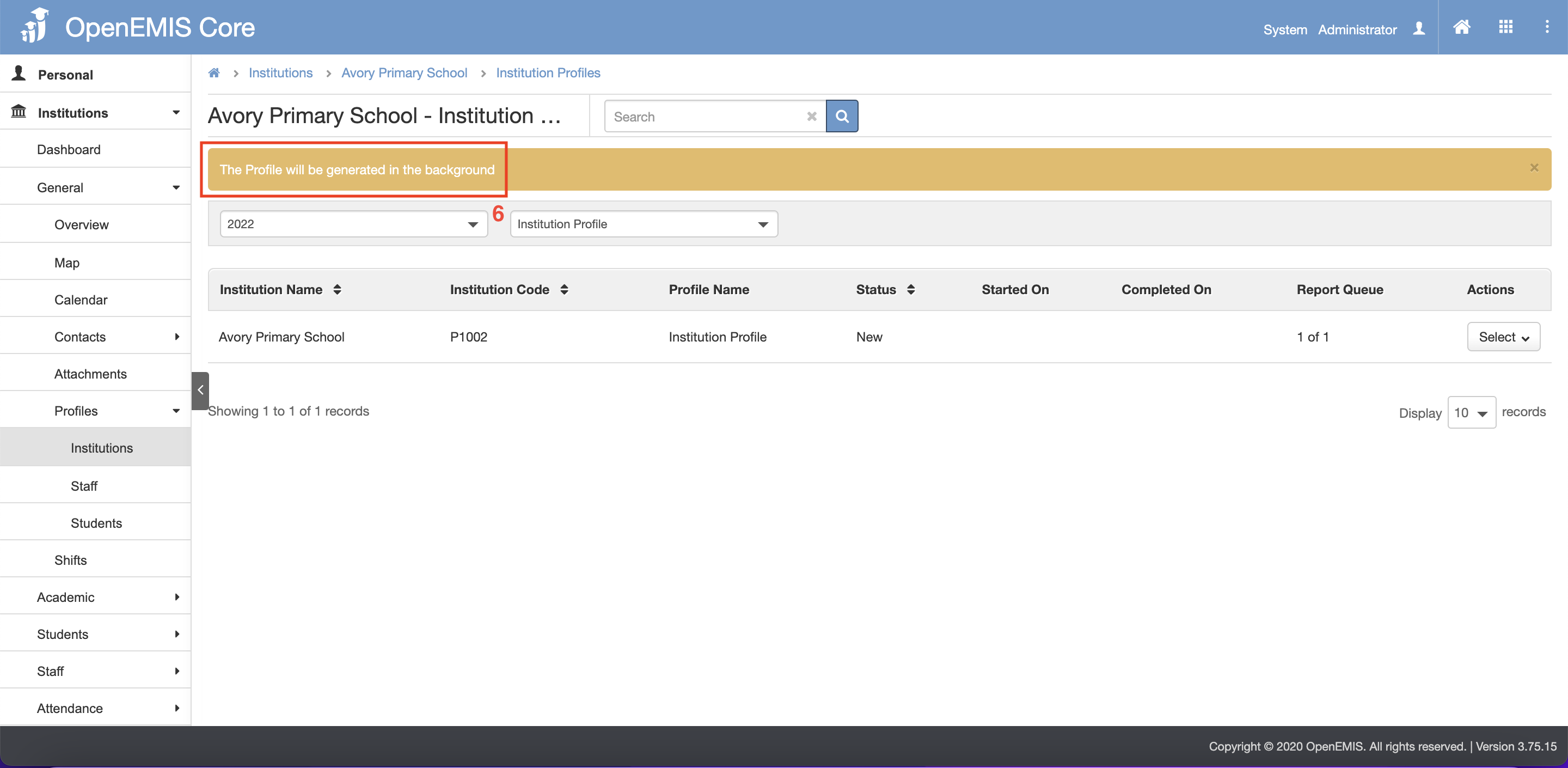
4. A pop-up message will appear indicating that the profile will be generated.
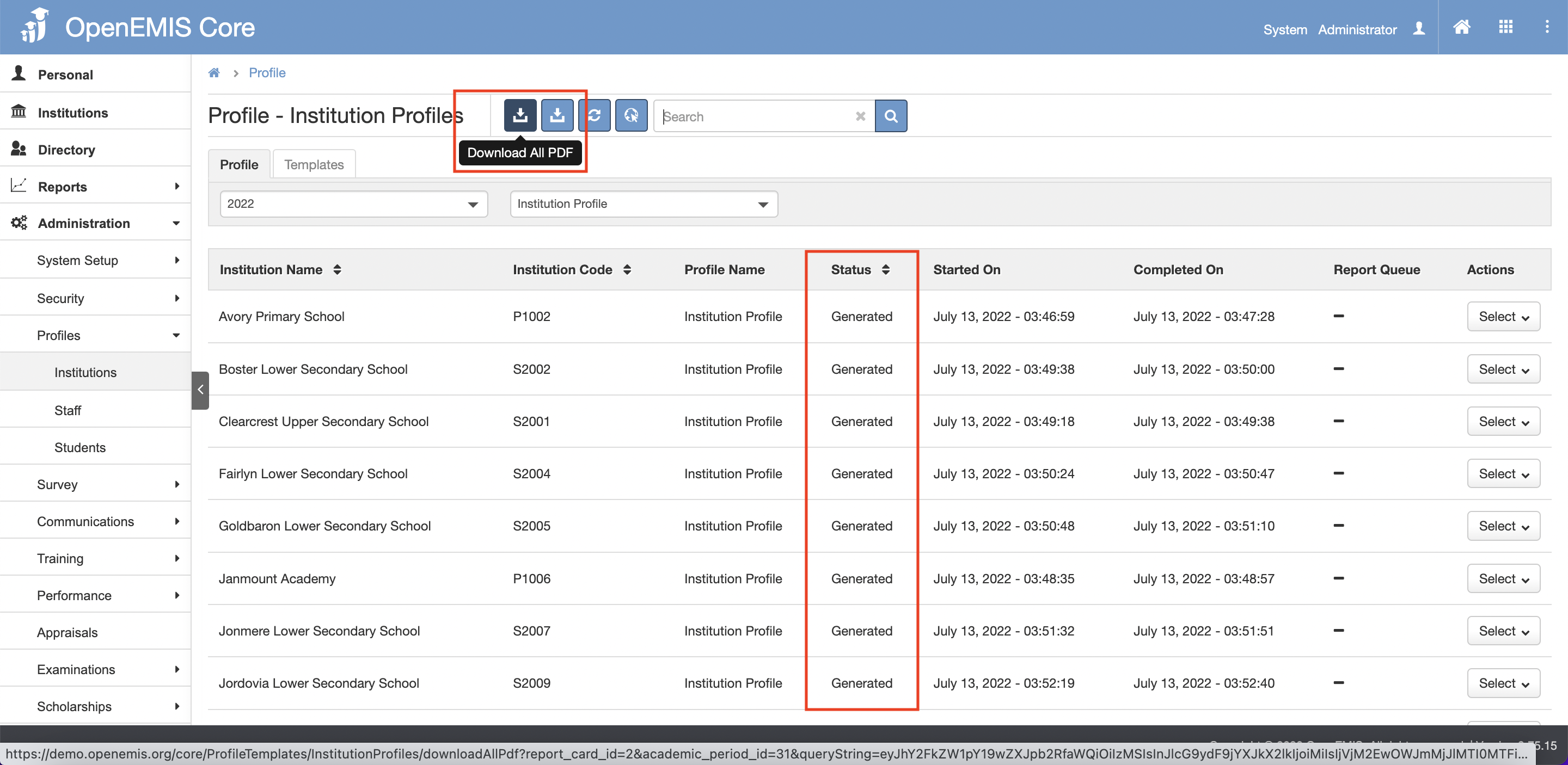
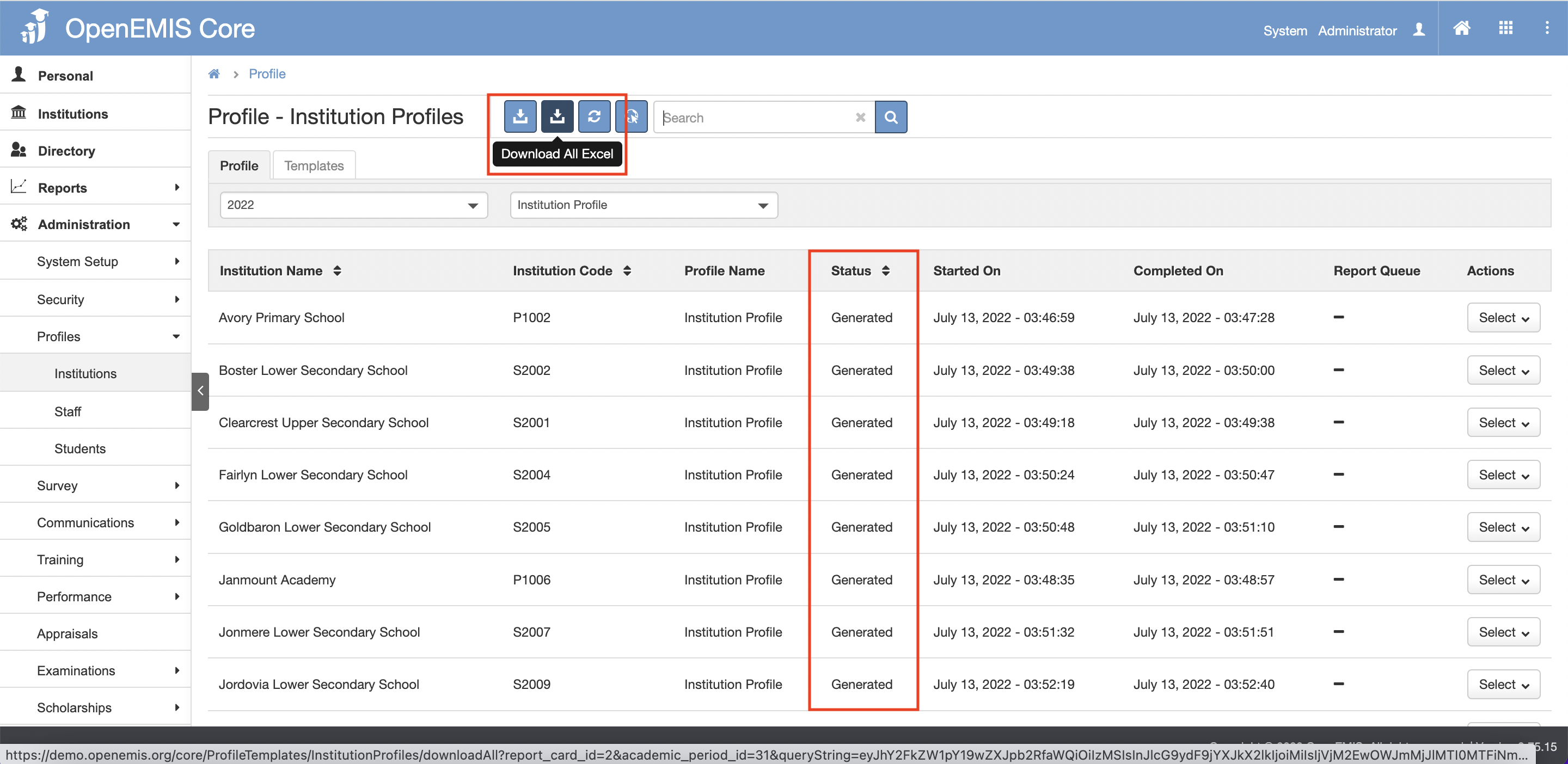
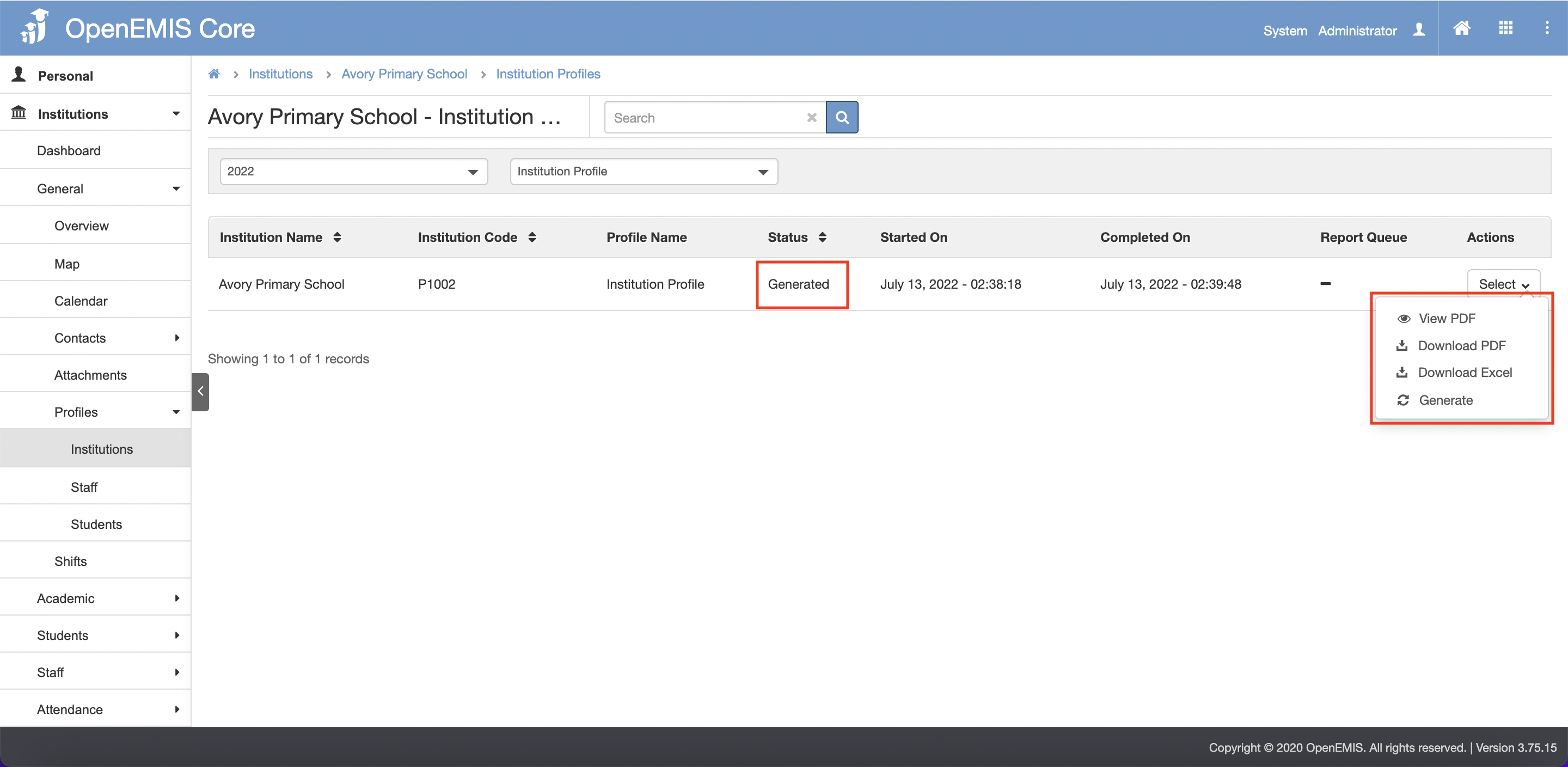
5. When done generating, the status will change to ‘Generated’ and the profile can now be viewed or downloaded in PDF or download in Excel.
6. The generate button allows regenerating of the profile.
Ministry Officers Level
- Generating profile one by one
1. Go to Administration > Profiles > Institutions on the left menu.
2. Click on the Profile tab.
3. Select the profile you want to generate.
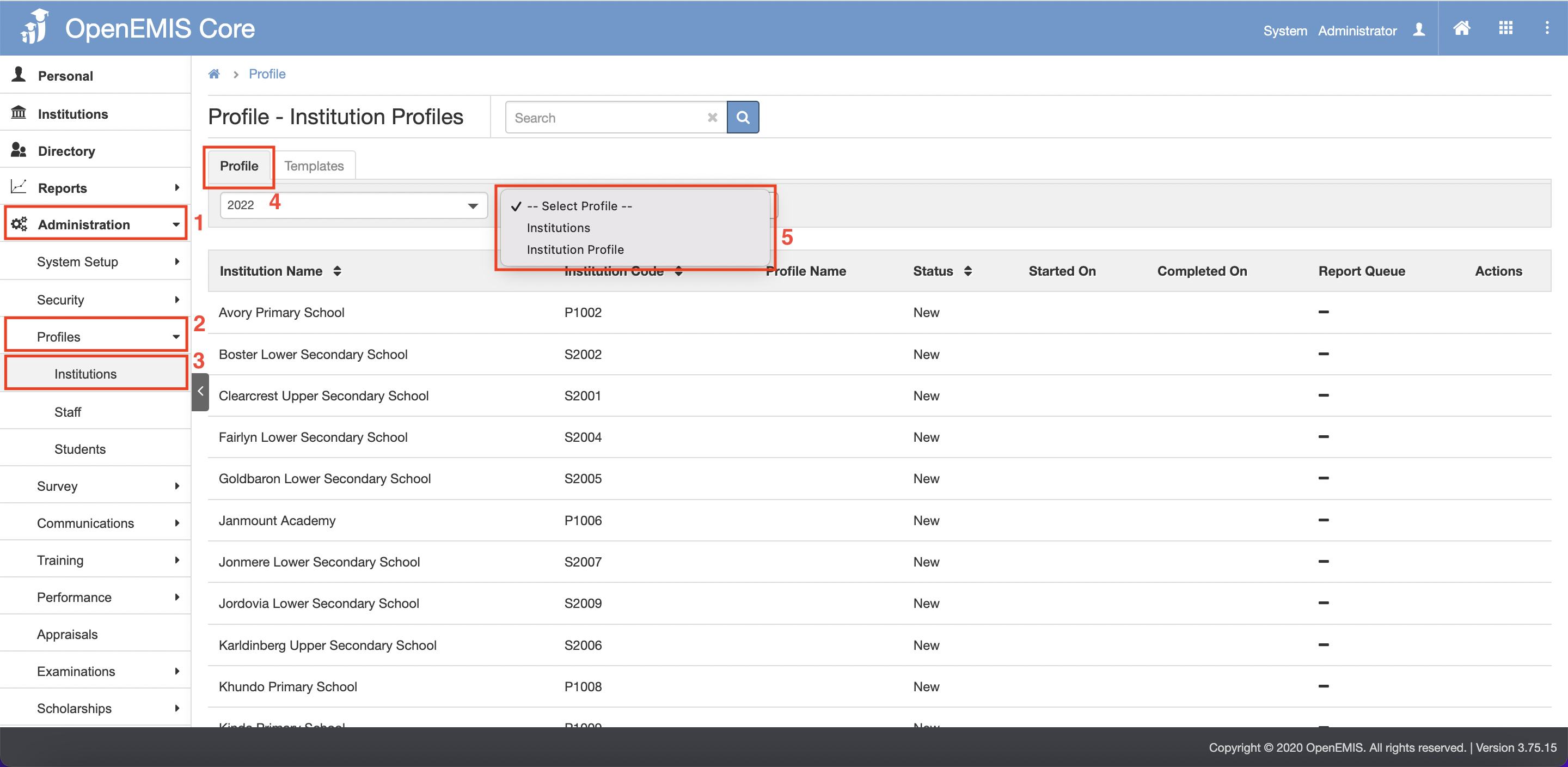
4. Under Action column, click on the select button to Generate.
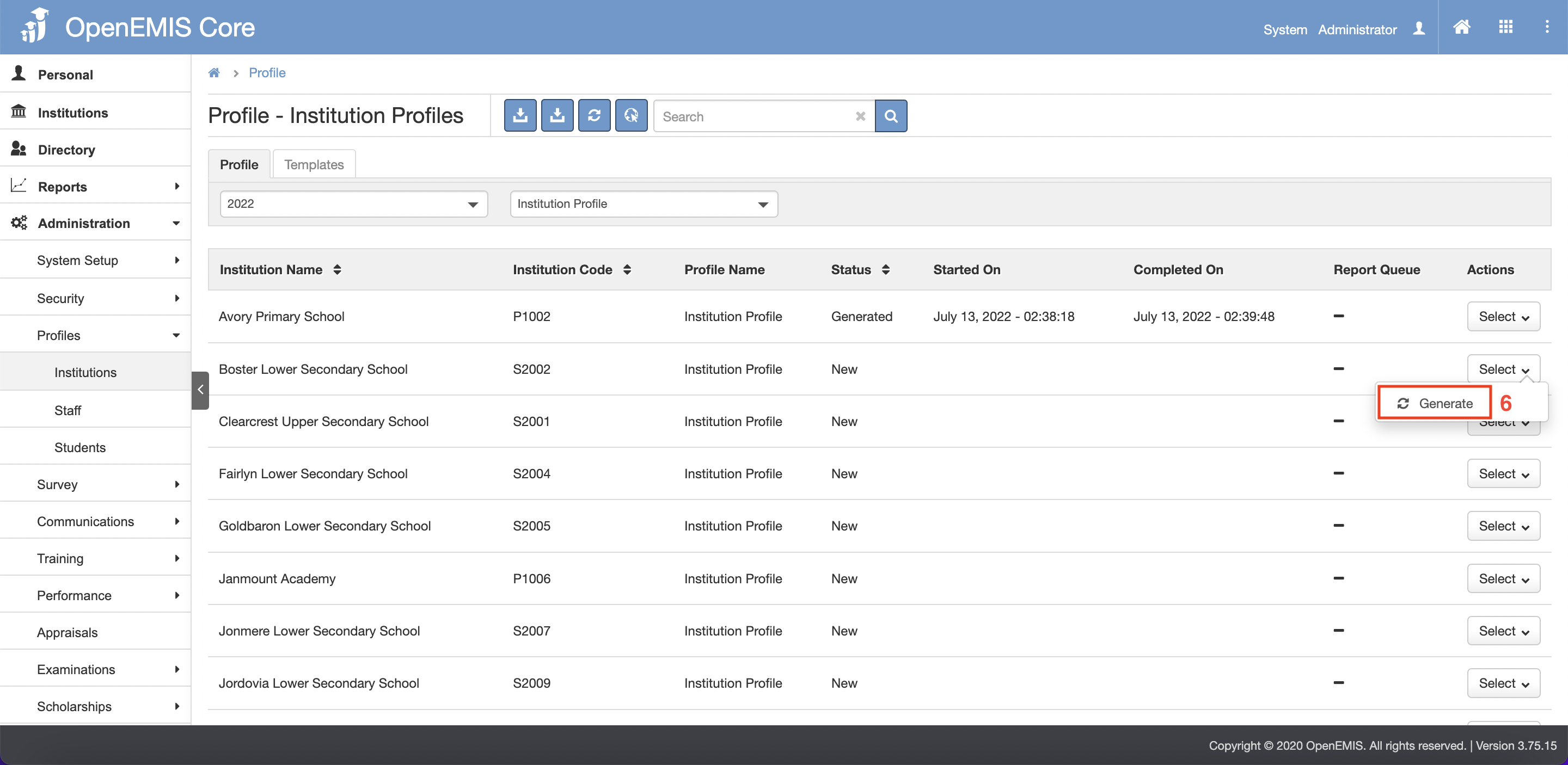
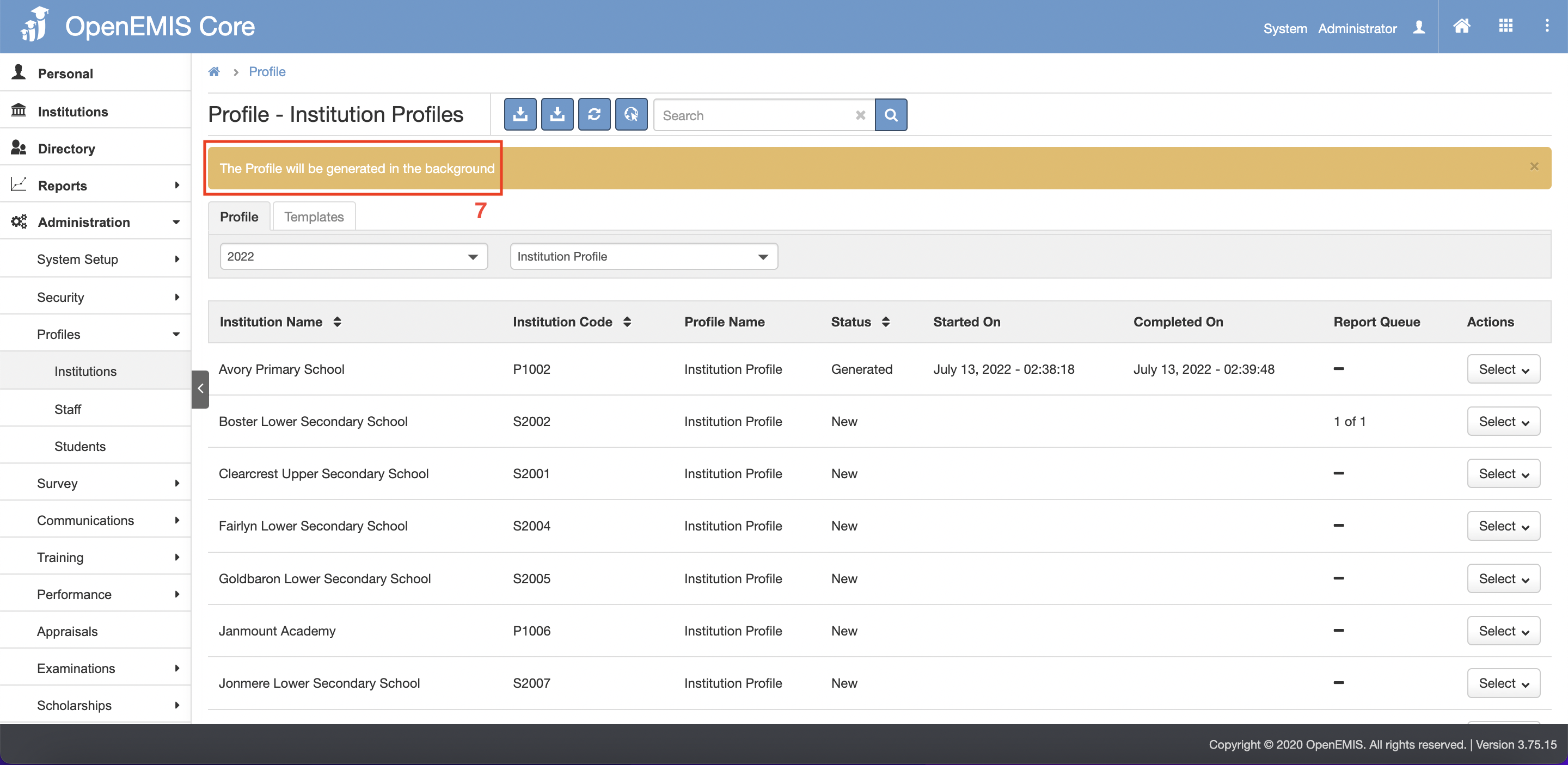
5. A pop-up message will appear indicating that the profile will be generated.
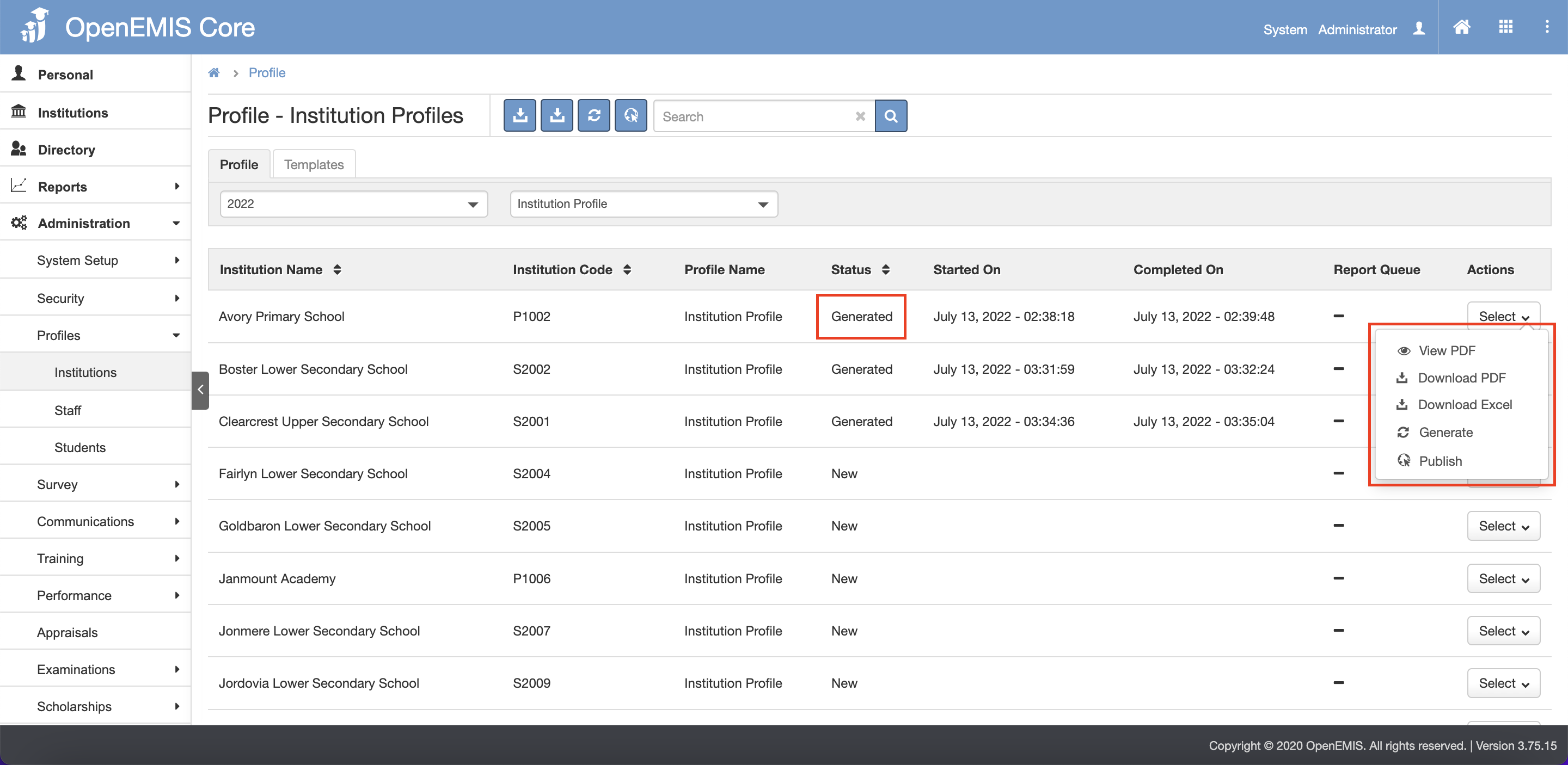
6. When done generating, the status will change to ‘Generated’ and the profile can now be viewed or downloaded in PDF or download in Excel.
7. The generate button allows regenerating of the profile.
- Generating all profile
1. Go to Administration > Profiles > Institutions on the left menu.
2. Click on the Profile tab.
3. Select the profile you want to generate.
4. Click on the Generate All button.
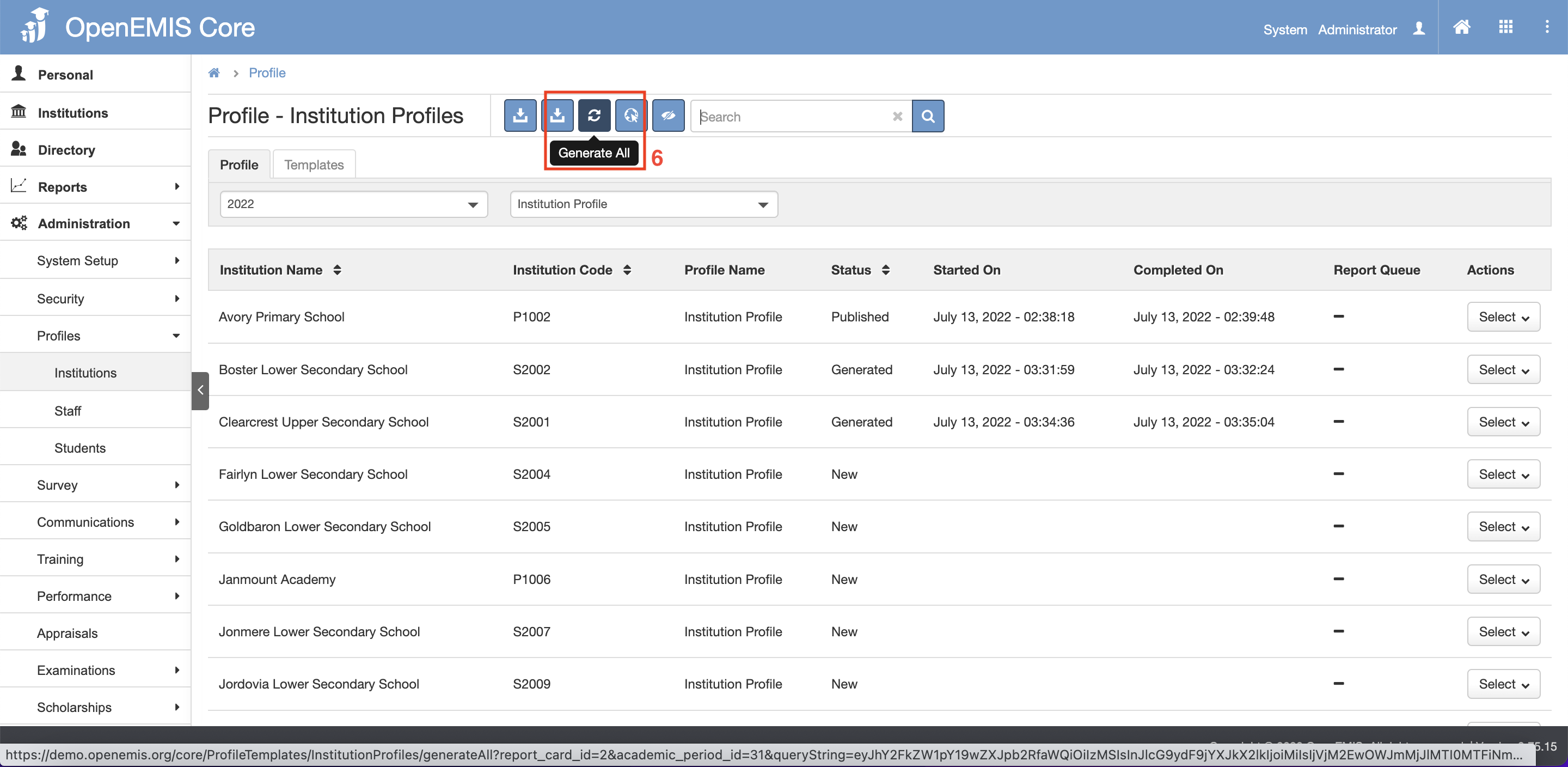
5. A pop-up message will appear indicating that the profile will be generated.
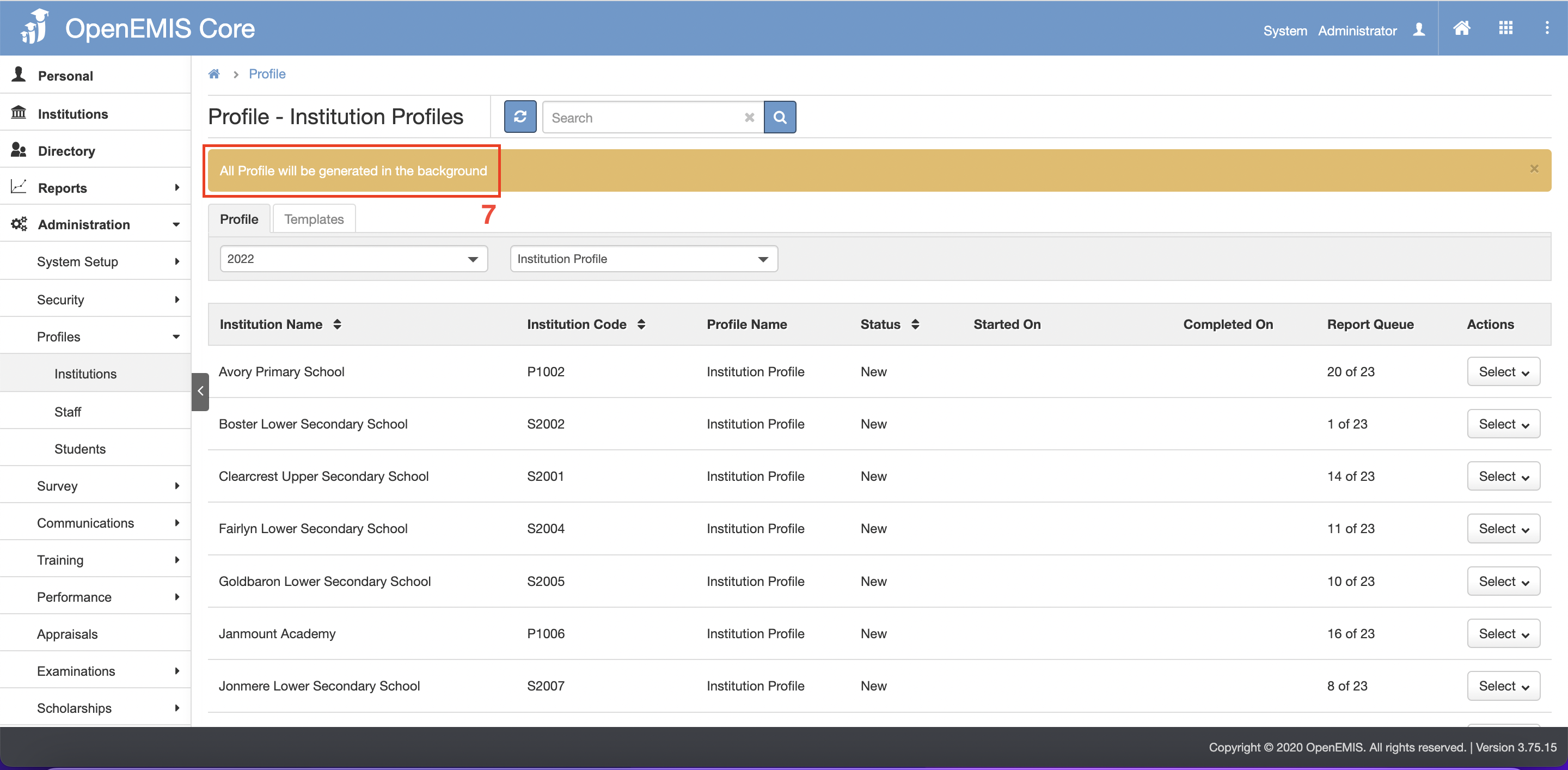
6. When done generating, the status will change to ‘Generated’.
7. There is an option to download all profile in PDF and in excel.