
Article Name: Manage WASH – Infrastructure
Category/Module: Administration, Institution
Tags: WASH, Infrastructure
Version: 3.10.13
Date Updated: 1 Dec 2017
This Manage WASH – Infrastructure feature allows you to:
- Aid Schools in identifying, prioritising, planning and tracking school infrastructure needs and works in addition to associating them with projects and funding.
- Equip Ministry with the information necessary to allocate resources to schools based on need.
- To keep track and manage information and processes across
- Setup Infrastructure Wash Water Types (Administration)
- Setup Infrastructure Wash Water Functionalities (Administration)
- Setup Infrastructure Wash Water Proximities (Administration)
- Setup Infrastructure Wash Water Quantities (Administration)
- Setup Infrastructure Wash Water Qualities (Administration)
- Setup Infrastructure Wash Water Accessibilities (Administration)
- Manage WASH
- Enable Security Role Permission (Administration)
Setup Infrastructure Water Wash Type
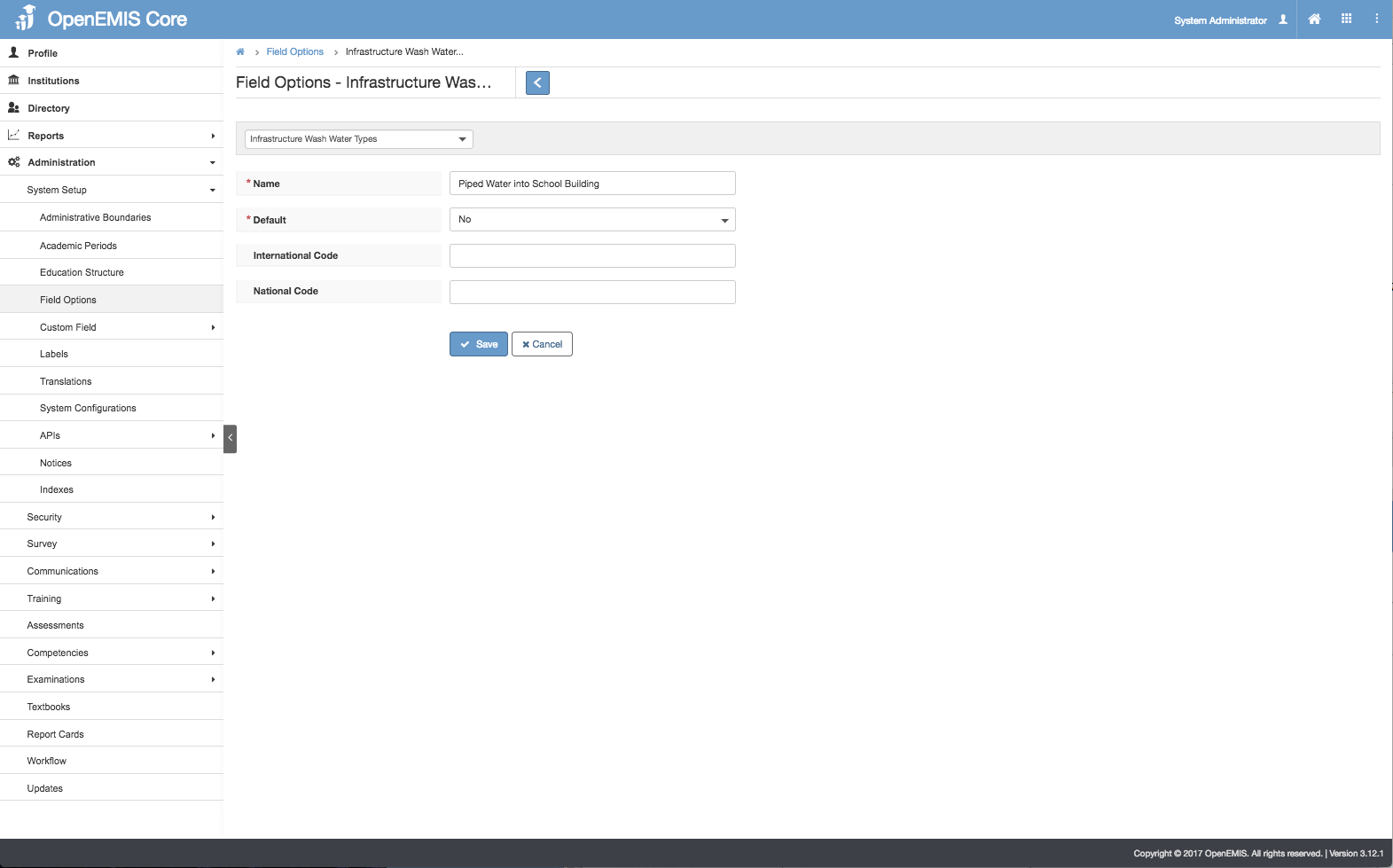
Create Infrastructure Water Wash Type
1) Go to Administration > Field Options > Infrastructure Water Wash Type
2) Select Add
3) Enter Name > Save.
4) Successful message will be displayed upon saving.
Edit Infrastructure Water Wash Type
1) Go to Administration > Field Options > Infrastructure Water Wash Type
2) Go to Actions Bar > Edit
3) Update the Name > Save.
4) System will display a message upon saving successfully.
View Infrastructure Water Wash Type
1) Go to Administration > Field Options > Infrastructure Water Wash Type
2) Go to Actions Bar > View.
3) You will be able to see additional details of the record.
4) Similarly, you will be able to edit or delete the record.
Delete Infrastructure Water Wash Type
1) Go to Administration > Field Options > Infrastructure Water Wash Type
2) Go to Actions Bar > Delete.
3) You will not be able to delete if the record have associated records.
4) Else, if there are no associated record > Save.
5) You will be able to delete the record successfully.
Setup Infrastructure Water Wash Functionalities
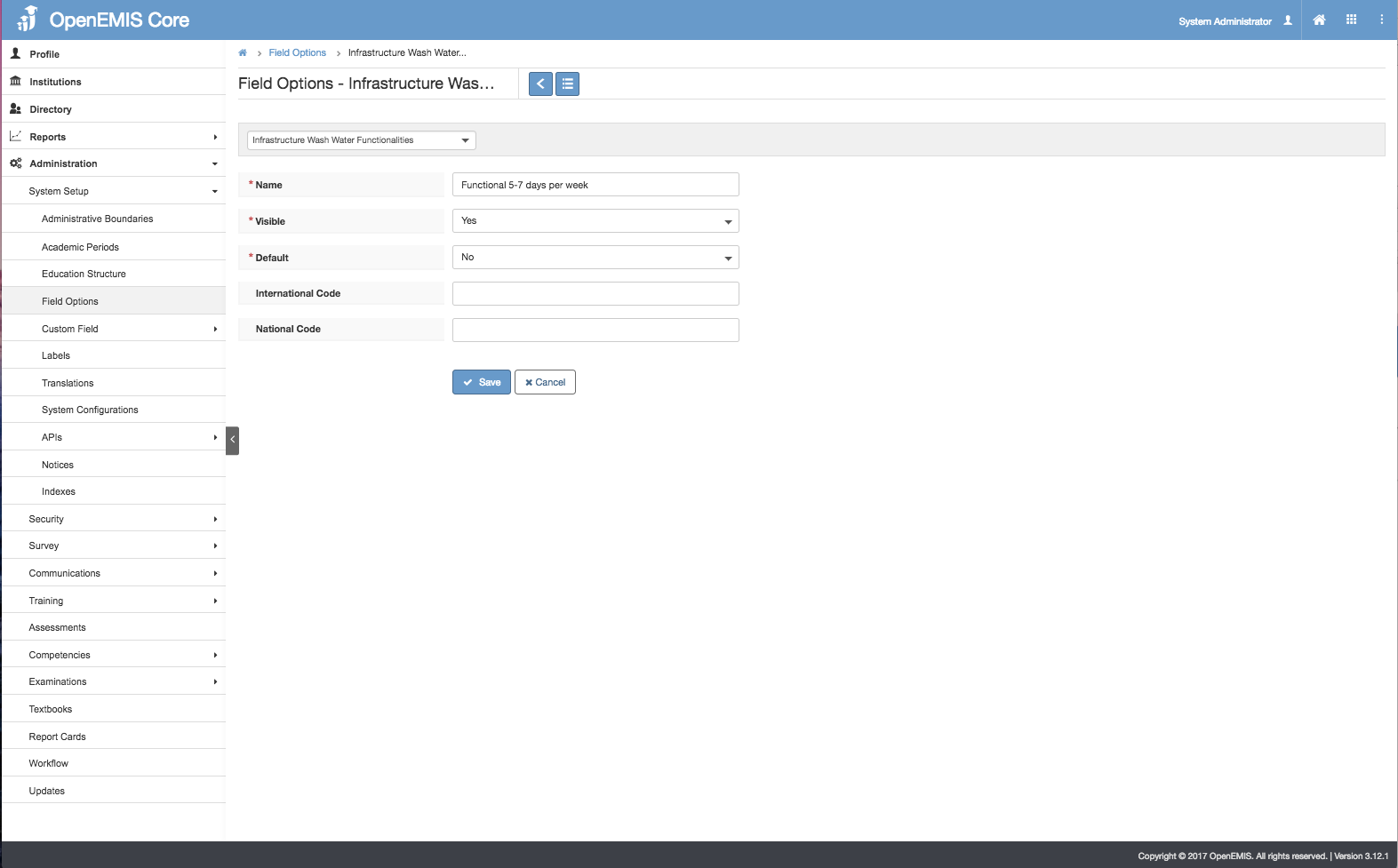
Create Infrastructure Water Wash Functionalities
1) Go to Administration > Field Options > Infrastructure Water Wash Functionalities
2) Select Add
3) Enter Name > Save.
4) Successful message will be displayed upon saving.
Edit Infrastructure Water Wash Functionalities
1) Go to Administration > Field Options > Infrastructure Water Wash Functionalities
2) Go to Actions Bar > Edit
3) Update the Name > Save.
4) System will display a message upon saving successfully.
View Infrastructure Water Wash Functionalities
1) Go to Administration > Field Options > Infrastructure Water Wash Functionalities
2) Go to Actions Bar > View.
3) You will be able to see additional details of the record.
4) Similarly, you will be able to edit or delete the record.
Delete Infrastructure Water Wash Functionalities
1) Go to Administration > Field Options > Infrastructure Water Wash Functionalities
2) Go to Actions Bar > Delete.
3) You will not be able to delete if the record have associated records.
4) Else, if there are no associated record > Save.
5) You will be able to delete the record successfully.
Setup Infrastructure Water Wash Proximities
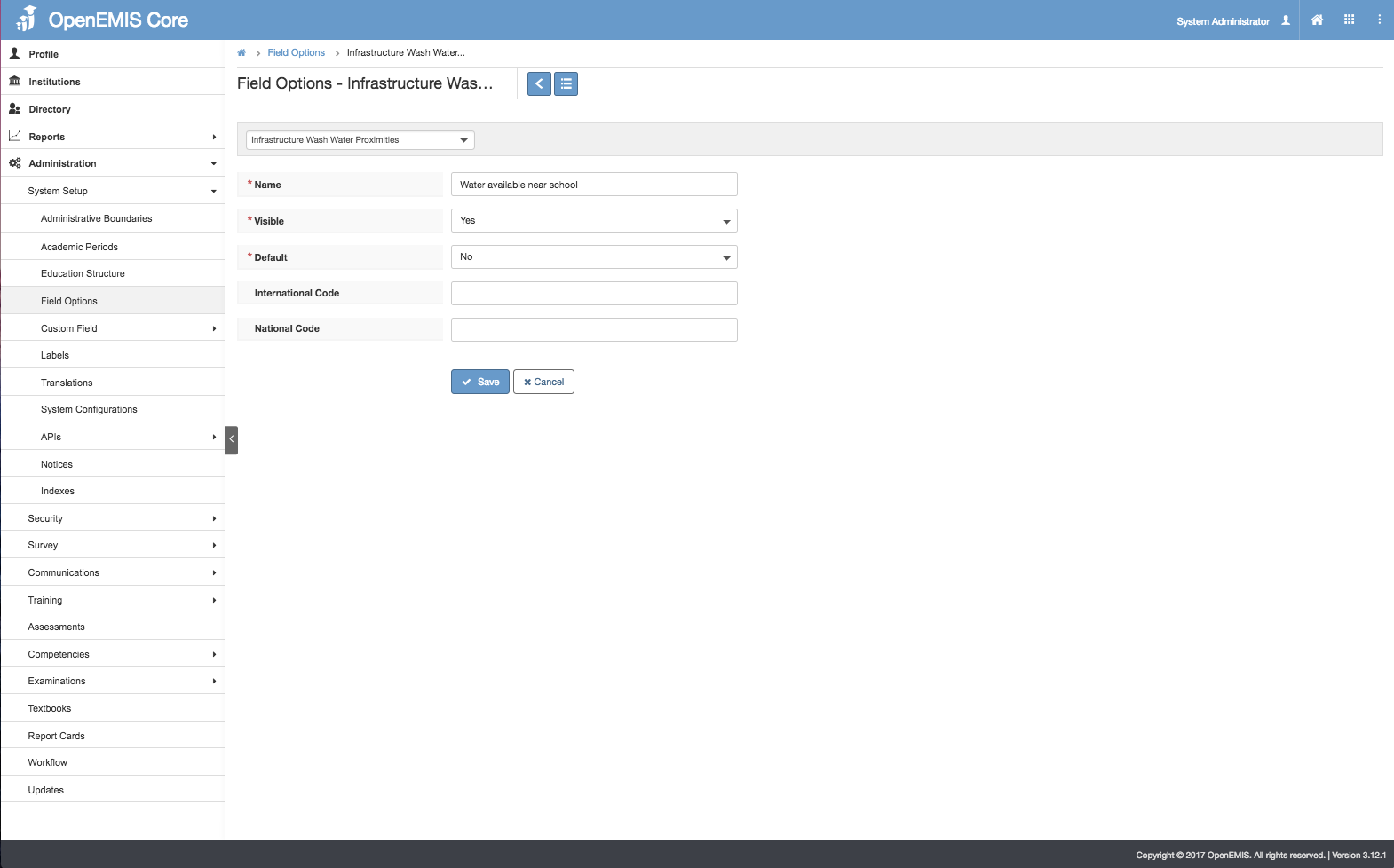
Create Infrastructure Water Wash Proximities
1) Go to Administration > Field Options > Infrastructure Water Wash Proximities
2) Select Add
3) Enter Name > Save.
4) Successful message will be displayed upon saving.
Edit Infrastructure Water Wash Proximities
1) Go to Administration > Field Options > Infrastructure Water Wash Proximities
2) Go to Actions Bar > Edit
3) Update the Name > Save.
4) System will display a message upon saving successfully.
View Infrastructure Water Wash Proximities
1) Go to Administration > Field Options > Infrastructure Water Wash Proximities
2) Go to Actions Bar > View.
3) You will be able to see additional details of the record.
4) Similarly, you will be able to edit or delete the record.
Delete Infrastructure Water Wash Proximities
1) Go to Administration > Field Options > Infrastructure Water Wash Proximities
2) Go to Actions Bar > Delete.
3) You will not be able to delete if the record have associated records.
4) Else, if there are no associated record > Save.
5) You will be able to delete the record successfully.
Setup Infrastructure Water Wash Quantities
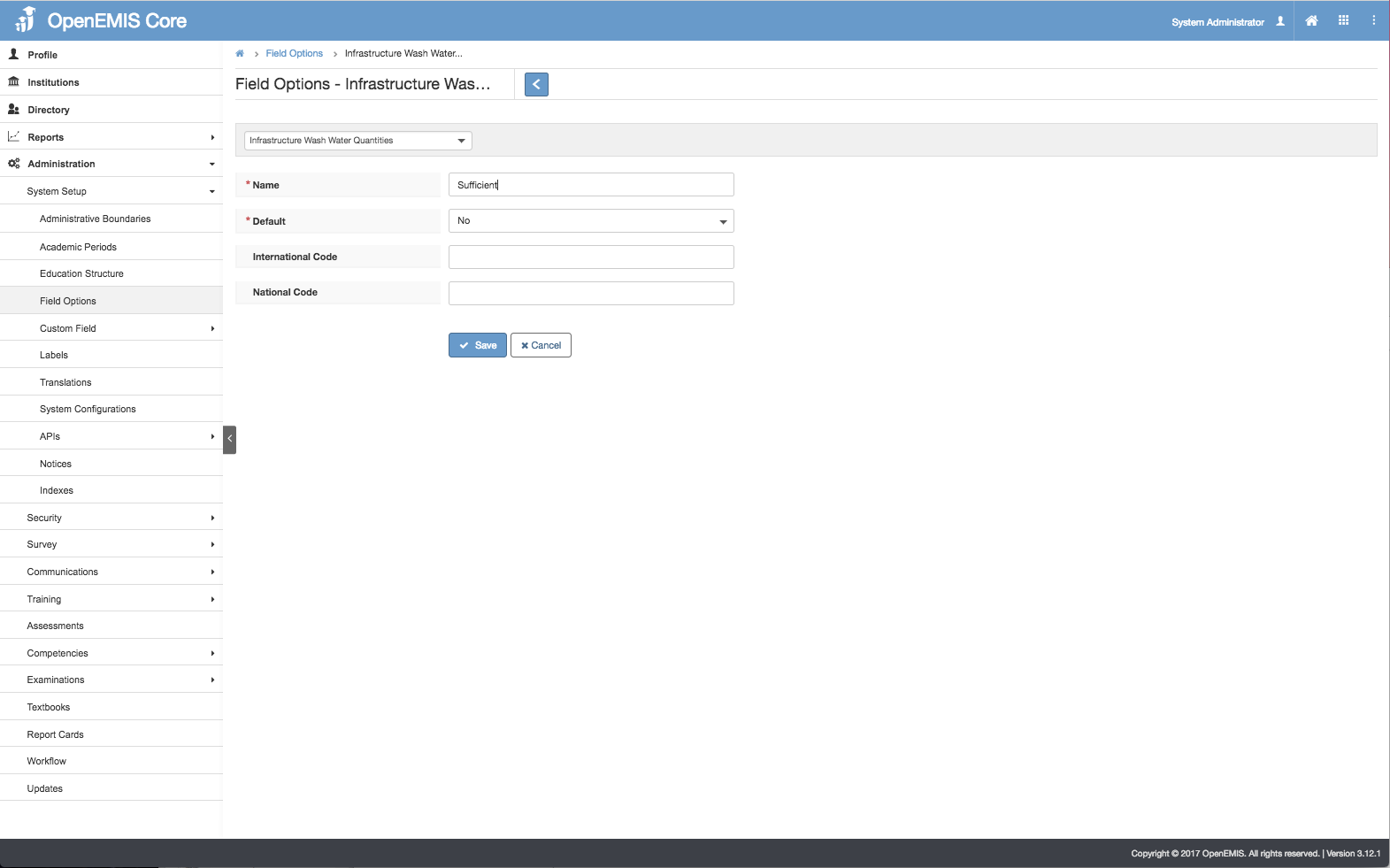
Create Infrastructure Water Wash Quantities
1) Go to Administration > Field Options > Infrastructure Water Wash Quantities
2) Select Add
3) Enter Name > Save.
4) Successful message will be displayed upon saving.
Edit Infrastructure Water Wash Quantities
1) Go to Administration > Field Options > Infrastructure Water Wash Quantities
2) Go to Actions Bar > Edit
3) Update the Name > Save.
4) System will display a message upon saving successfully.
View Infrastructure Water Wash Quantities
1) Go to Administration > Field Options > Infrastructure Water Wash Quantities
2) Go to Actions Bar > View.
3) You will be able to see additional details of the record.
4) Similarly, you will be able to edit or delete the record.
Delete Infrastructure Water Wash Quantities
1) Go to Administration > Field Options > Infrastructure Water Wash Quantities
2) Go to Actions Bar > Delete.
3) You will not be able to delete if the record have associated records.
4) Else, if there are no associated record > Save.
5) You will be able to delete the record successfully.
Setup Infrastructure Water Wash Qualities
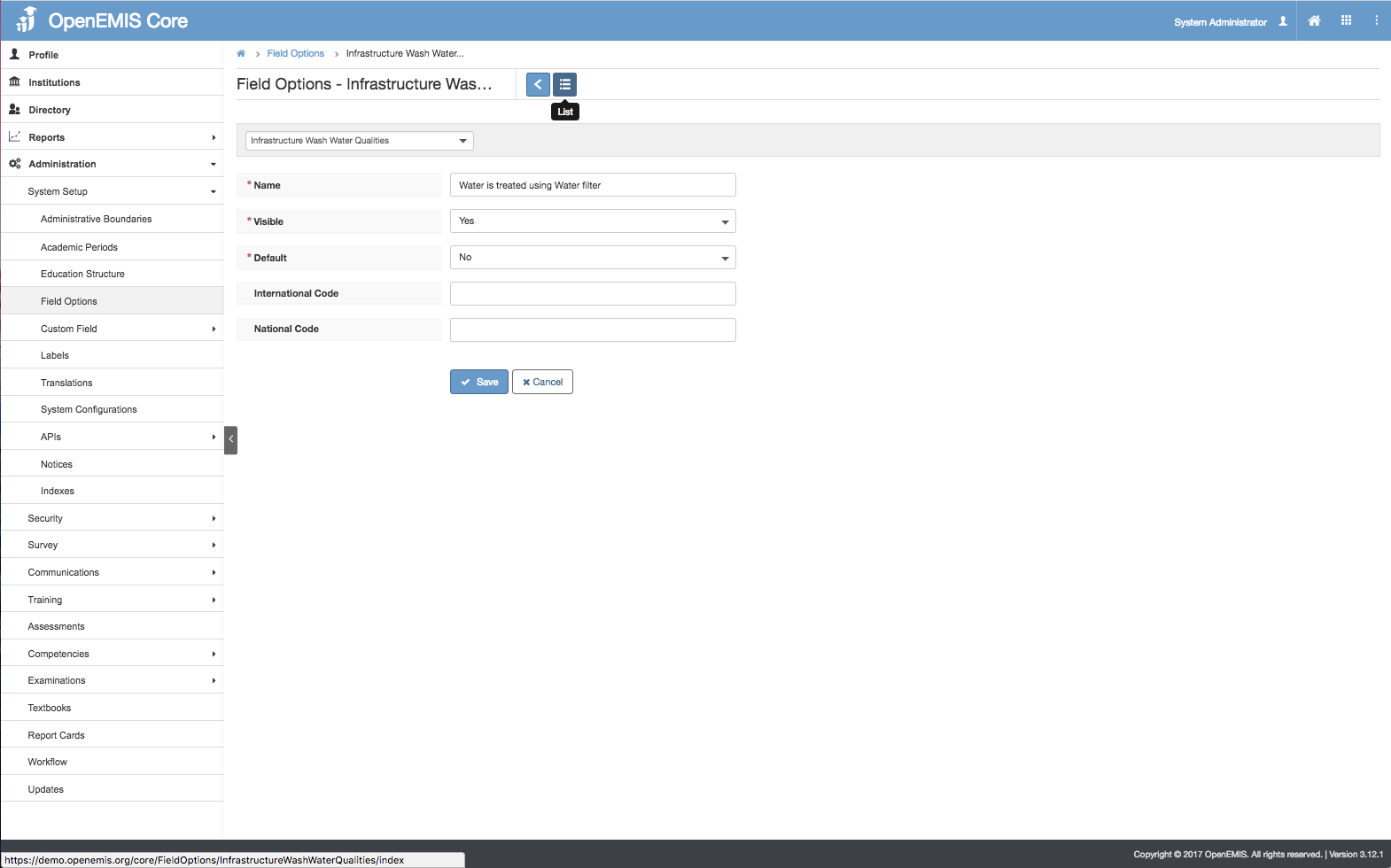
Create Infrastructure Water Wash Qualities
1) Go to Administration > Field Options > Infrastructure Water Wash Qualities
2) Select Add
3) Enter Name > Save.
4) Successful message will be displayed upon saving.
Edit Infrastructure Water Wash Qualities
1) Go to Administration > Field Options > Infrastructure Water Wash Qualities
2) Go to Actions Bar > Edit
3) Update the Name > Save.
4) System will display a message upon saving successfully.
View Infrastructure Water Wash Qualities
1) Go to Administration > Field Options > Infrastructure Water Wash Qualities
2) Go to Actions Bar > View.
3) You will be able to see additional details of the record.
4) Similarly, you will be able to edit or delete the record.
Delete Infrastructure Water Wash Qualities
1) Go to Administration > Field Options > Infrastructure Water Wash Qualities
2) Go to Actions Bar > Delete.
3) You will not be able to delete if the record have associated records.
4) Else, if there are no associated record > Save.
5) You will be able to delete the record successfully.
Setup Infrastructure Water Wash Accessibilities
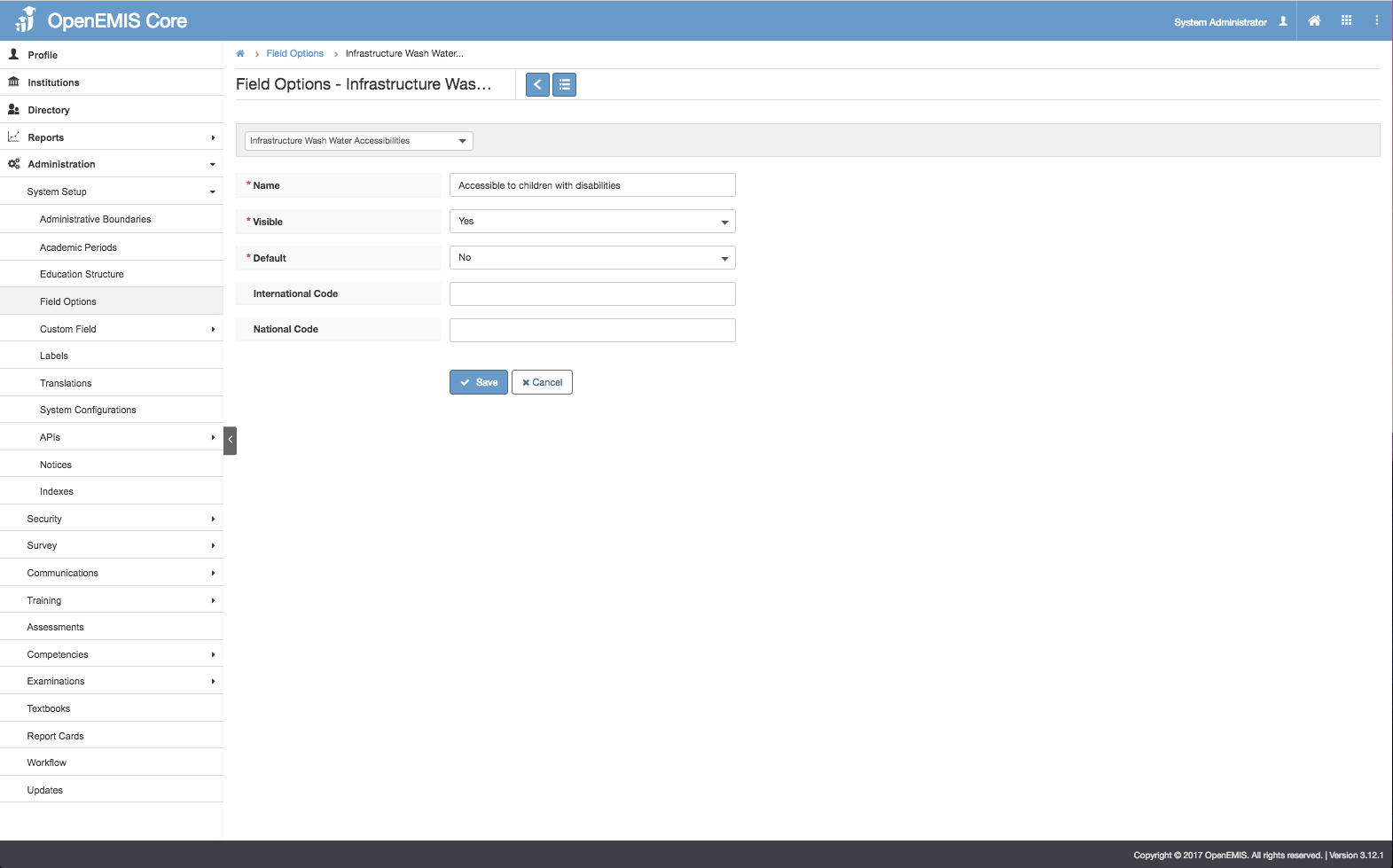
Create Infrastructure Water Wash Accessibilities
1) Go to Administration > Field Options > Infrastructure Water Wash Accessibilities
2) Select Add
3) Enter Name > Save.
4) Successful message will be displayed upon saving.
Edit Infrastructure Water Wash Accessibilities
1) Go to Administration > Field Options > Infrastructure Water Wash Accessibilities
2) Go to Actions Bar > Edit
3) Update the Name > Save.
4) System will display a message upon saving successfully.
View Infrastructure Water Wash Accessibilities
1) Go to Administration > Field Options > Infrastructure Water Wash Accessibilities
2) Go to Actions Bar > View.
3) You will be able to see additional details of the record.
4) Similarly, you will be able to edit or delete the record.
Delete Infrastructure Water Wash Accessibilities
1) Go to Administration > Field Options > Infrastructure Water Wash Accessibilities
2) Go to Actions Bar > Delete.
3) You will not be able to delete if the record have associated records.
4) Else, if there are no associated record > Save.
5) You will be able to delete the record successfully.
Manage WASH
Create Wash
1) Go to Institutions > Infrastructure > WASH
2) Select Add.
3) Enter all the required fields such as (Academic Period, Type, Functionality). All the fields except Academic Period will retrieve from the data entered in Field Options.
4) Select Save, System will display a successful message.
Edit Wash
1) Go to Institutions > Infrastructure > WASH
2) Select Actions Bar > Edit
3) You will be able to edit all the fields > Save.
4) Successful message will be displayed upon selecting Save.
View Wash
1) Go to Institutions > Infrastructure > WASH
2) Select Actions Bar > View.
3) You will be able to see Additional details of WASH record
4) Similarly, you will be able to update or delete the record.
Delete Wash
1) Go to Institutions > Infrastructure > WASH
2) Select Actions Bar > Delete.
3) System will display a confirmation box that all associated records will be removed.
4) System will display a message upon removing successfully.
