Article Name: Repeating Students
Category/Module: Institution
Tags: Institution
Version: 3.98.12
Date Updated: 6 Feb 2024
Purpose:
To repeat students at the end of the school year.
Before performing repeat, the following should be completed:
- The new academic year is setup (This is configurable under Administration)
- The school’s shift(s) is set up for the new academic year (This is configurable under Administration) or (General>Shifts)
- The school’s academic programme has been set for the new academic year (This is configurable under Administration) or (Academic > Programmes)
- The classes are set up for the new academic year (Academic>Classes).
Below is a video tutorial and step by step guide for this process:
Step 1: Click on Students in the left panel, students in the current Academic Period will be displayed. In this example we will repeat students from 2023 to 2024. Click the Promotion/Graduation icon at the top.

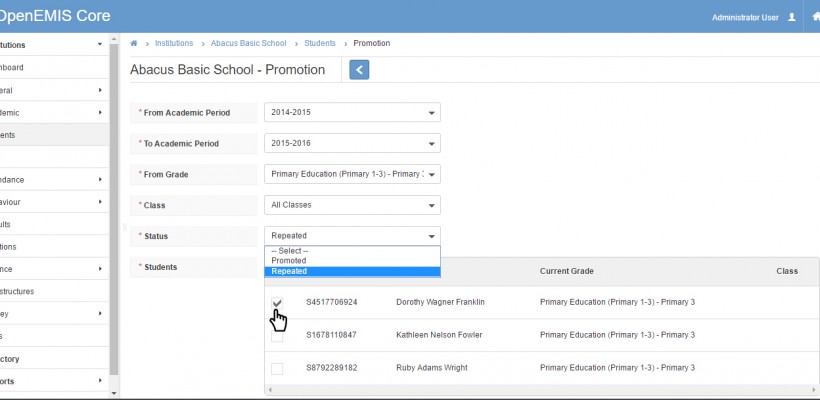
Step 2: Put the Academic period to repeat from and then the academic period to repeat to. Select the Grade Level from the drop down to display the student list you want to repeat.
- From Academic Period – the academic year you are re-enrolling from.
- To Academic Period – the academic year you are re-enrolling into.
- From Grade – the grade you are re-enrolling from.
- Class – if Classes were set up for the year you are promoting from, then you choose the class you are re-enrolling from. If no classes then ‘Students without Class’.
- Status – The option Promoted, Repeat or Graduated will display dependent on whether the next grade is within or at the end of a programme.
- To Grade – field options are based on the previous ‘From Grade’ and ‘Status’ selection.
- Next Class – field options will only be available if the Classes for the new academic year have been set up. Choosing a class will set the default class for the next enrolment.
- Students – list of students that are in the selected ‘From Grade’ and ‘Class’ to select from. Click the box in the student table title to select all students, then optionally unselect some. Or click the boxes next to the individual students to select a few students. Optionally set ‘Next Class’ values against the individual student to overwrite the default next class value.

Select the status “Repeated” for repeats and click the box next to the name of the student you want to repeat.
Select next at the bottom to continue to the next step.

Select confirm at the bottom to complete your repeat.

Now when you select “2023 Academic Period”, the student status will appear as “Repeated”.

When you select “2024 Academic Period”, the student status will appear as “Enrolled (Repeated)”.
