Article Name: Staff Appraisal
Category/Module: Administration, Institutions
Tags: Appraisal
Version: 3.20.0
Date Updated: 23 October 2018
This Staff Appraisal feature allows users to evaluate performance of self, peers, supervisor, etc. User would be able to configure and customize appraisal questions to understand the abilities of the staff for further growth and development.
- Managing Criteria (Administration)
- Managing Forms (Administration)
- Managing Scores (Administration)
- Managing Types (Administration)
- Managing Periods (Administration)
- Institution Staff Appraisals (Institution)
Managing Criteria
Create Criteria
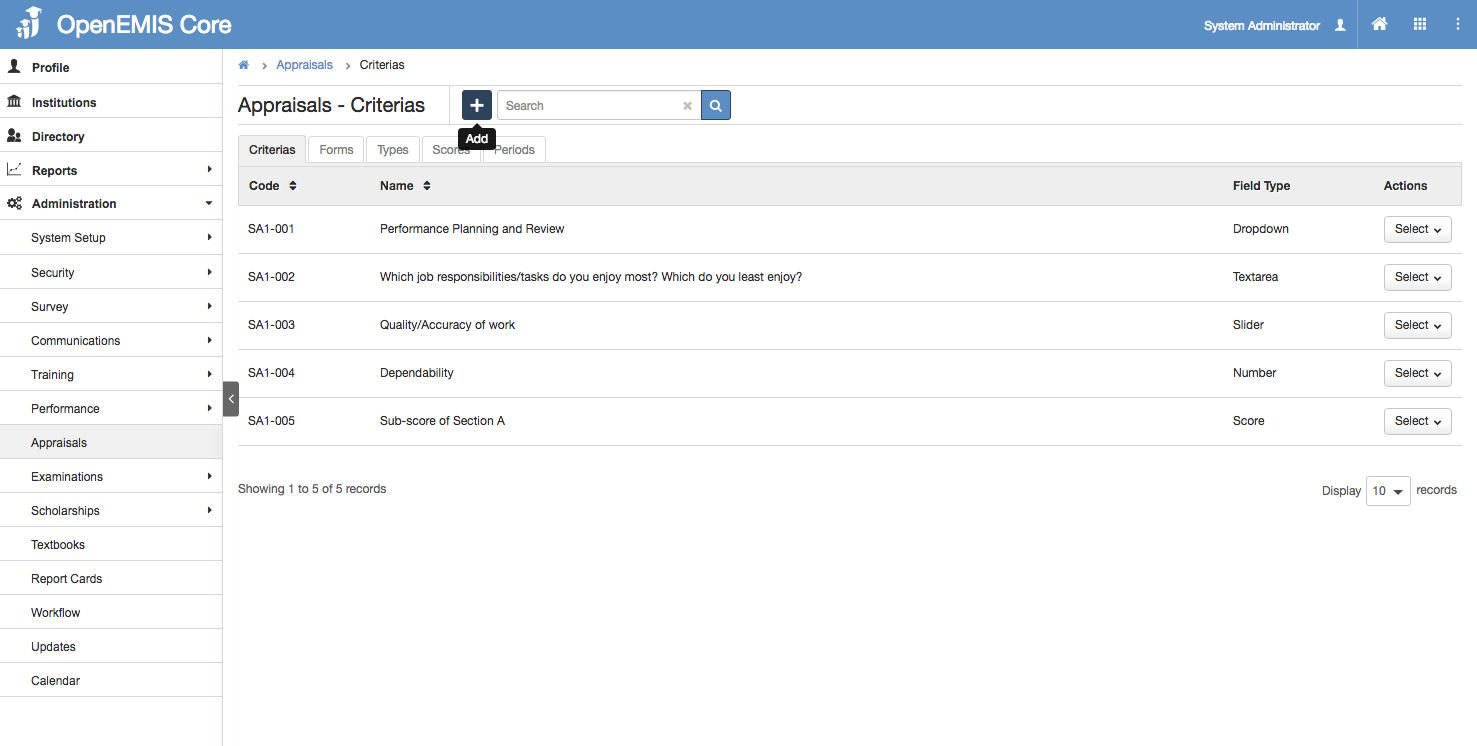
1) Go to Administration > Appraisals > Criterias
2) You will see a list of Criteria records.
3) Select ‘Add’ button
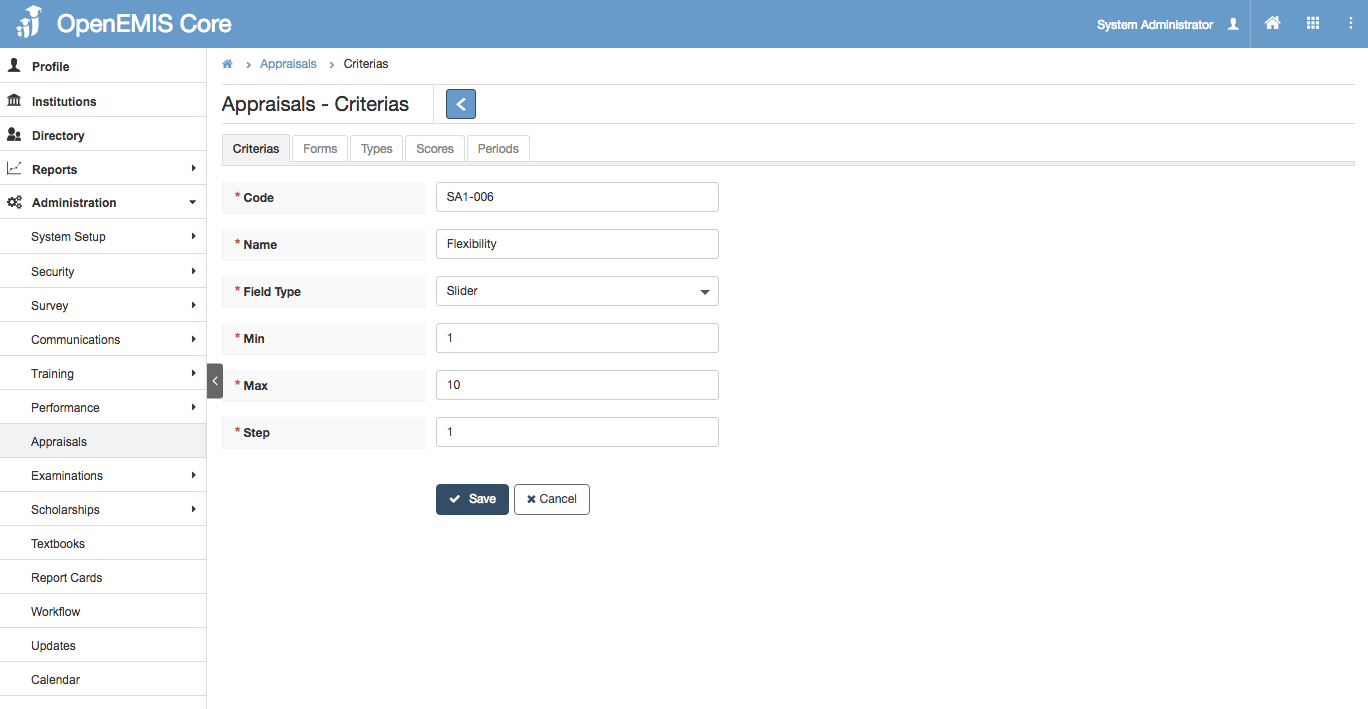
4) Enter Code, Name and Field Type.
5) Select ‘Save’
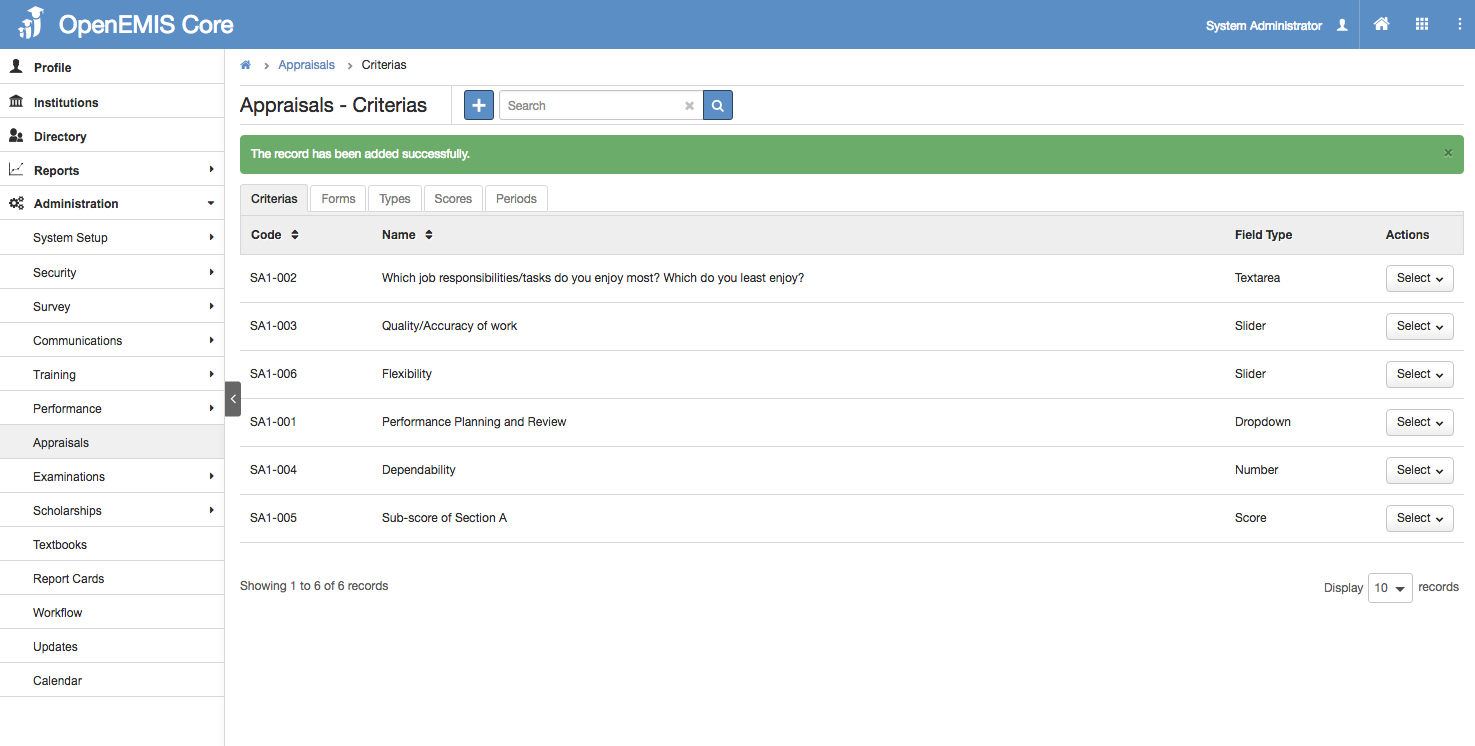
6) System will display a successful message once created.
View Criteria
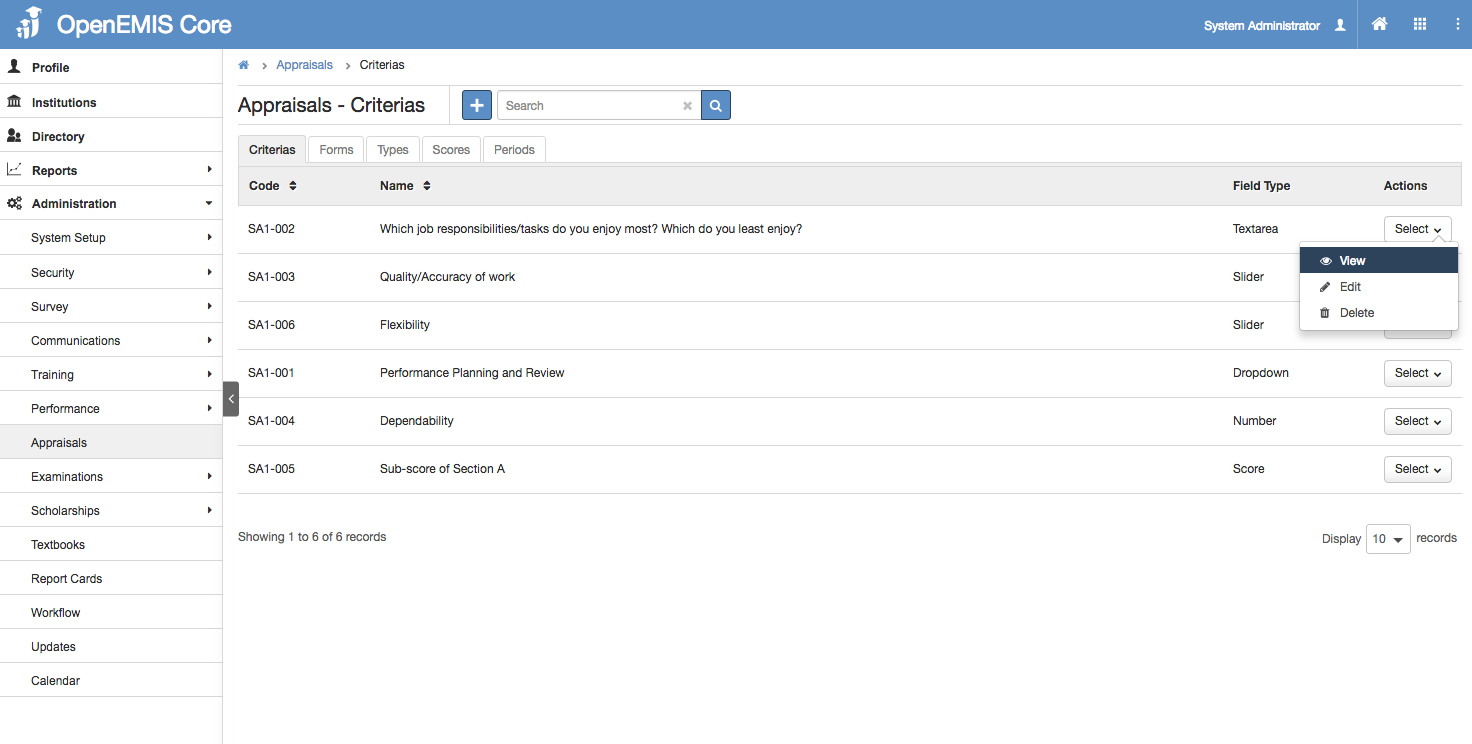
1) Go to Administration > Appraisals > Criterias
2) Go to Action Bar > View
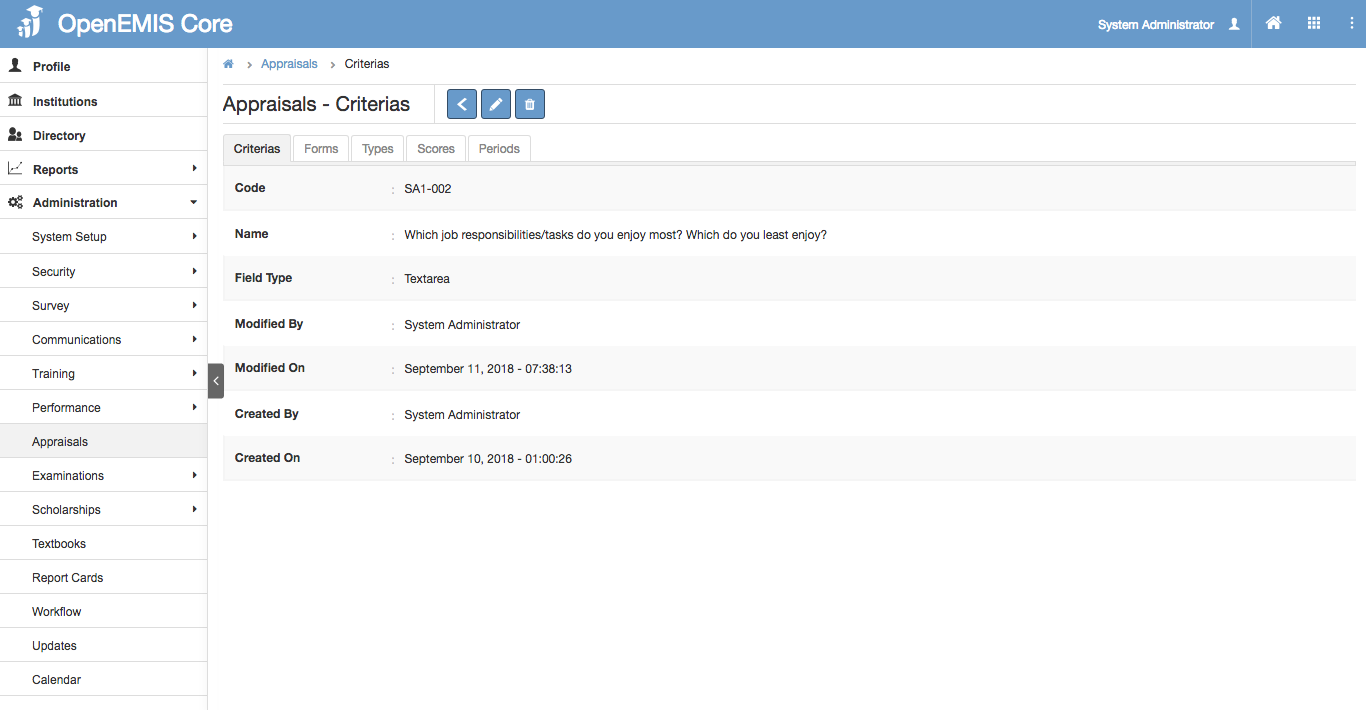
3) You will be able to view additional details of the Criteria record.
4) Similarly, you can edit or delete the record in the page.
Edit Criteria
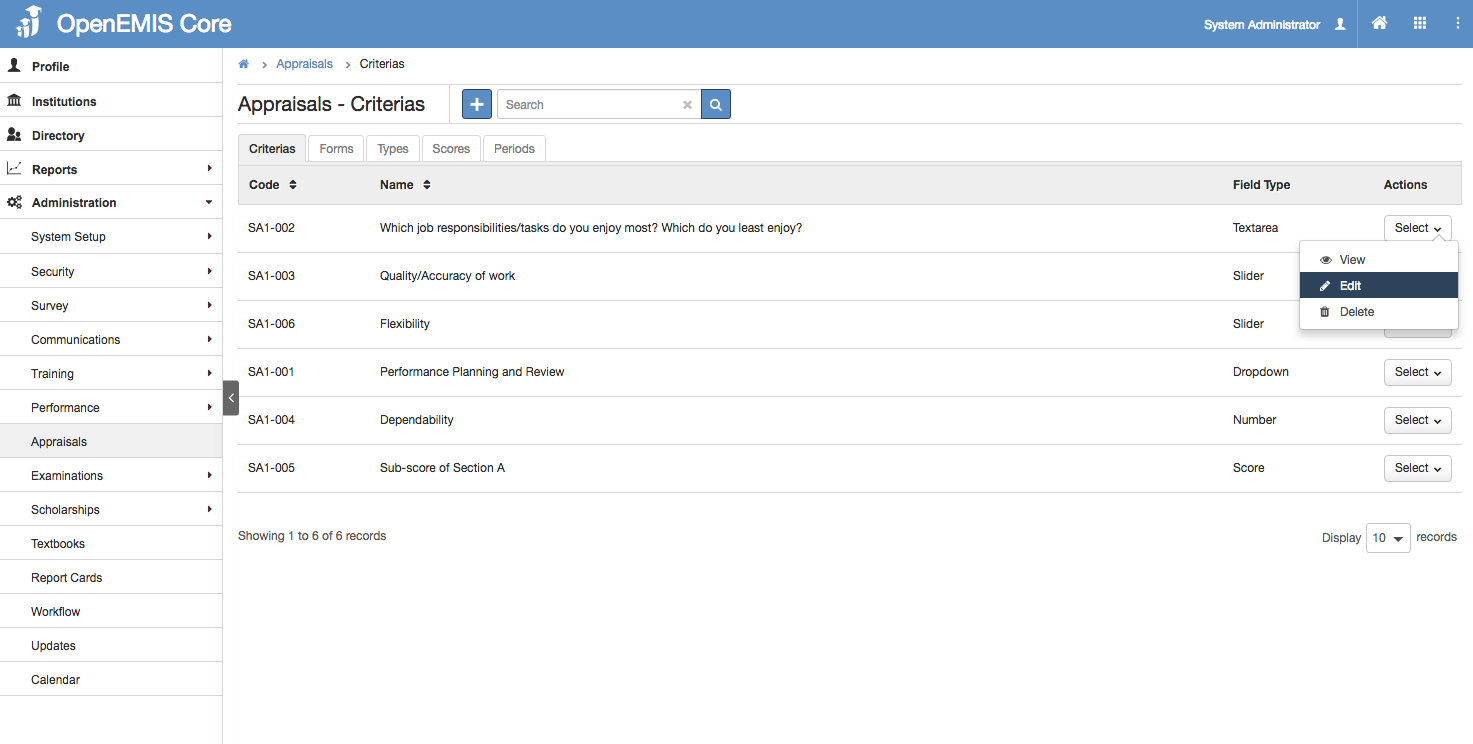
1) Go to Administration > Appraisals > Criterias
2) Go to Action Bar > Edit
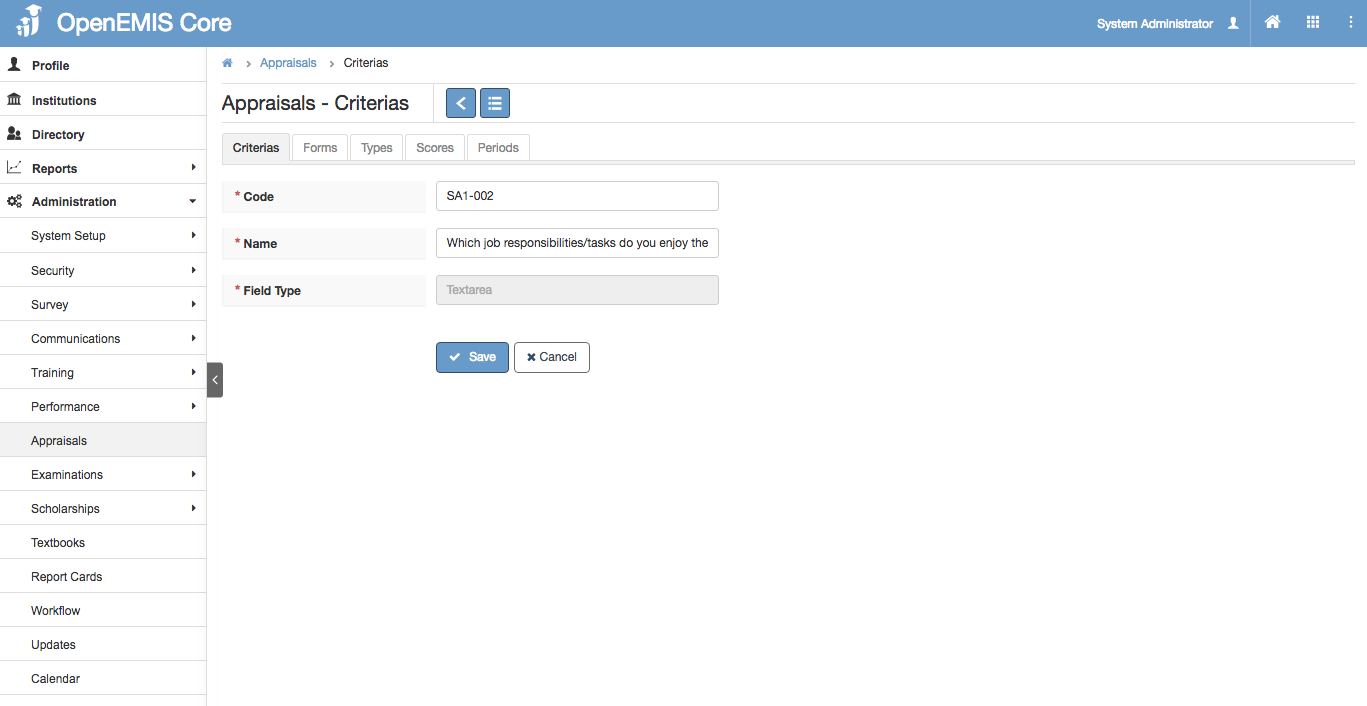
3) You will be able to edit the details of the Criteria record.
4) Select ‘Save’
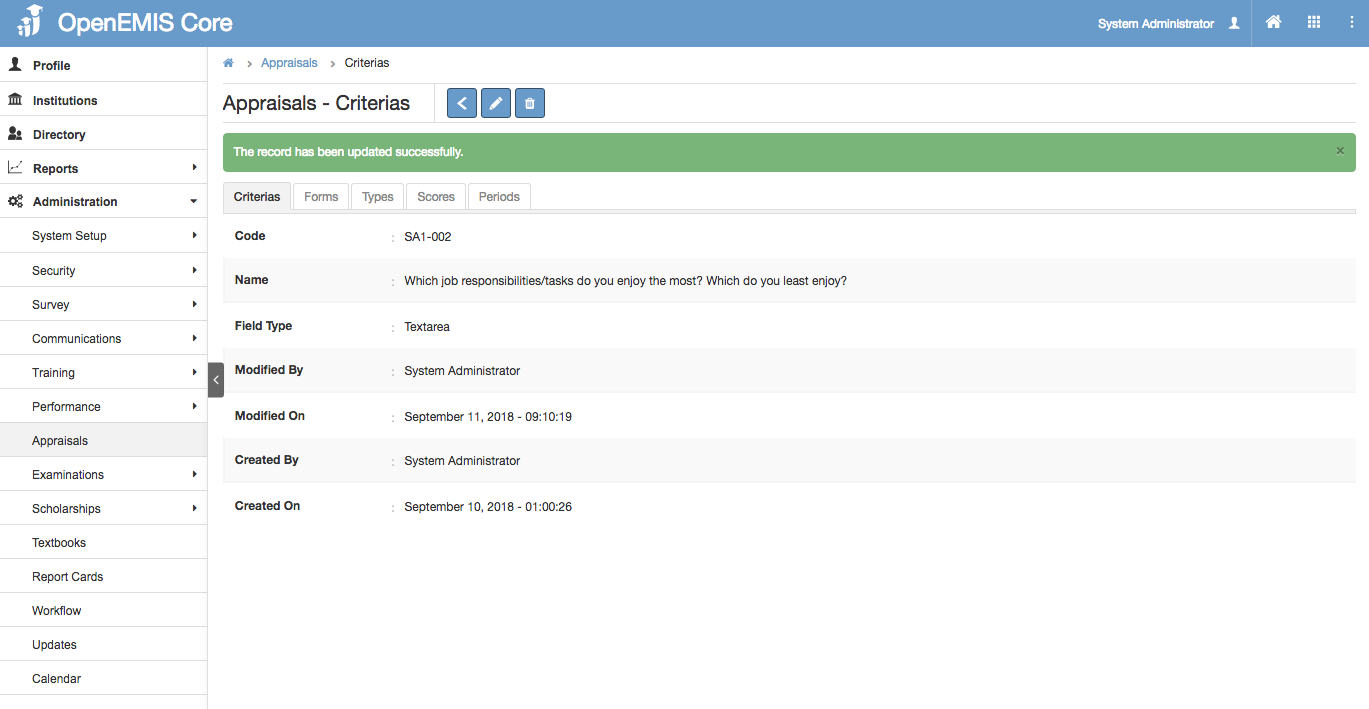
5) System will display a successful message once the record has been edited.
Delete Criteria
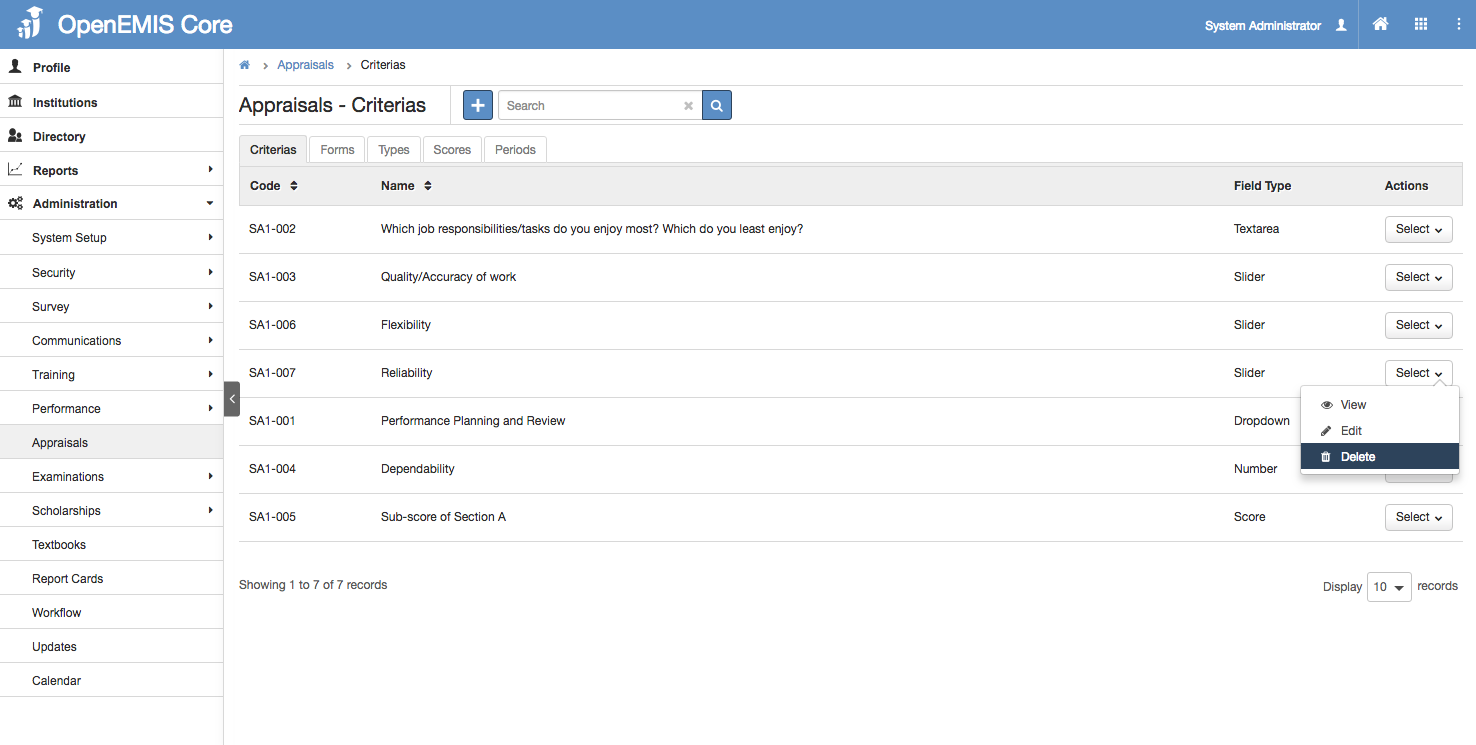
1) Go to Administration > Appraisals > Criterias
2) Go to Action Bar > Delete
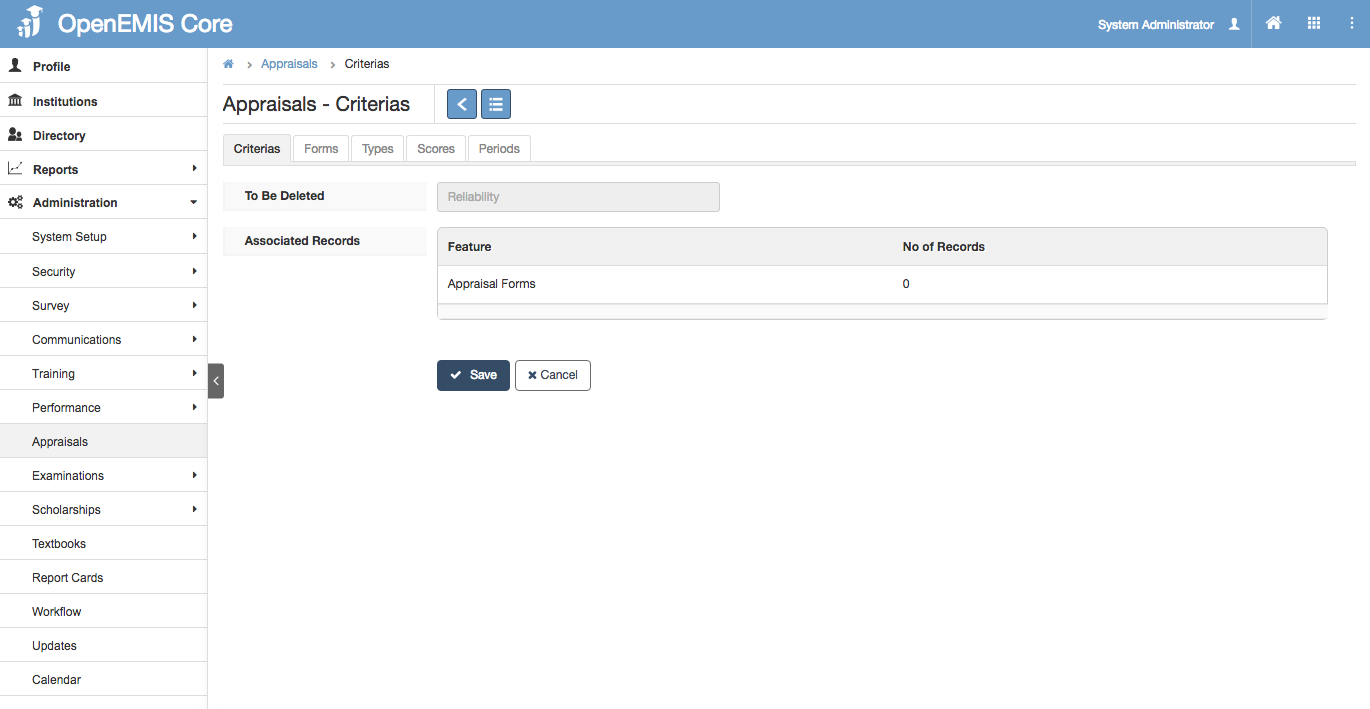
3) The system will display a confirmation page to delete the Criteria record.
4) Select ‘Save’
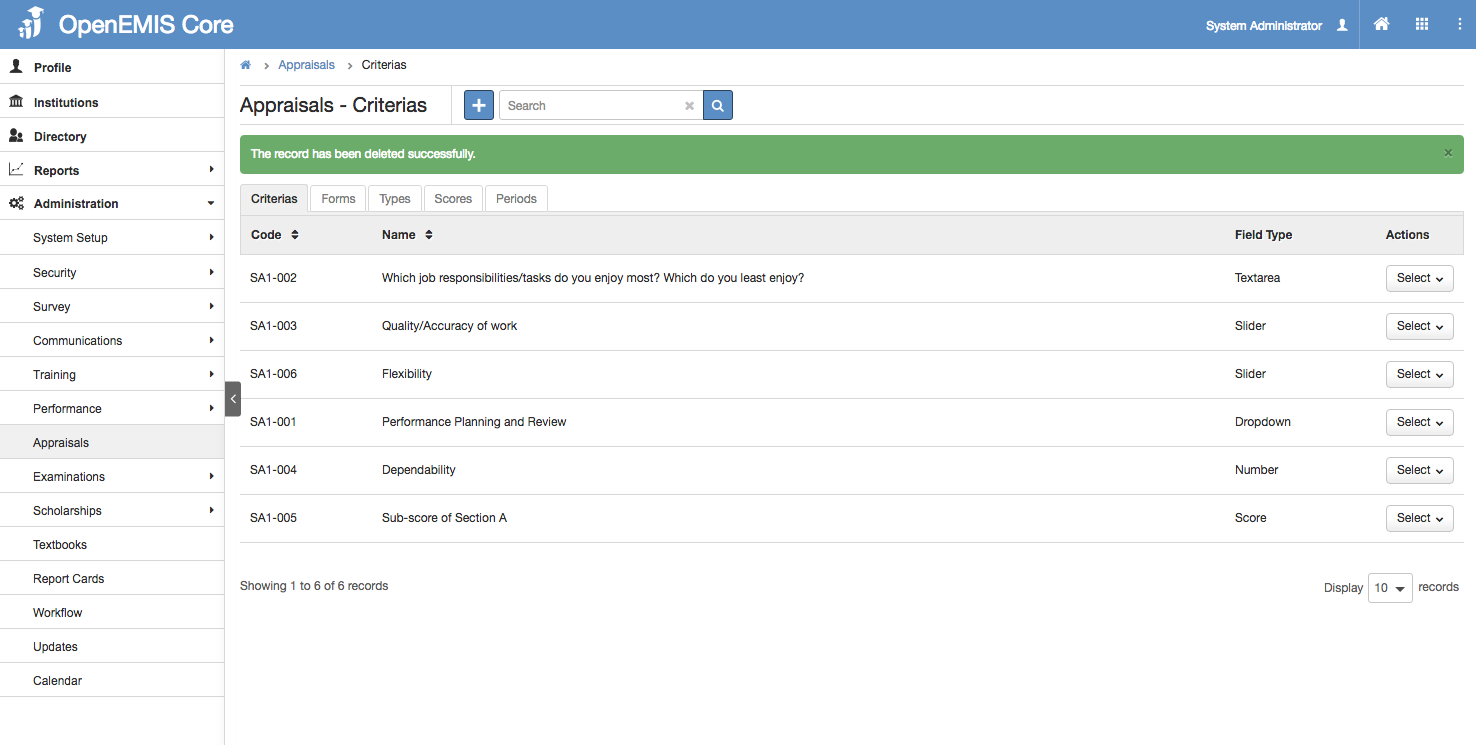
5) System will display a successful message once the record has been deleted.
Managing Forms
Create Forms
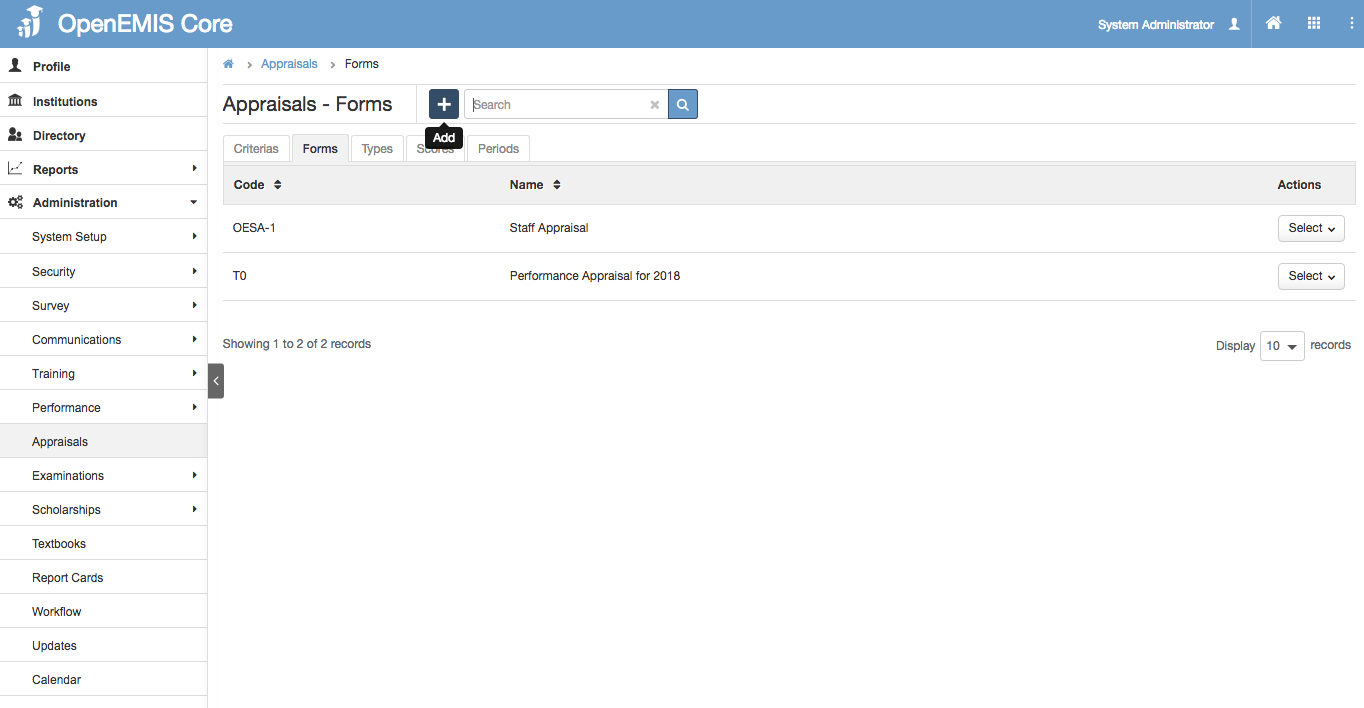
1) Go to Administration > Appraisals > Forms
2) You will see a list of Forms records.
3) Select ‘Add’ button
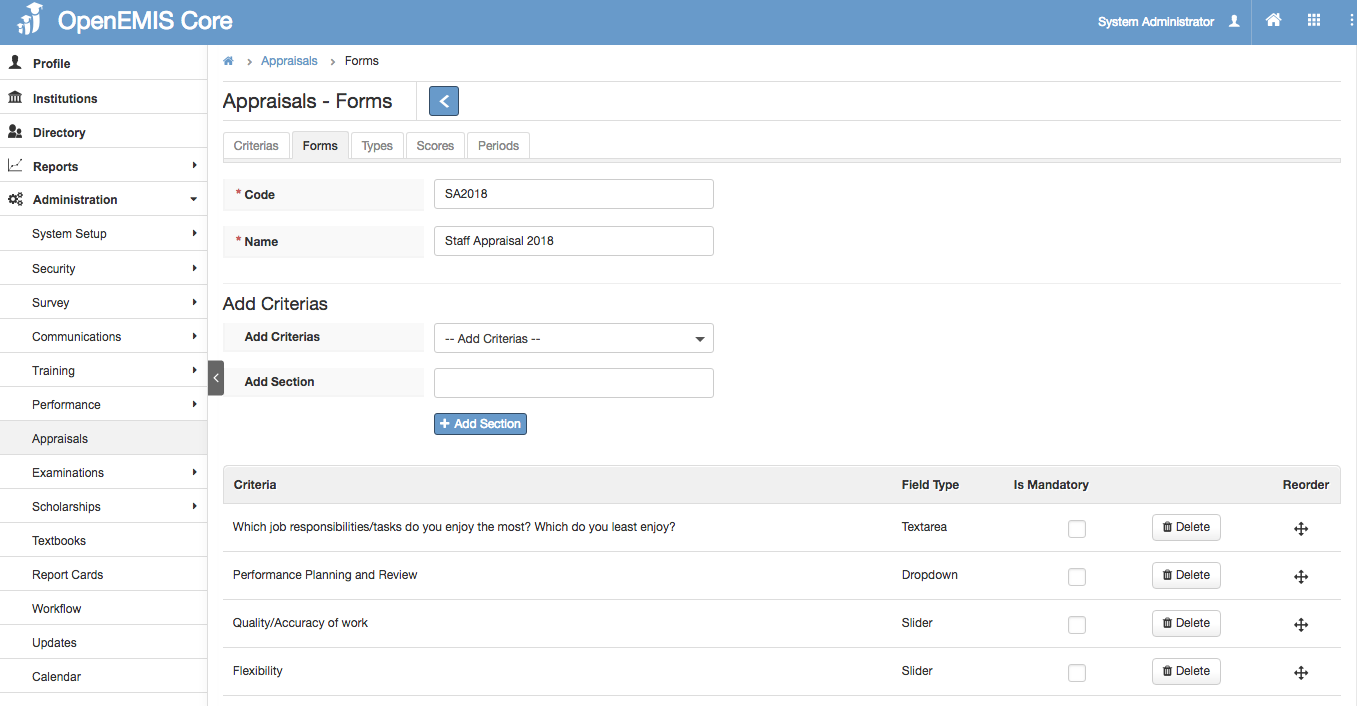
4) Enter Code, Name and Add Criteria. You may also add a Section header and reorder accordingly.
5) Select ‘Save’
View Forms
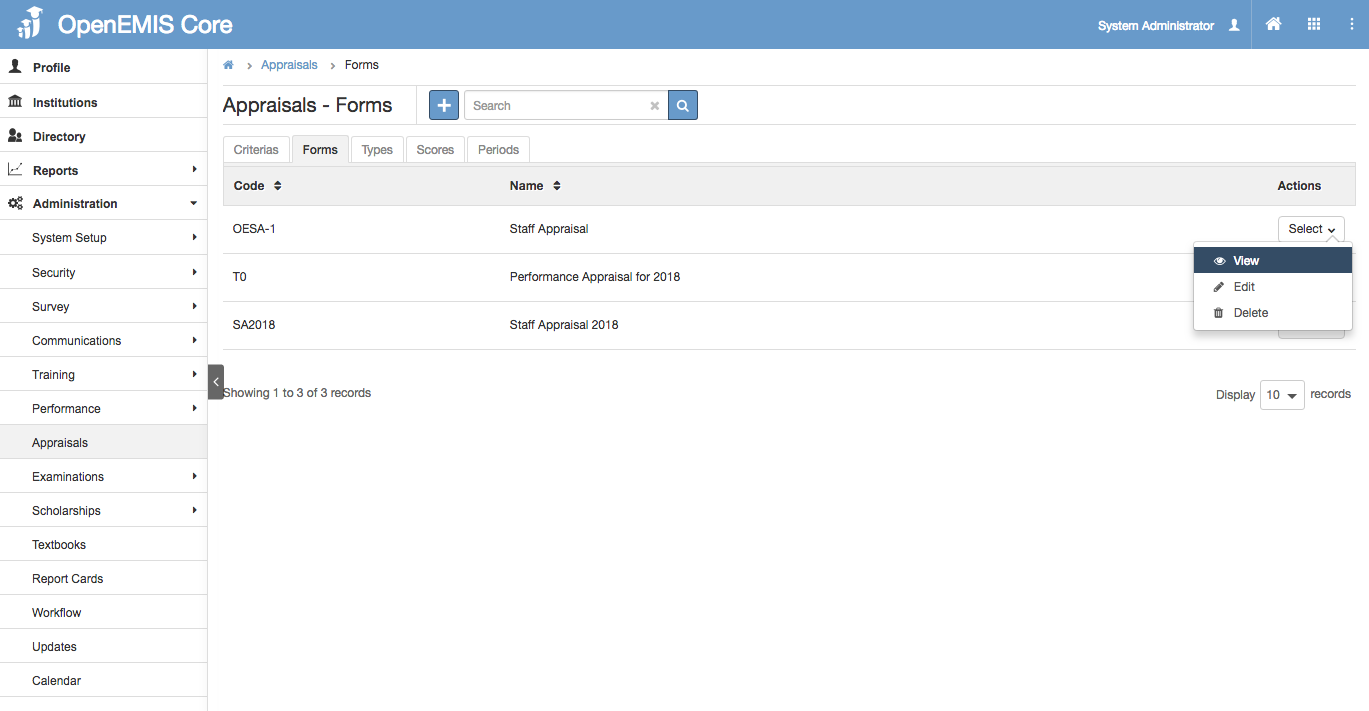
1) Go to Administration > Appraisals > Forms
2) Go to Action Bar > View
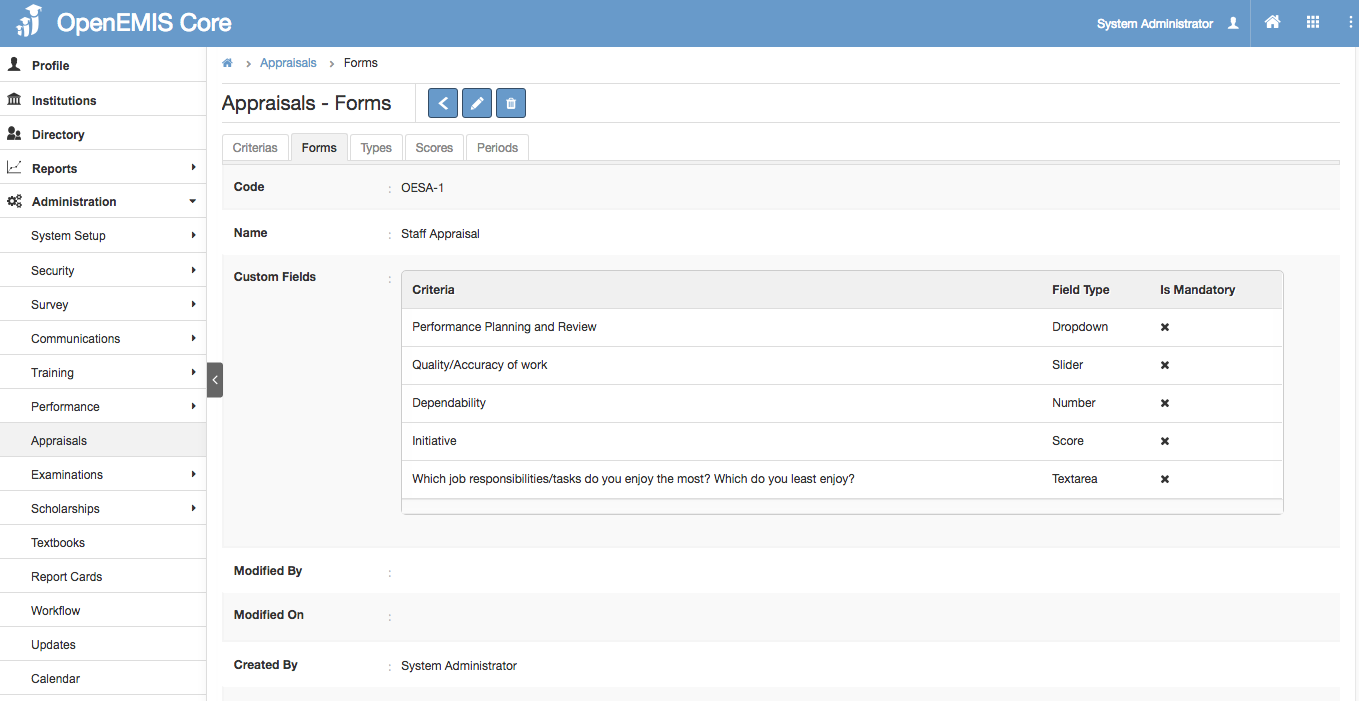
3) You will be able to view additional details of the Forms record.
4) Similarly, you can edit the record in the page.
Edit Forms
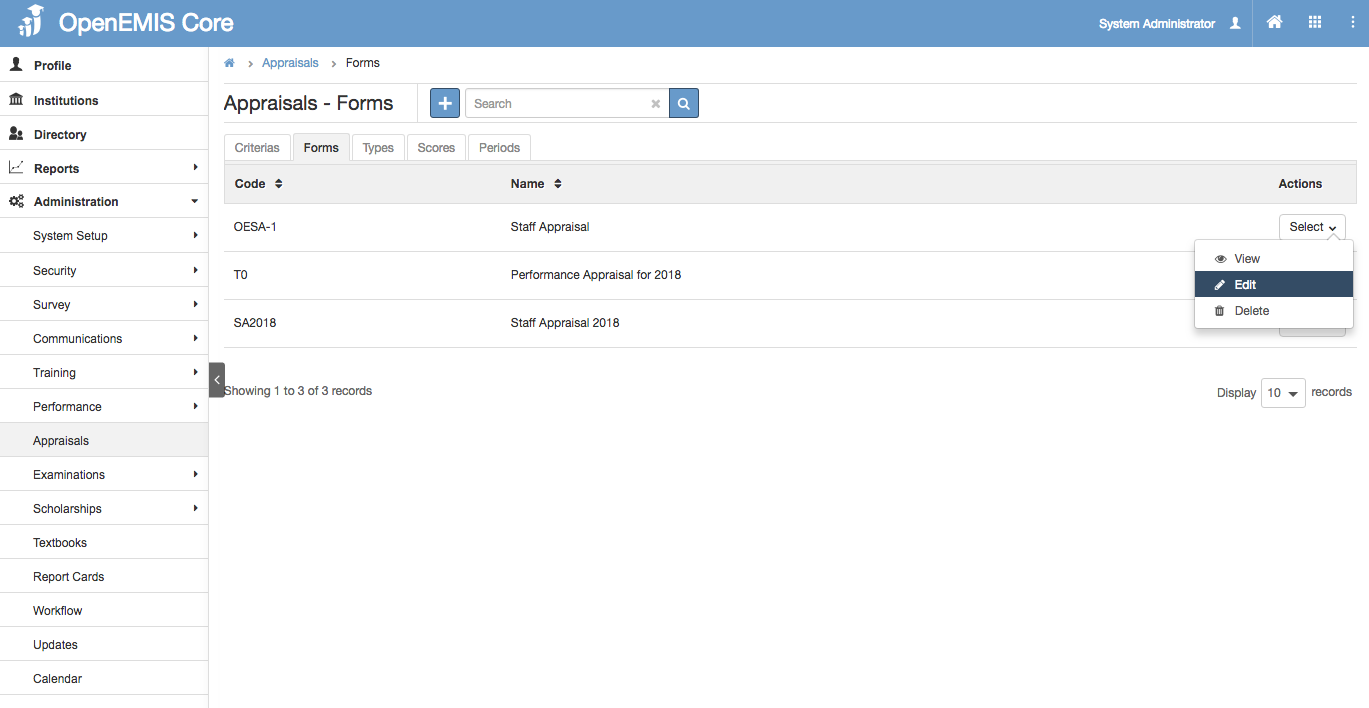
1) Go to Administration > Appraisals > Forms
2) Go to Action Bar > Edit
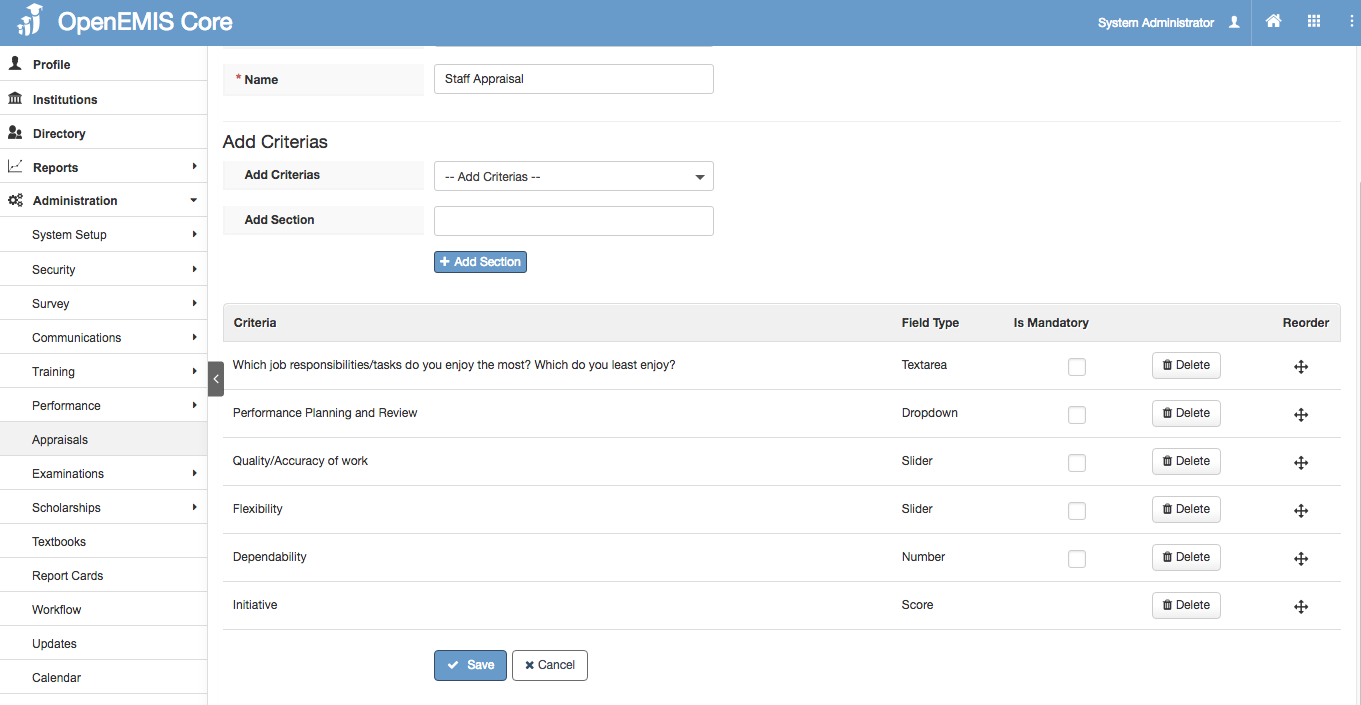
3) You will be able to edit the details of the Forms record.
4) Select ‘Save’
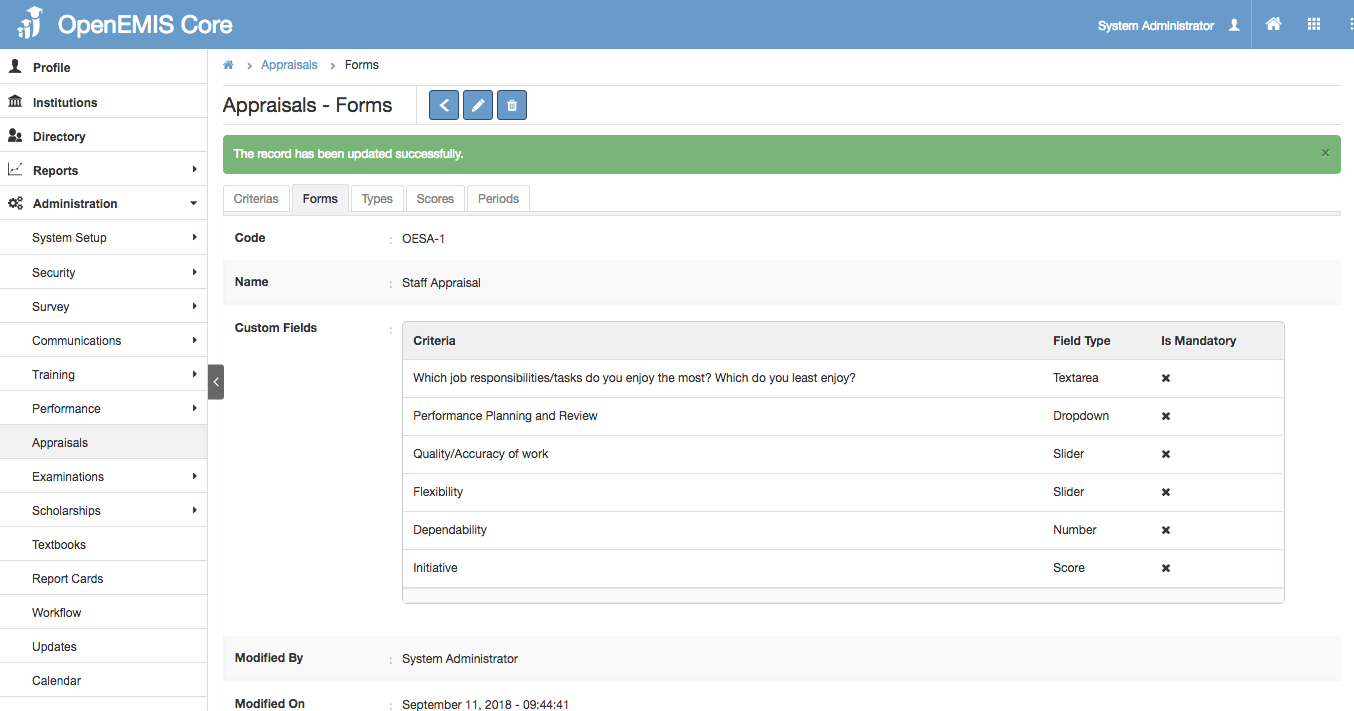
5) System will display a successful message once the record has been edited.
Managing Scores
Link Criterias to Scores
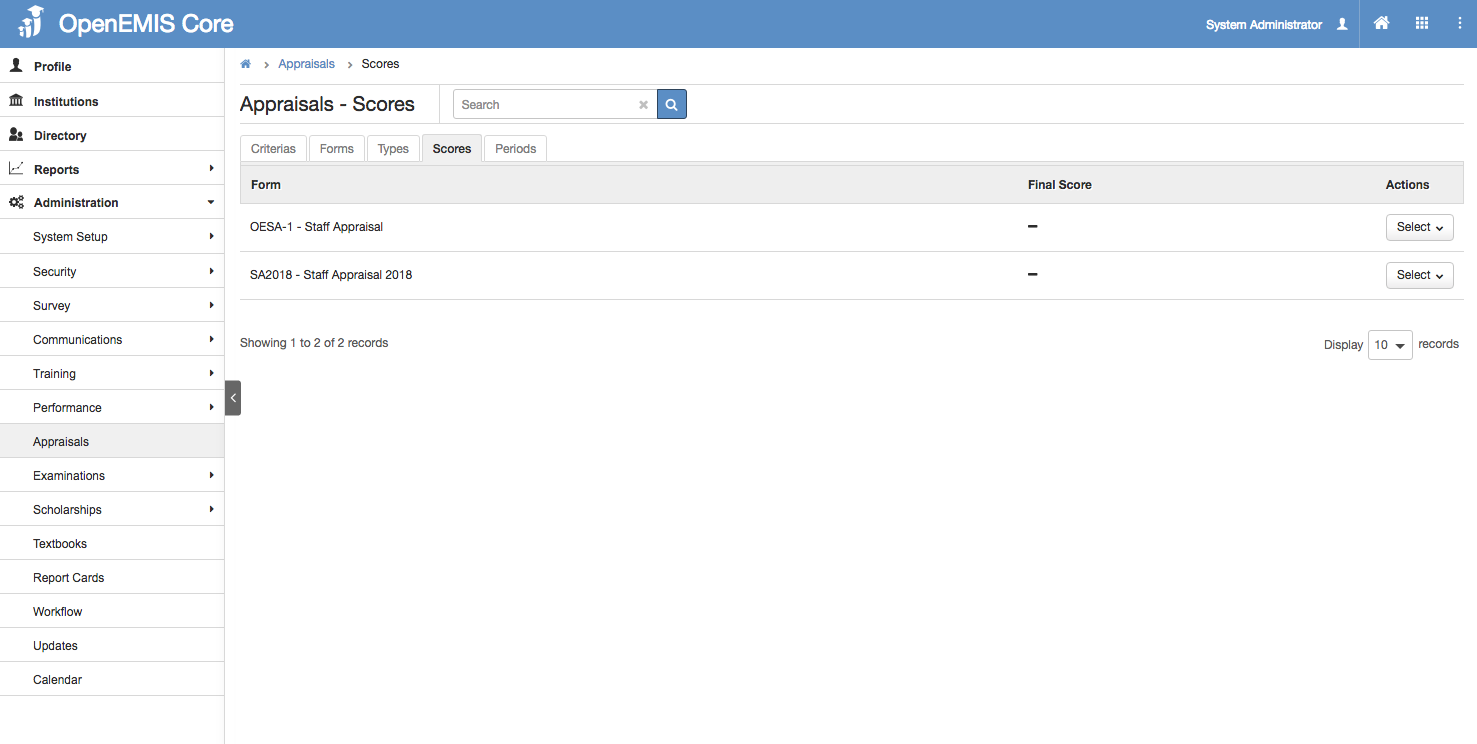
1) Go to Administration > Appraisals > Scores
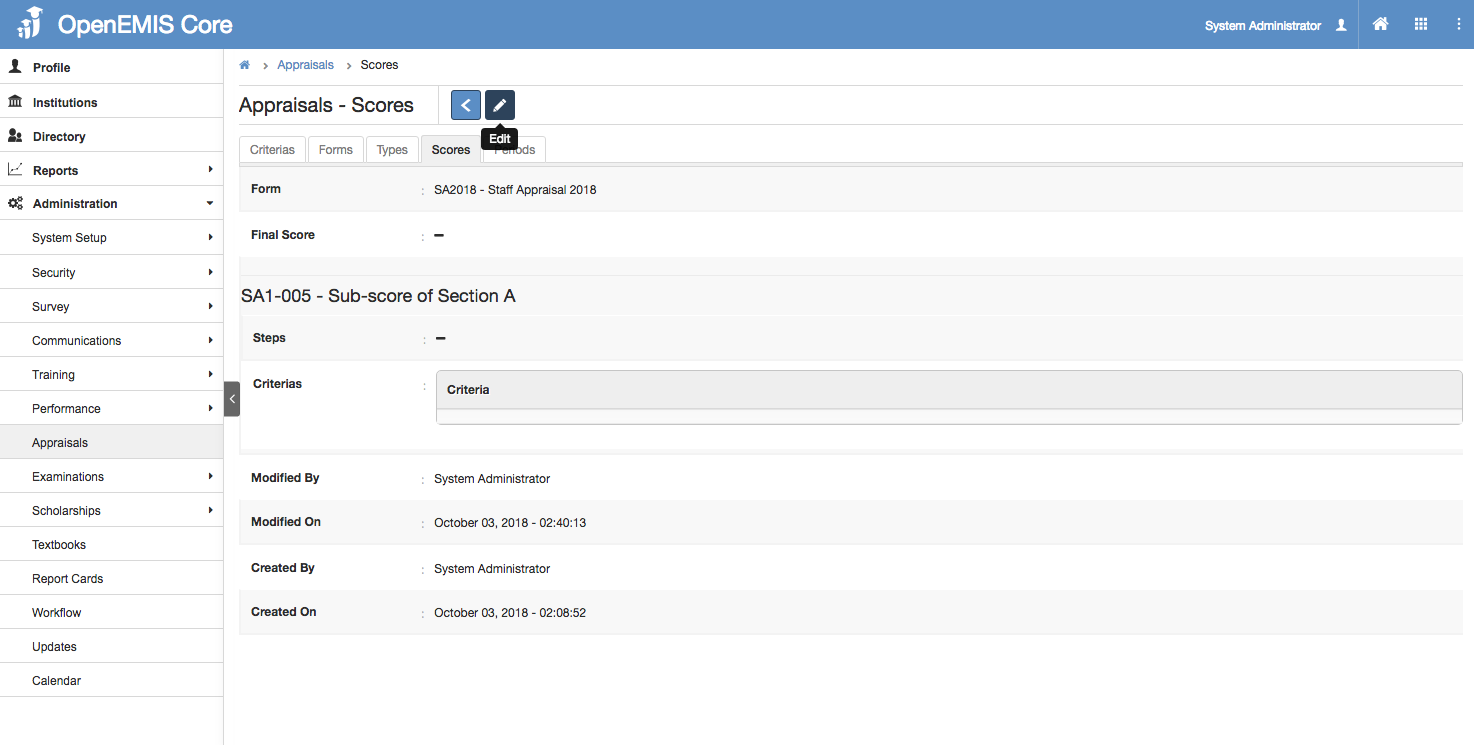
2) Select the Appraisal Form accordingly. Click ‘Edit’.
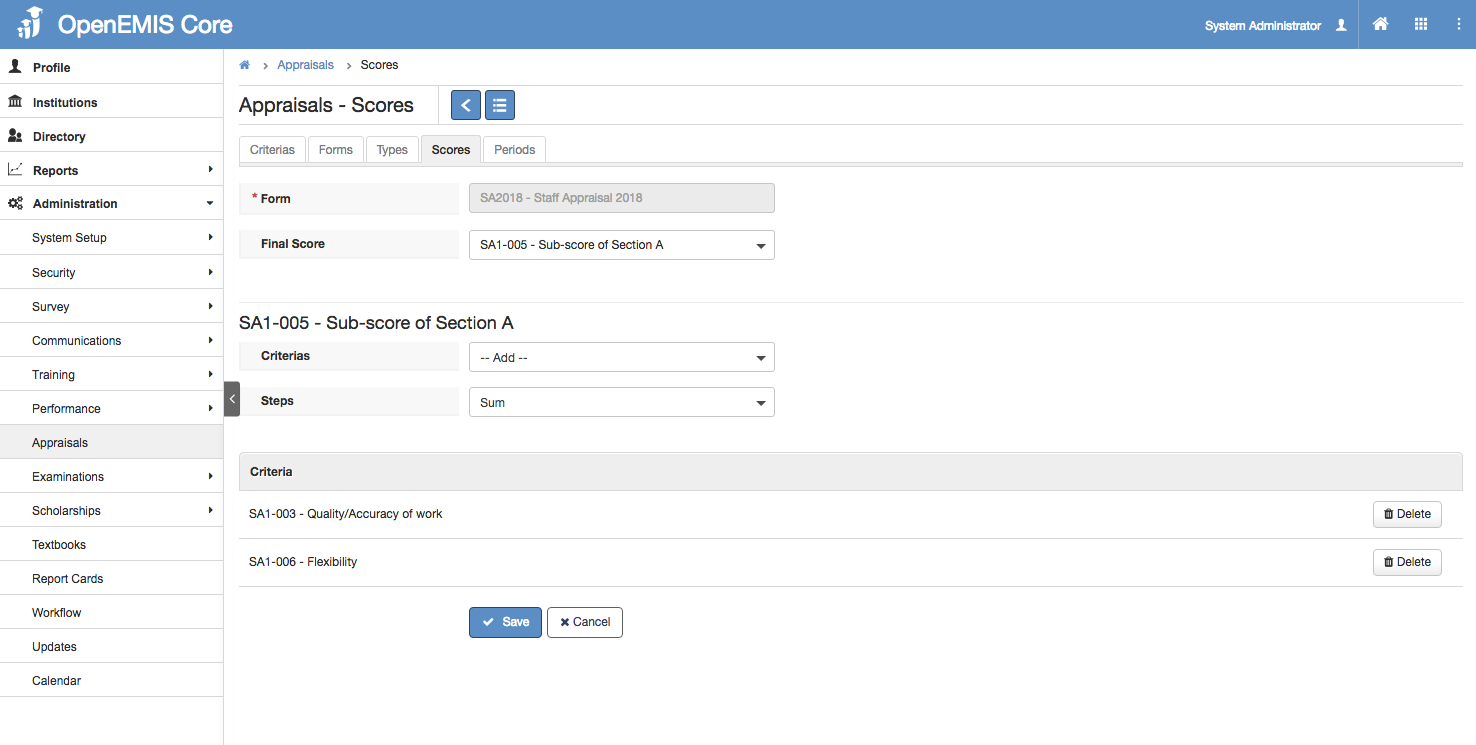
3) Select a Score type criteria as your Final Score
4) Select your Criterias and steps (Sum/Average)
Criteria 2: SA1-006 – Flexibility (E.g Score is 5)
Steps: Sum
Final Score: SA1-005 – Sub Score of Section A (Total: 9+5 = 14)
5) Select ‘Save’
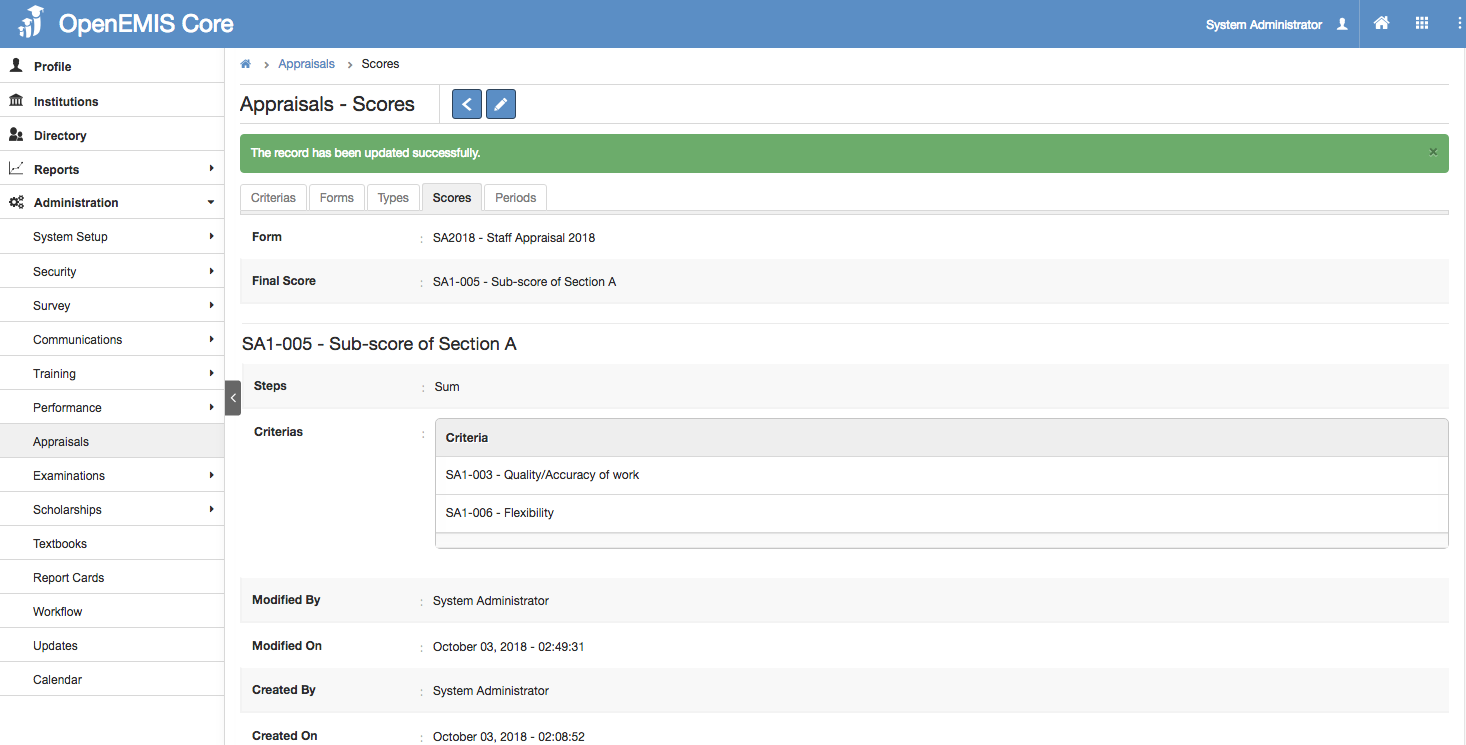
6) System will display a successful message once the record has been updated.
View Scores
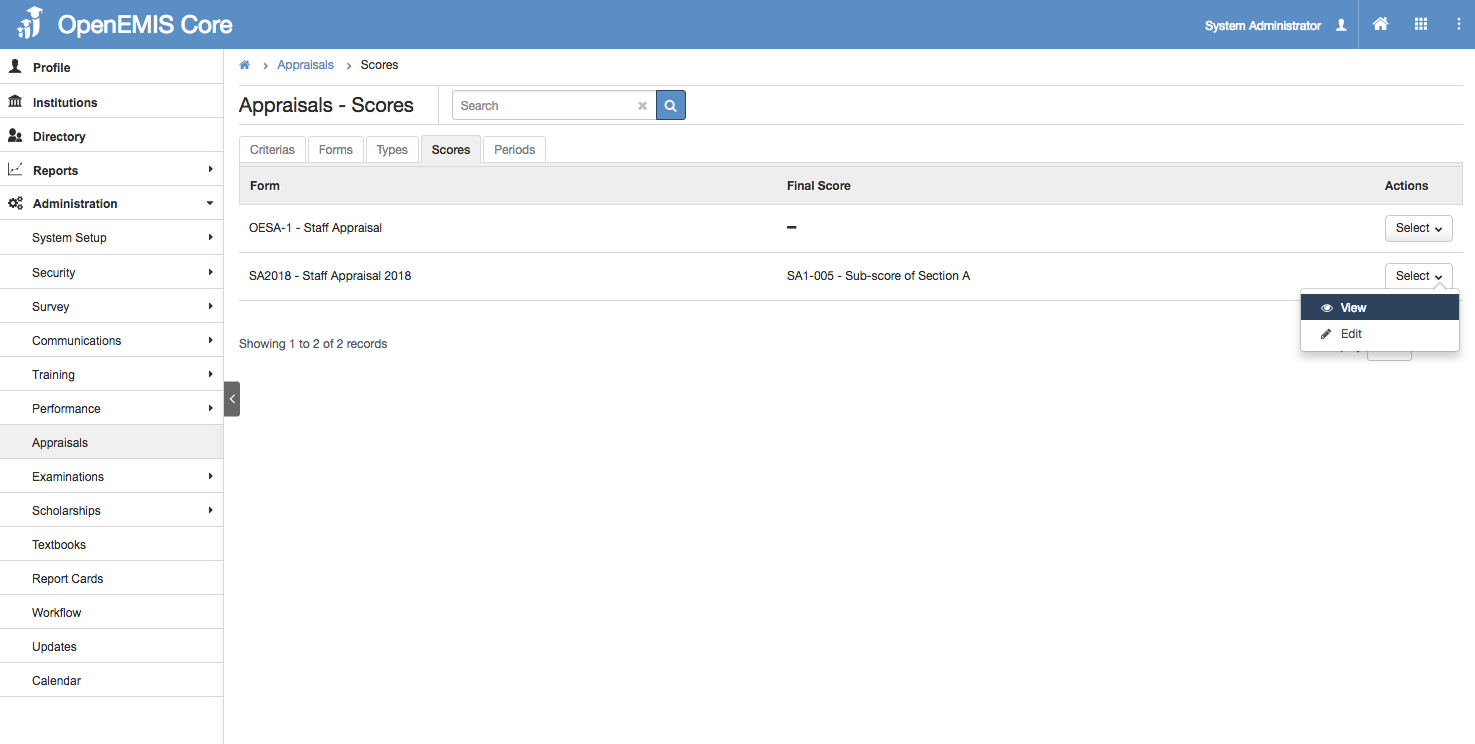
1) Go to Administration > Appraisals > Scores
2) Go to Action Bar > View
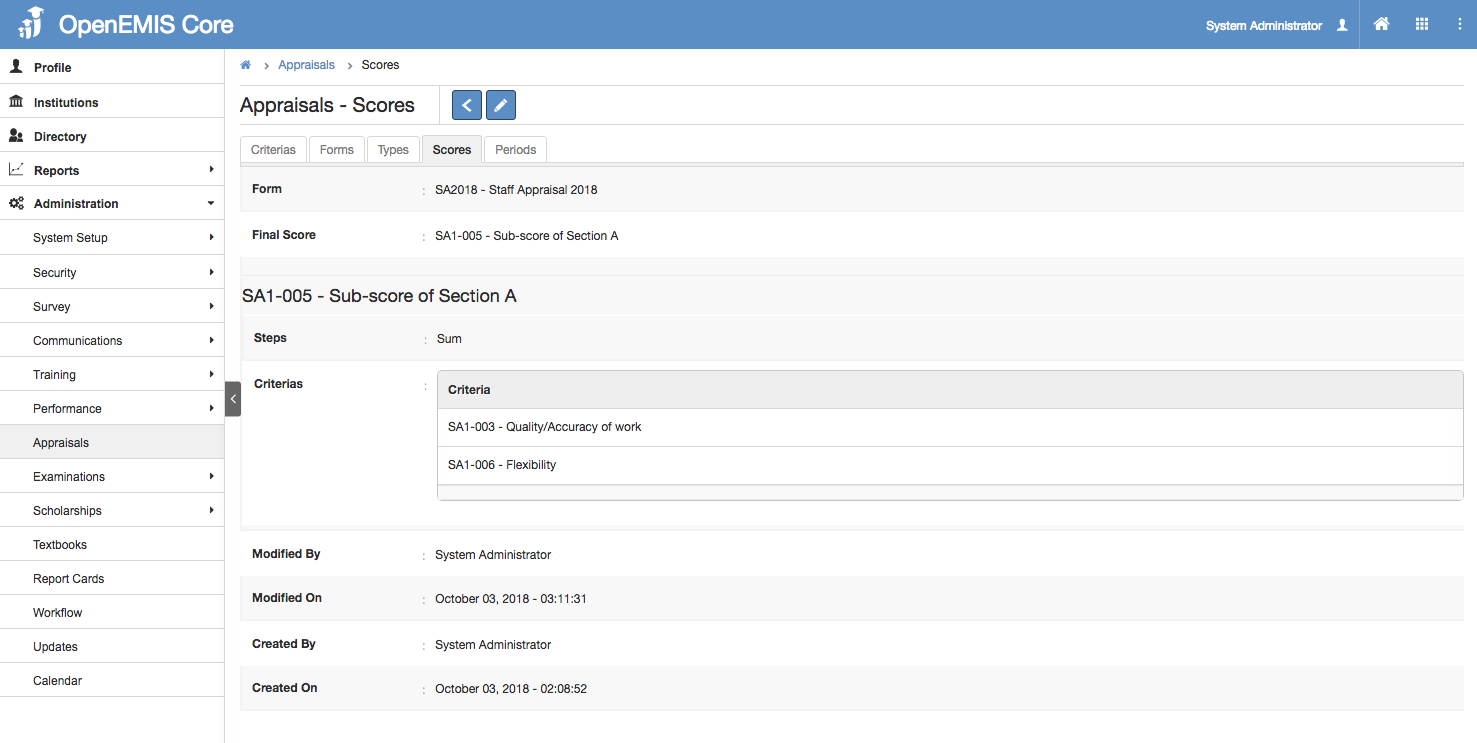
3) You will be able to view additional details of the Scores record.
4) Similarly, you can edit or delete the record in the page.
Edit Scores
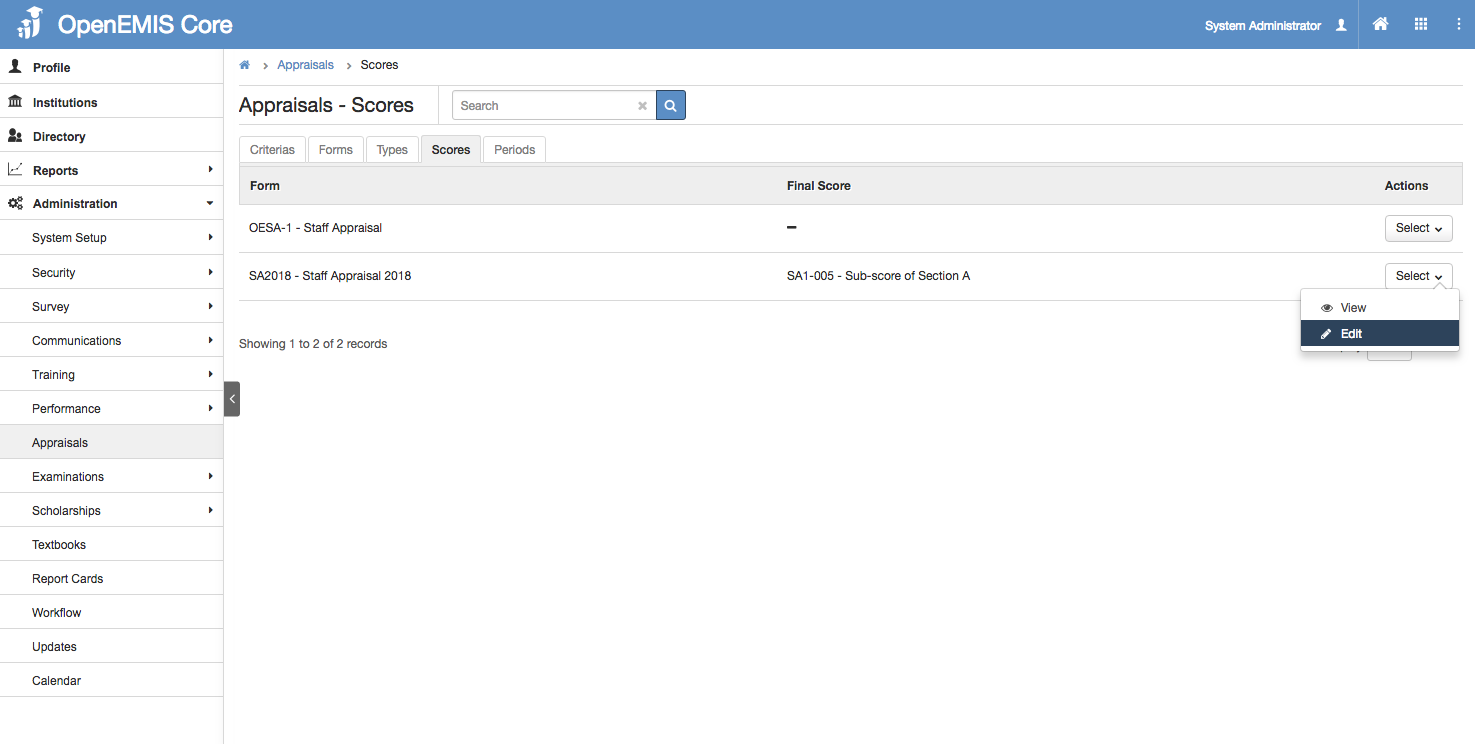
1) Go to Administration > Appraisals > Scores
2) Go to Action Bar > Edit
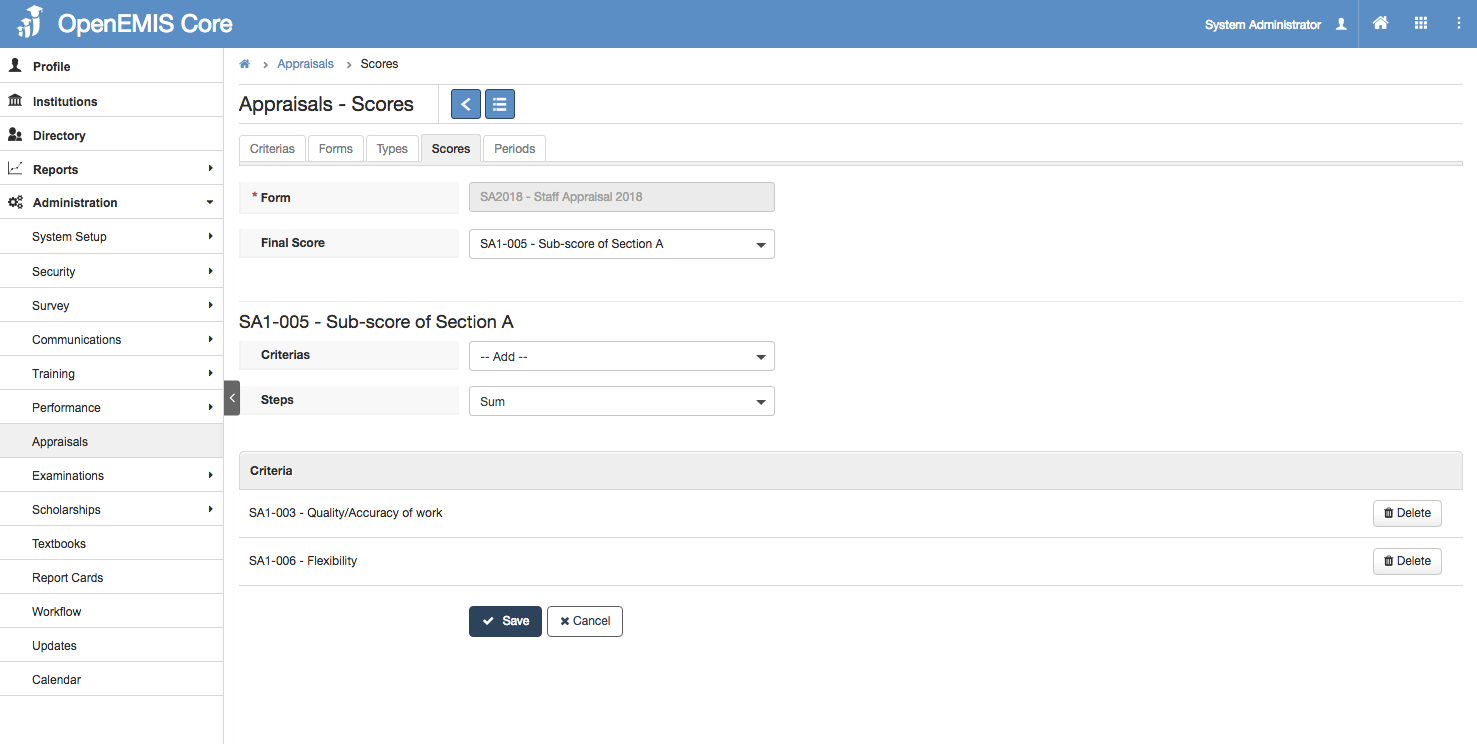
3) You will be able to edit the details of the Scores record.
4) Select ‘Save’
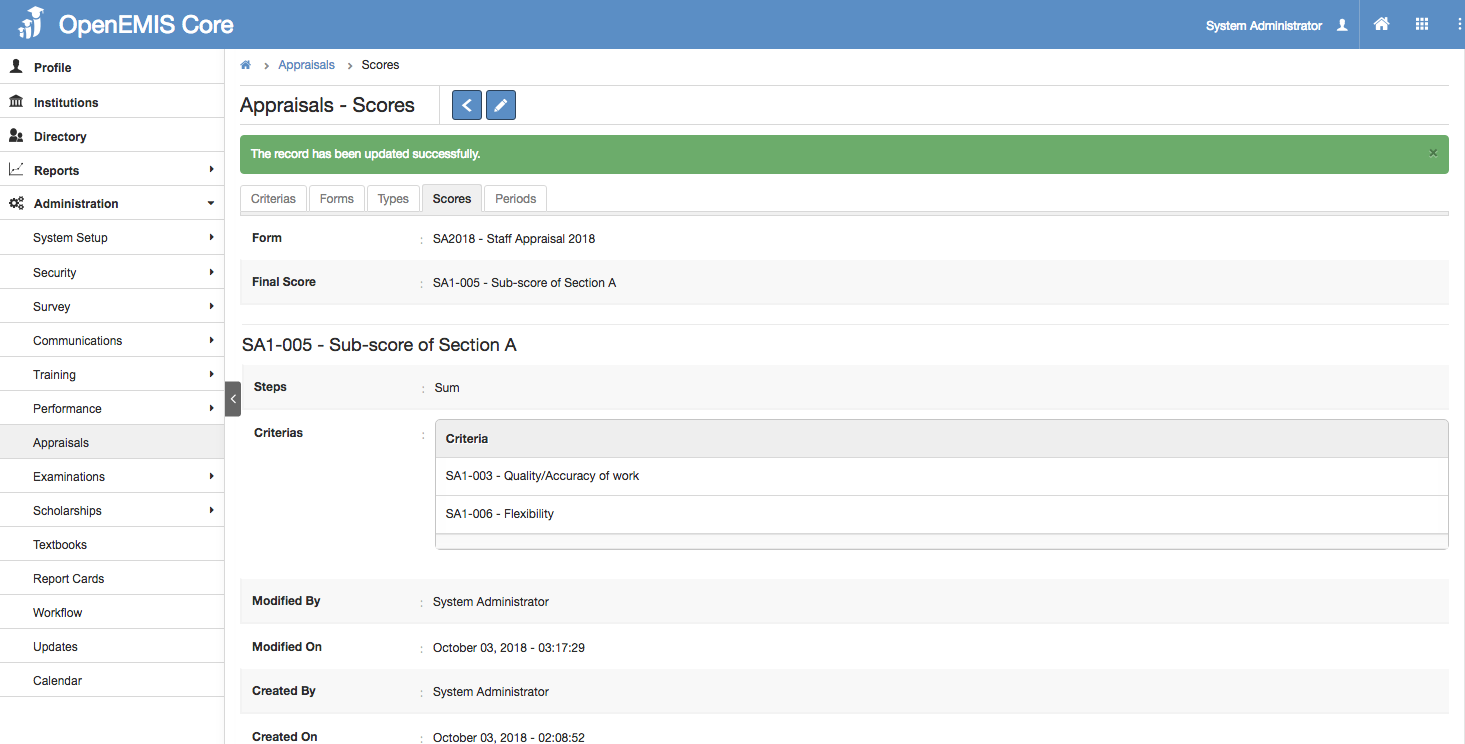
5) System will display a successful message once the record has been edited.
Delete Scores
1) Go to Administration > Appraisals > Scores
2) Go to Action Bar > Edit
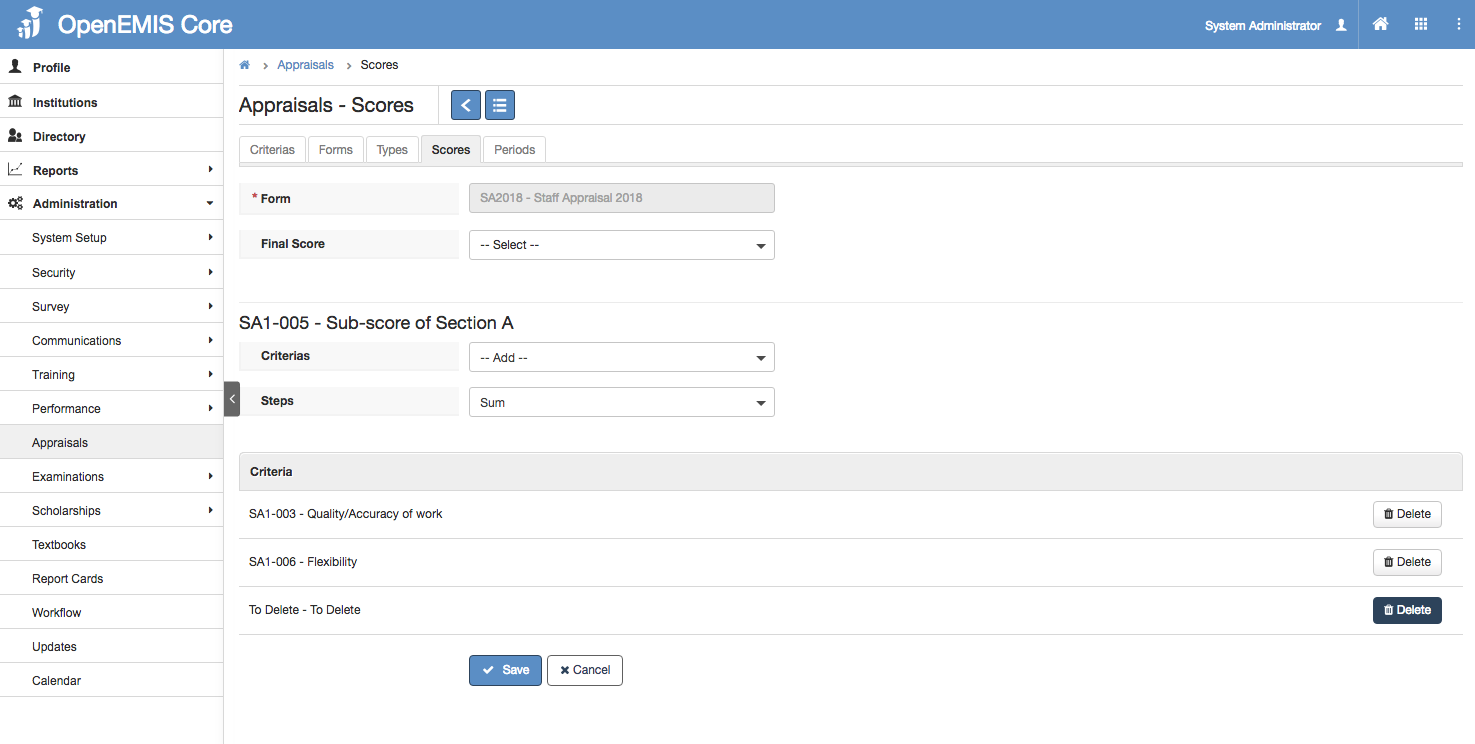
3) Delete the Criteria accordingly
4) Select ‘Save’
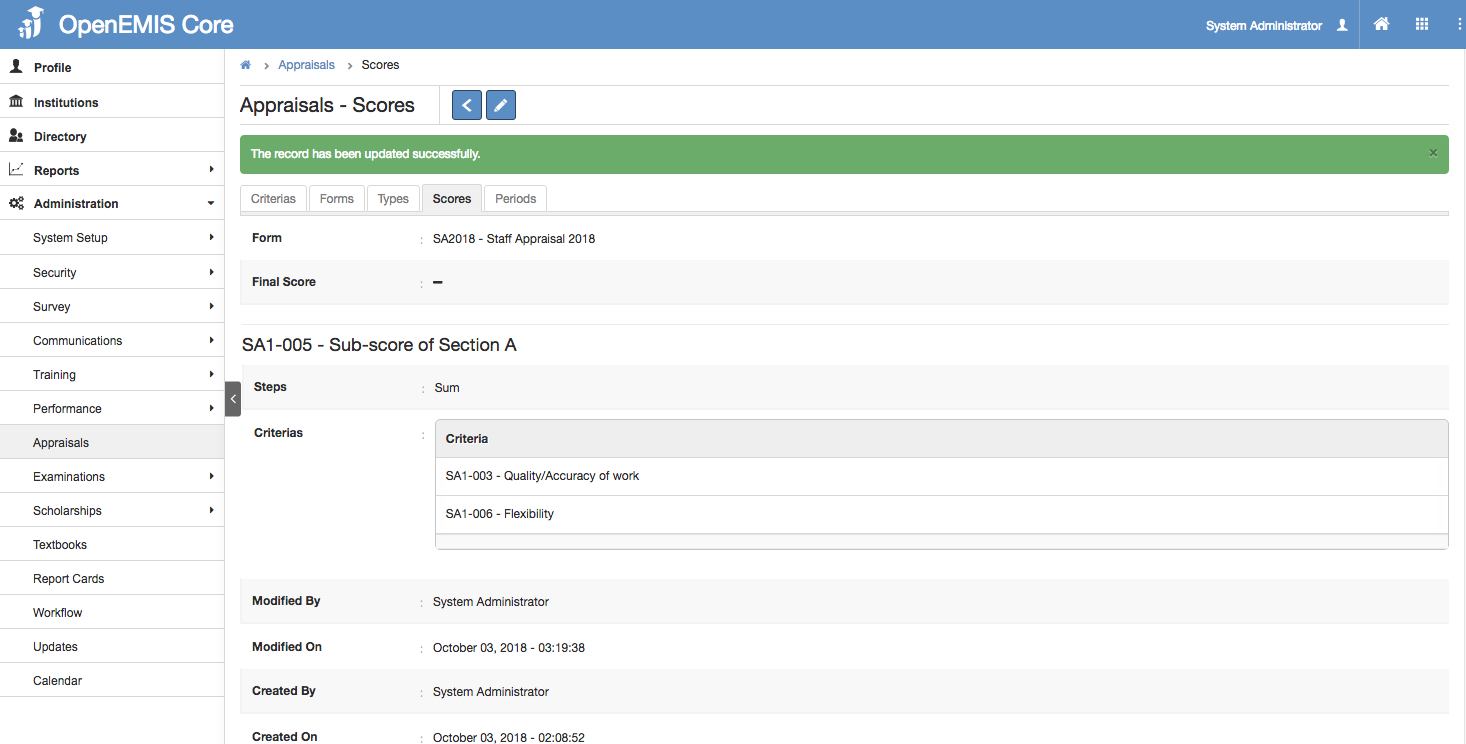
5) System will display a successful message once the record has been updated.
Managing Types
Create Types
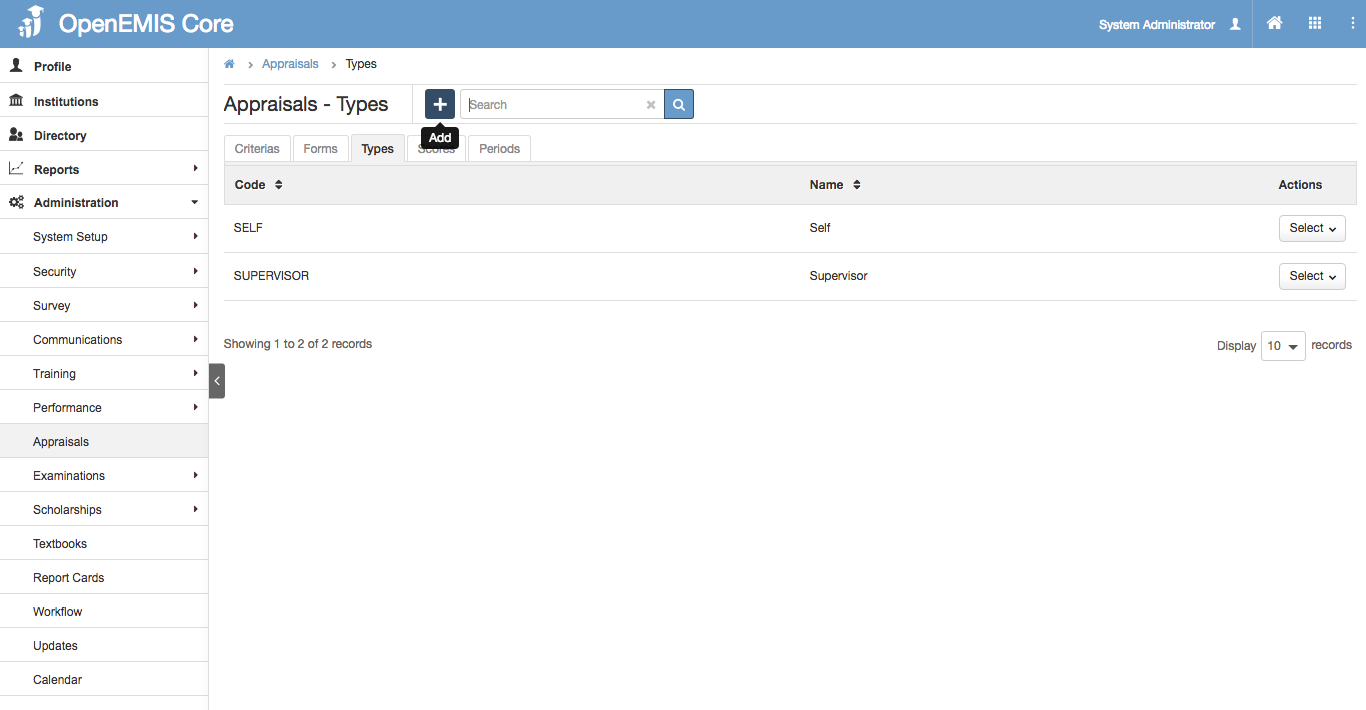
1) Go to Administration > Appraisals > Types
2) You will see a list of Criteria records.
3) Select ‘Add’ button
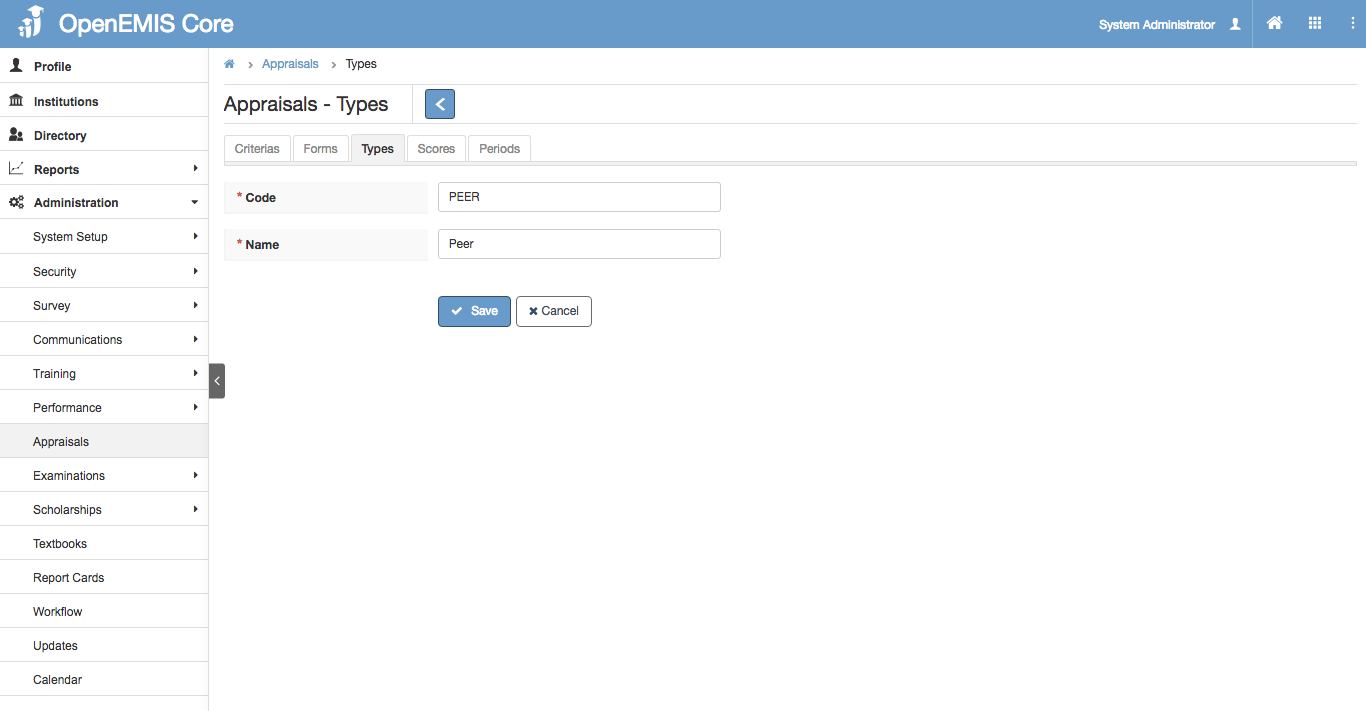
4) Enter Code and Name.
5) Select ‘Save’
View Types
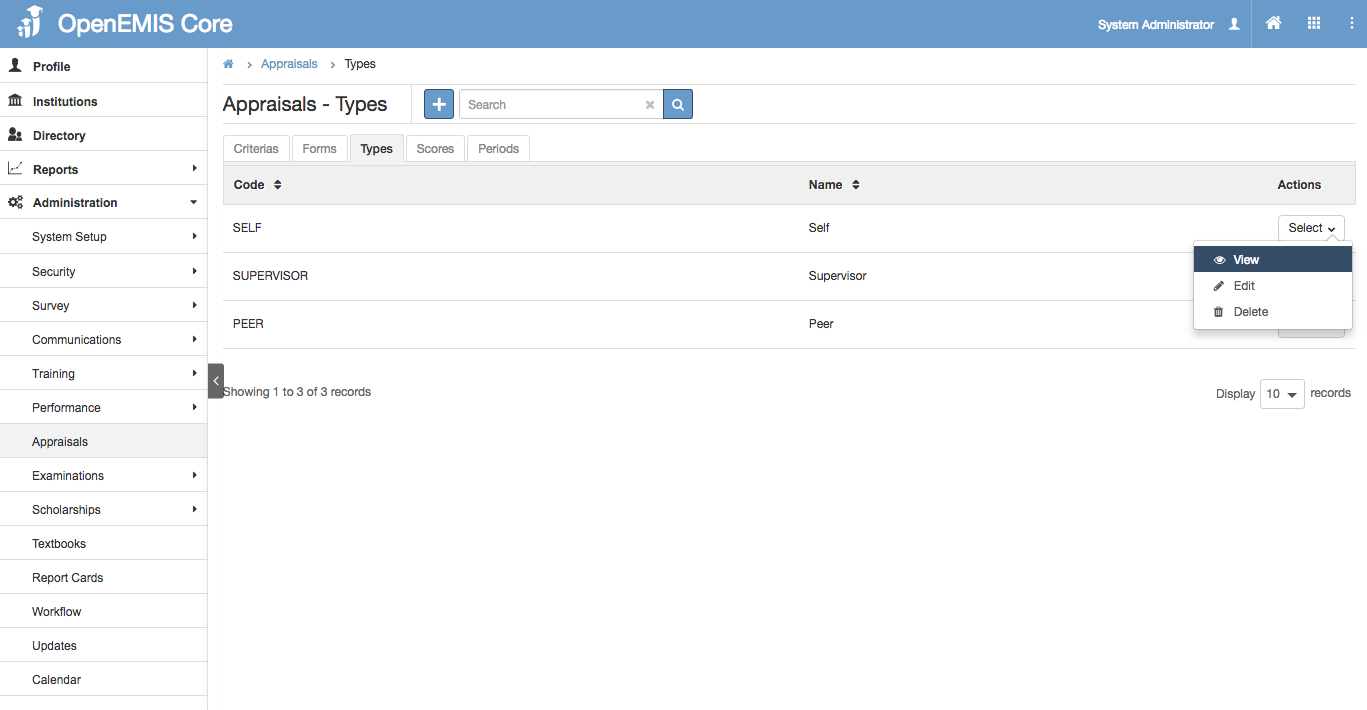
1) Go to Administration > Appraisals > Types
2) Go to Action Bar > View
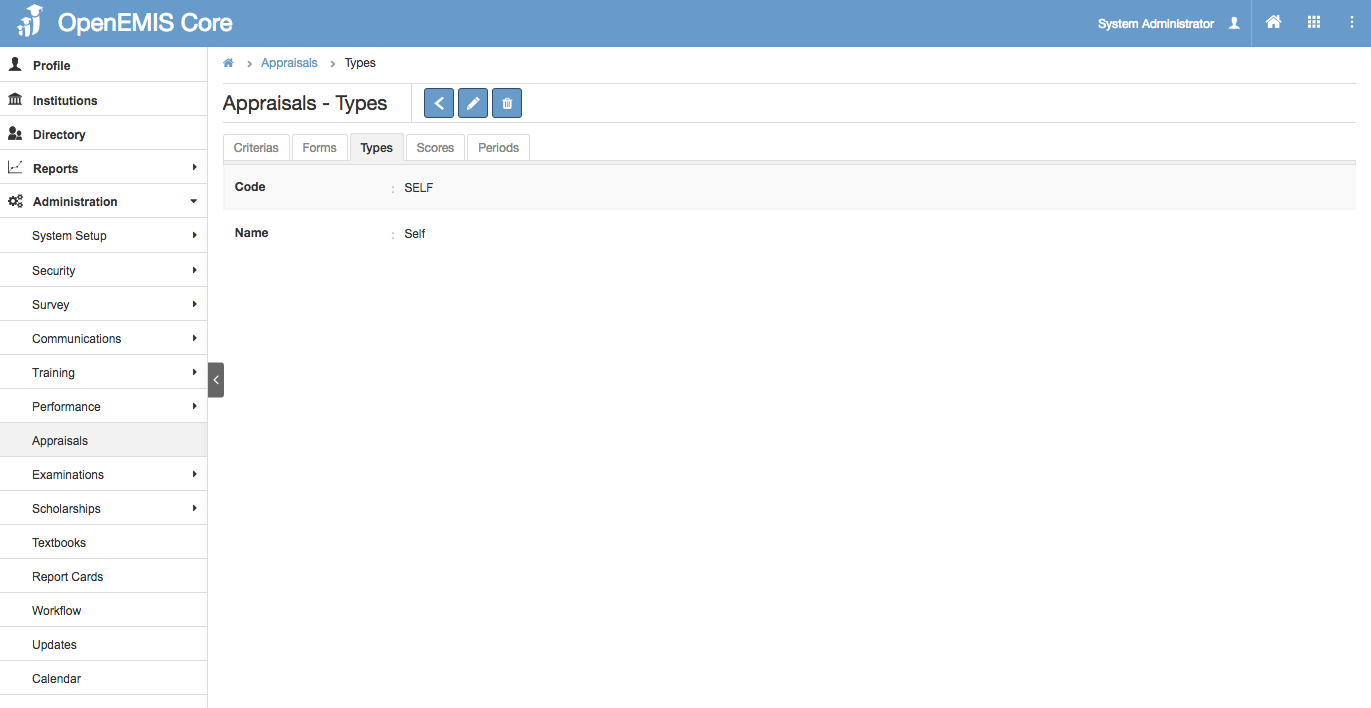
3) You will be able to view additional details of the Types record.
4) Similarly, you can edit or delete the record in the page.
Edit Types
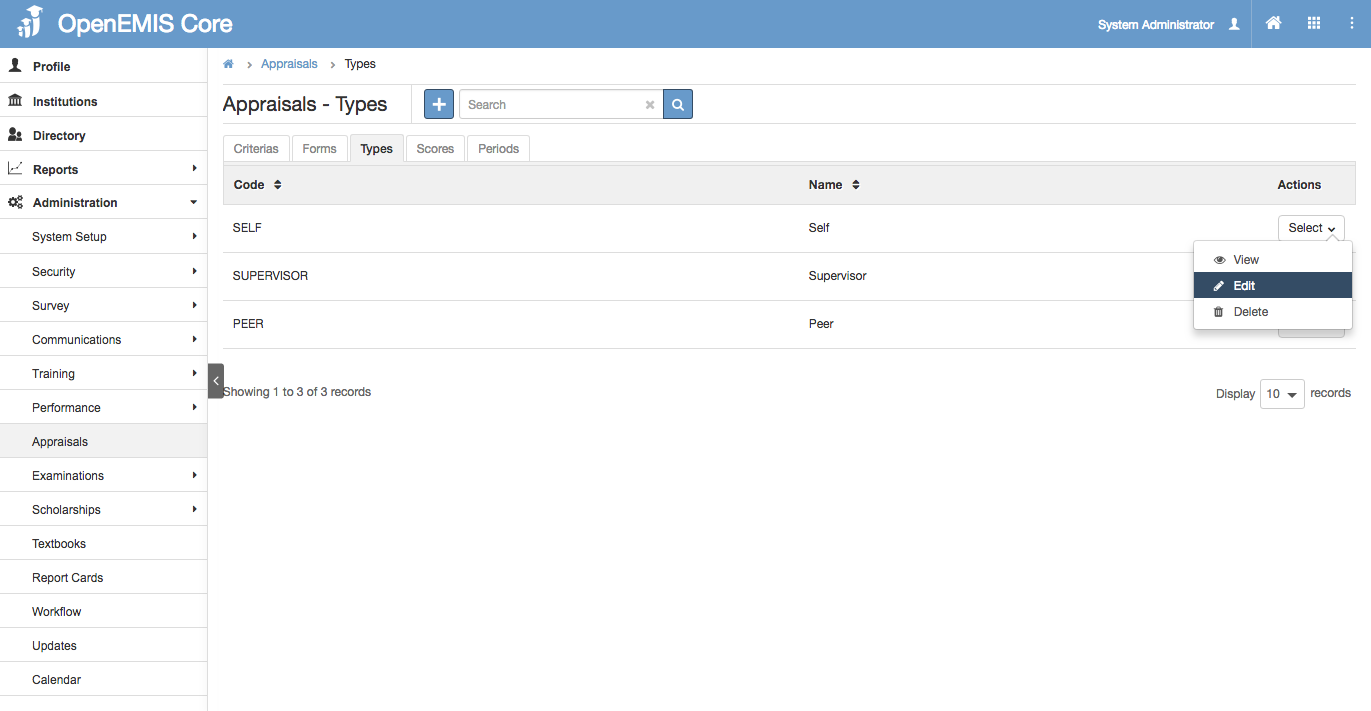
1) Go to Administration > Appraisals > Types
2) Go to Action Bar > Edit
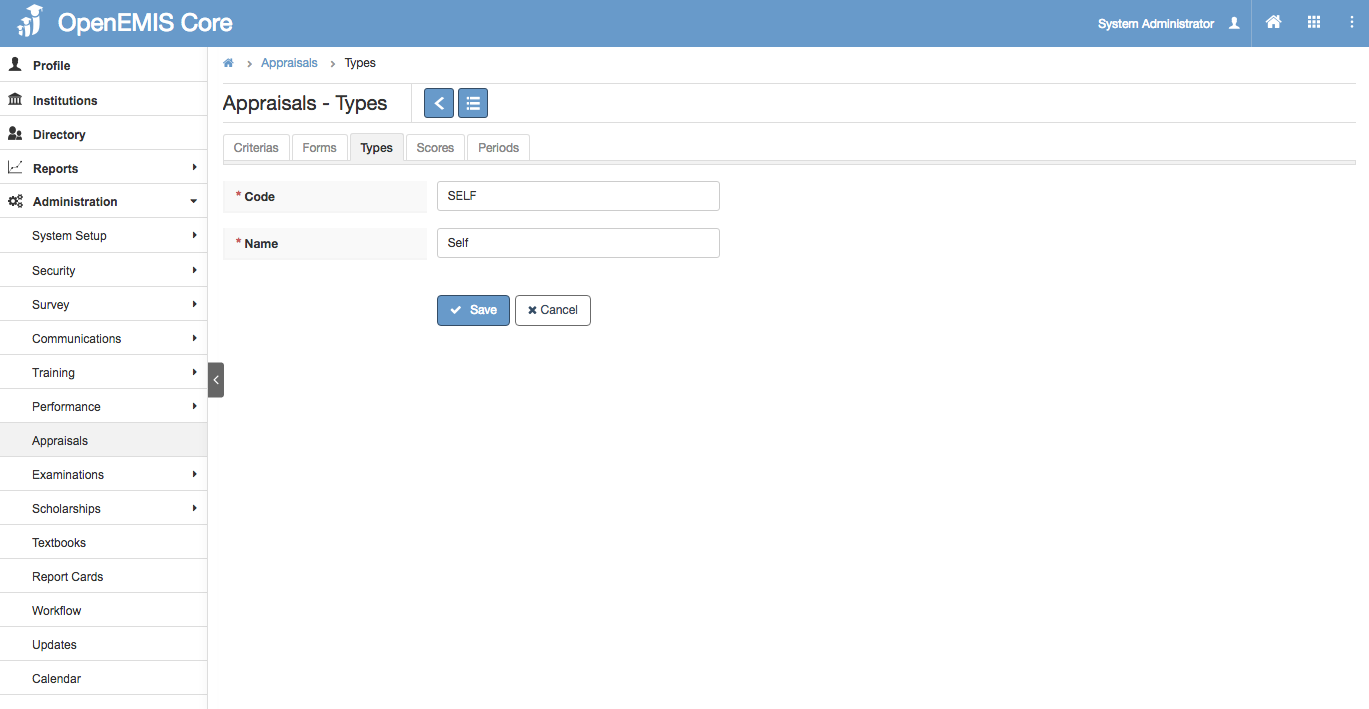
3) You will be able to edit the details of the Forms record.
4) Select ‘Save’
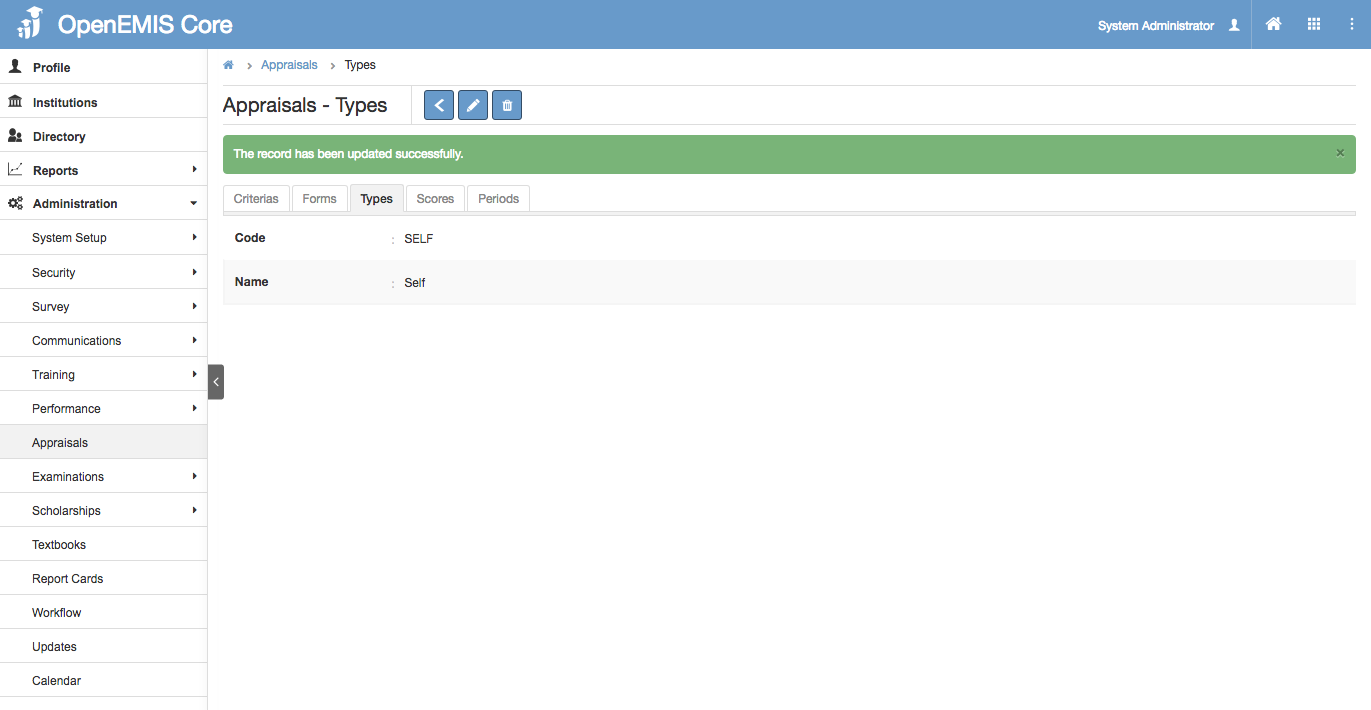
5) System will display a successful message once the record has been edited.
Delete Types
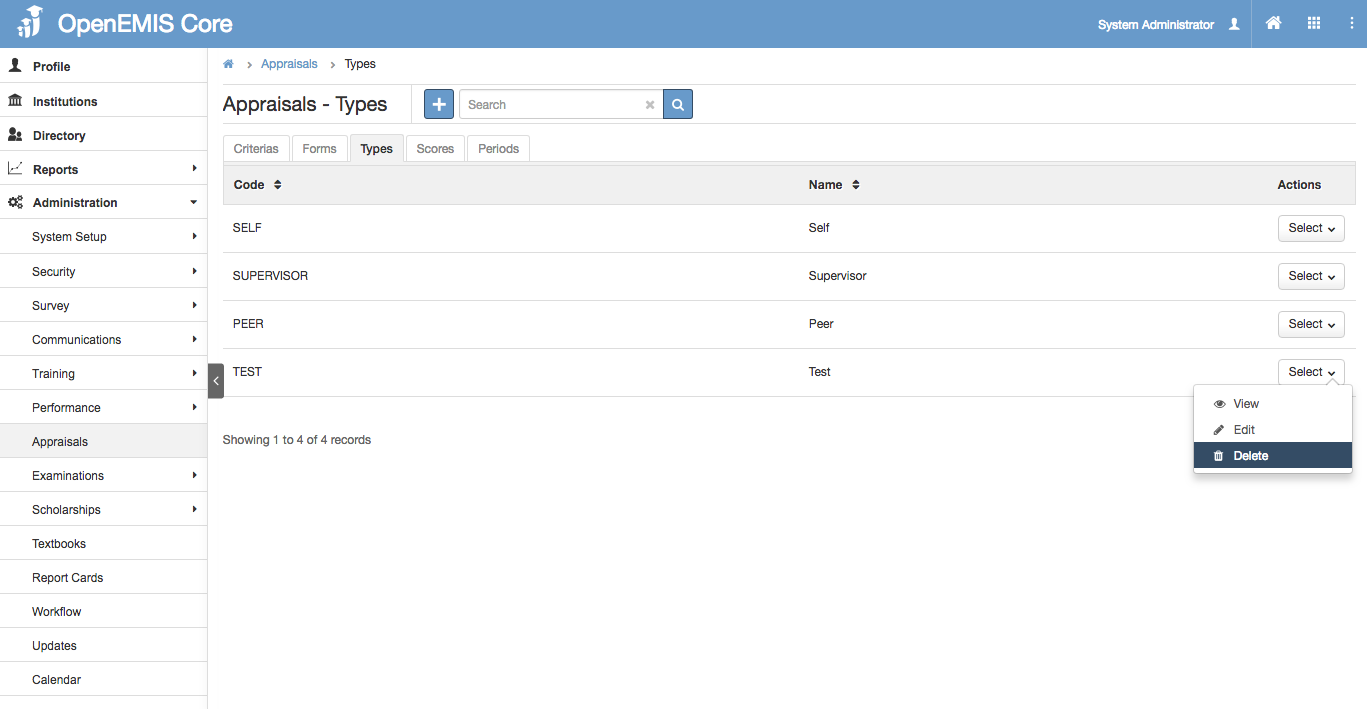
1) Go to Administration > Appraisals > Types
2) Go to Action Bar > Delete
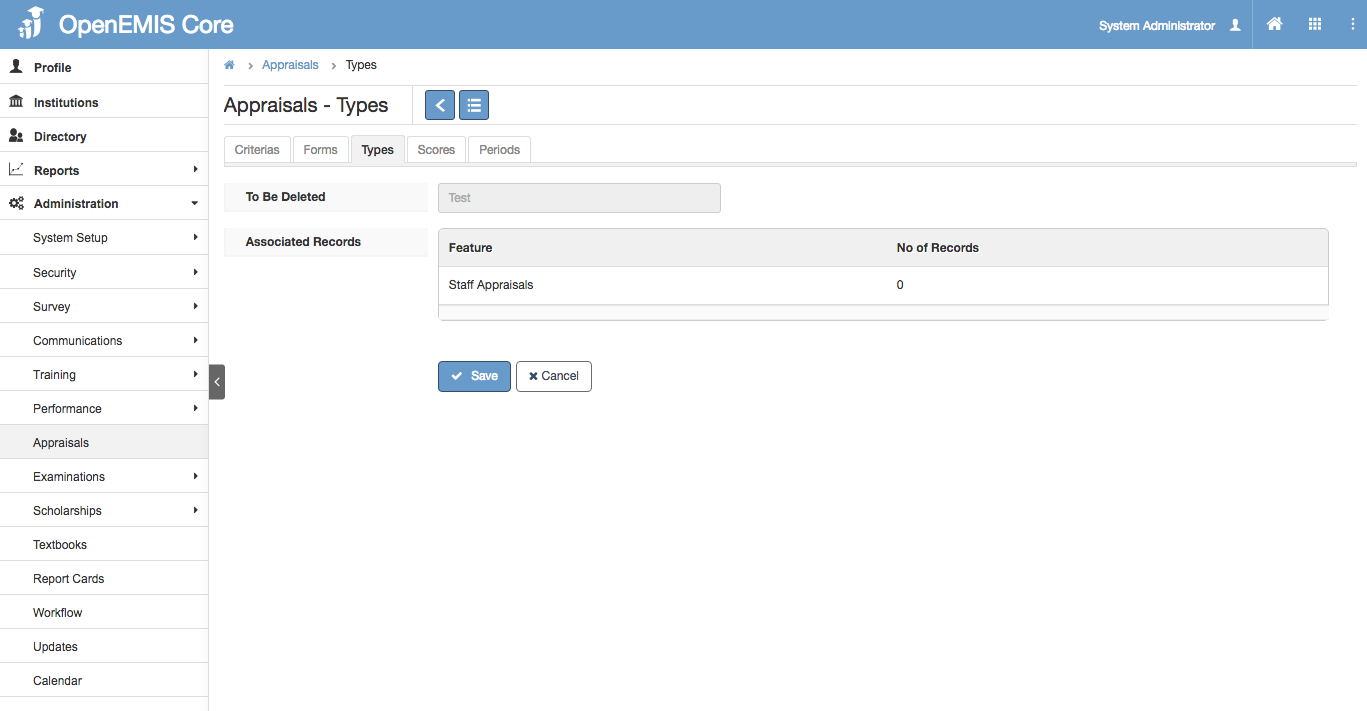
3) The system will display a confirmation page to delete the Types record.
4) Select ‘Save’
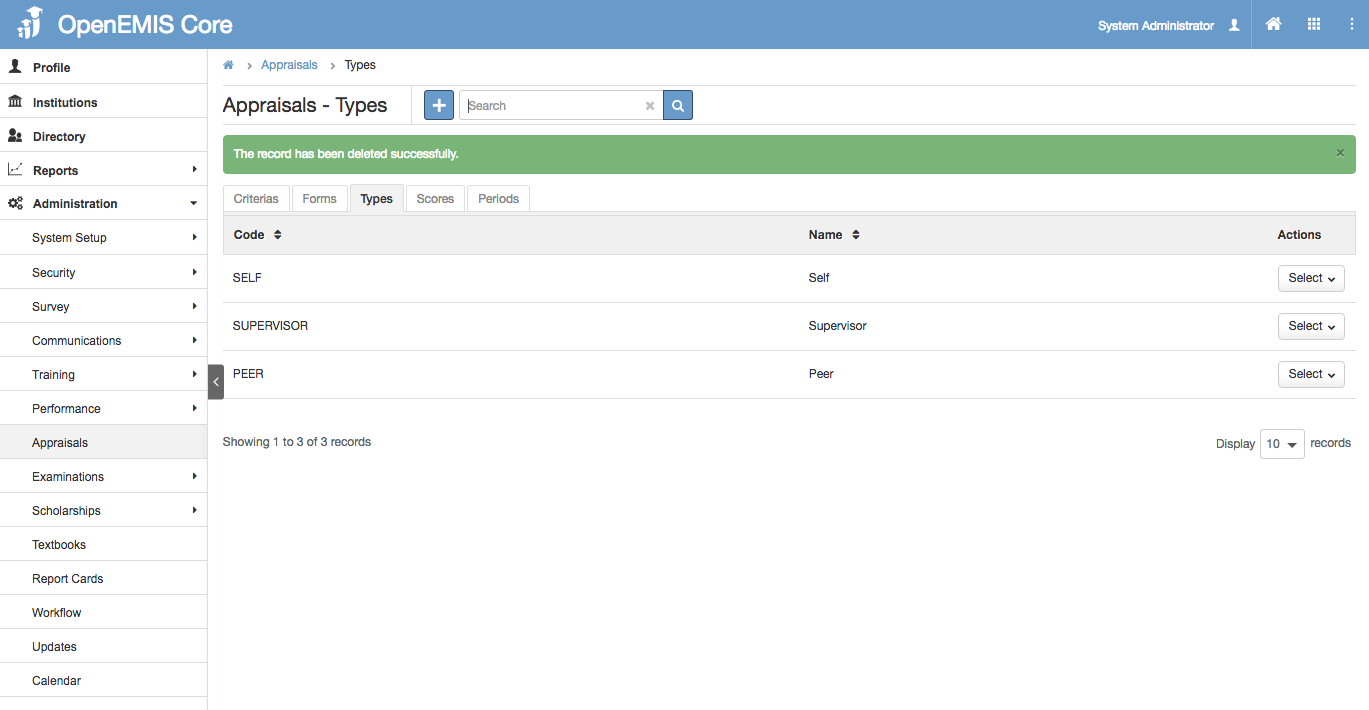
5) System will show a successful message, once record has been deleted.
Managing Periods
Create Periods
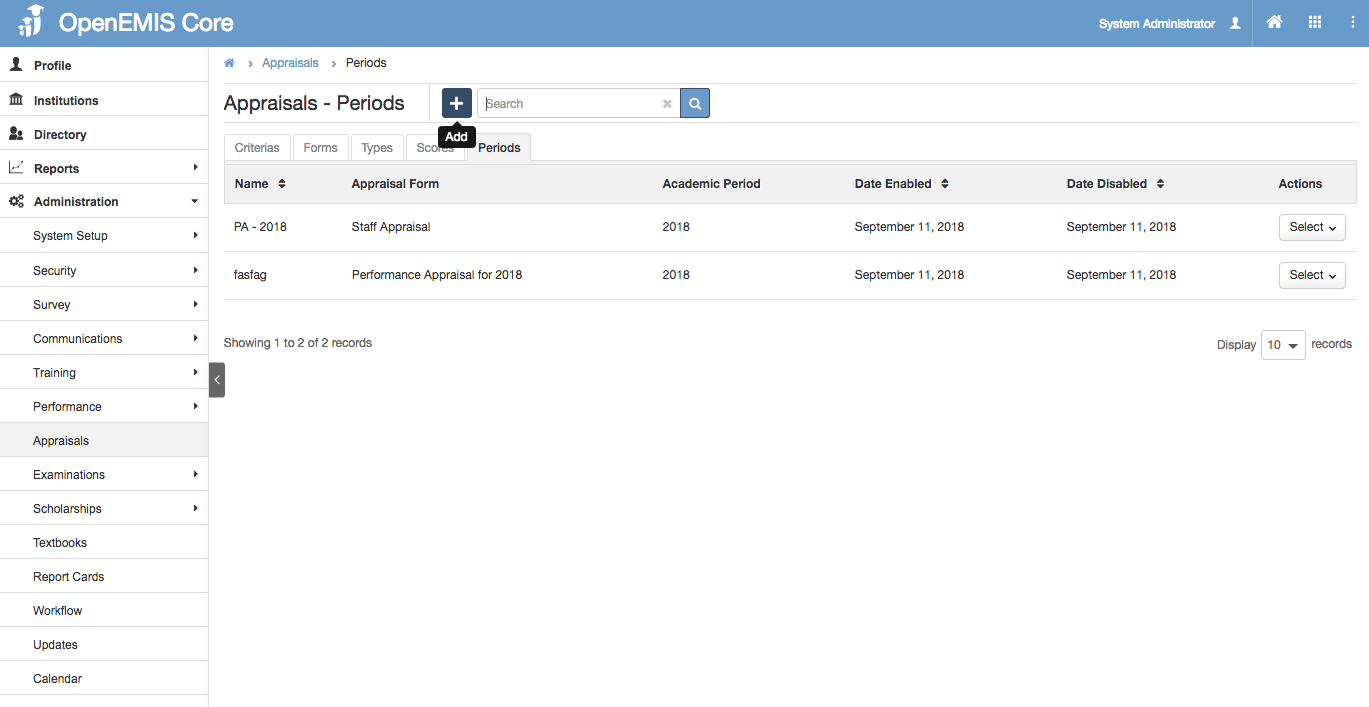
1) Go to Administration > Appraisals > Periods
2) You will see a list of Periods records.
3) Select ‘Add’ button
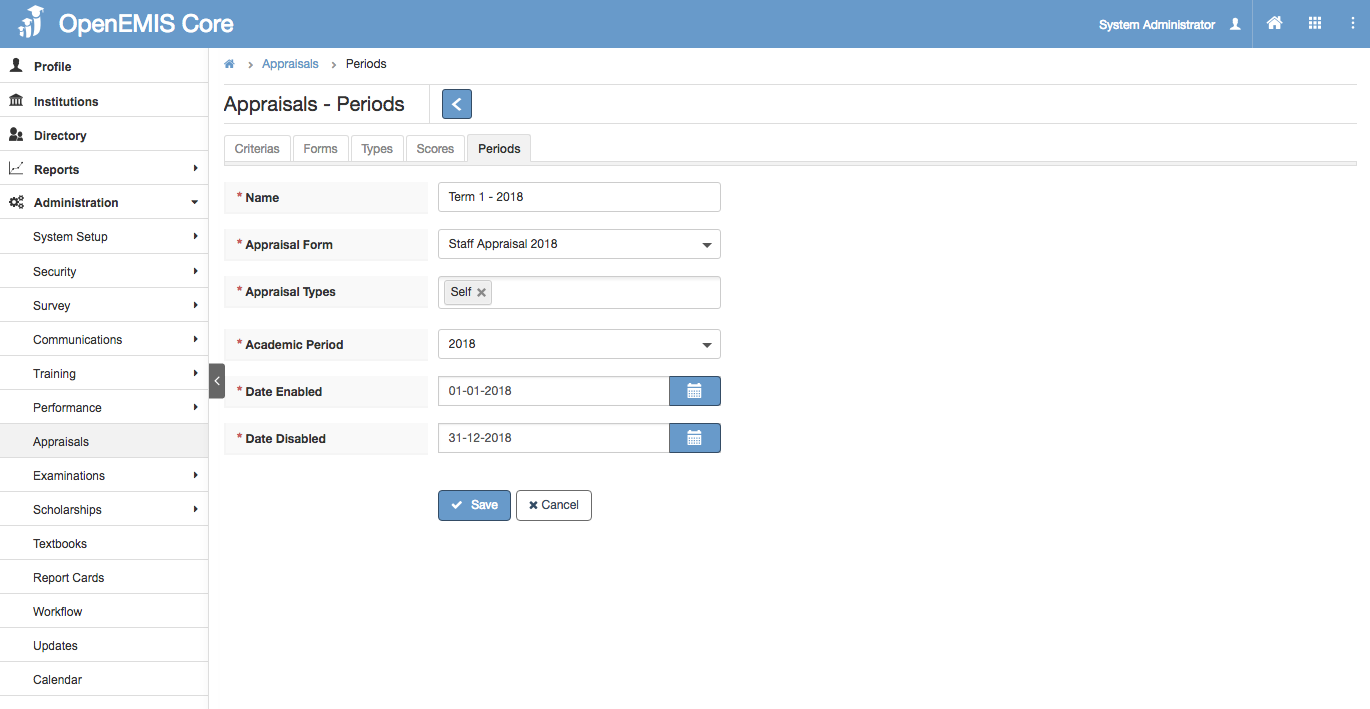
4) Enter Name, Appraisal Form, Appraisal Type, Academic Period, Date Enabled and Date Disabled.
5) Select ‘Save’
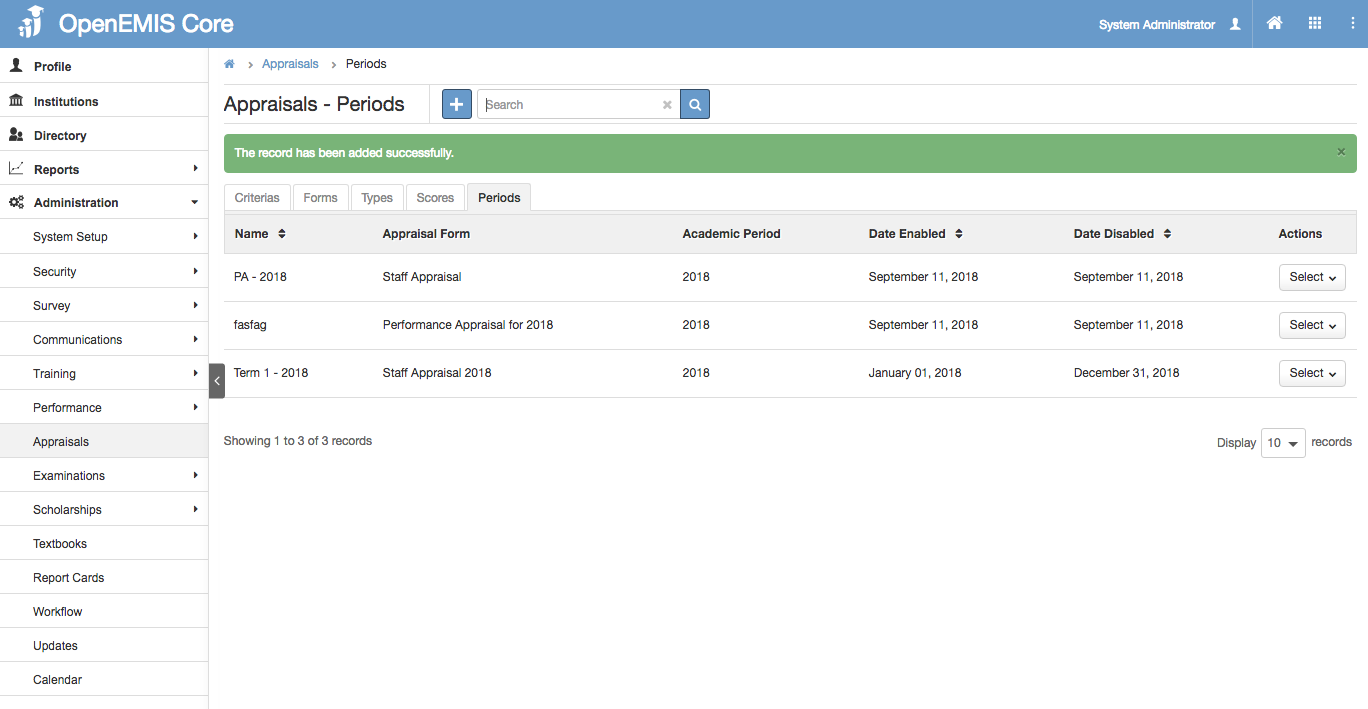
6) System will display a successful message once created.
View Periods
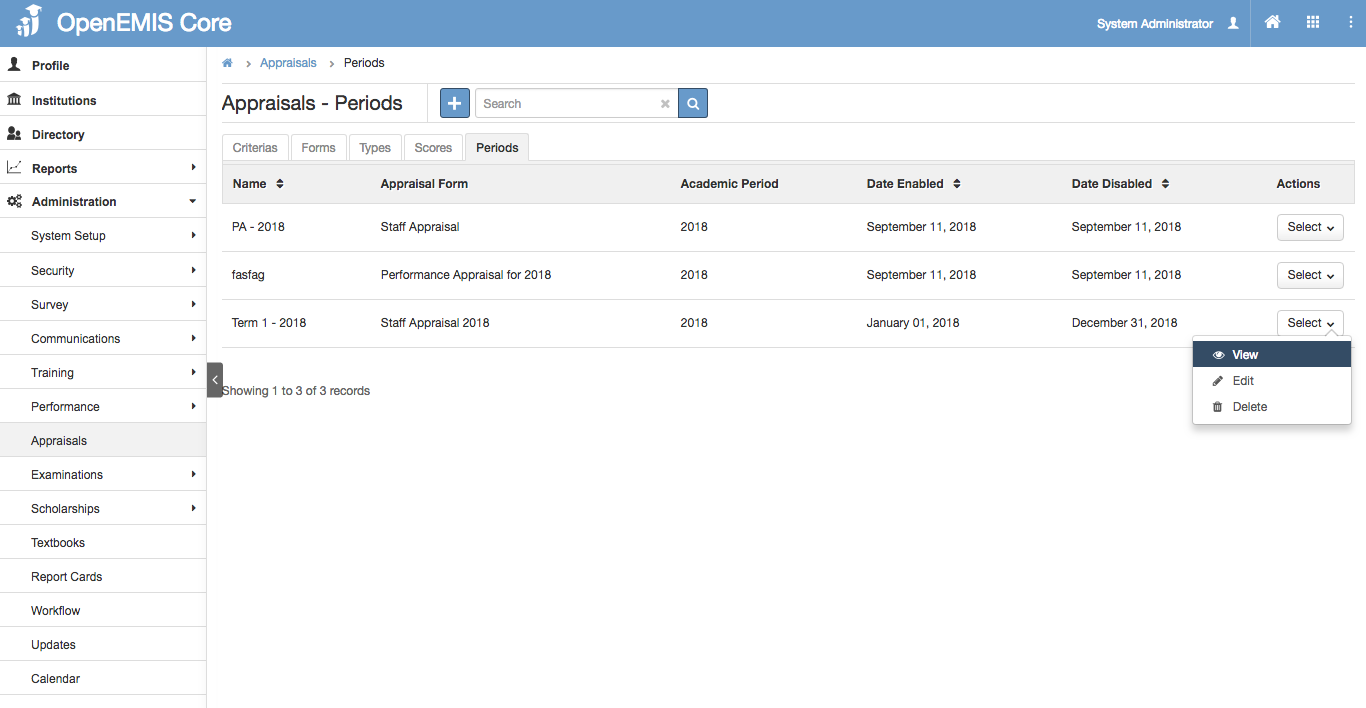
1) Go to Administration > Appraisals > Periods
2) Go to Action Bar > View
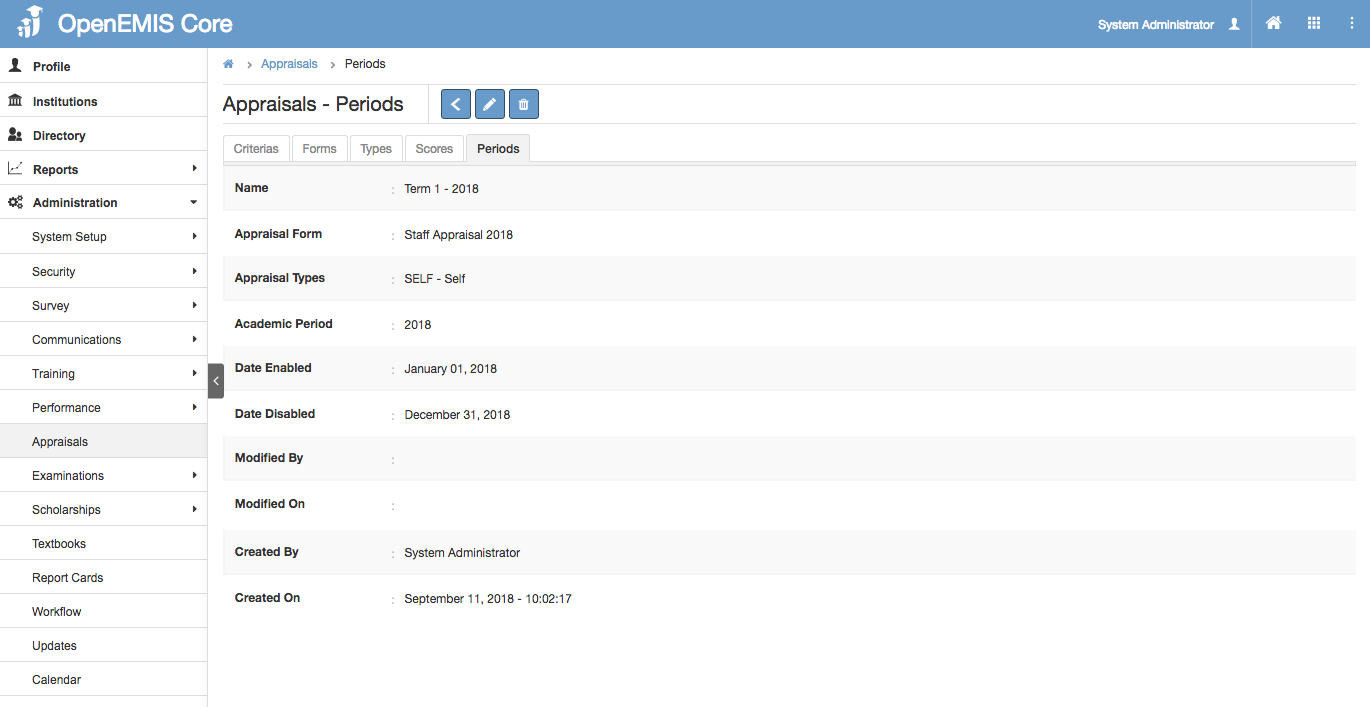
3) You will be able to view additional details of the Periods record.
4) Similarly, you can edit or delete the record in the page.
Edit Periods
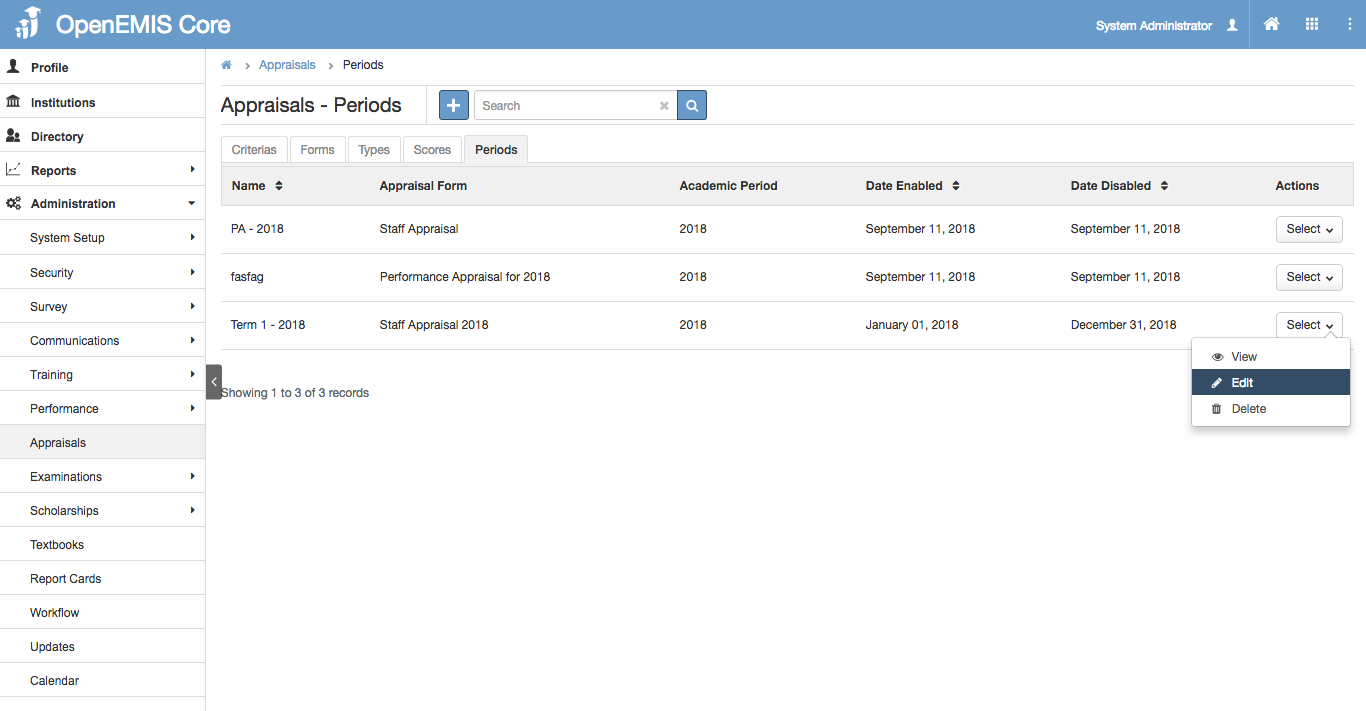
1) Go to Administration > Appraisals > Periods
2) Go to Action Bar > Edit
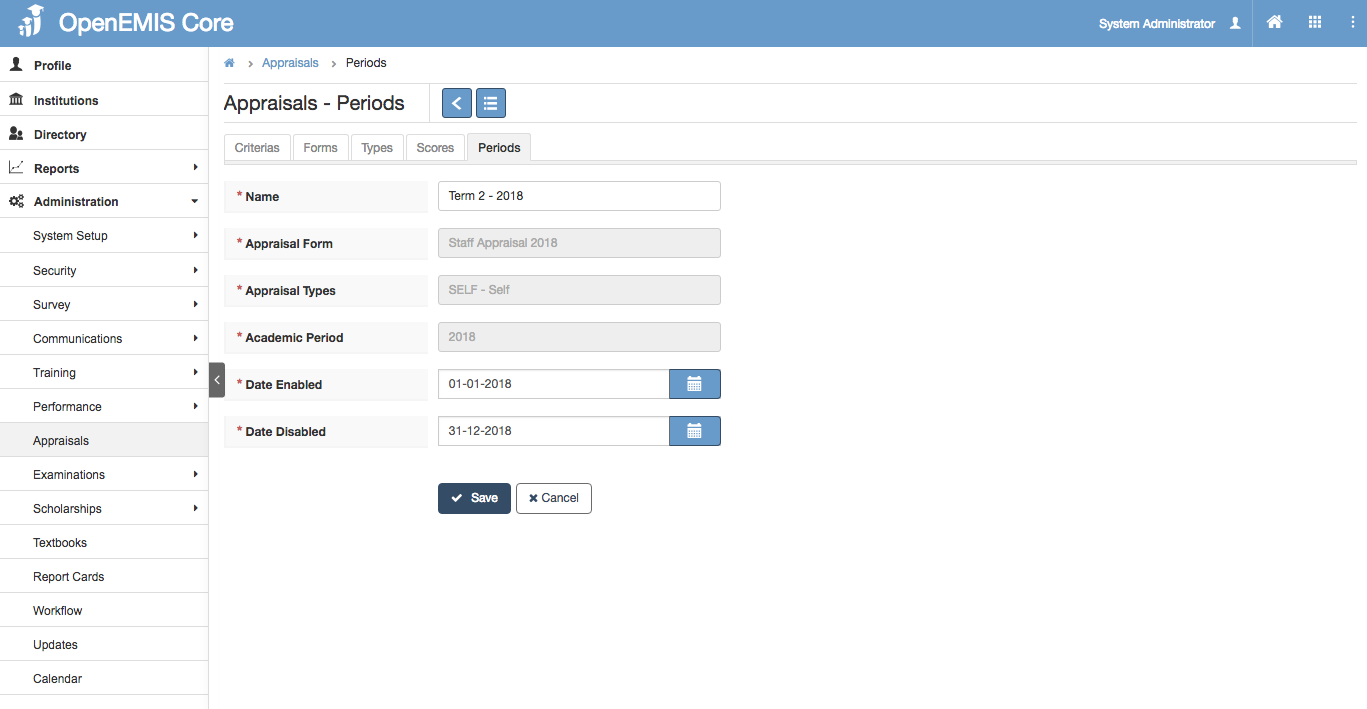
3) You will be able to edit the details of the Periods record.
4) Select ‘Save’
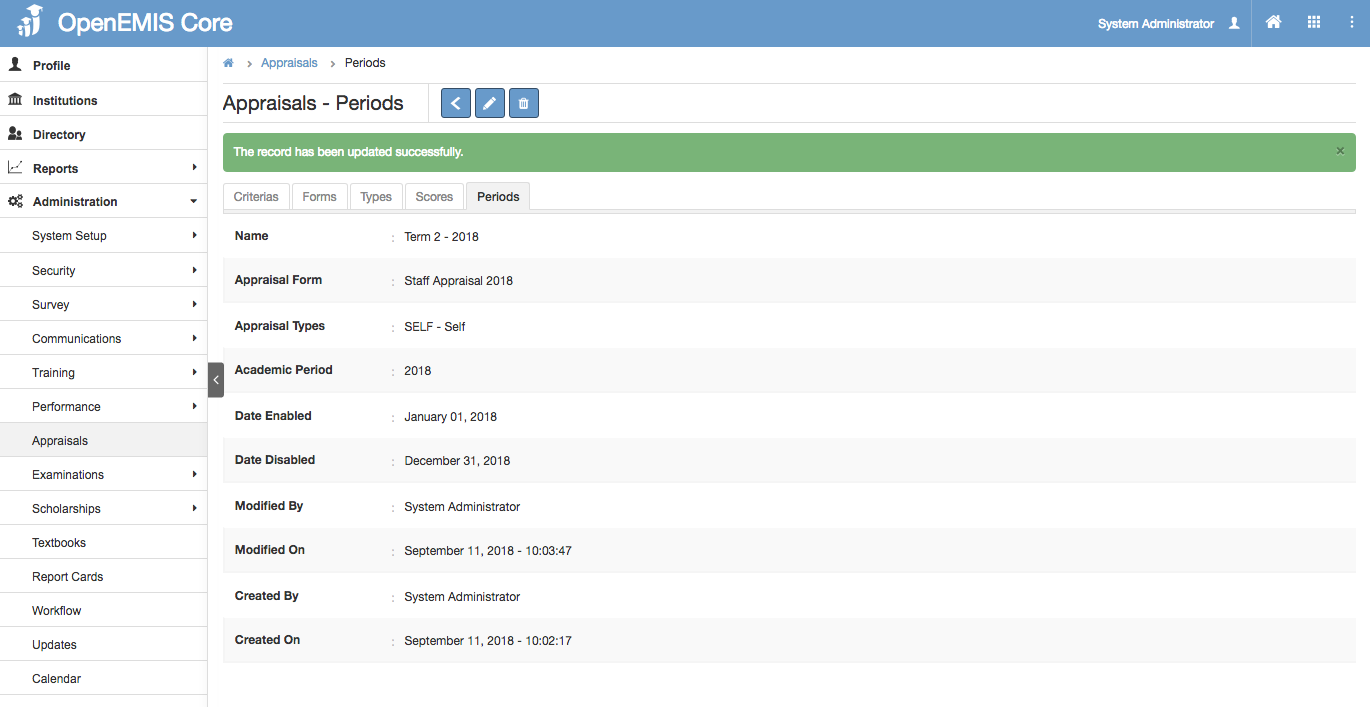
5) System will display a successful message once the record has been edited.
Delete Periods
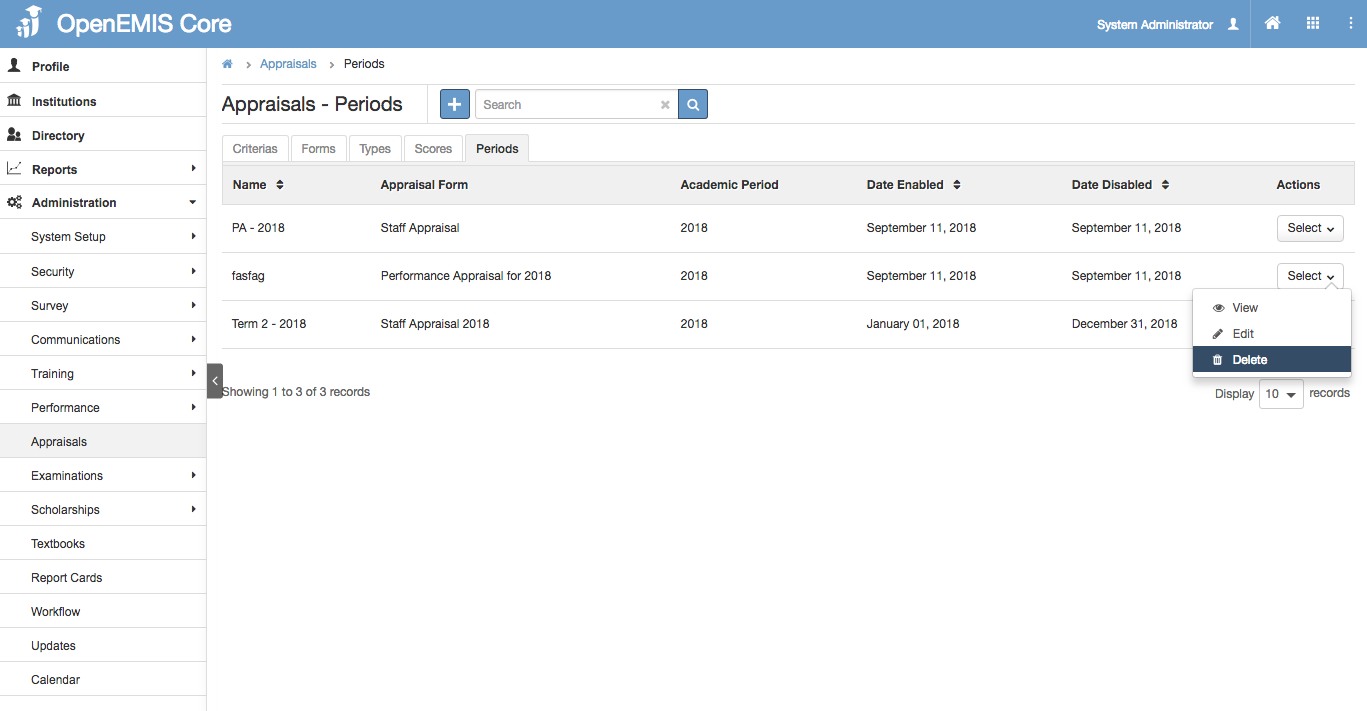
1) Go to Administration > Appraisals > Periods
2) Go to Action Bar > Delete
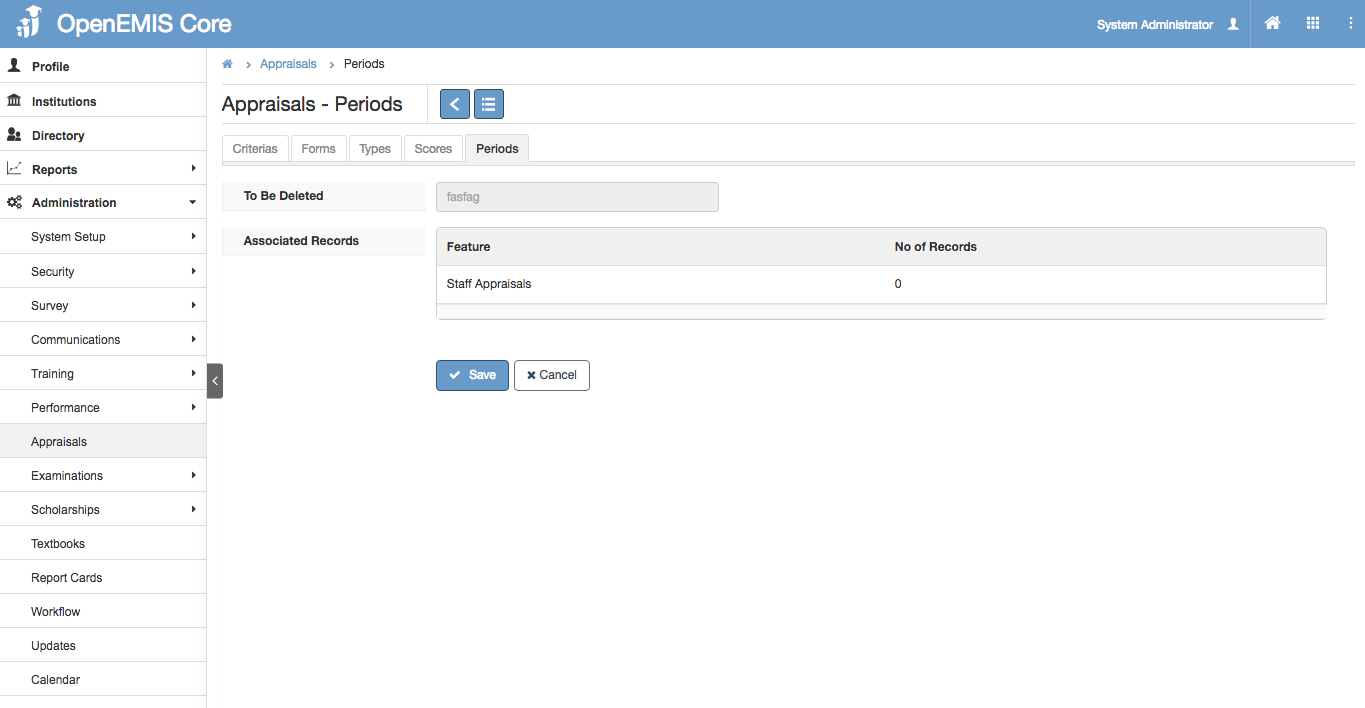
3) The system will display a confirmation page to delete the Periods record.
4) Select ‘Save’
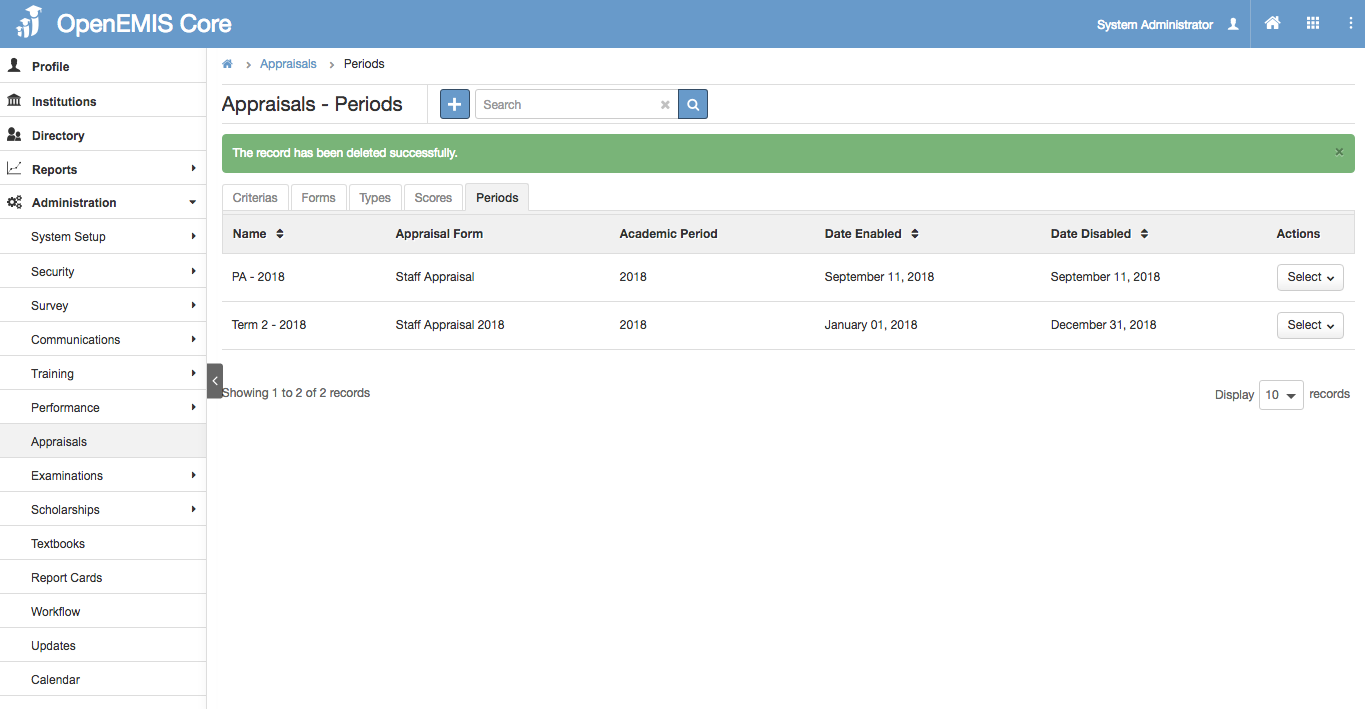
5) System will show a successful message, once record has been deleted.
Managing Institution Staff Appraisals
Create Staff Appraisal
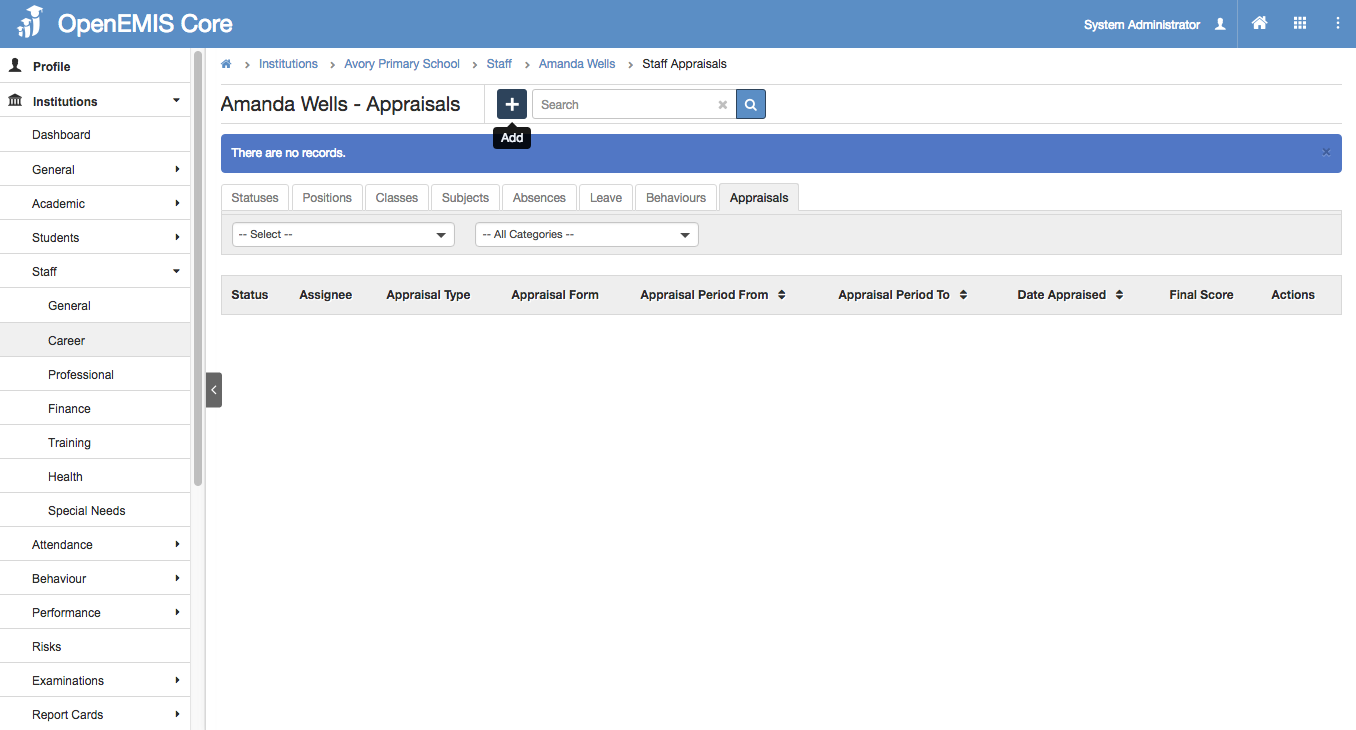
1) Go to Institutions > Staff > Career > Appraisals
2) Select ‘Add’ button
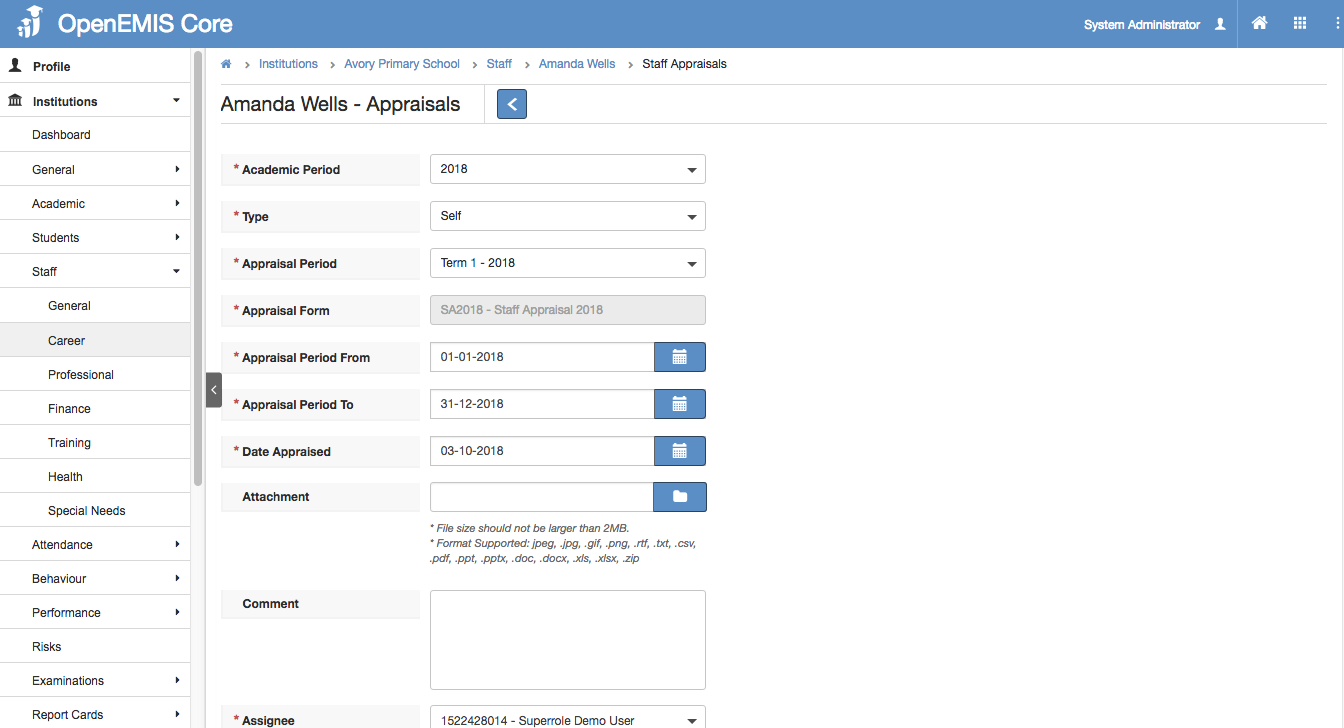
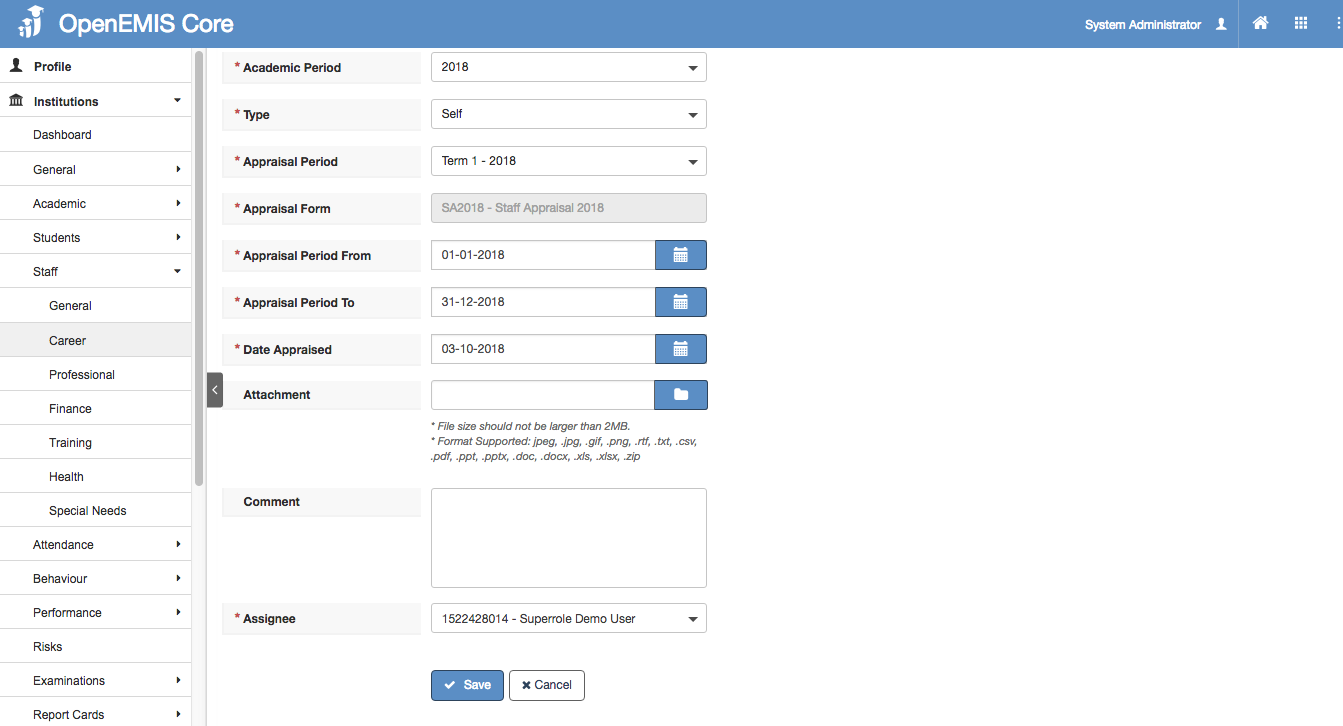
3) Fill in the details accordingly.
4) Select Save.
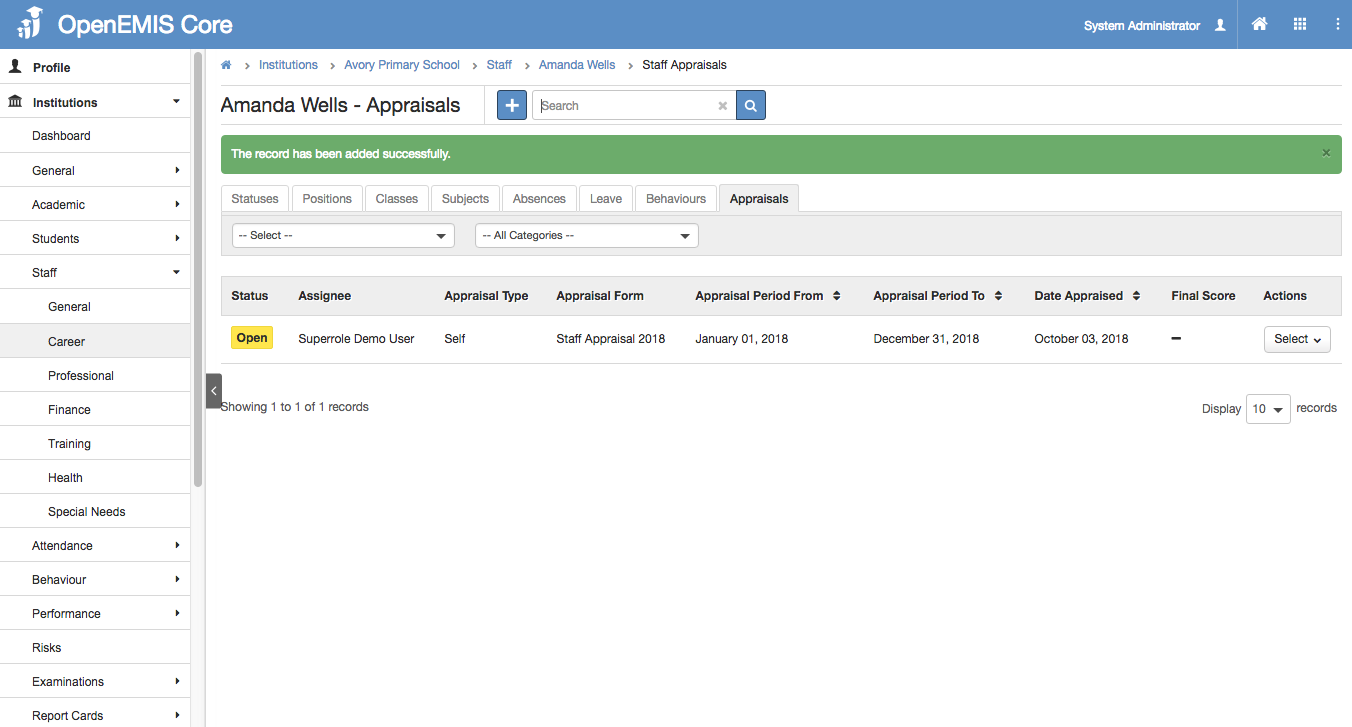
6) System will display a successful message once created.
View Staff Appraisal
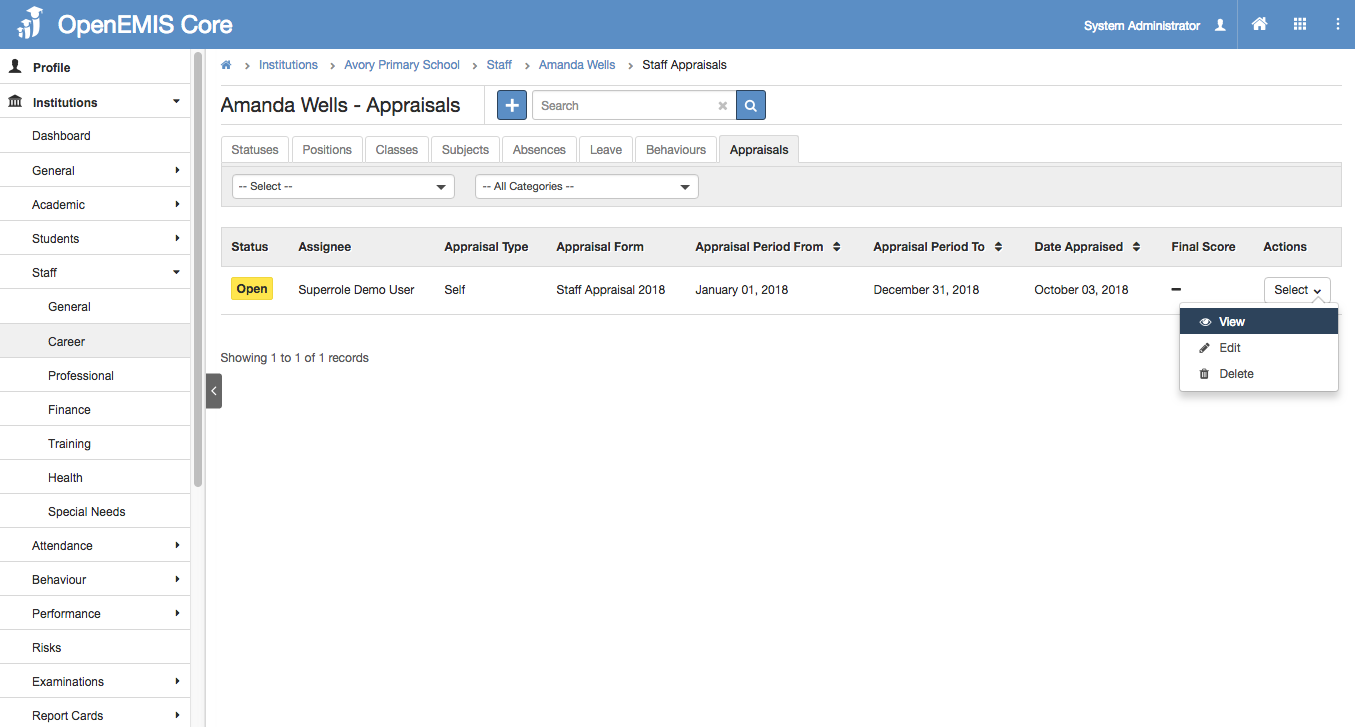
1) Go to Institutions > Staff > Career > Appraisals
2) Go to Action Bar > View
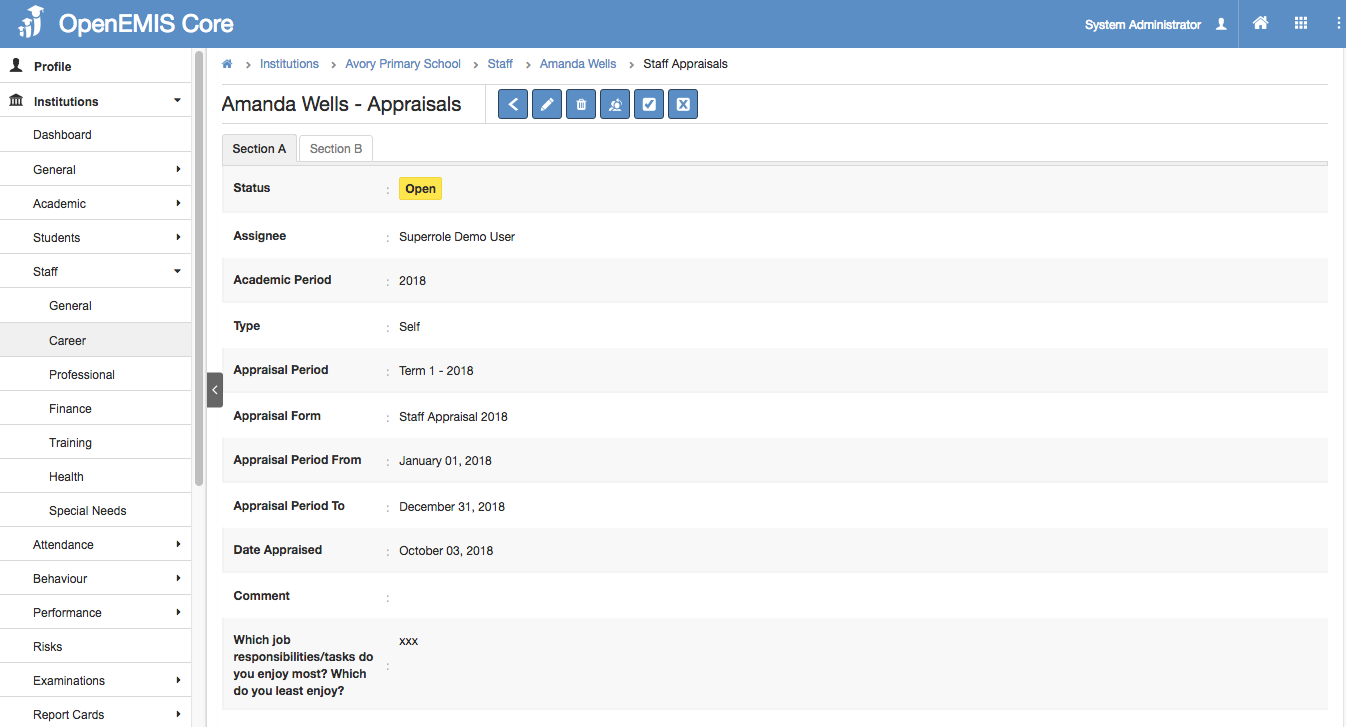
3) You will be able to view additional details of the Appraisal record.
4) Similarly, you can edit or delete the record in the page.
Edit Staff Appraisal
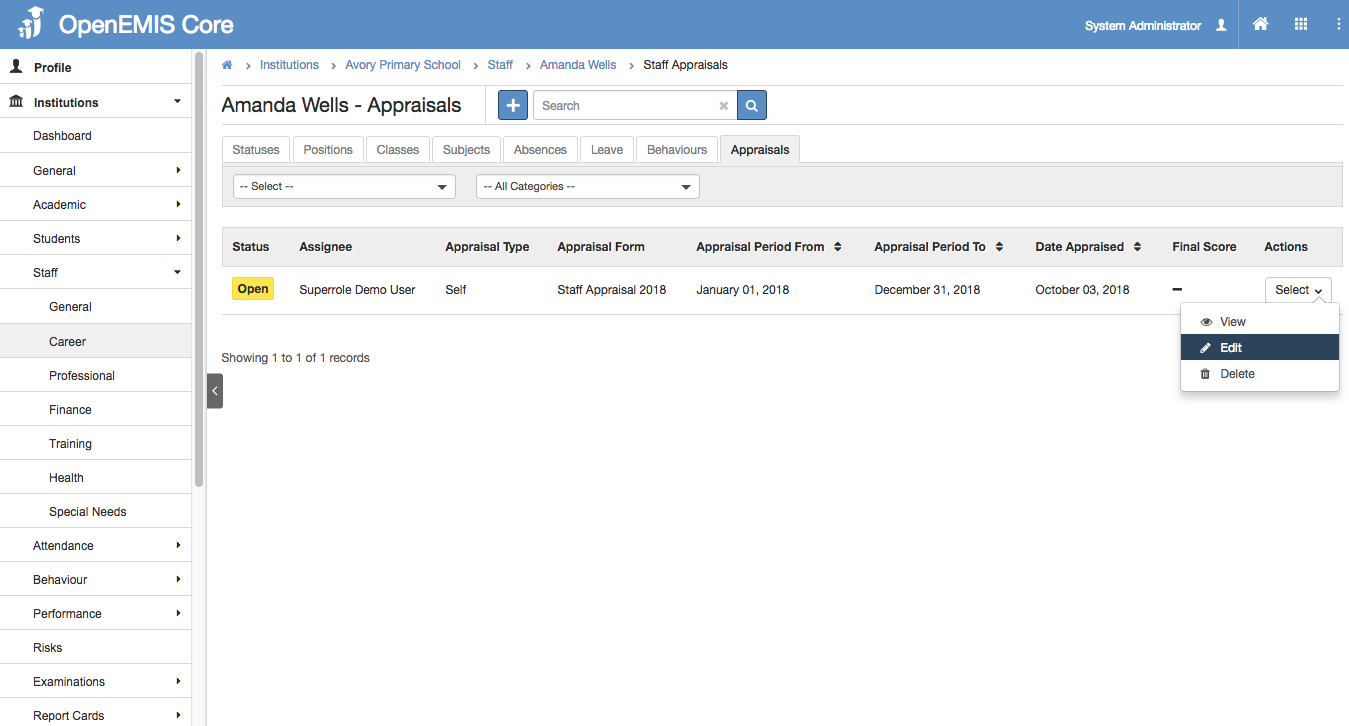
1) Go to Institutions > Staff > Career > Appraisals
2) Go to Action Bar > Edit
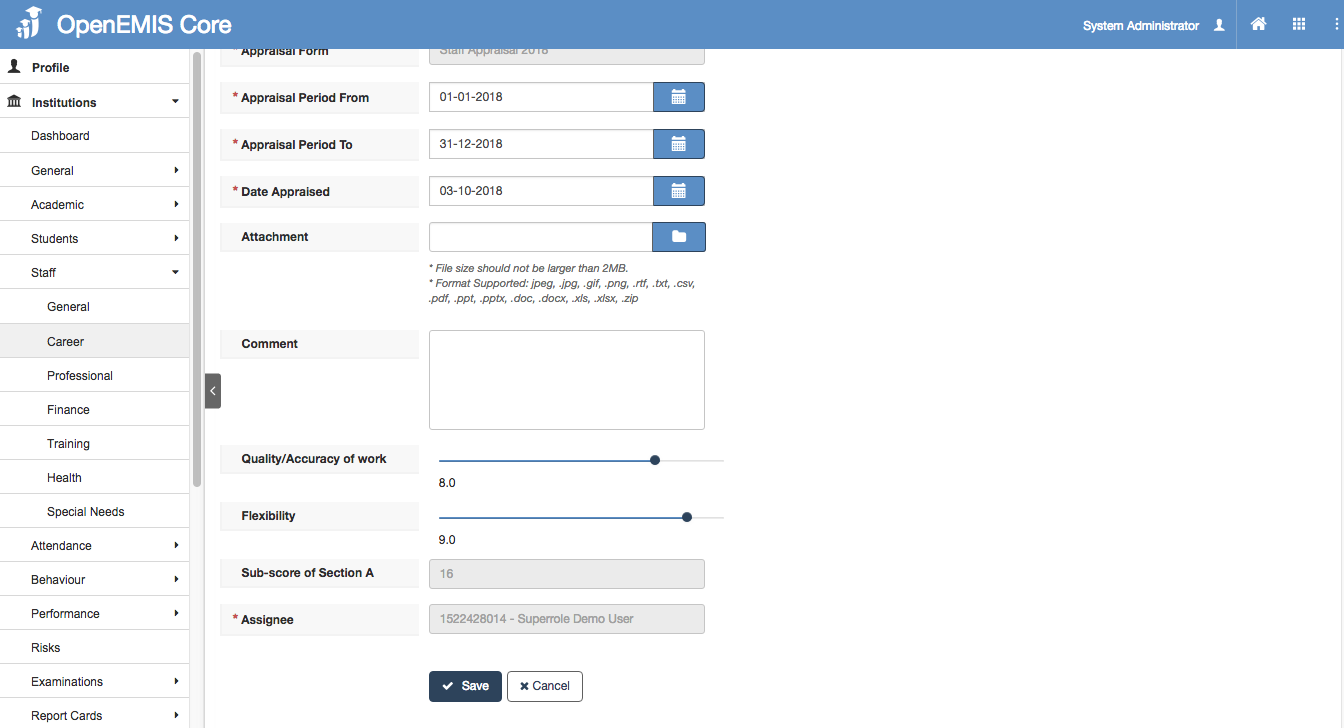
3) You will be able to edit the details of the Appraisal record.
4) Select ‘Save’
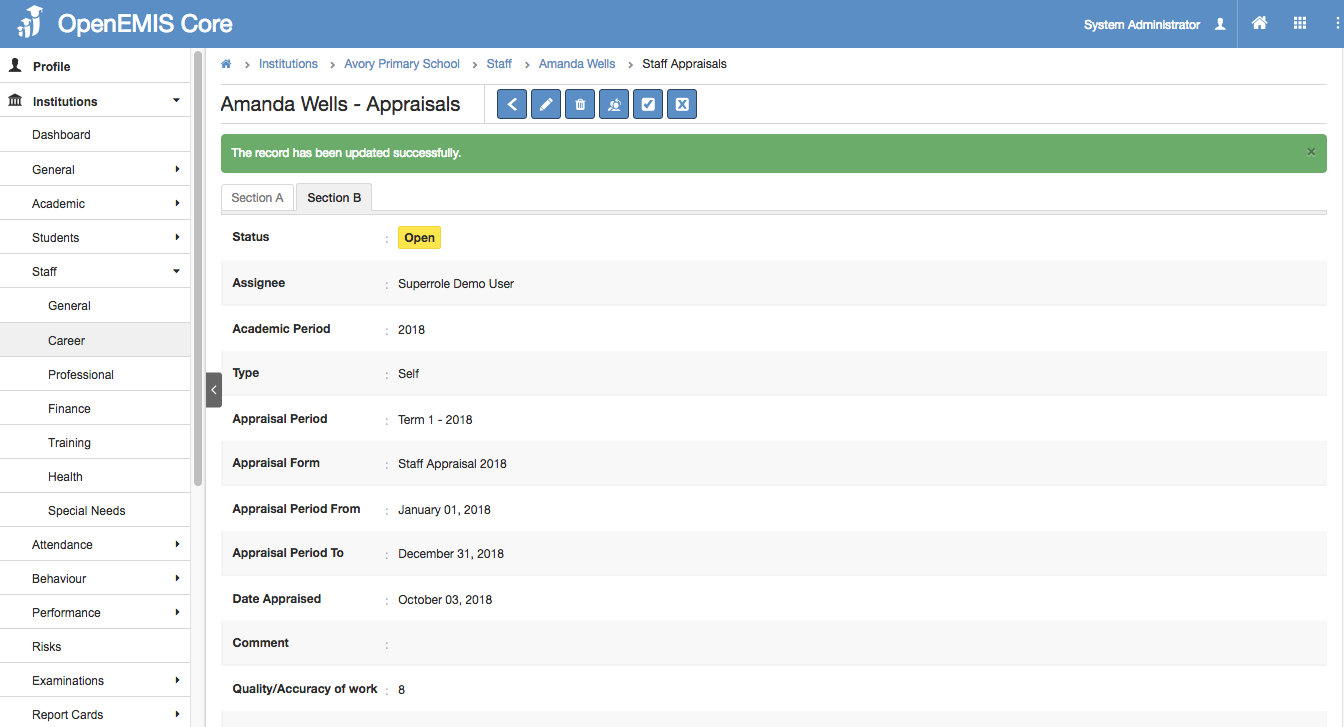
5) System will display a successful message once the record has been edited.
Delete Staff Appraisal
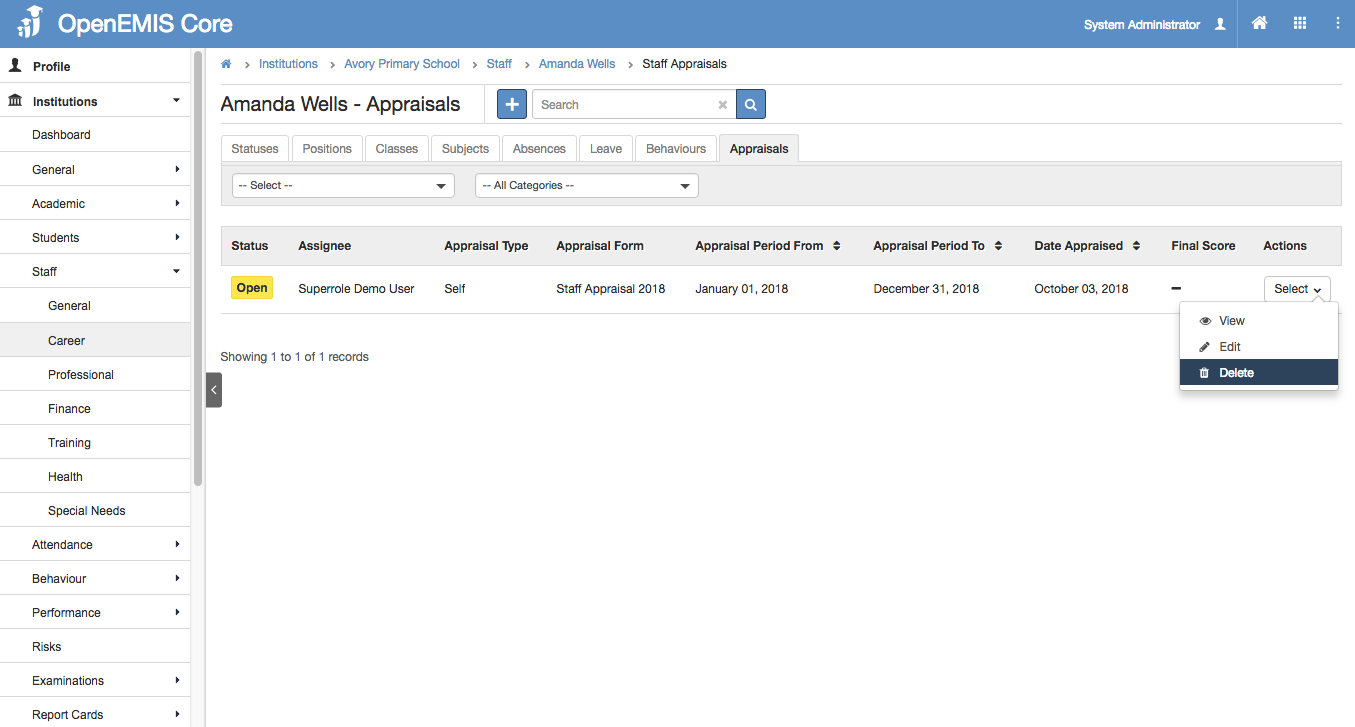
1) Go to Institutions > Staff > Career > Appraisals
2) Go to Action Bar > Delete
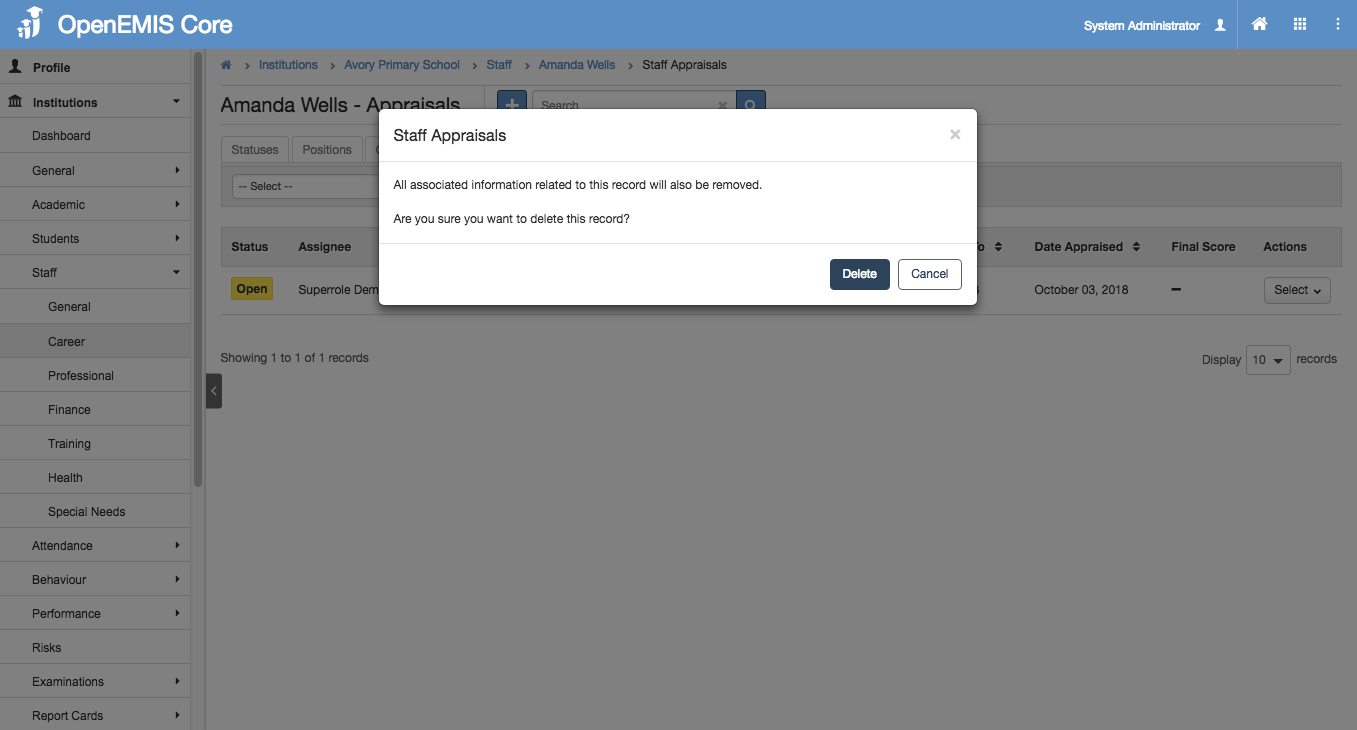
3) The system will display a confirmation prompt to delete the Appraisal record.
4) Select ‘Delete’.
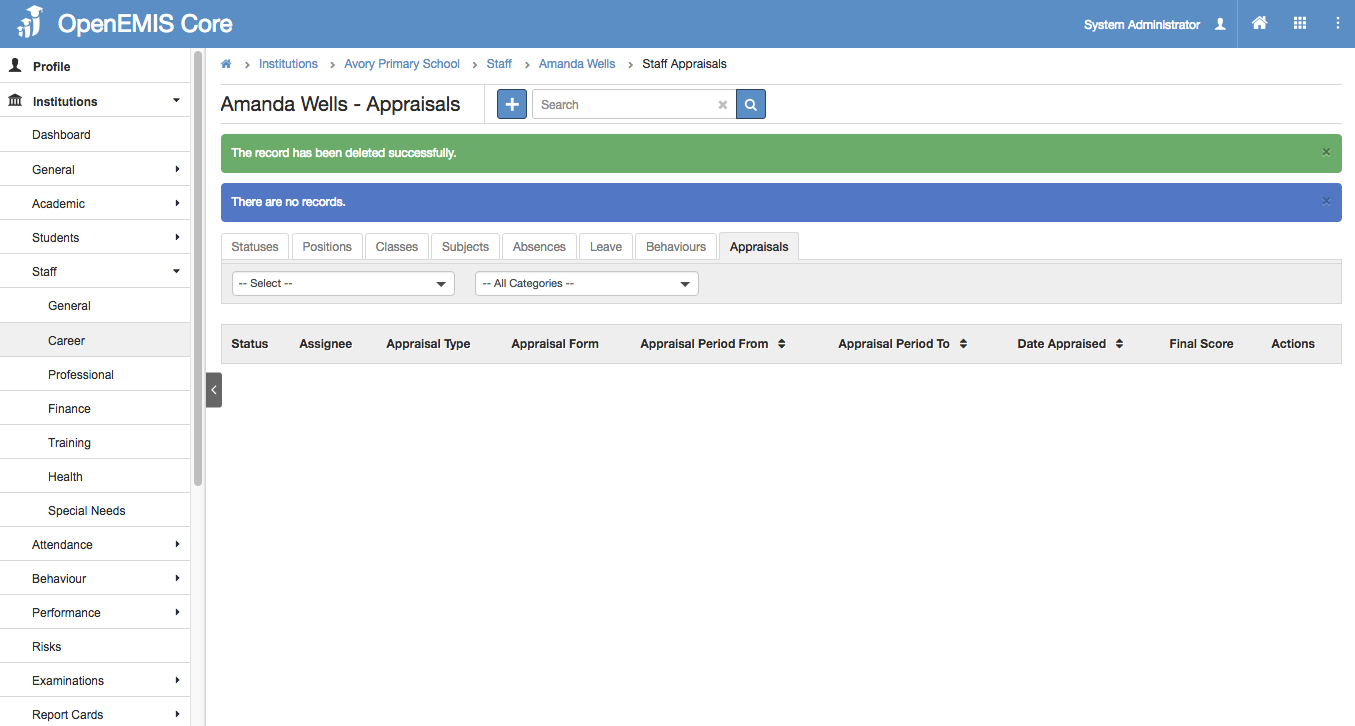
5) System will show a successful message, once record has been deleted.