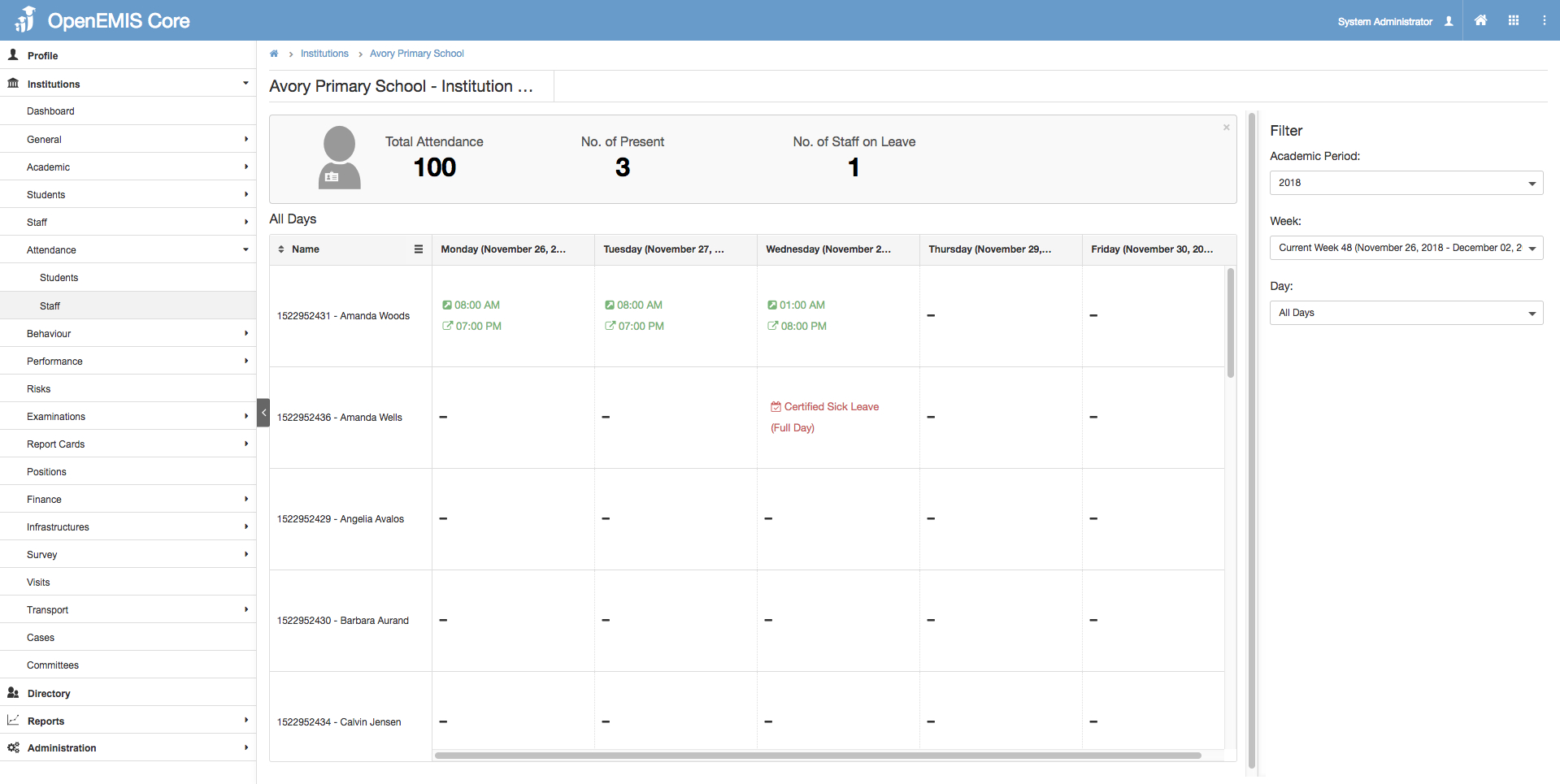
Purpose:
This feature allows institution to record staff attendance.
Staff Attendance
Step 1: Go to Institutions > Attendance > Staff, select the Academic Period, Week and Day dropdown in the filter.
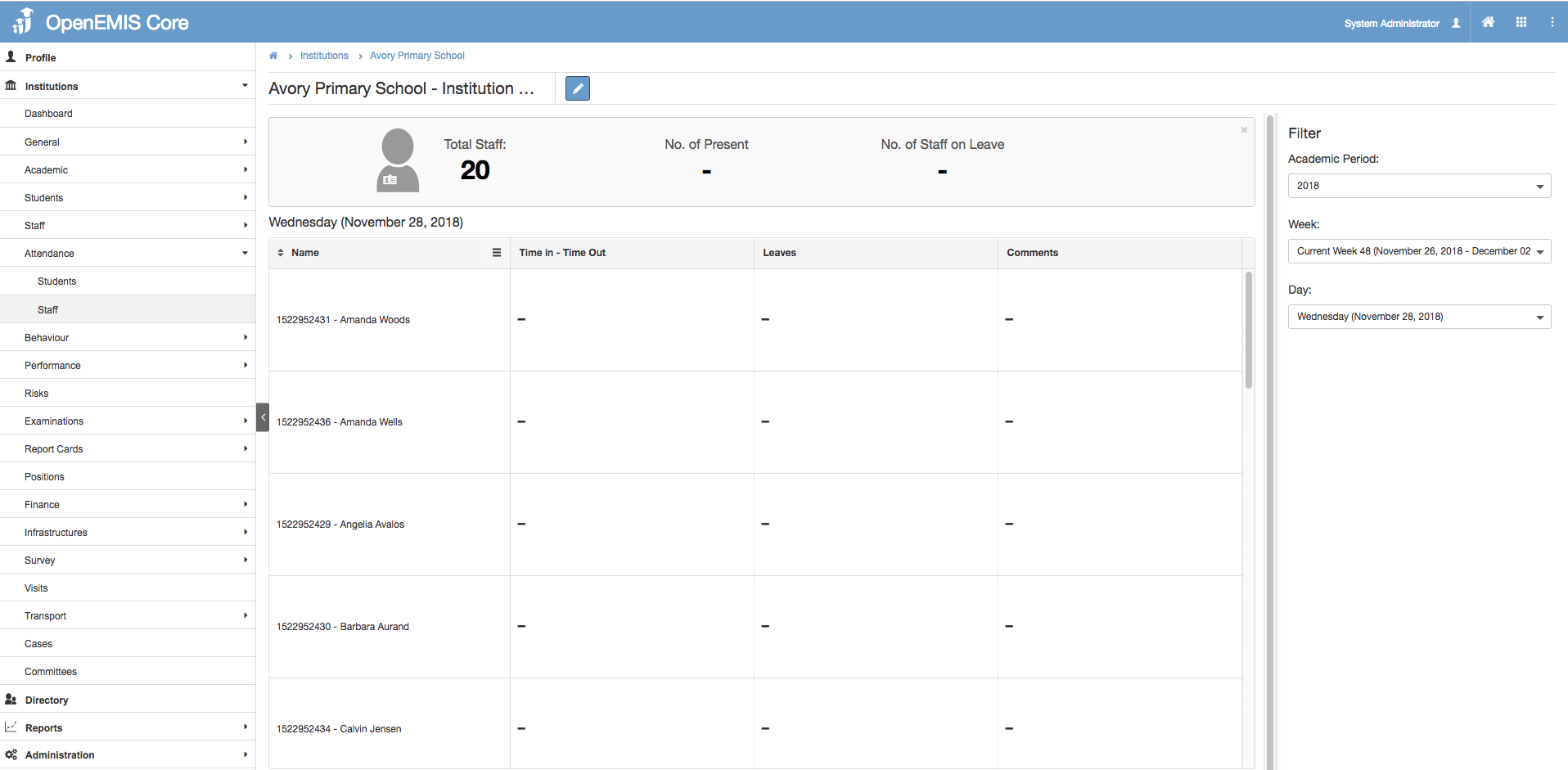
Step 2: Click on Edit
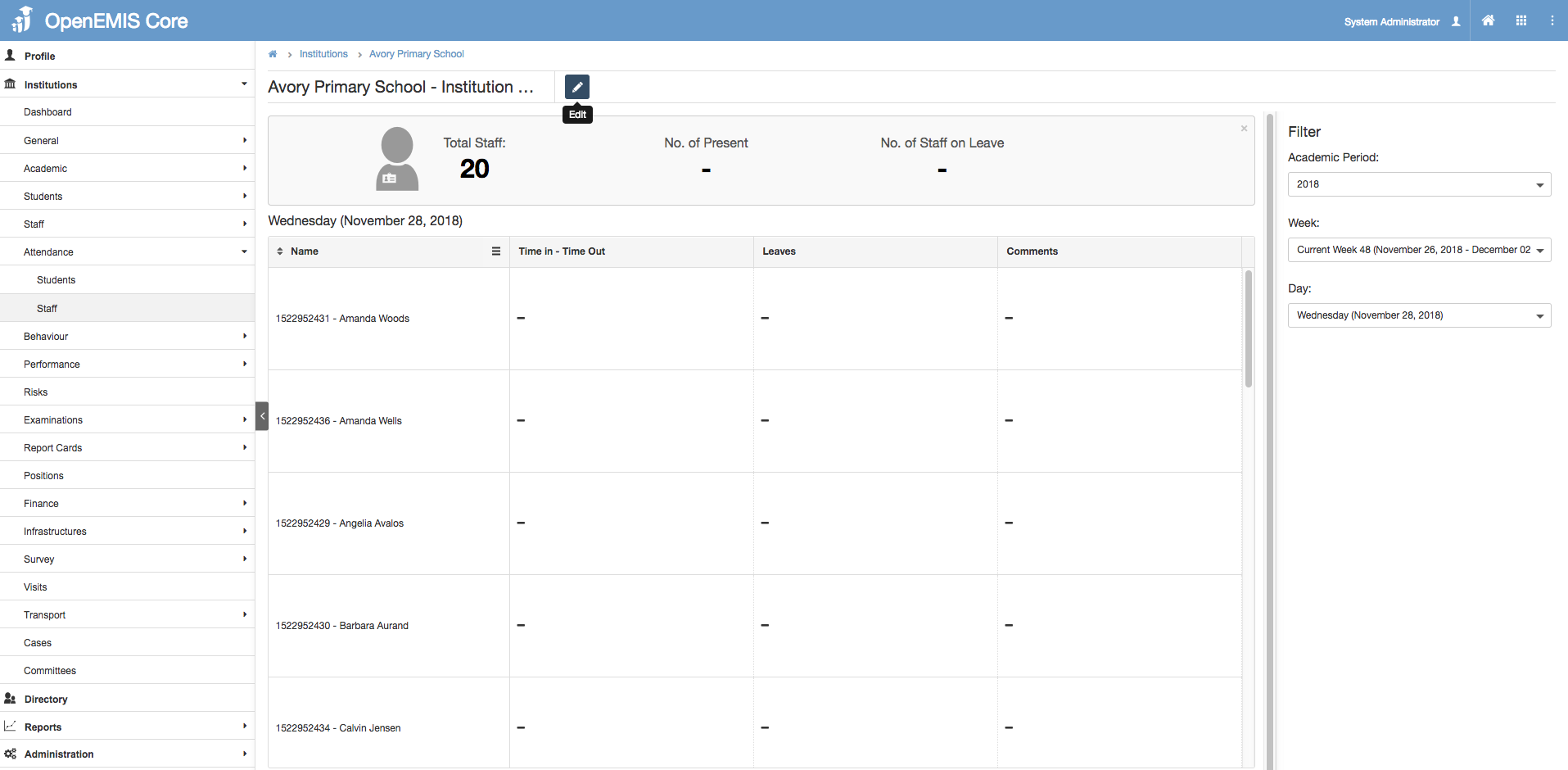
Step 3: Click on ‘Time In’ to record Staff’s clock in time. When user click on anything in the page, it will automatically save the entry.
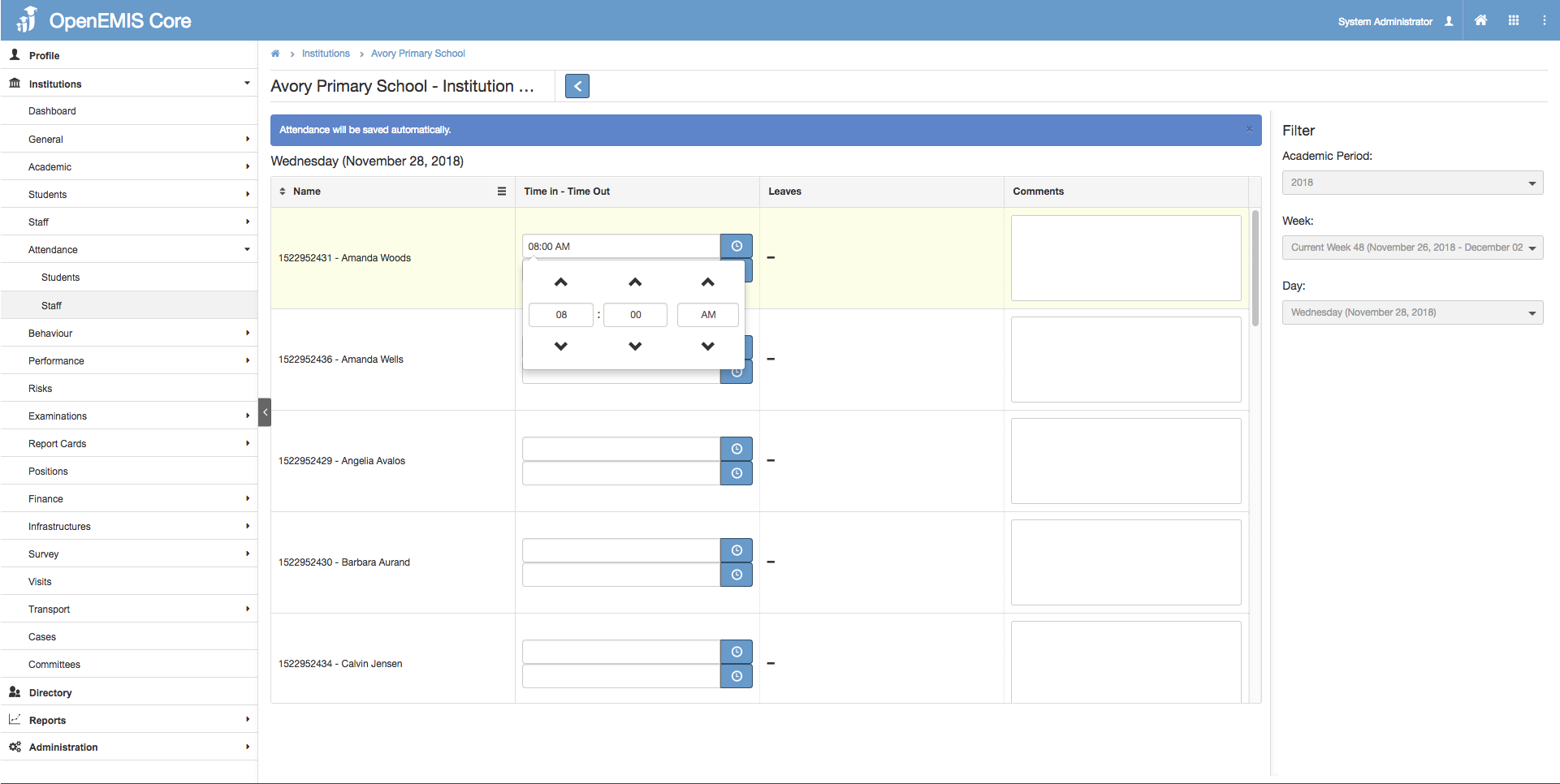
Step 4: Repeat Step3 for ‘Time Out’.
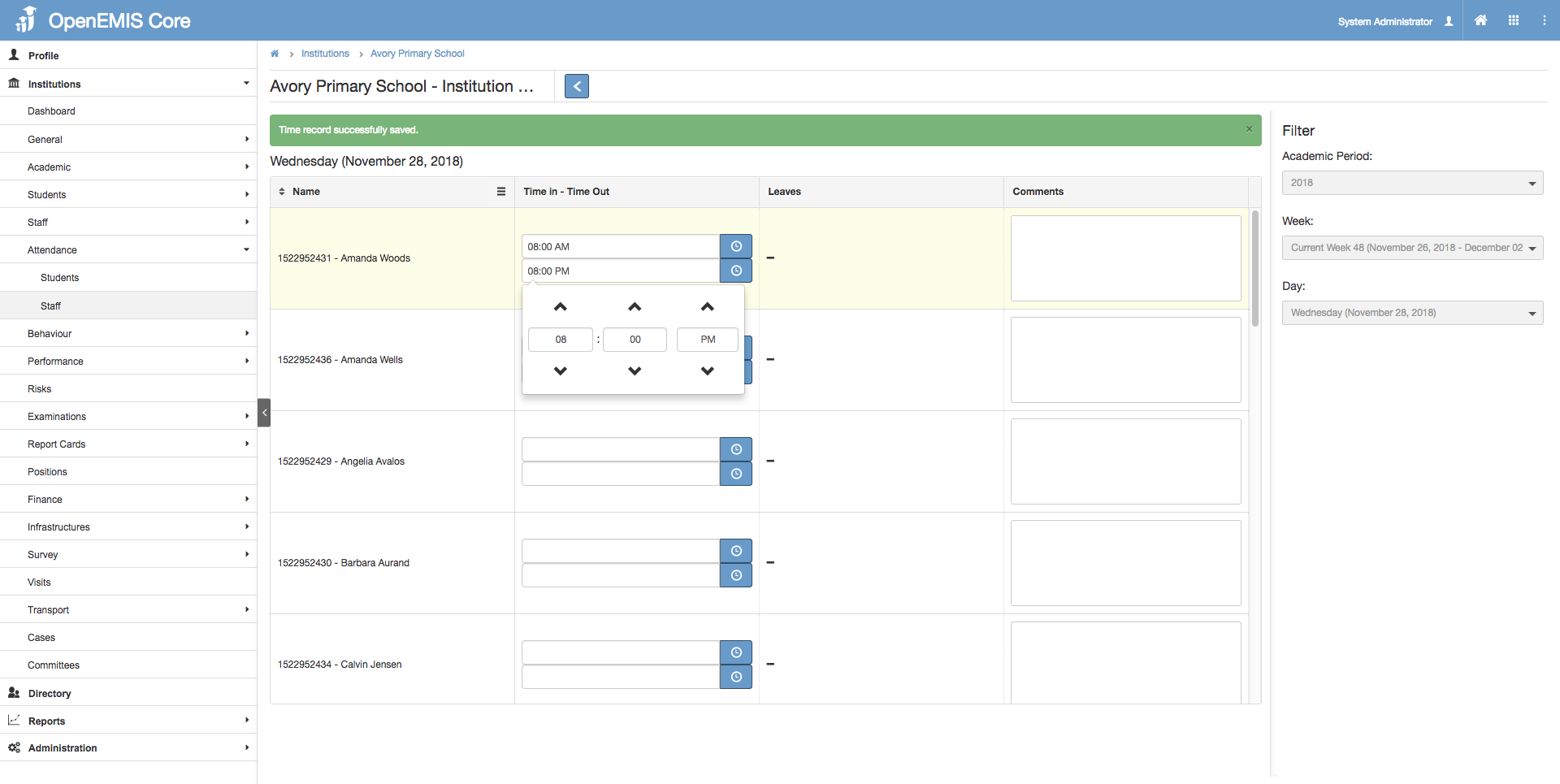
Step 5: Click on ‘Back’ to exit edit mode.
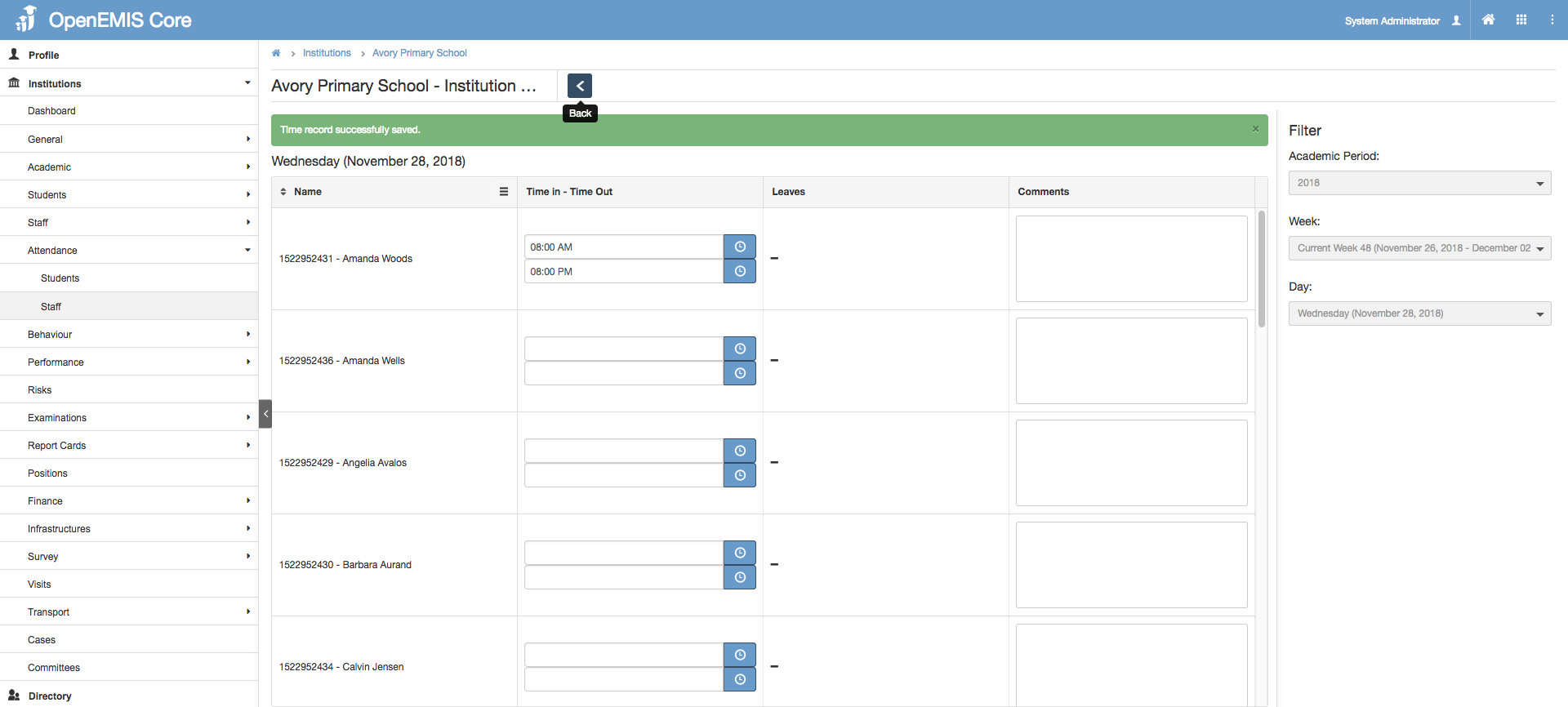
Step 6: After user exited the edit mode, user will be able to see the summary of Staff time in and out for that day and for the week. In the filter on the right, by selecting the value in ‘Day’ dropdown, user able to change to single day and all day view.
- Single Day View
Any amendments for the ‘Time In’ & ‘Time Out’ will be in the History log. To view, click on the blue ‘View History Log’ text below)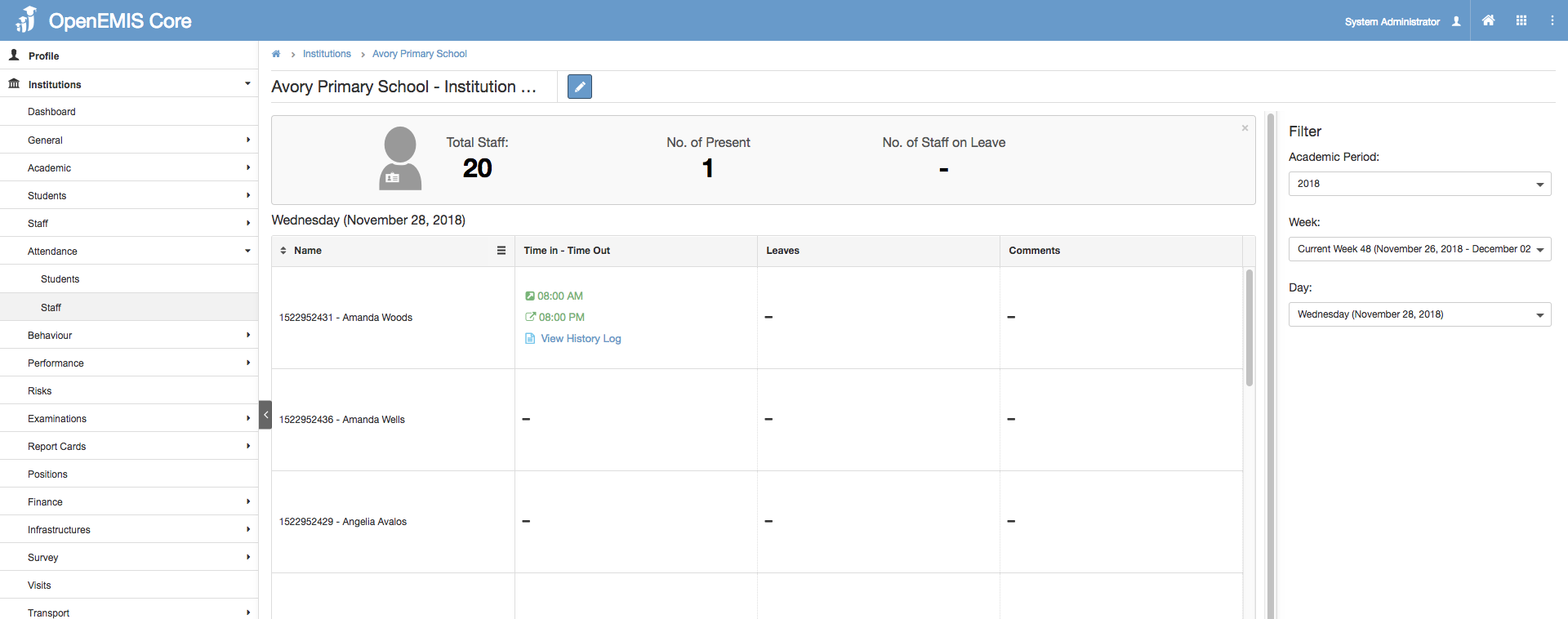
List of changes will be shown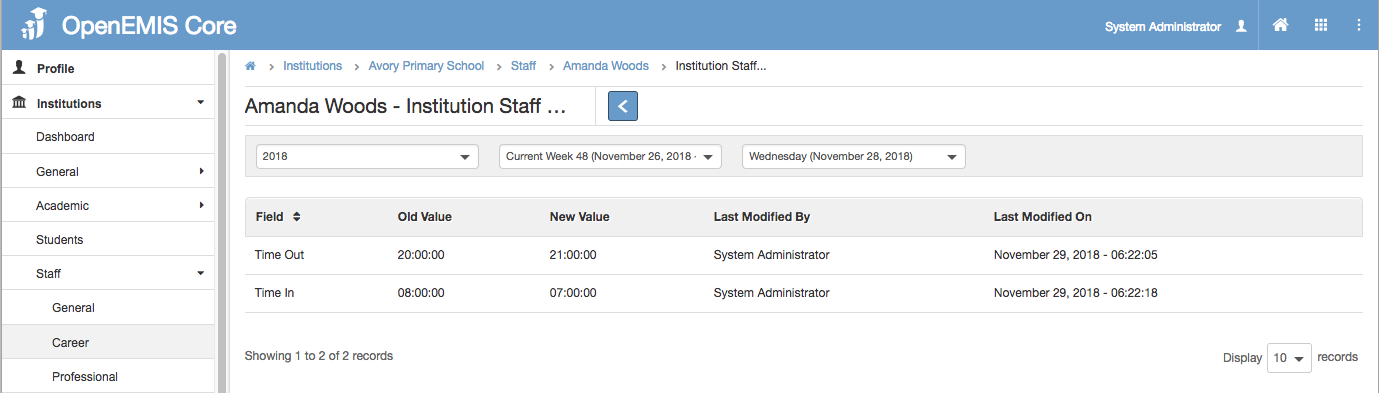
- All Days View
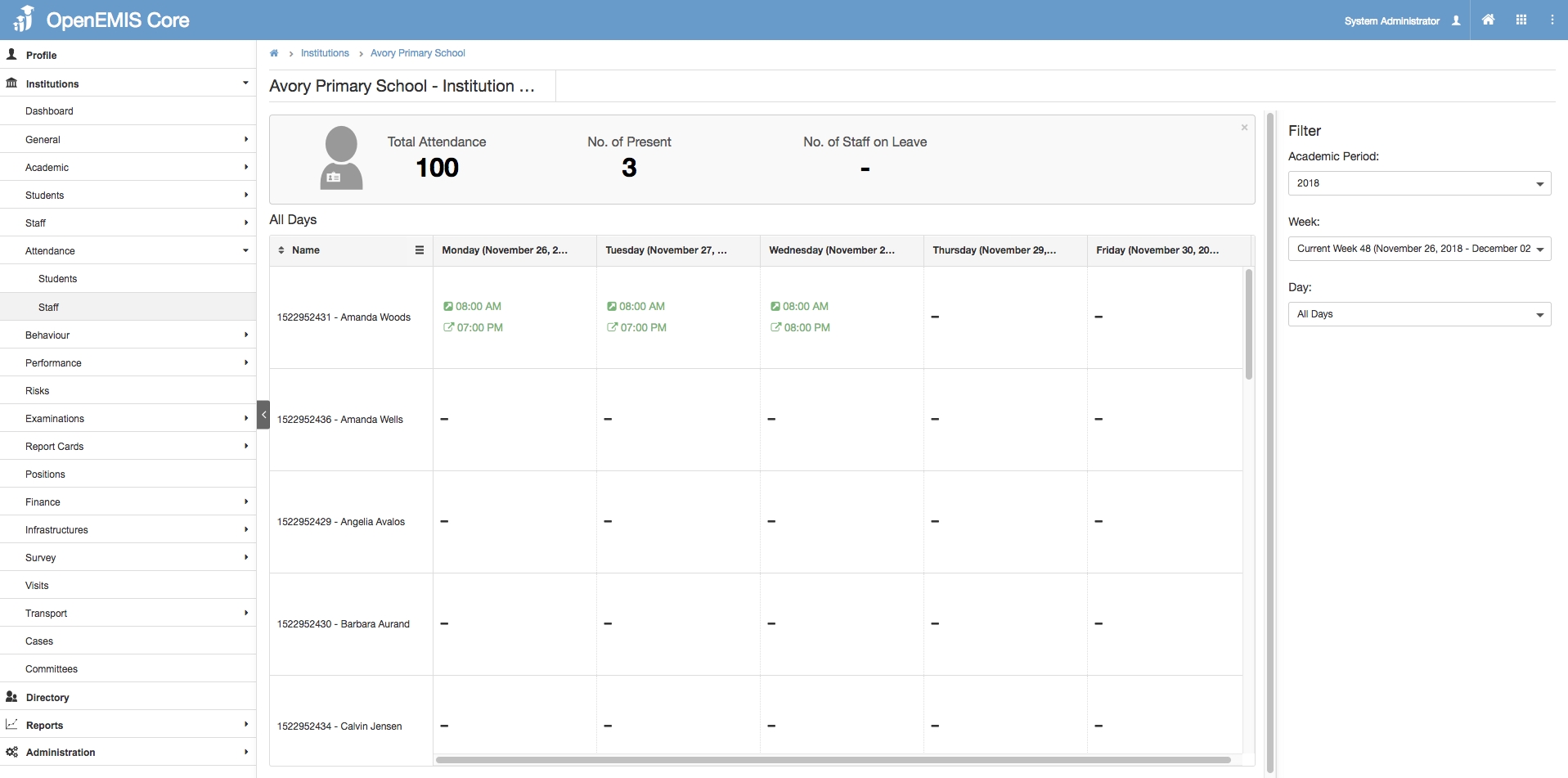 Staff leaves can be applied from Institutions > Staff > Career > Leaves. Applied leaves will be shown in the attendance summary for both all days and single day view. Below is the ‘All Days’ view for staff with leaves. Go here for more details on staff leaves.