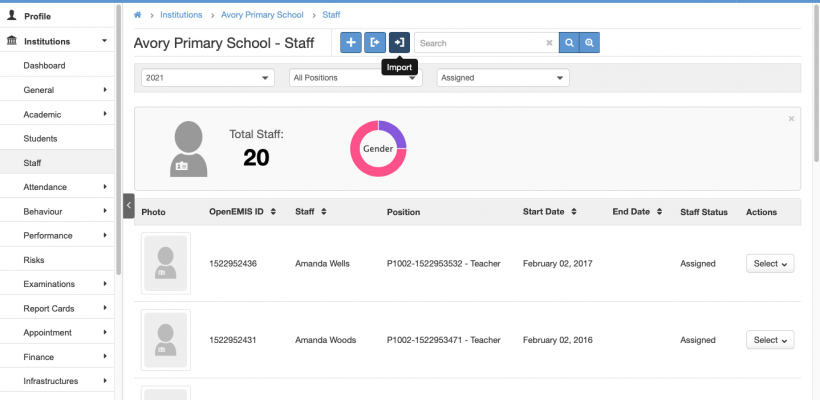
Purpose:
This Staff Import feature allow users to:
- Import Staff in bulk to the Directory.
- Import Staff Positions in bulk to Institutions
- Import Staff in bulk to Institutions
Features:
Import Staff
Enable Security Role Permission (Administration)
Directory Import
When importing Staff in bulk, the First Step is to import Staff Users to the Directory.
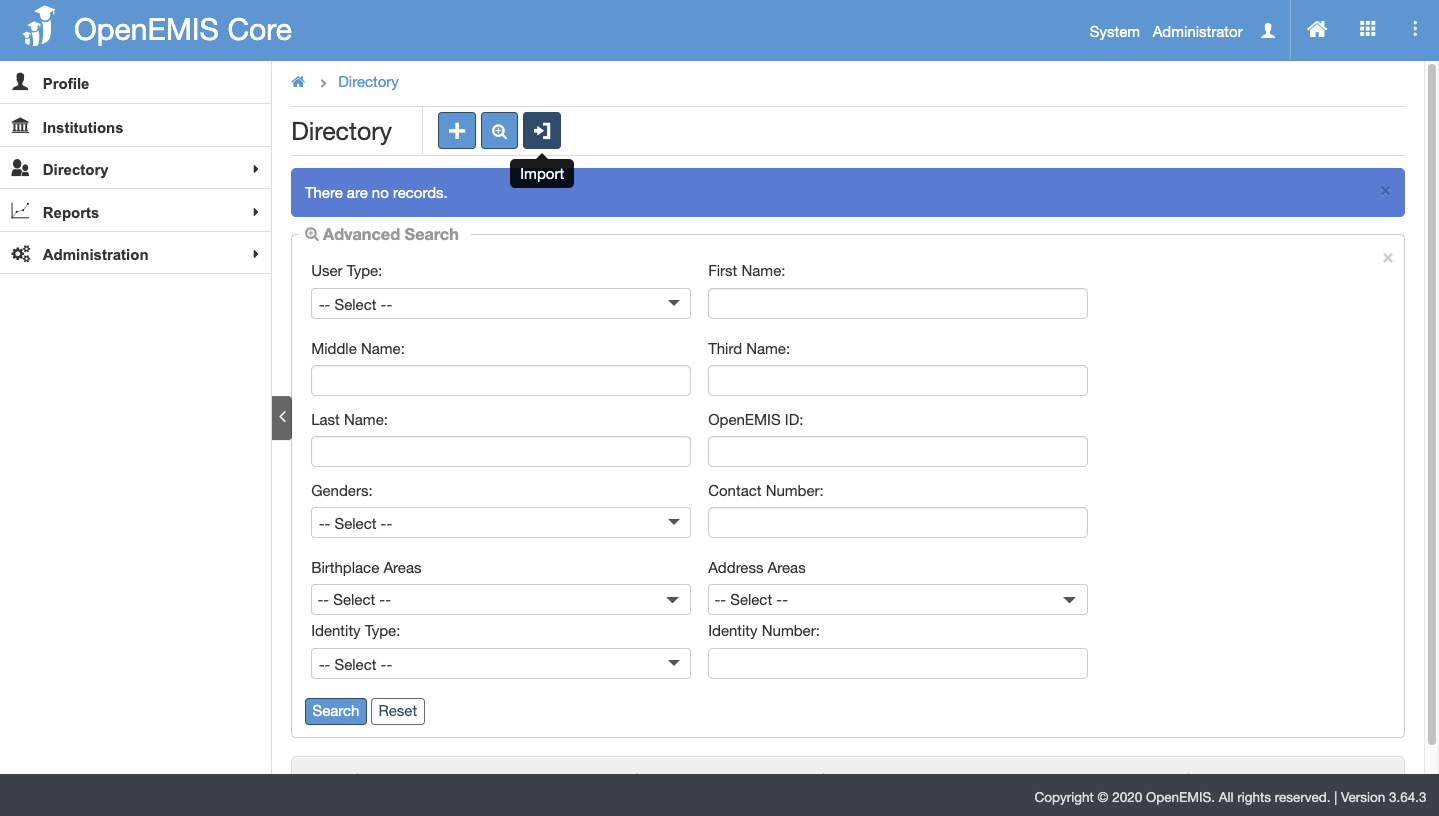
Step 1: Go to Directory > Import
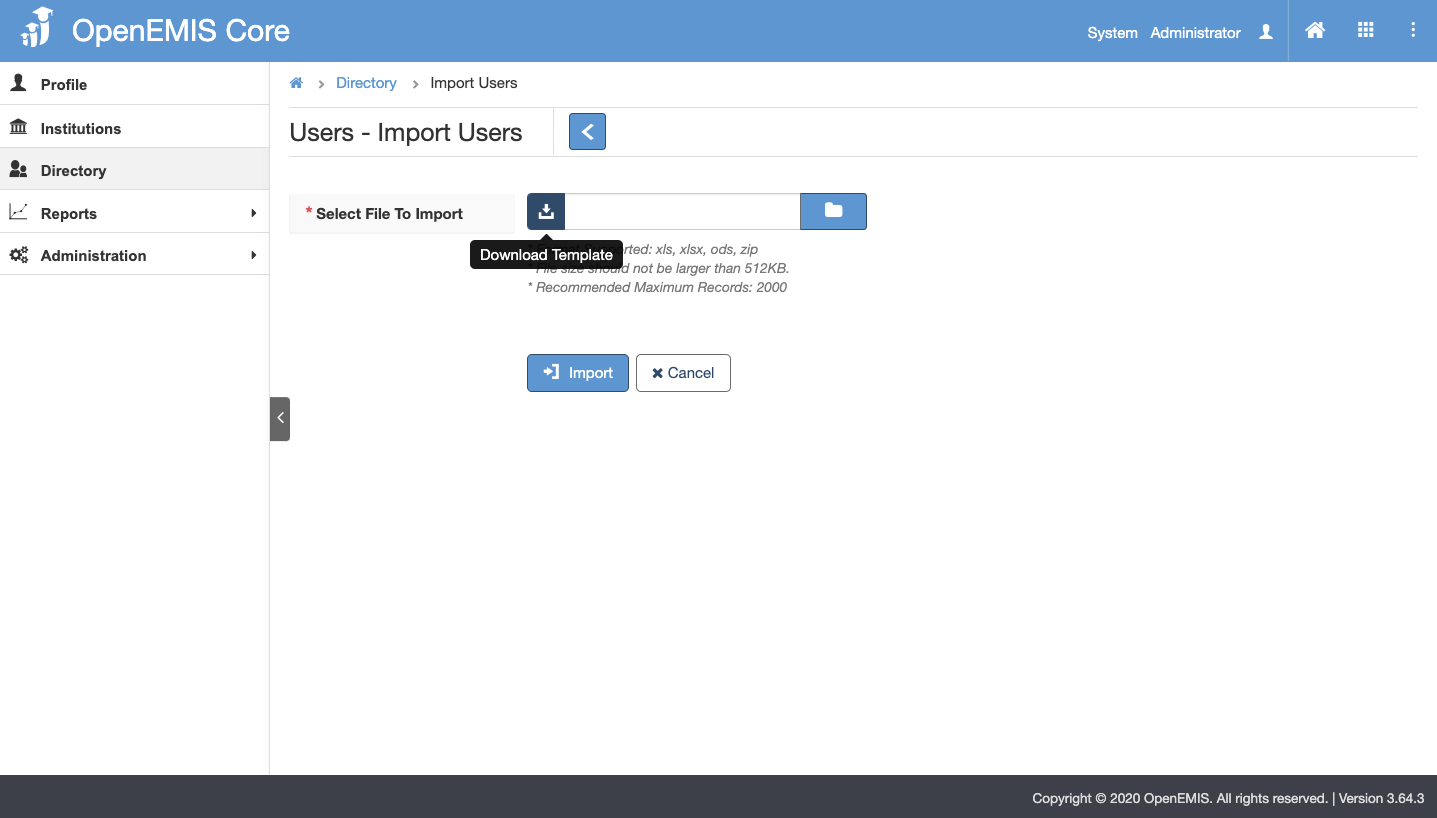
Step 2: Download the Users Import Template
Step 3: Fill in the necessary information in the Users Import Template

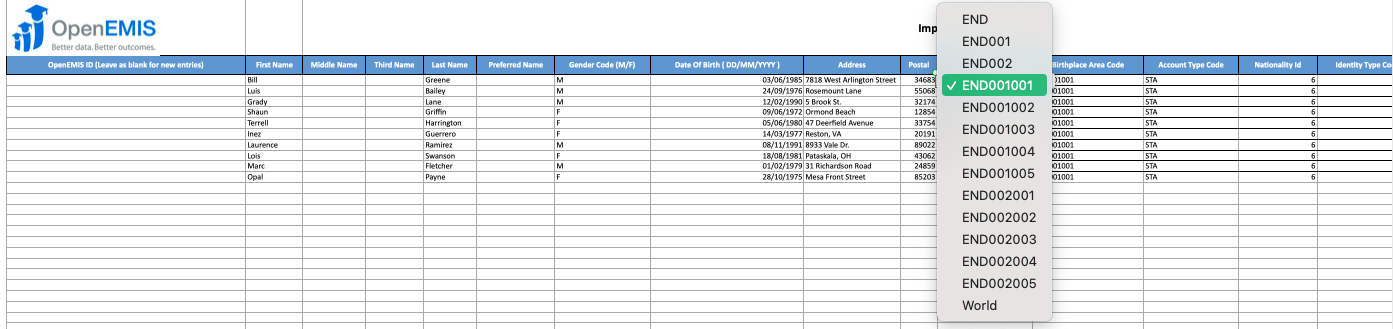
Users Import Template
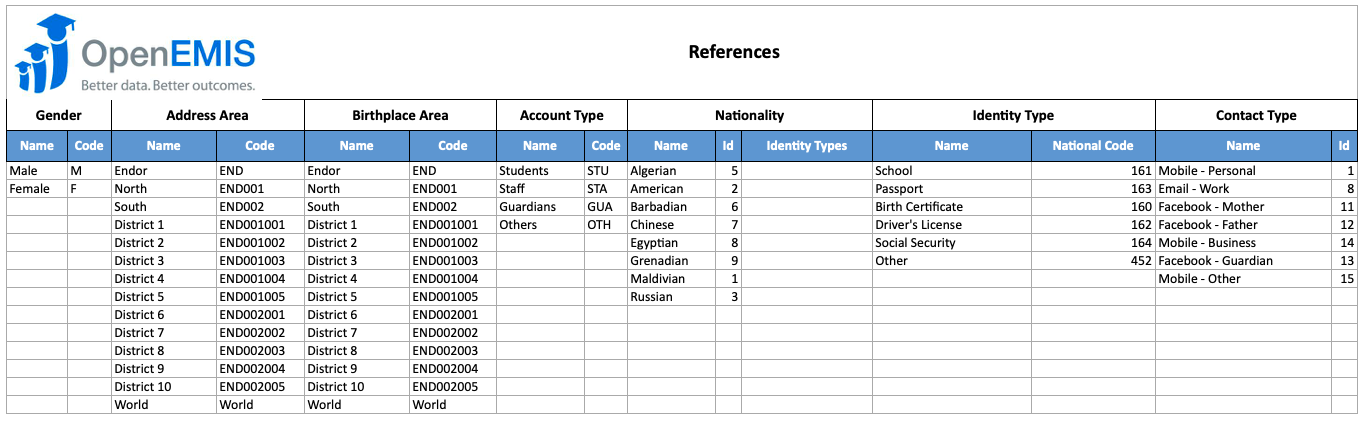
Users Import Template Reference Sheet
Step 4: Upload and Import the Template
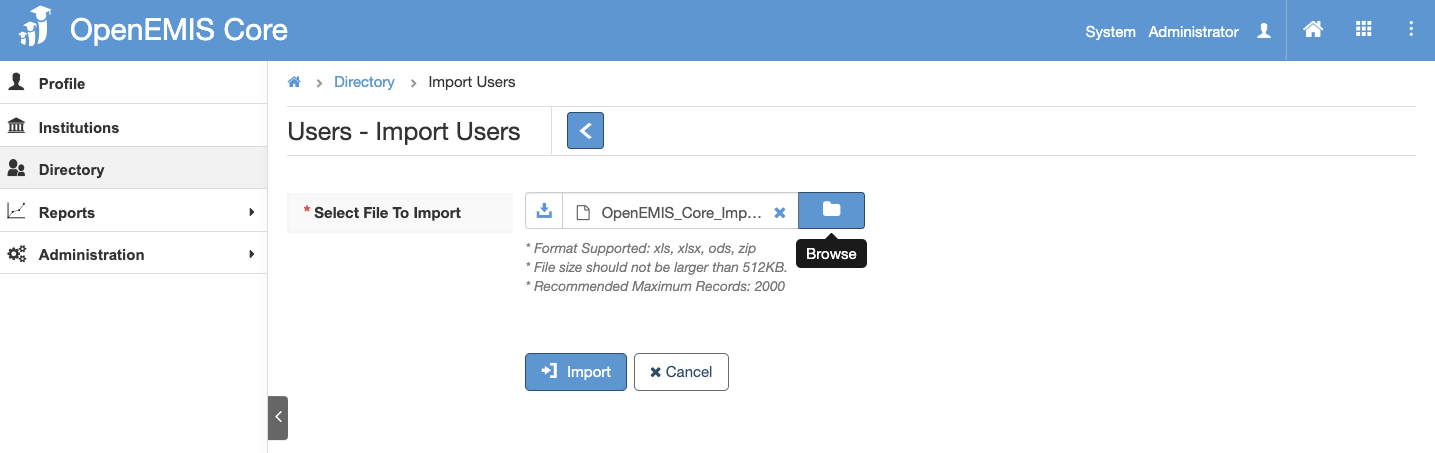
Successful Import
Import will be successful if mandatory fields are filled in and records are correct.
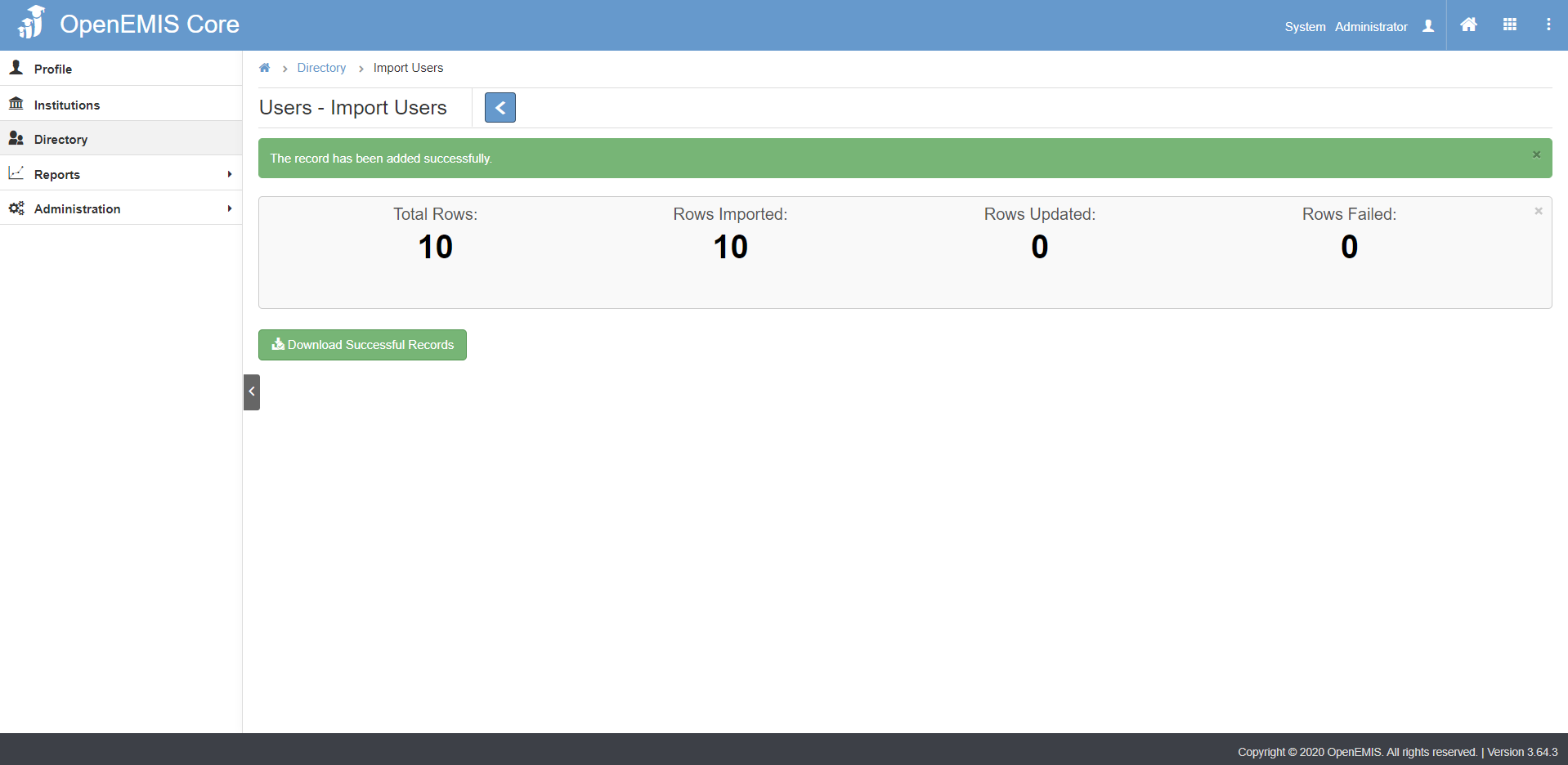
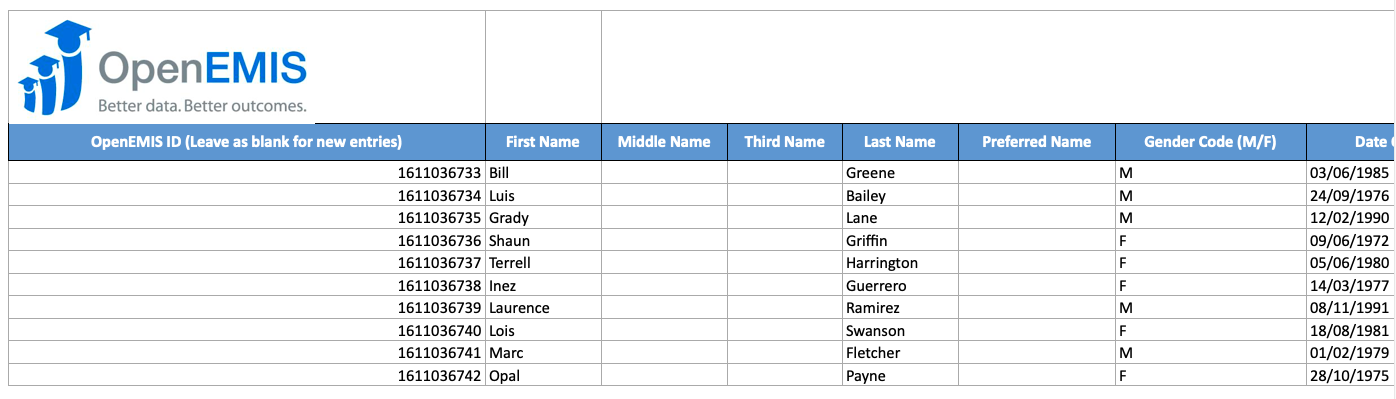
Step 5. Click on Download Successful Records. The system will download the list of Staff Records that have been passed successfully to the Directory. The list will include OpenEMIS ID for each staff record.
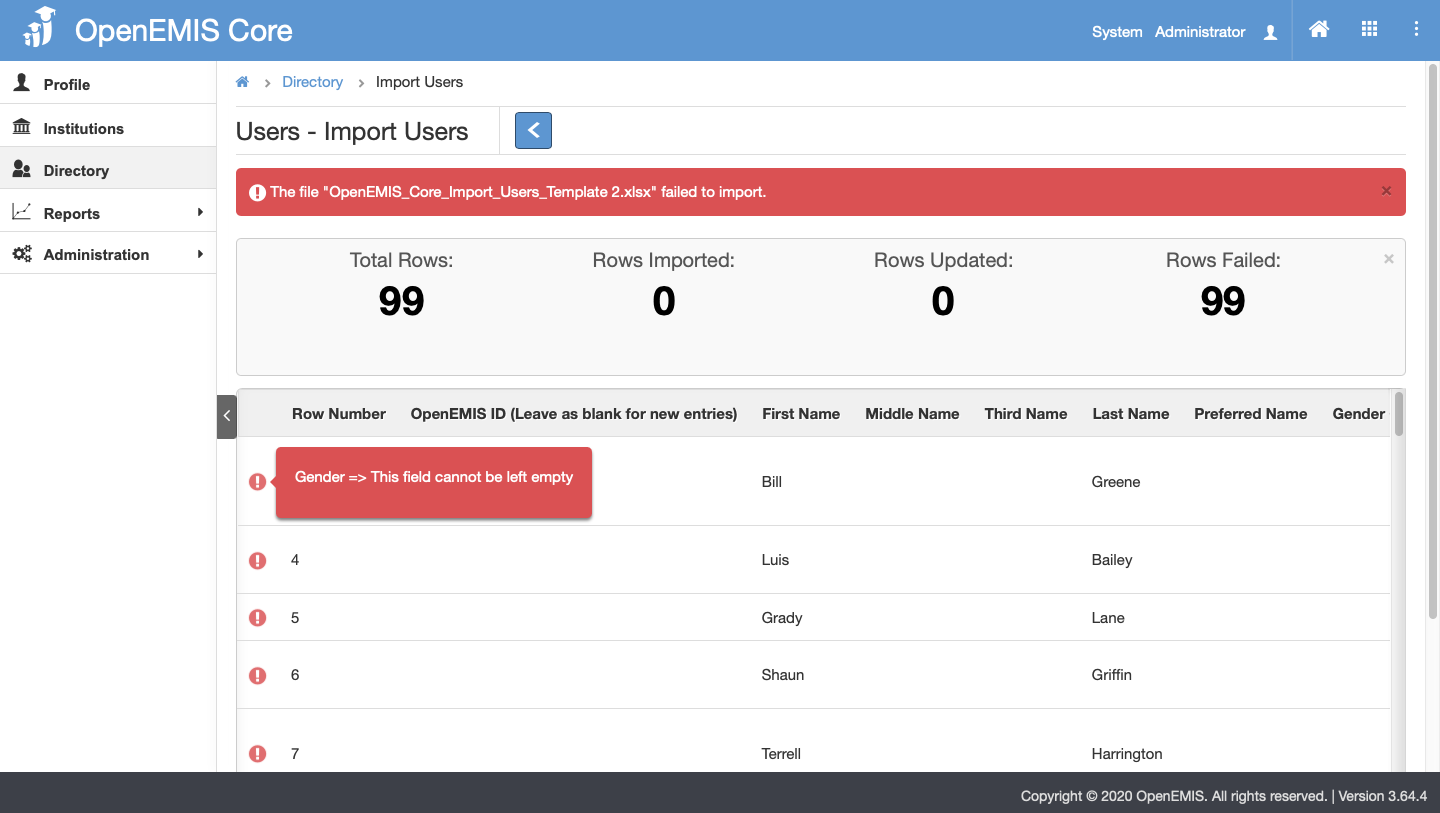
Failed Import
If the file fails to import, the tool tip will indicate the error message.
Institutions Position Import
When importing Staff Users to Institutions, the Second Step is to Import Positions.
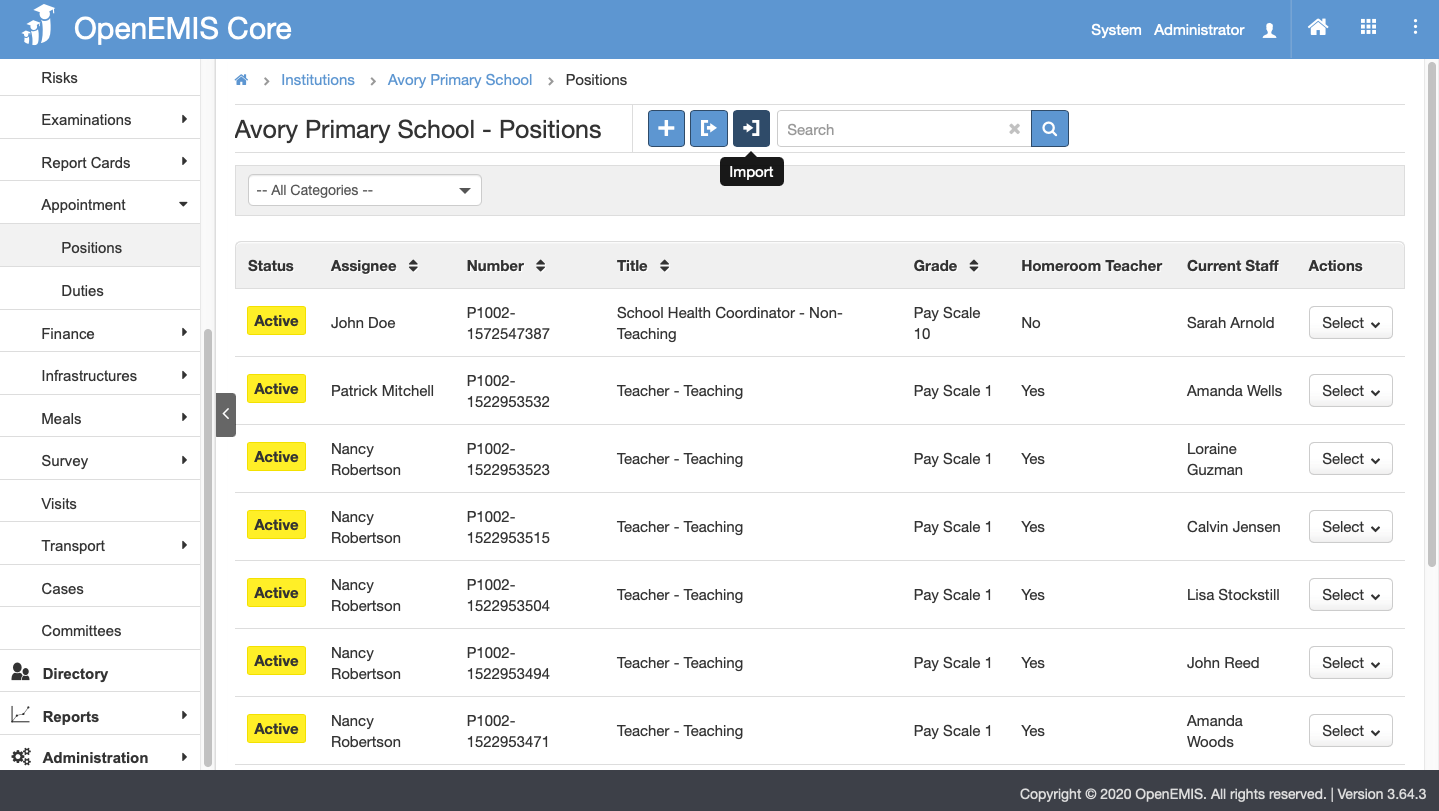
Step 1. Go to Institutions > Appointment > Positions. Click Import.
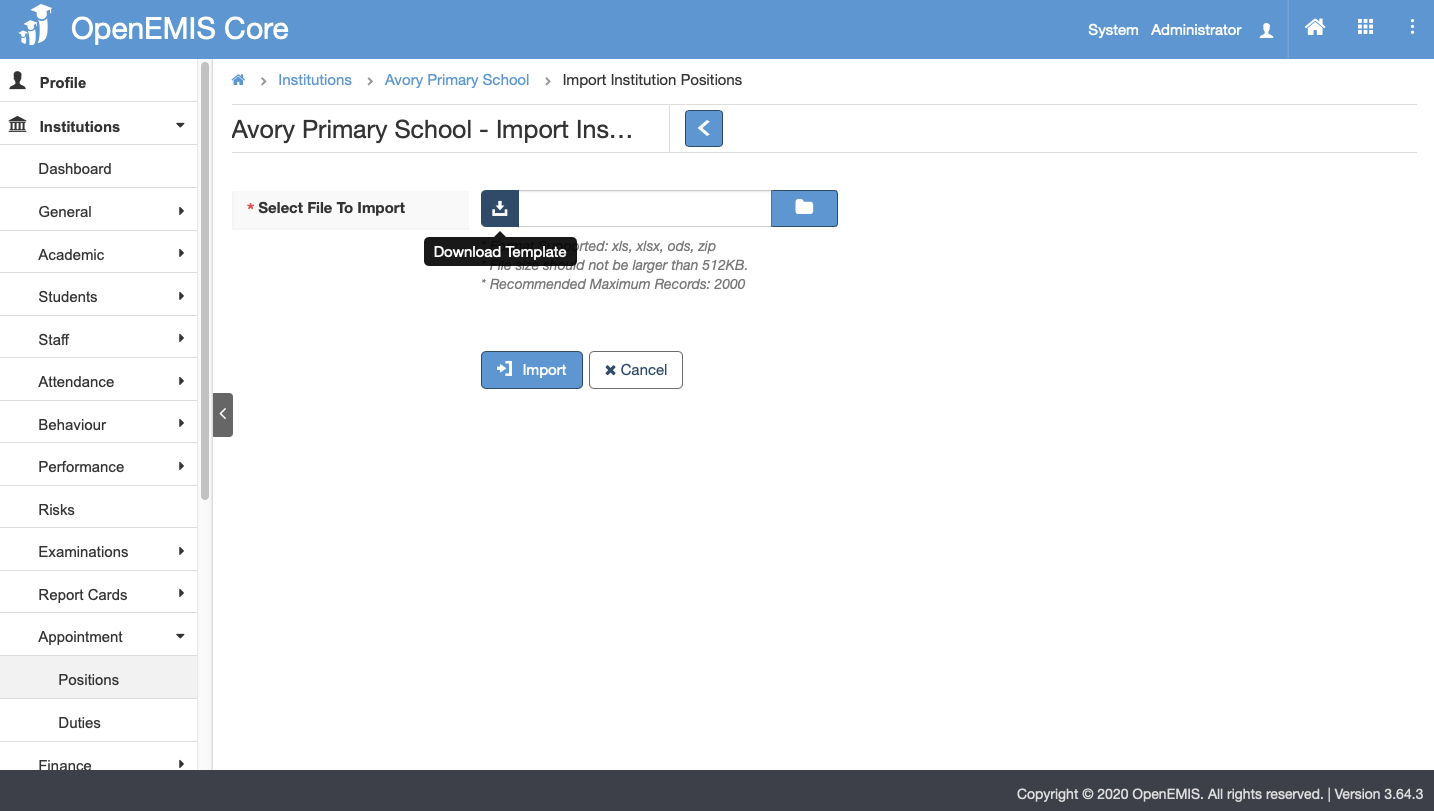
Step 2. Download Import Institutions Position Template.
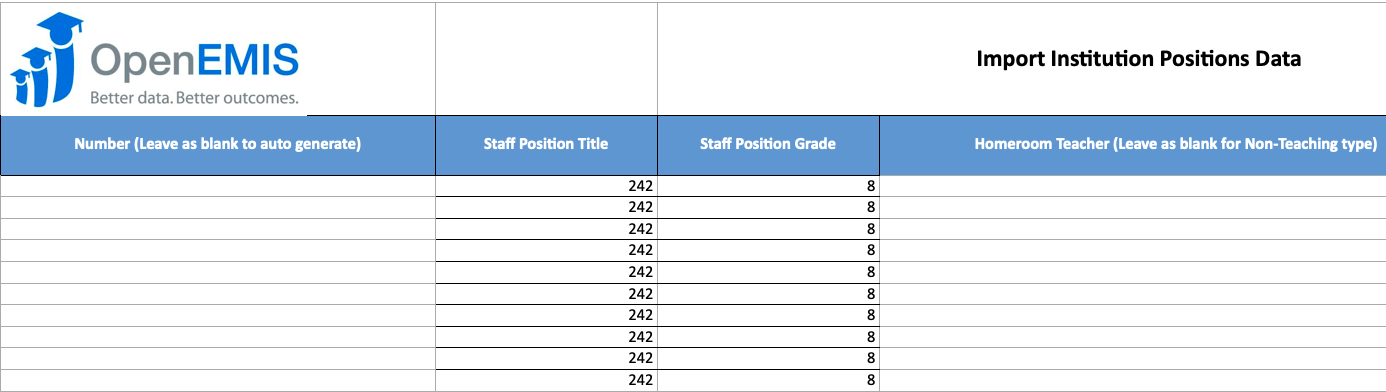
Step 3. Fill in the necessary information in the Import Institutions Position Template. Look at the References Tab if you are unsure of the values in the dropdown list
Step 4. Upload and Import the completed Institutions Position Template.
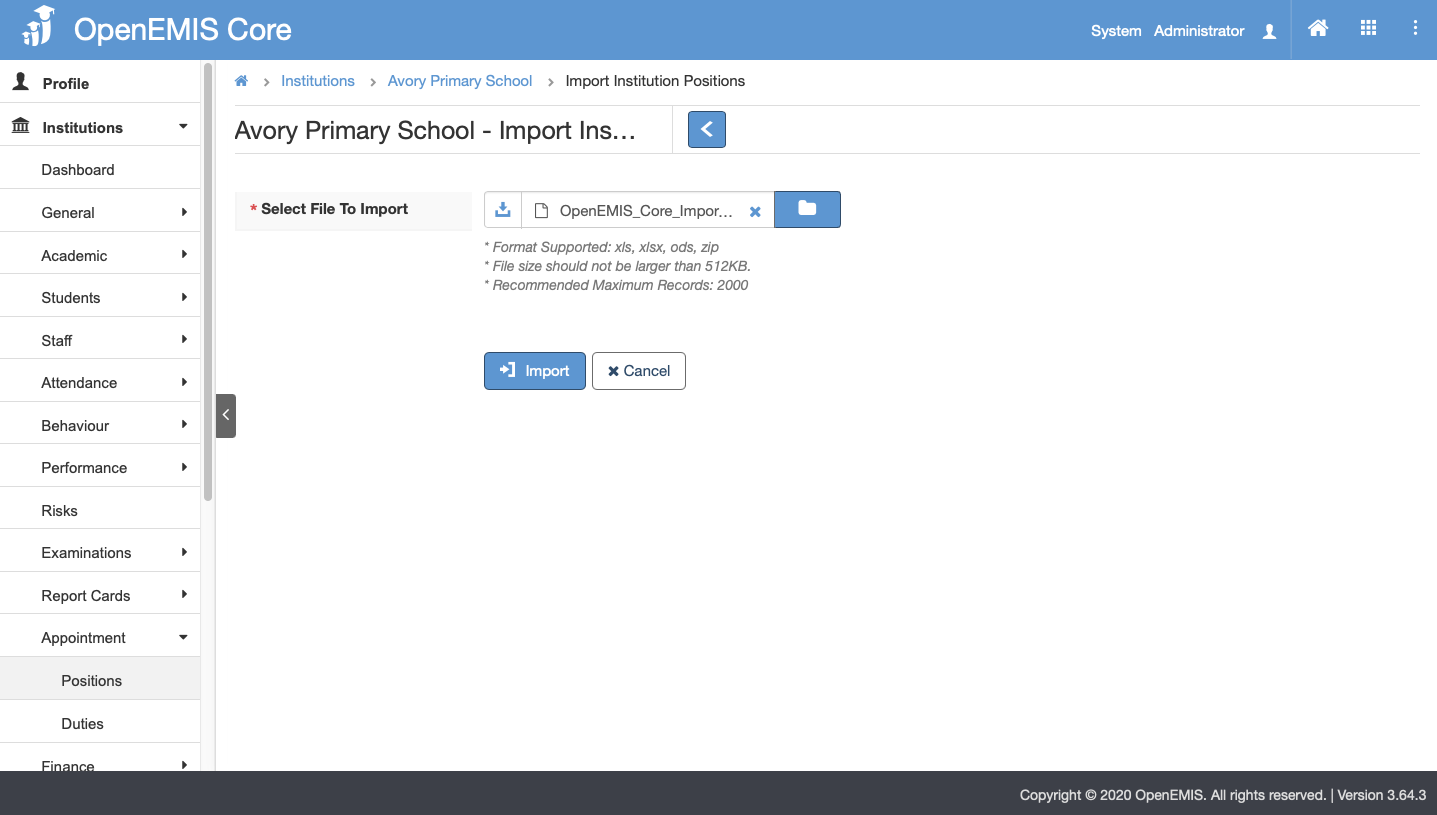
Successful Import
Import will be successful if mandatory fields are filled in and records are correct.
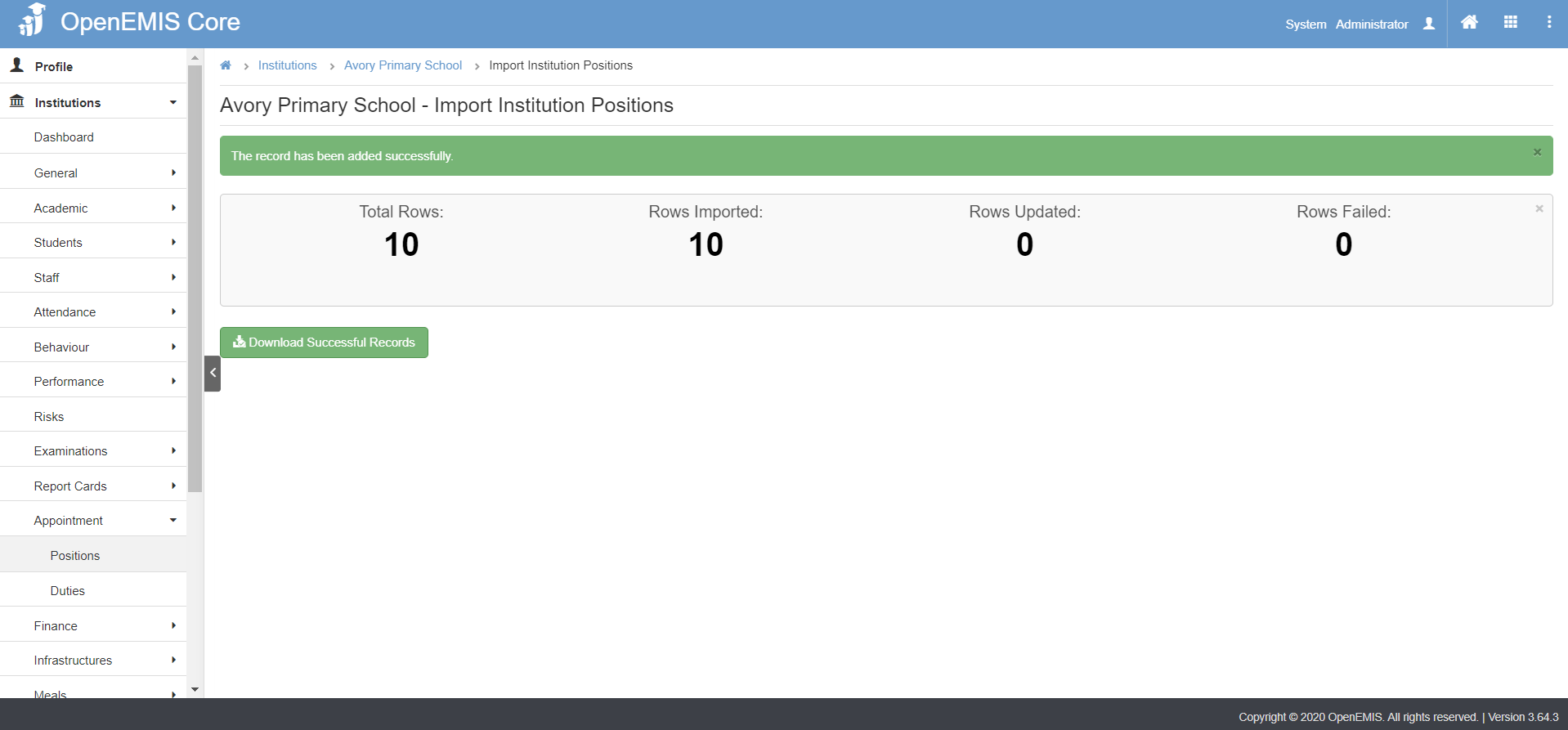
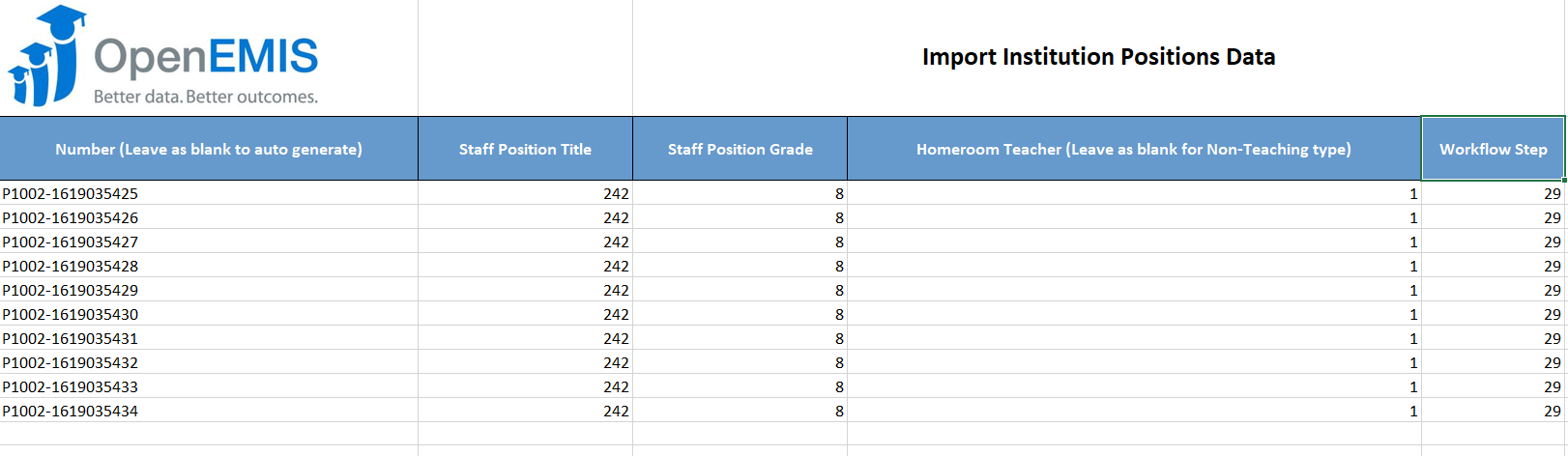
Step 5. Click on Download Successful Records. The system will download the Institutions Positions Data that have been passed successfully to the Appointment Positions. The data will include Position Numbers for each Staff Position Title.
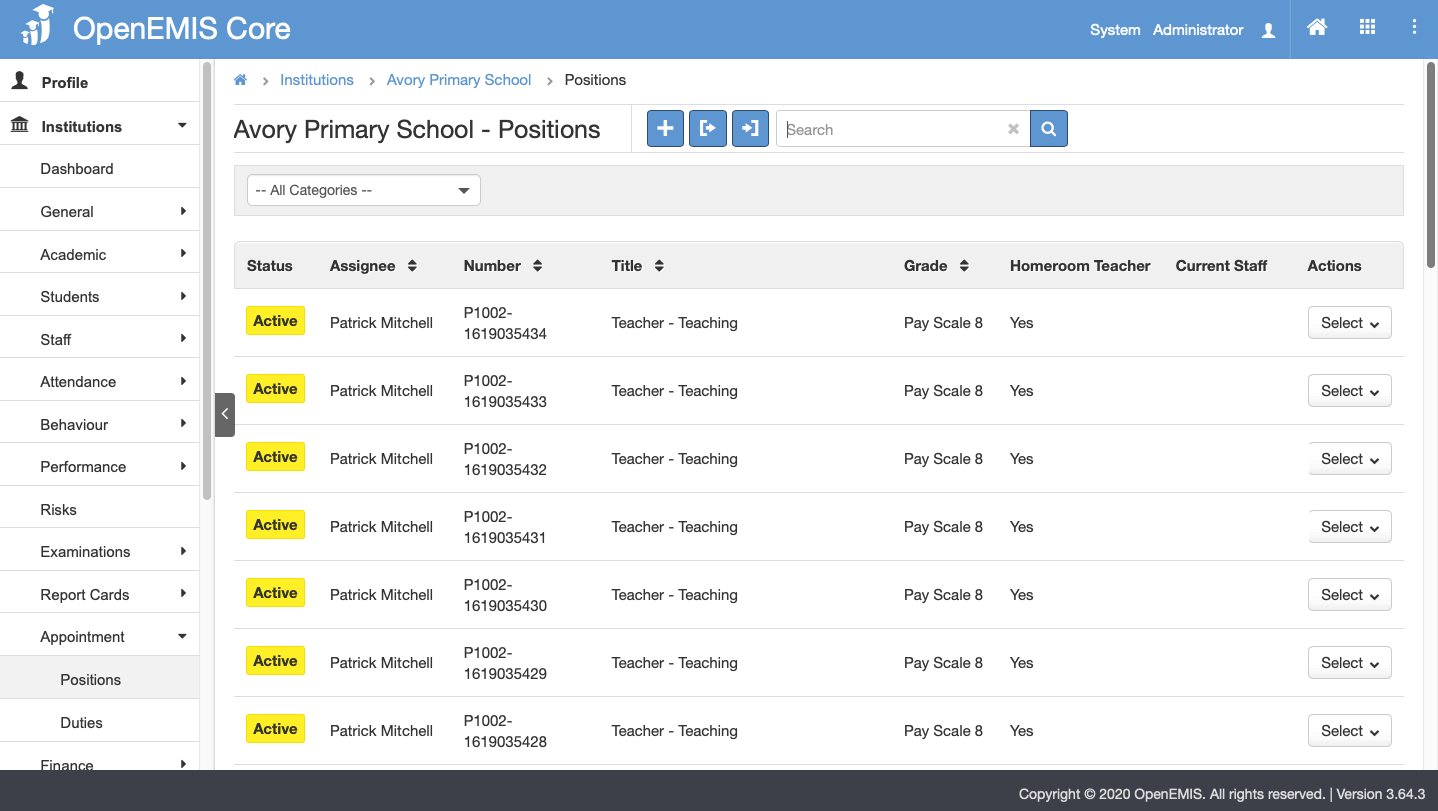
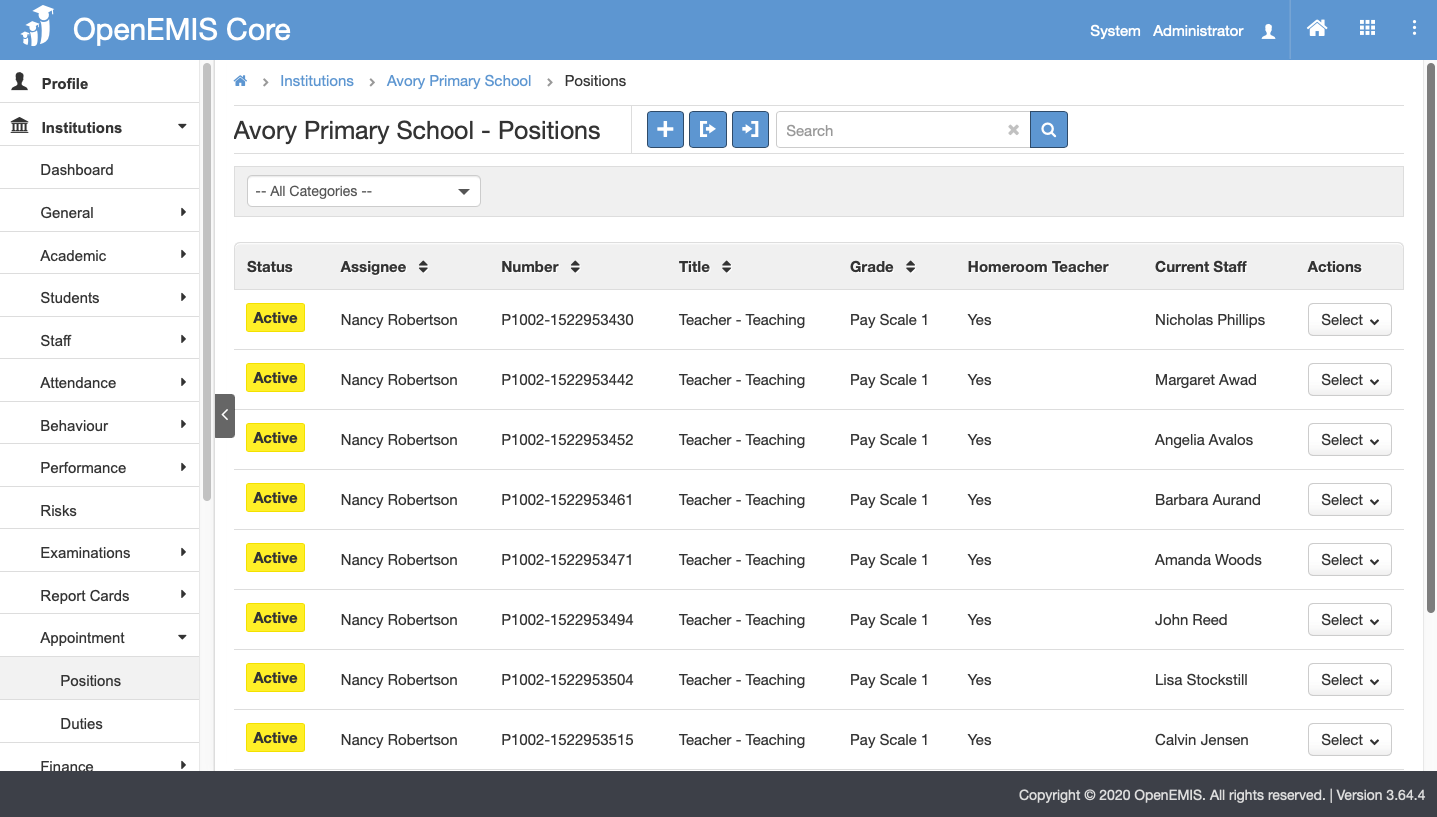
You can view the newly imported Positions in the list of Appointment Positions. At this stage there will be no staff attached to the Positions.
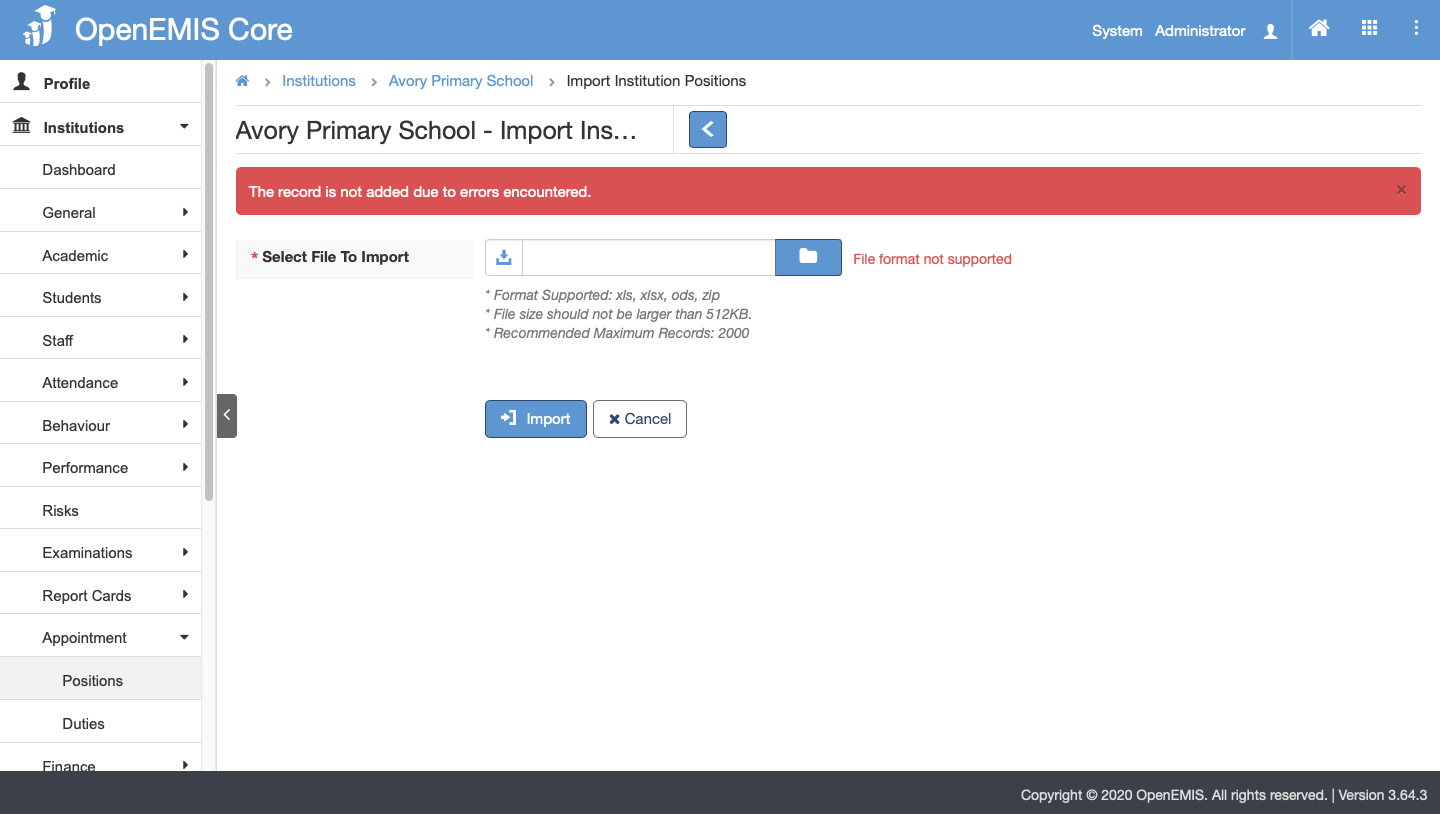
Failed Import
If the file fails to import, the tool tip will indicate the error message.
Institutions Import
Final Step. Import the Staff Users with the information generated from the Directory Import and the Institutions Position Import.
Step 1. Go to Institutions > Staff. Click Import.
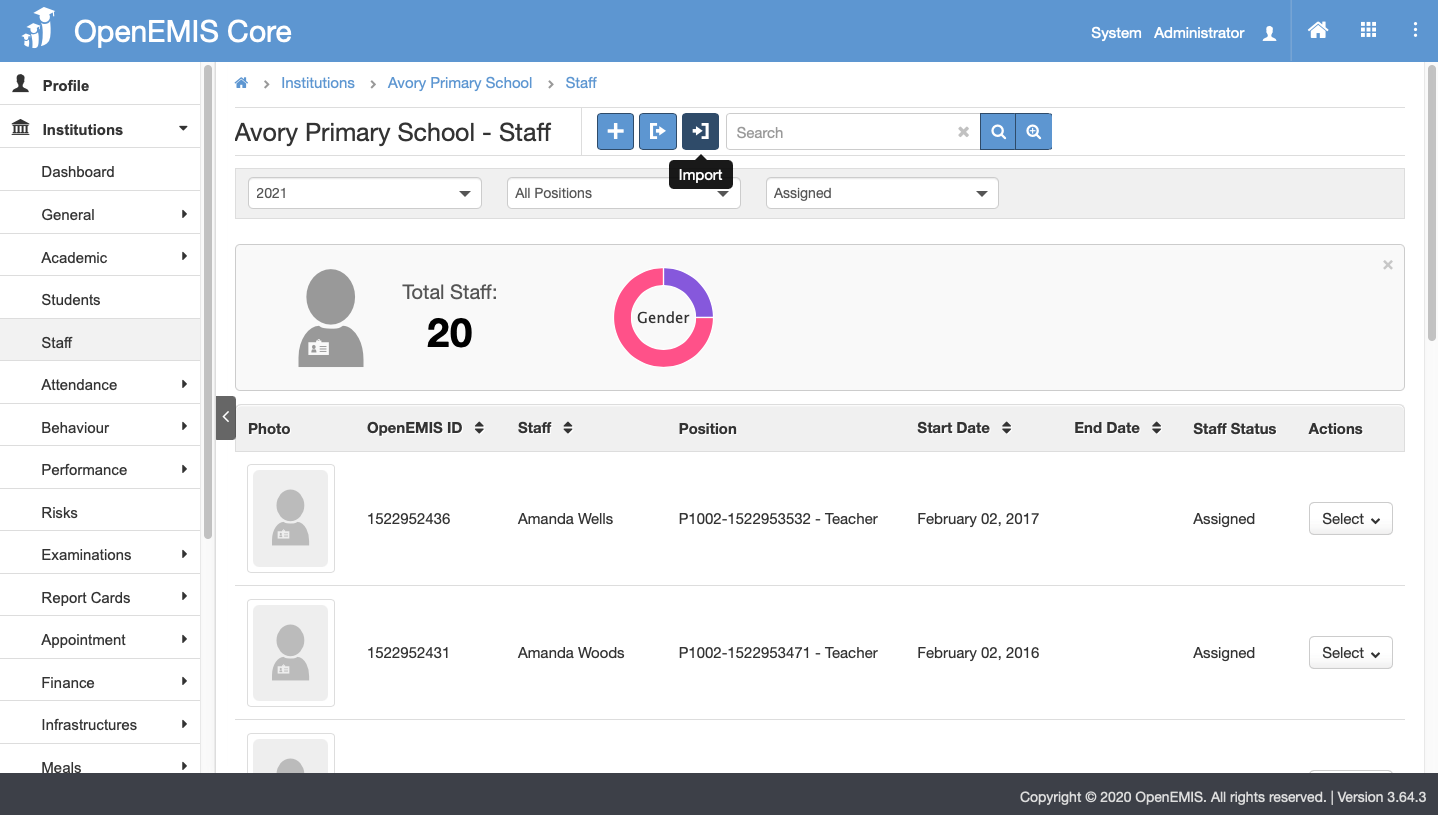
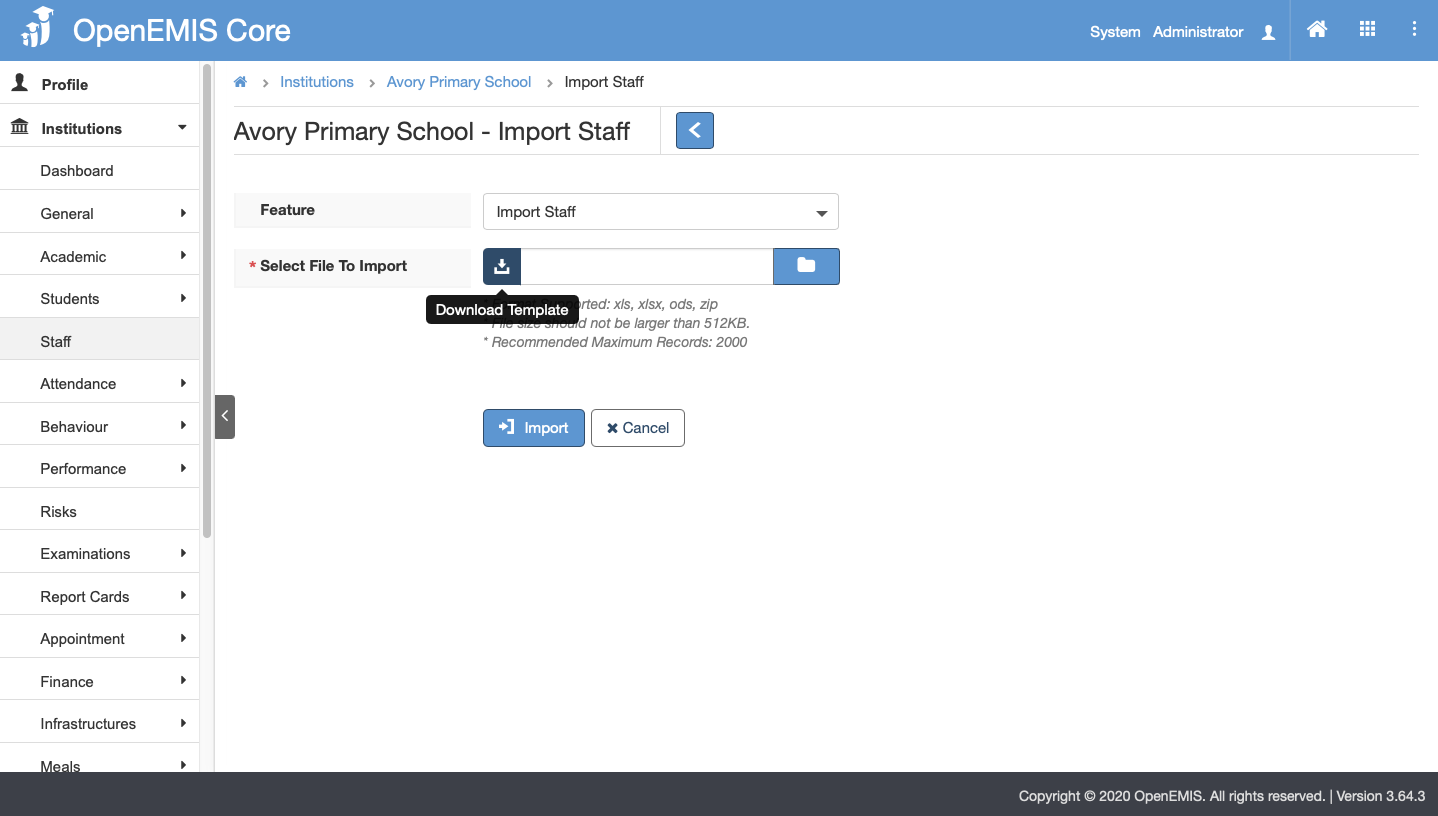
Step 2. Download Import Staff Template.
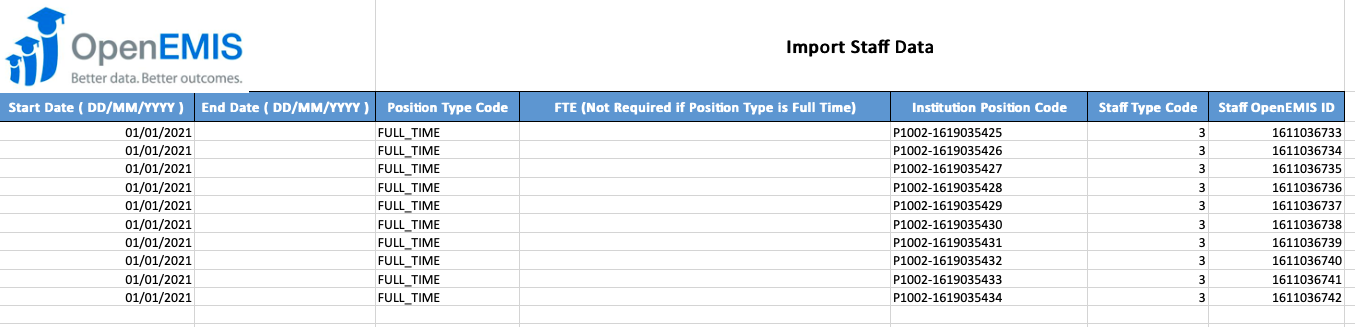
Step 3. Fill in the necessary information in the Import Staff Template. Refer to the Successful Directory Users Data (Directory Import) downloaded in Step 5 and the Successful Institutions Position Data (Institution Position Import) downloaded in Step 5 to get the Institutions Position Code and Staff OpenEMIS ID.
Step 4. Upload and Import the completed Staf Data Template.
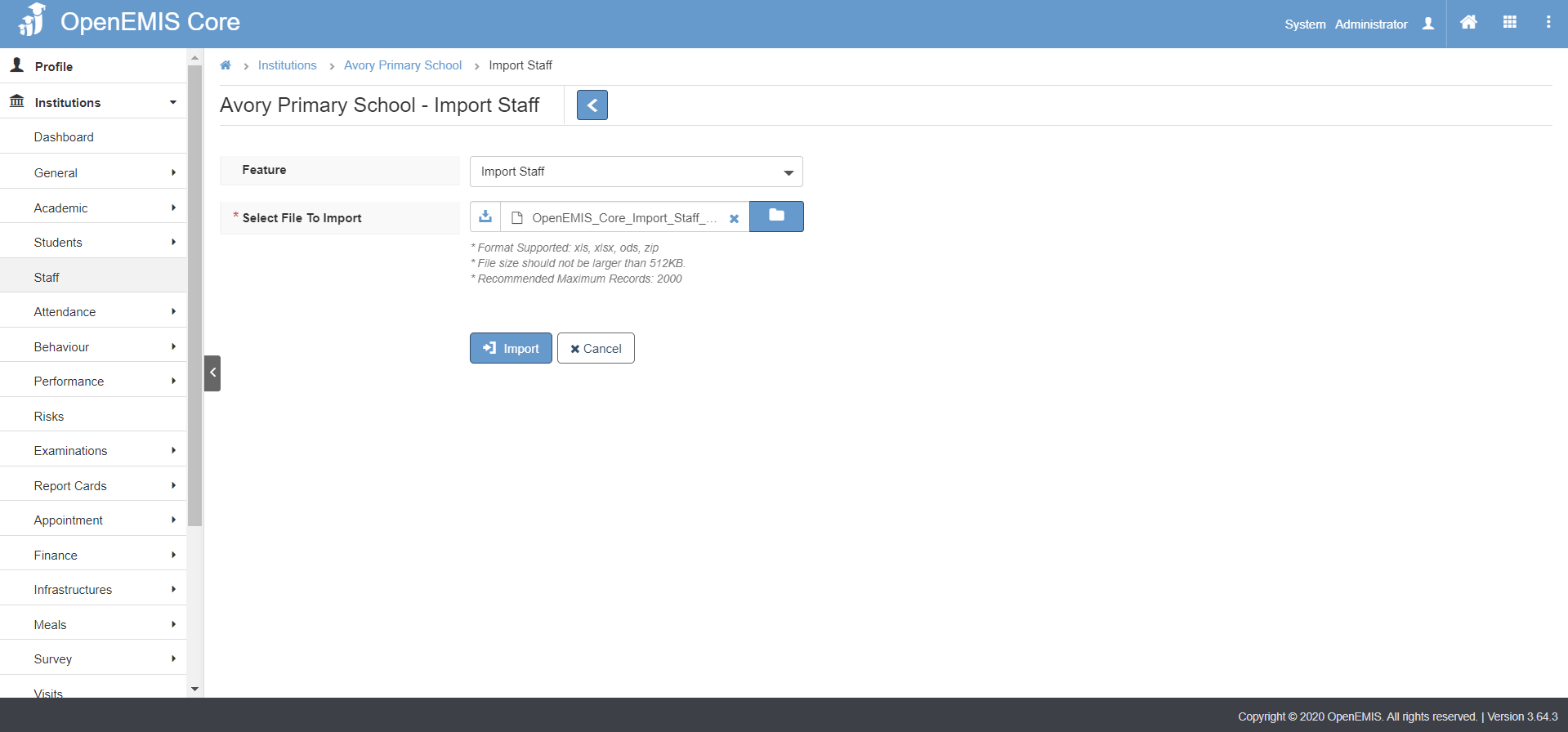
Successful Import
Import will be successful if mandatory fields are filled in and records are correct.
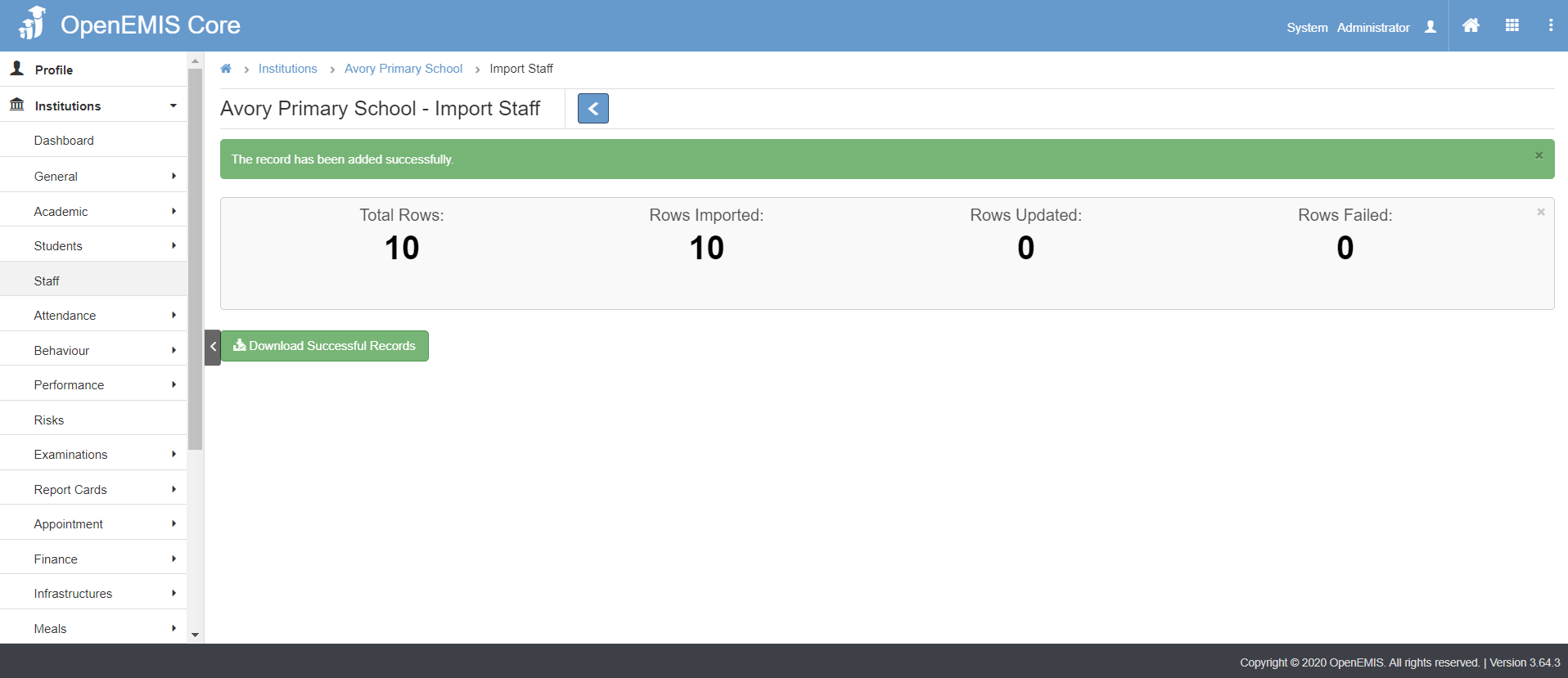
Staff will be added and assigned to the Institutions Staff.
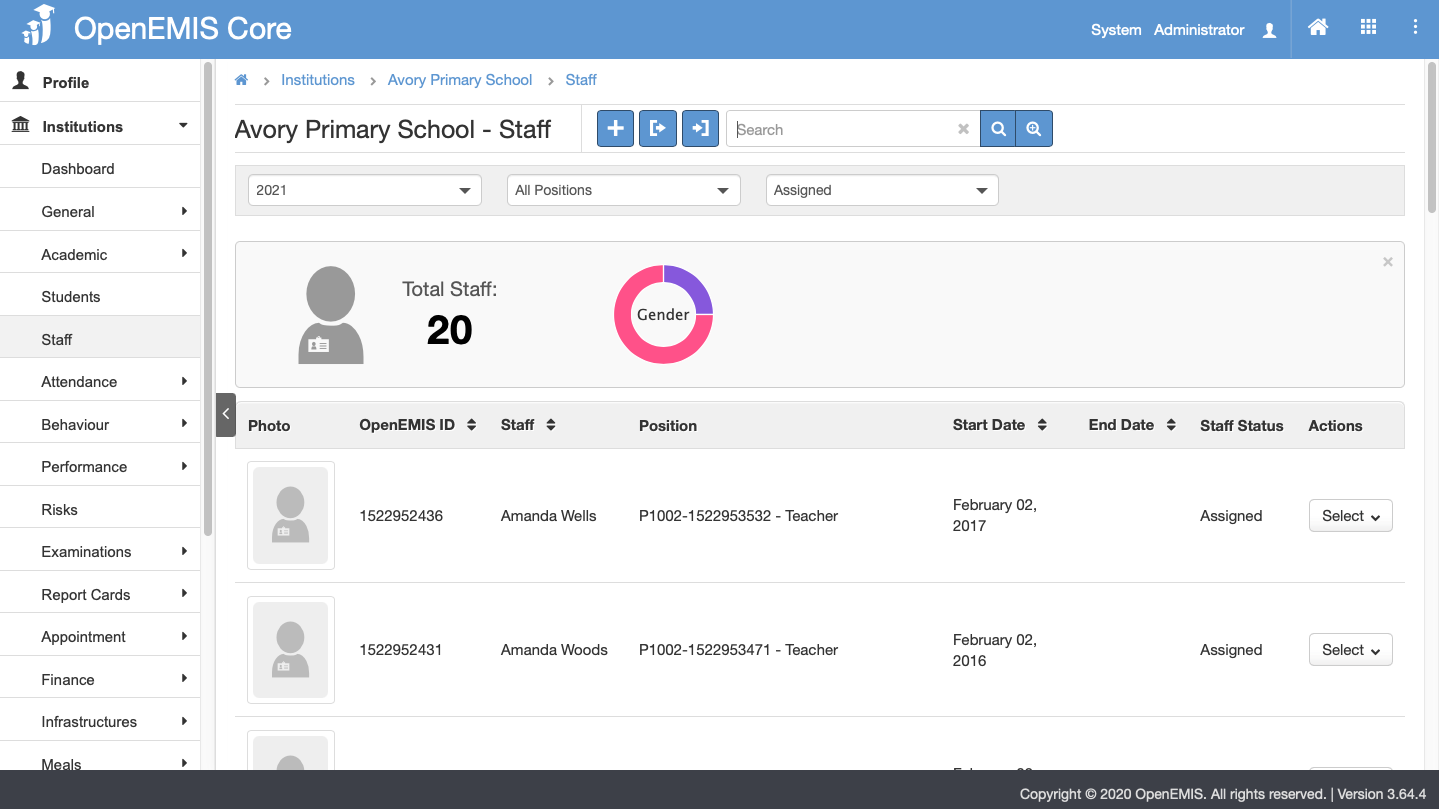
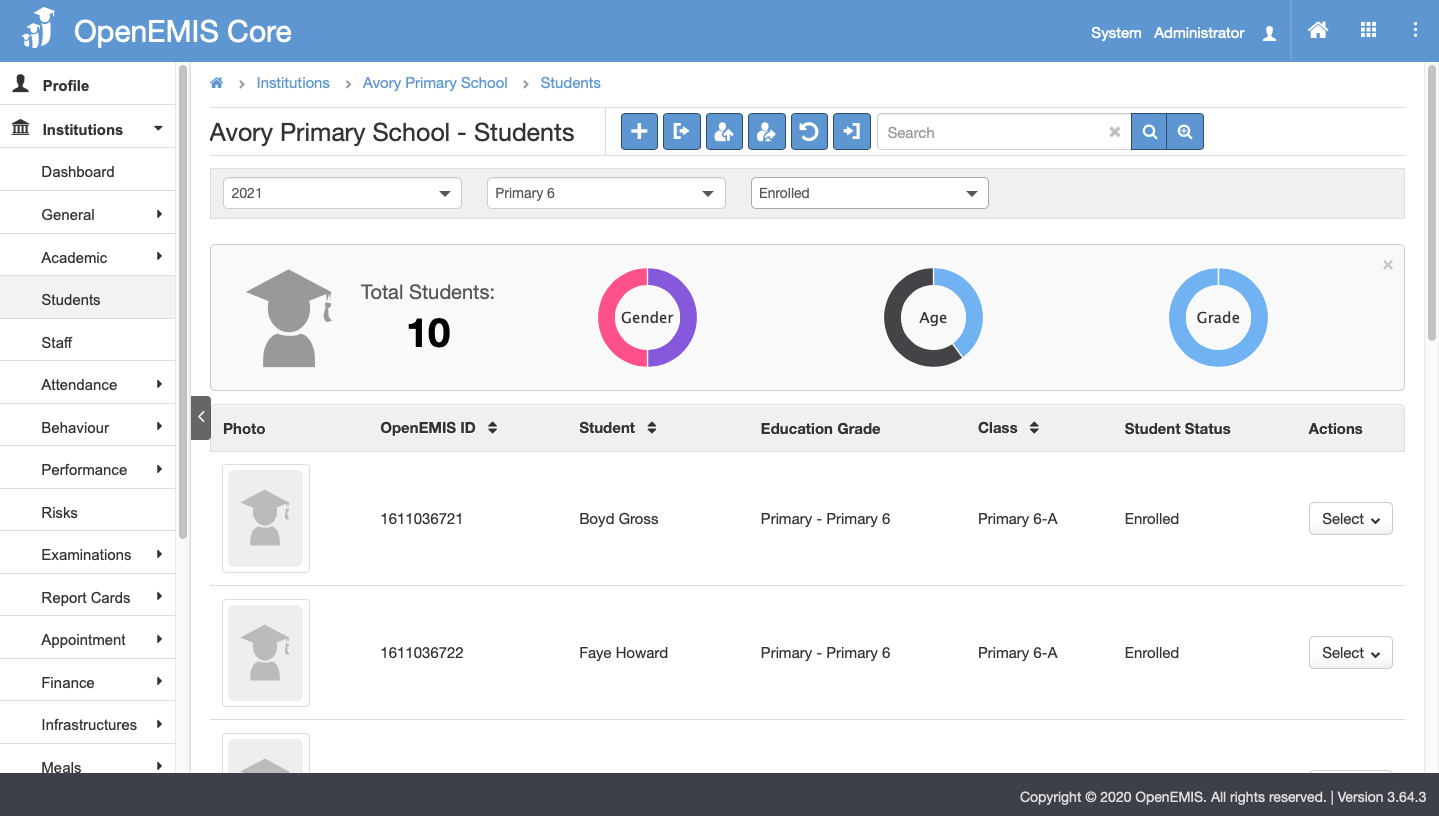
Staff will be assigned to Positions under Current Staff.
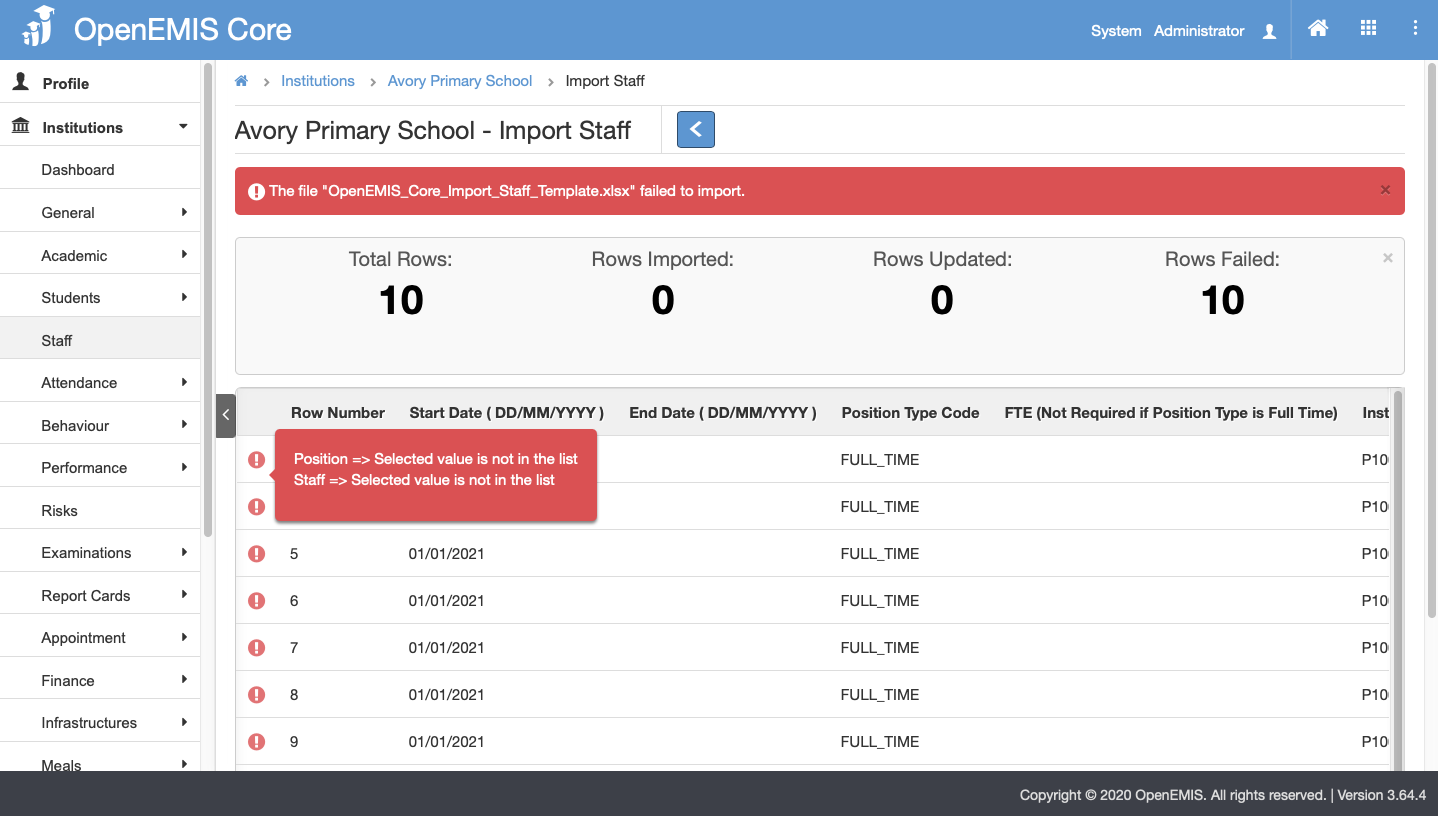
Failed Import
If the file fails to import, the tool tip will indicate the error message.
Enable Permission for Institutions Staff Import
Enable Security Role Permissions for Institutions Staff Import
1) Go to Administration > Security Roles
2) Select on the Security Role and Allow all the Permission for the following actions.

