Article Name: Student Attendance
Category/Module: Institution
Tags: Attendance Absences Students
Version: 3.99.1
Date Updated: 27 March 2024
This feature allows teaching staff to mark attendance for the students in their classes.
- Marking Student Attendance (Institution)
- Viewing Student Attendance (Institution)
- No Scheduled Class (Institution)
- Exporting Student Attendance (Institution)
- Importing Student Absences (Institution)
- Accessing Student Absences
- Configuring Student Attendance Period
Marking Student Attendance
Step 1: Navigate to Institutions> Attendance> Students
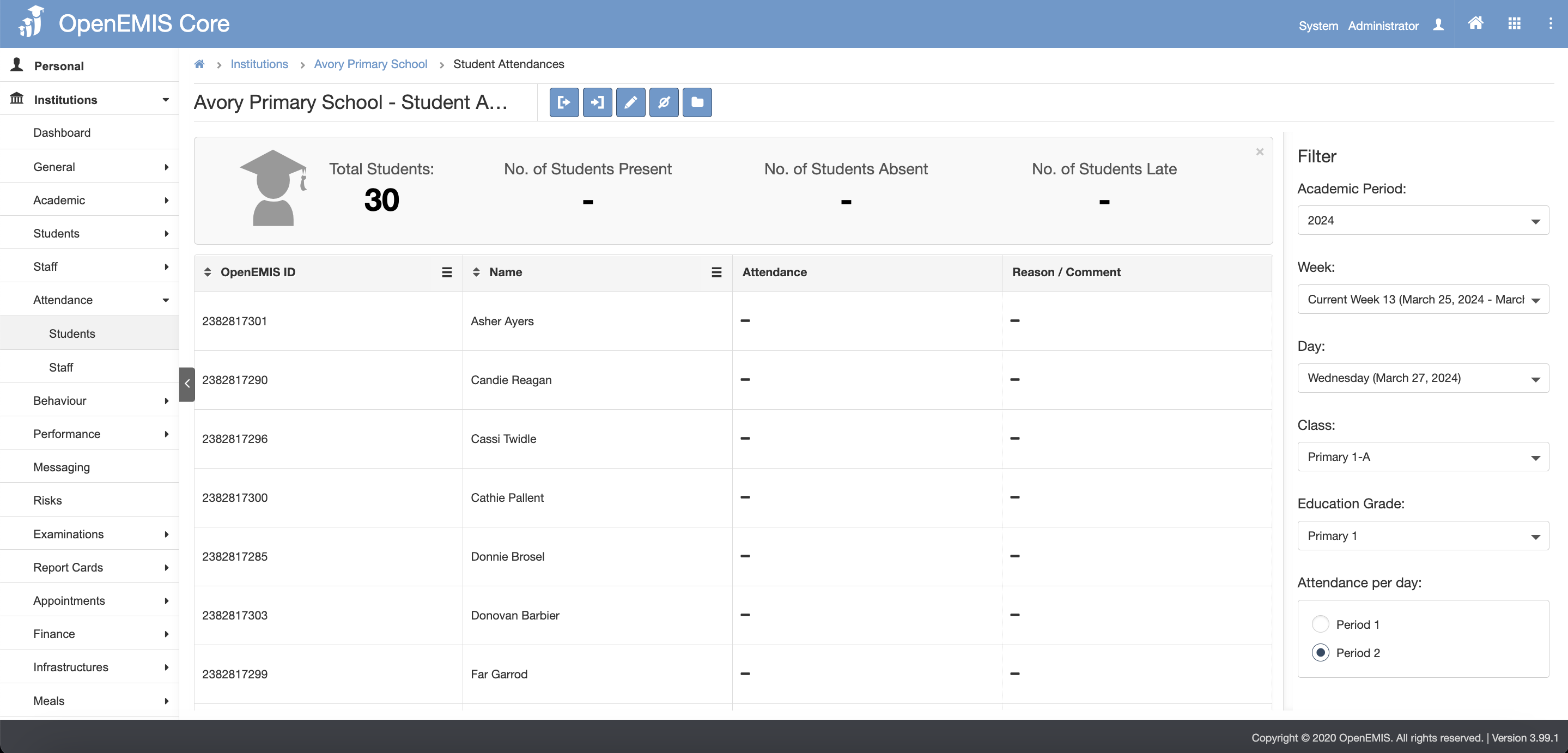
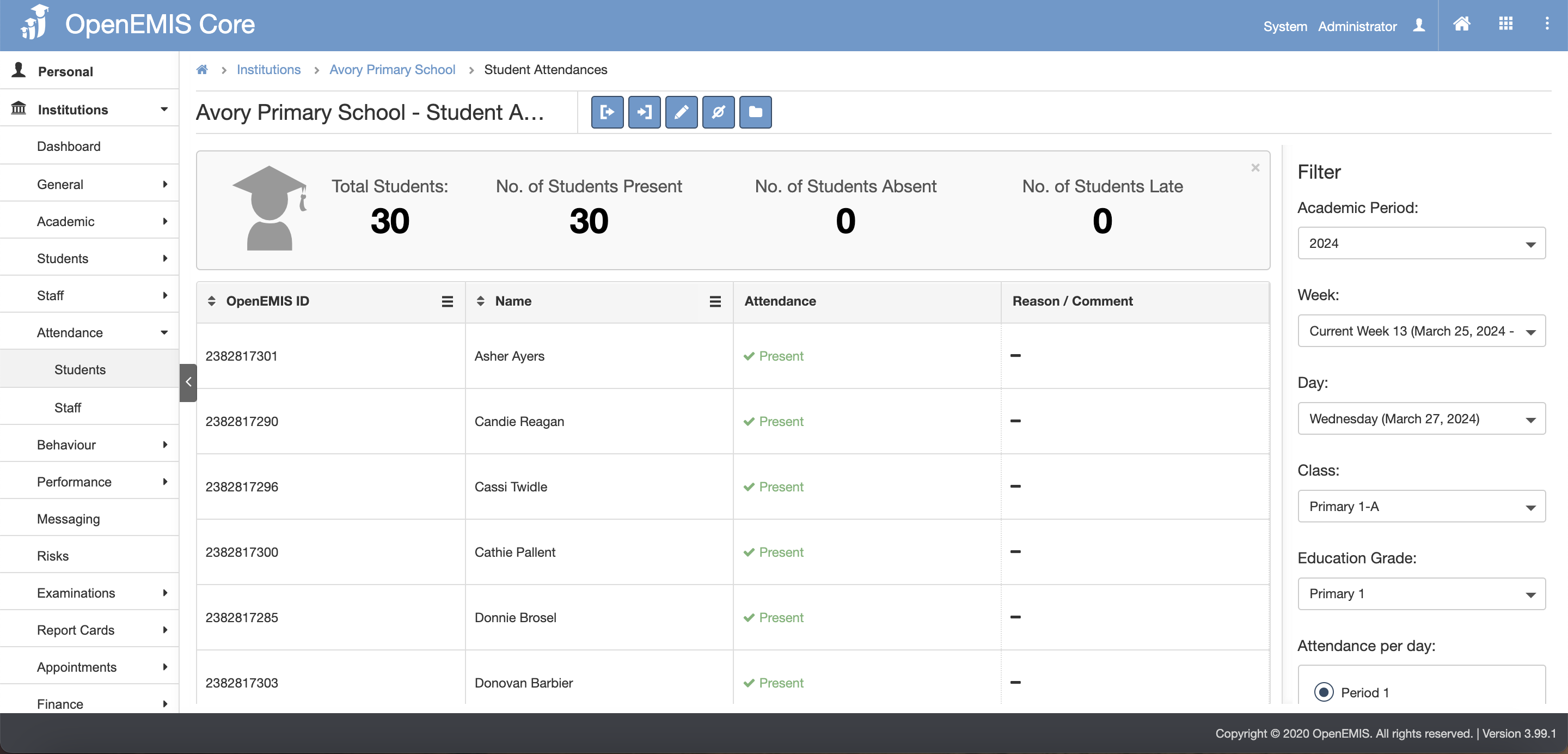
Step 2: Select the Academic Period, Week, Day, Class, Education Grade and Period(if applicable) dropdown in the filter on the right. For User with Homeroom Teacher permission, they should only see their class in the class dropdown.
Step 3: If user have edit permission, click on Edit button 
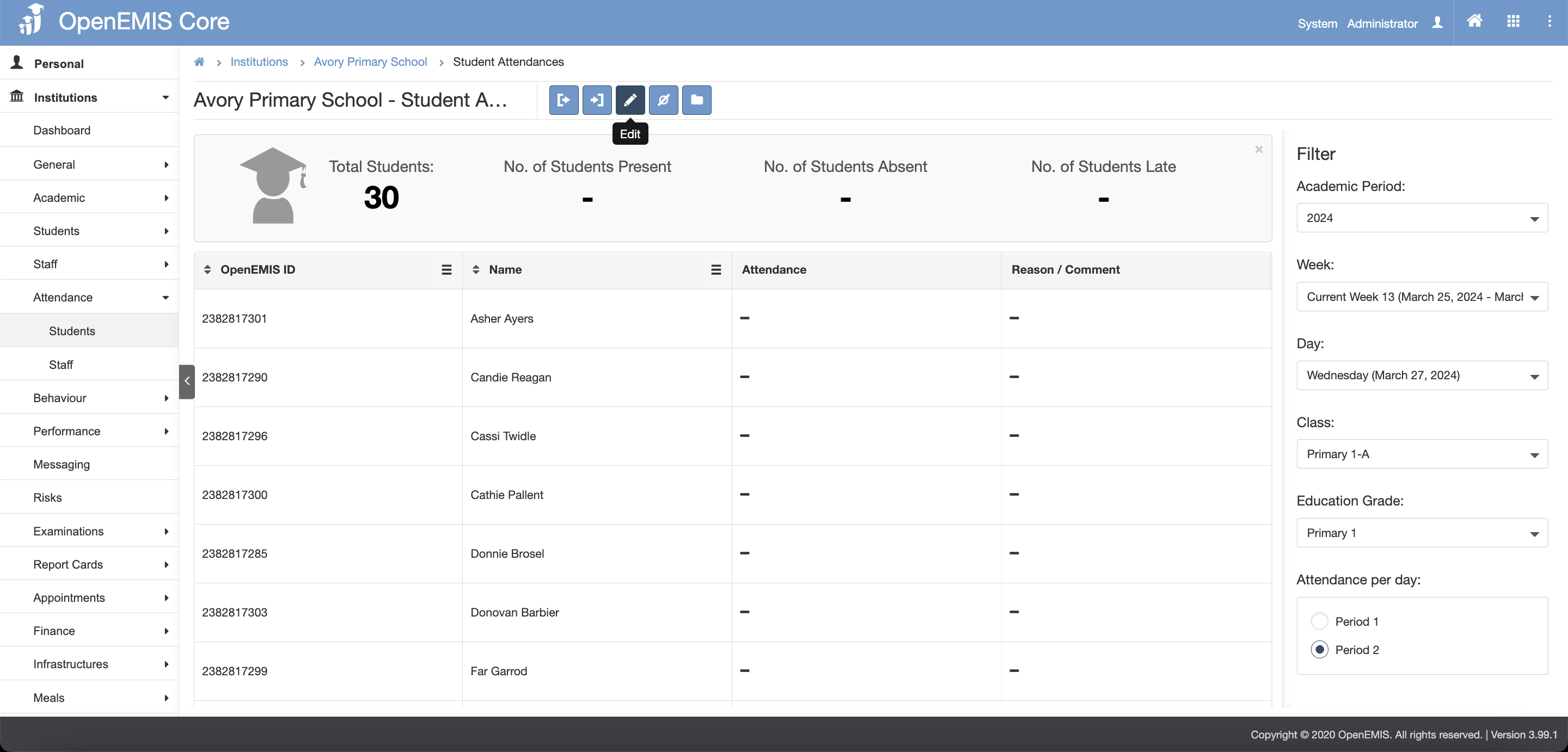
Step 4: Once user clicked on Edit, ALL the student attendance in the selected class will be marked as ‘Present’.
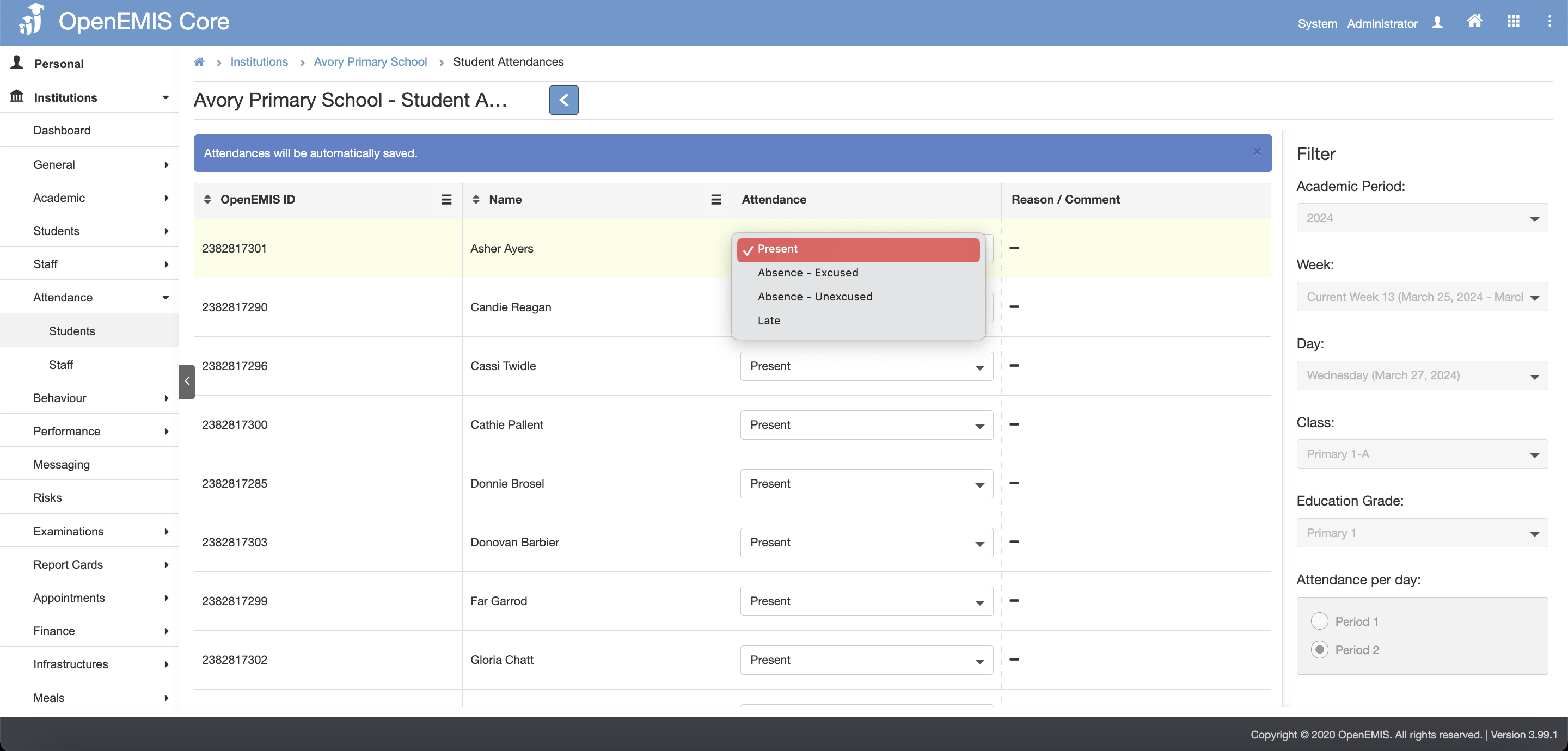
To log absentees, select a dropdown in the attendance column and change it to Absence (Excused/Unexcused).
For Absence (Excused), User are allowed to select reasons from ‘Student Absence Reasons’ which are populated in Field options (Administration > System Setup > Field Options)
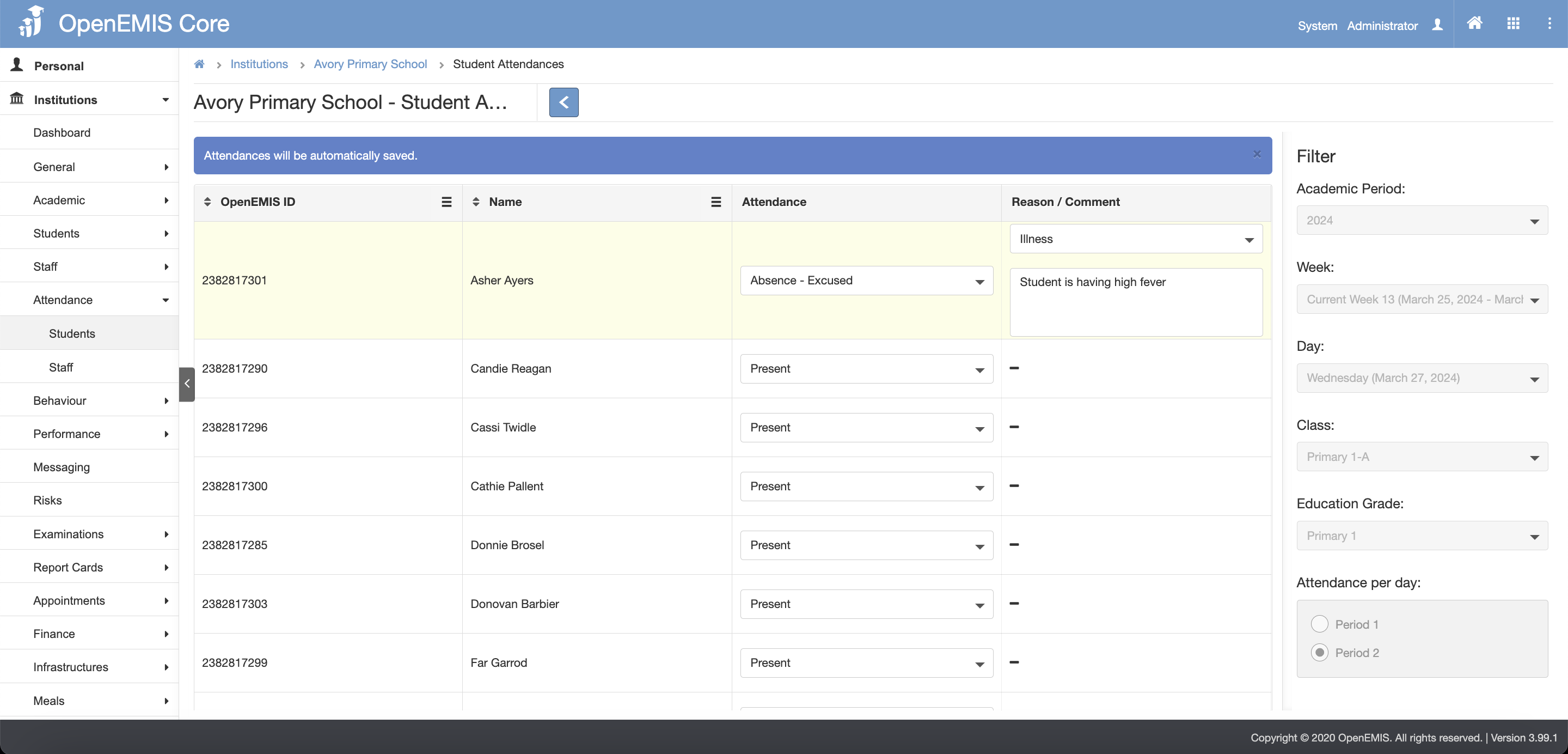
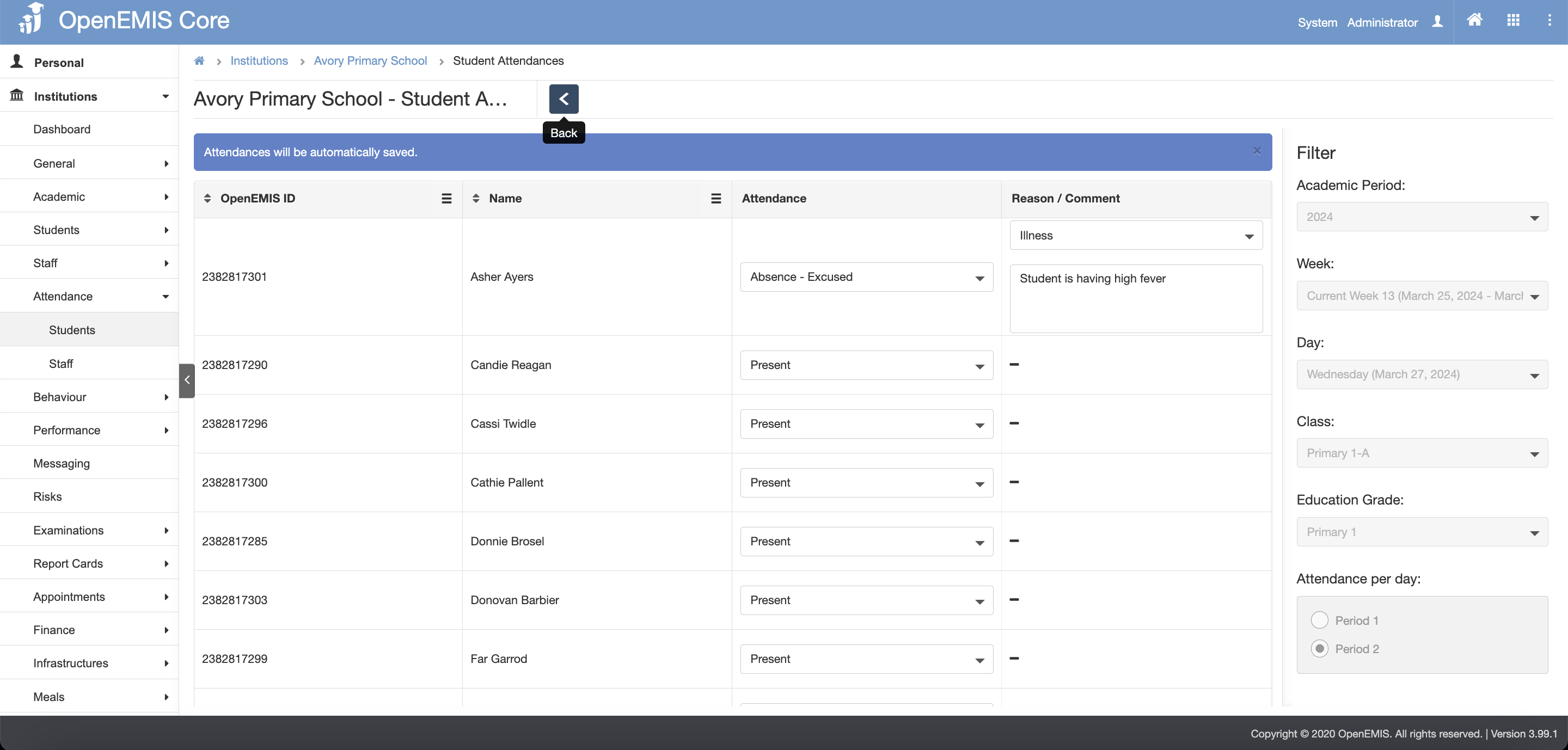
Step 5: Make any necessary changes, attendances will be automatically saved. Click on back button to go back to View mode.
No Scheduled Class
In a case where class is cancelled or postpone, the No Scheduled Class button will allow system to indicate that there is no lesson for that period/day/subject
Step 1: Select the Academic Period, Week, Day, Class, Education Grade and Period(if applicable) dropdown in the filter on the right. For User with Homeroom Teacher permission, they should only see their class in the class dropdown.
Step 2: If user have import absences permission, click on No Scheduled Class button 
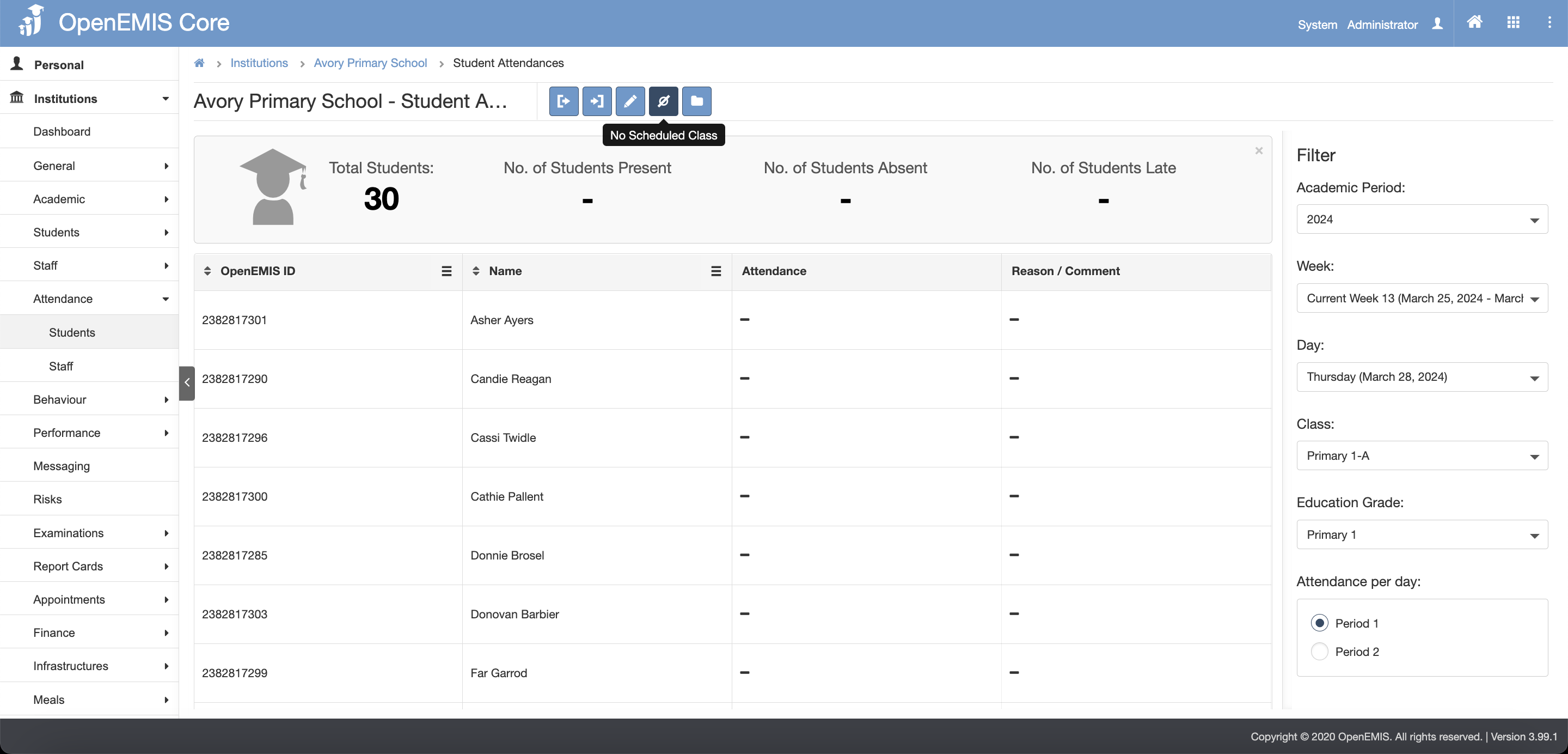
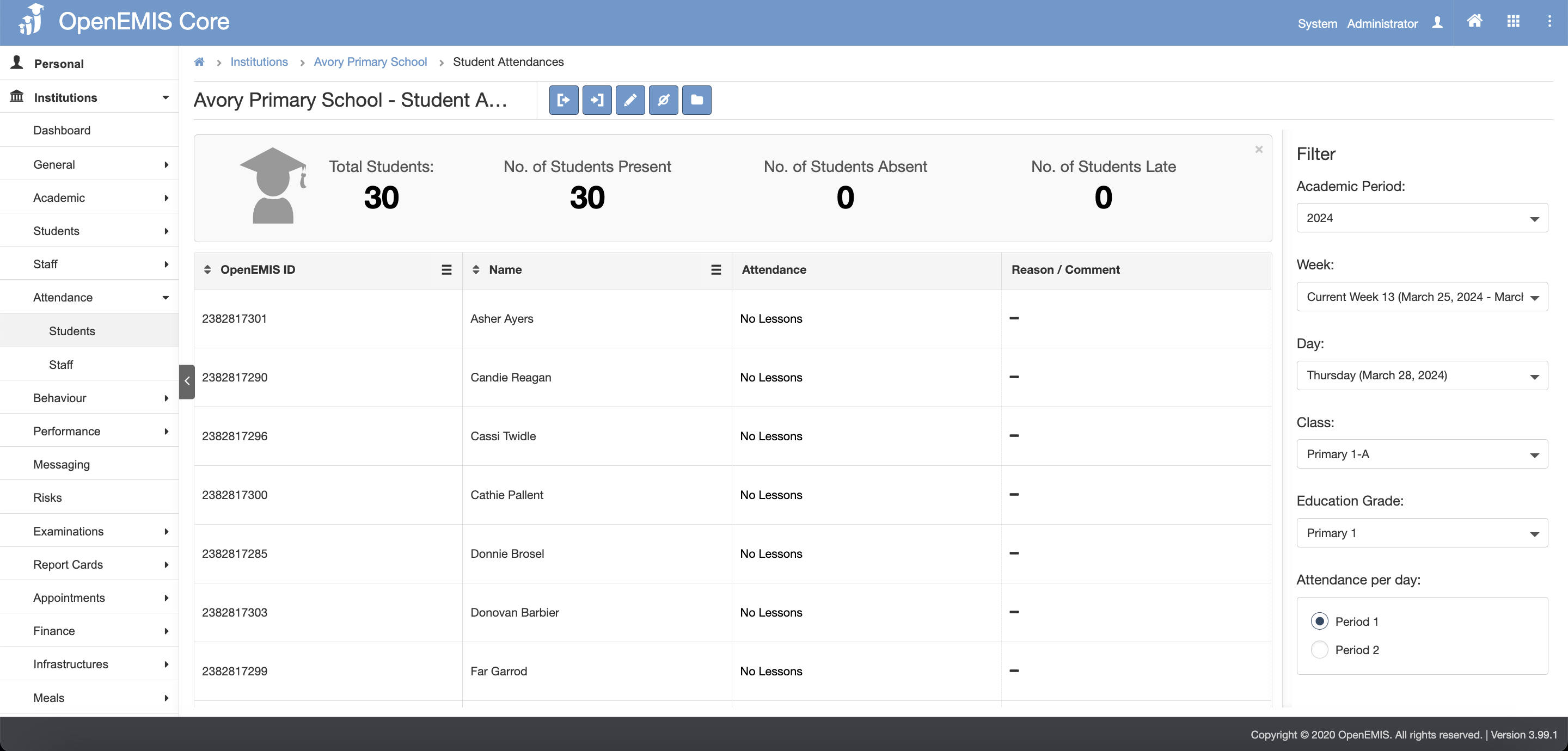
Step 2: You can see that records has been updated to No Lesson
Exporting Student Attendance
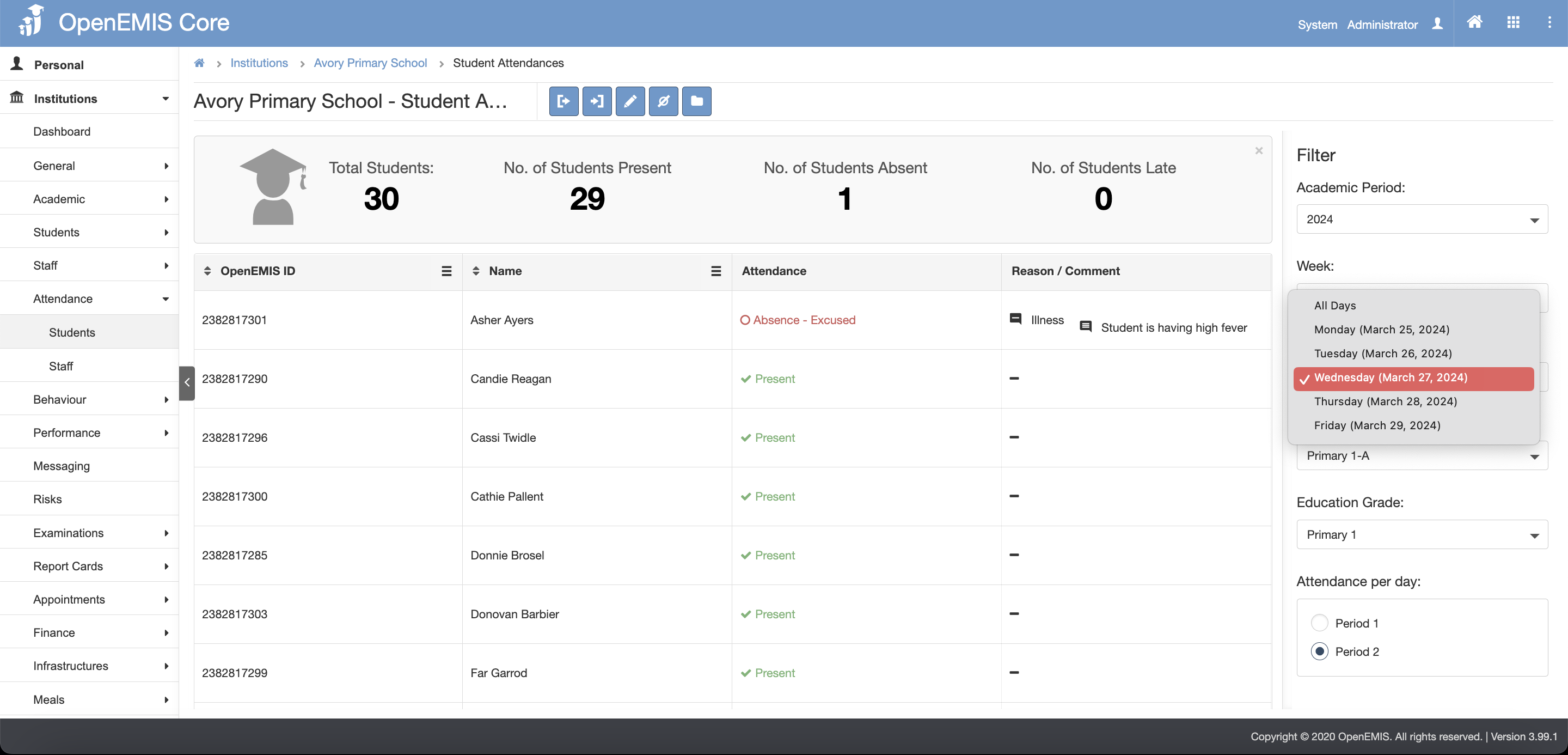
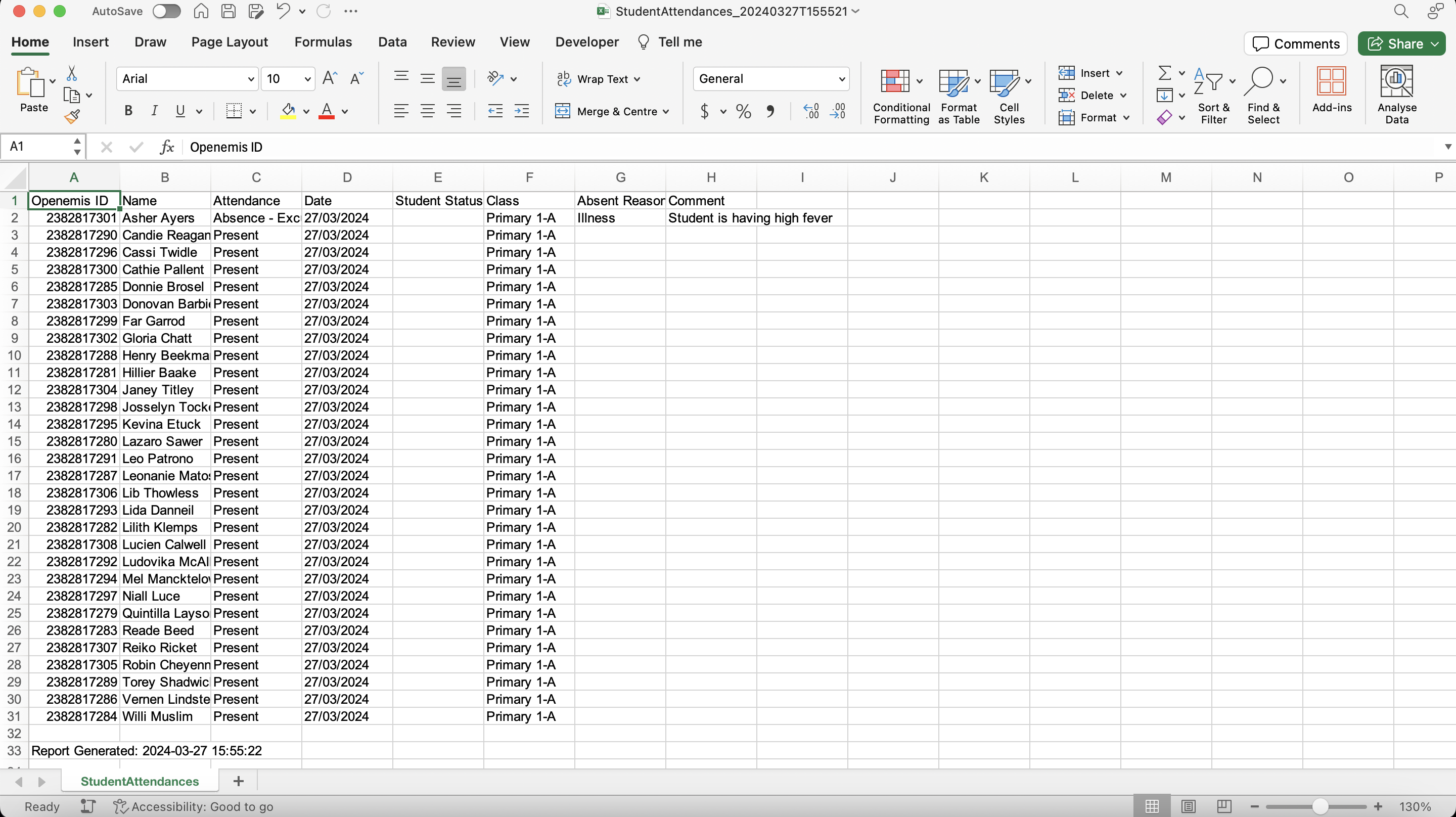
To export student attendance, it depends on the page you are viewing. The excel file exported will show data based on the Academic Period, Week, Day, Class, Education Grade and Period(if applicable) you are viewing.
Importing Student Absences
This function allow staff to import student absences without the need to find the student in the attendance page and mark student absences manually one by one
Step 1: Select the Academic Period, Week, Day, Class, Education Grade and Period(if applicable) dropdown in the filter on the right. For User with Homeroom Teacher permission, they should only see their class in the class dropdown.
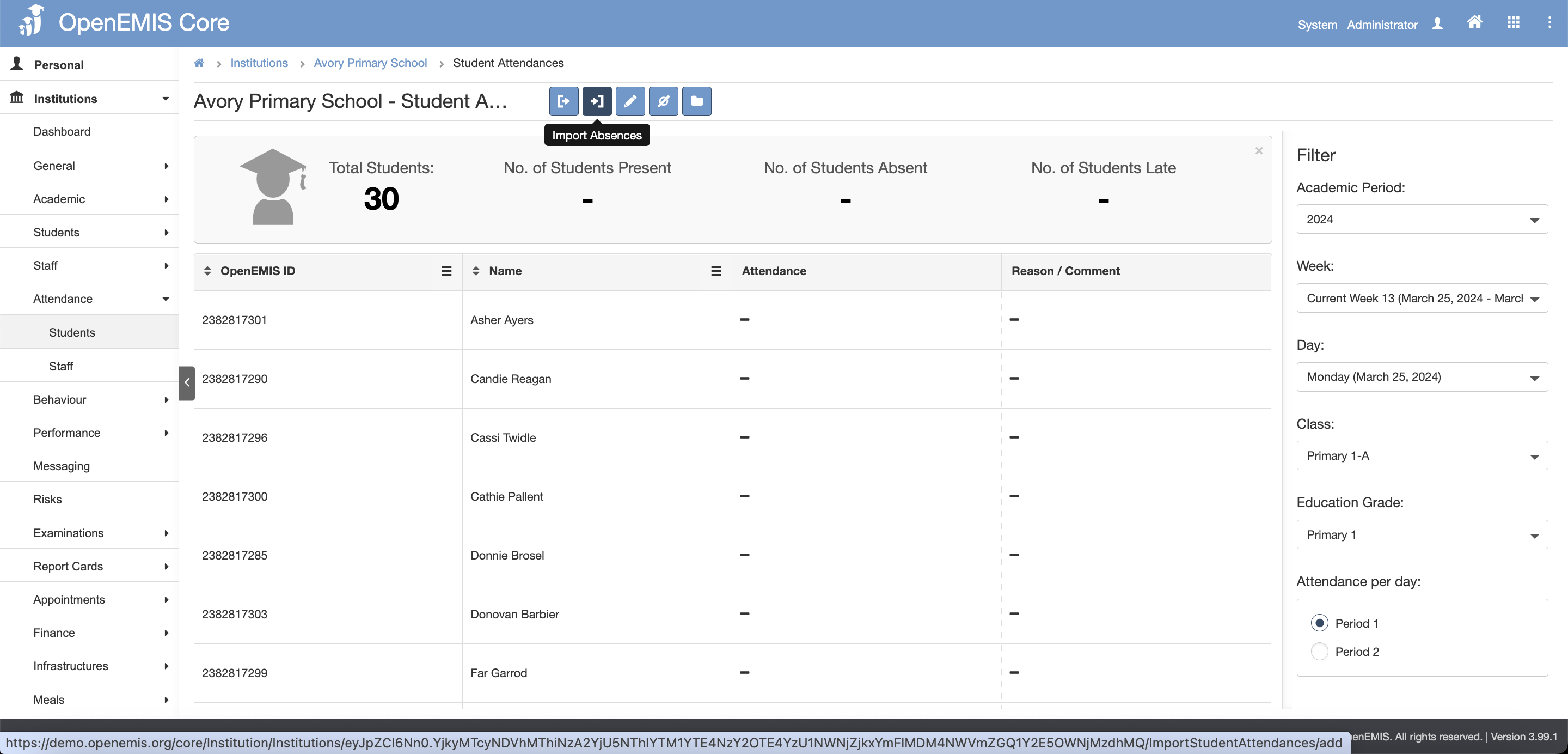
Step 2: If user have import absences permission, click on Import Absences button 
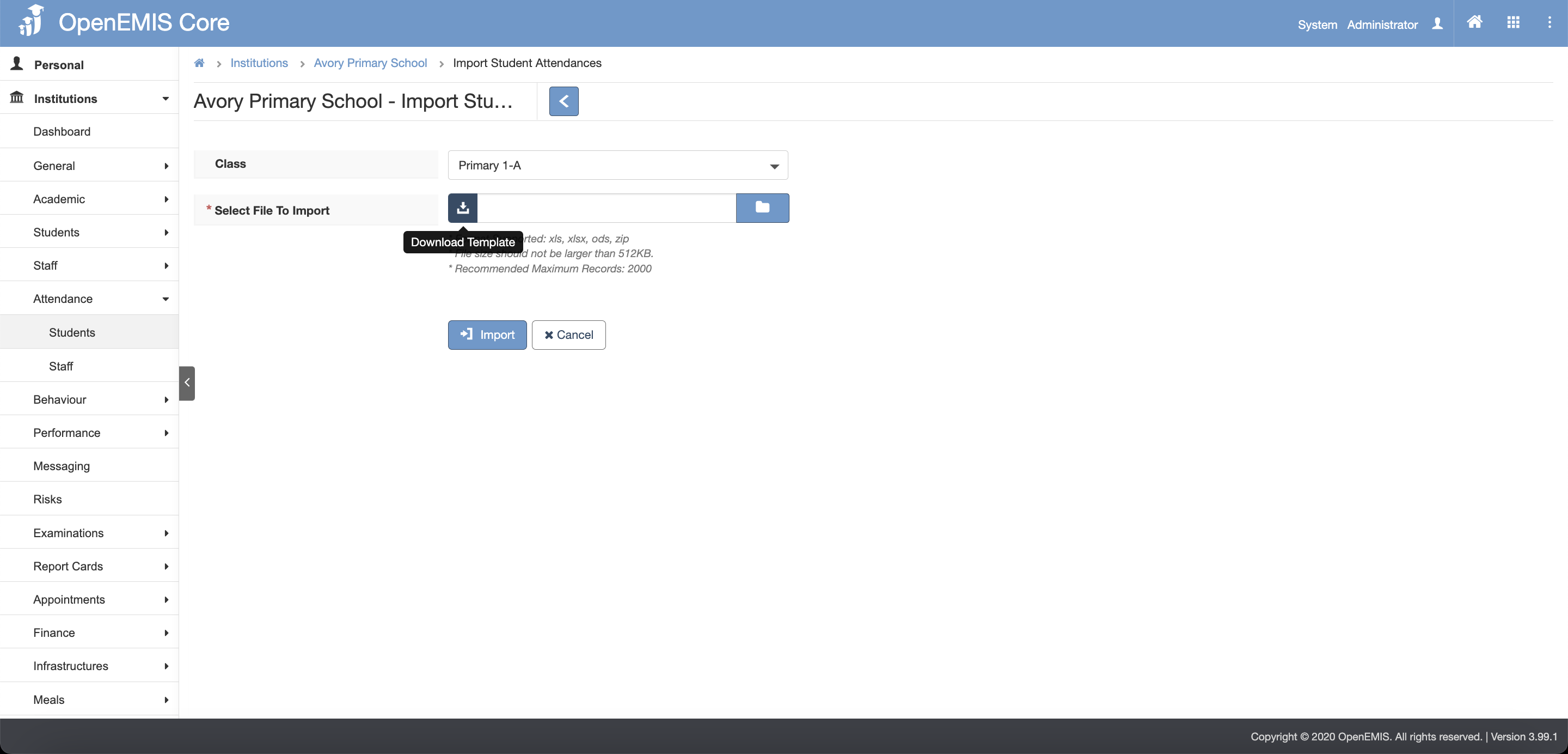
Step 3: The page will navigate to Import Student Absences page. Select the Class dropdown in the filter and click on the Download Template button 
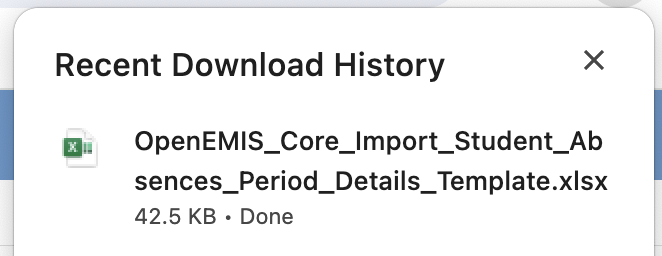
Step 4: The Import Student Absence template will be downloaded
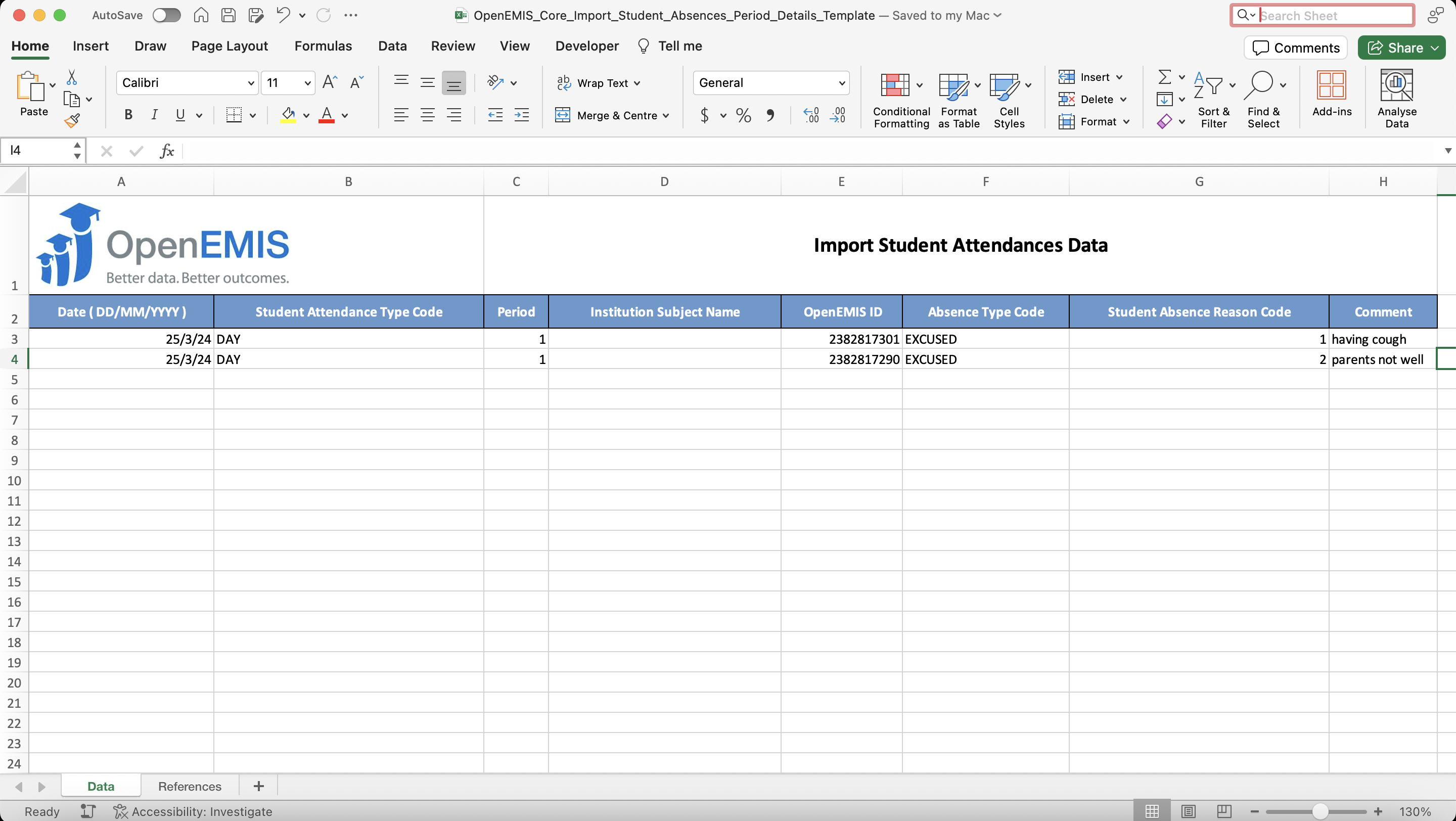
Step 5: Fill in the import template
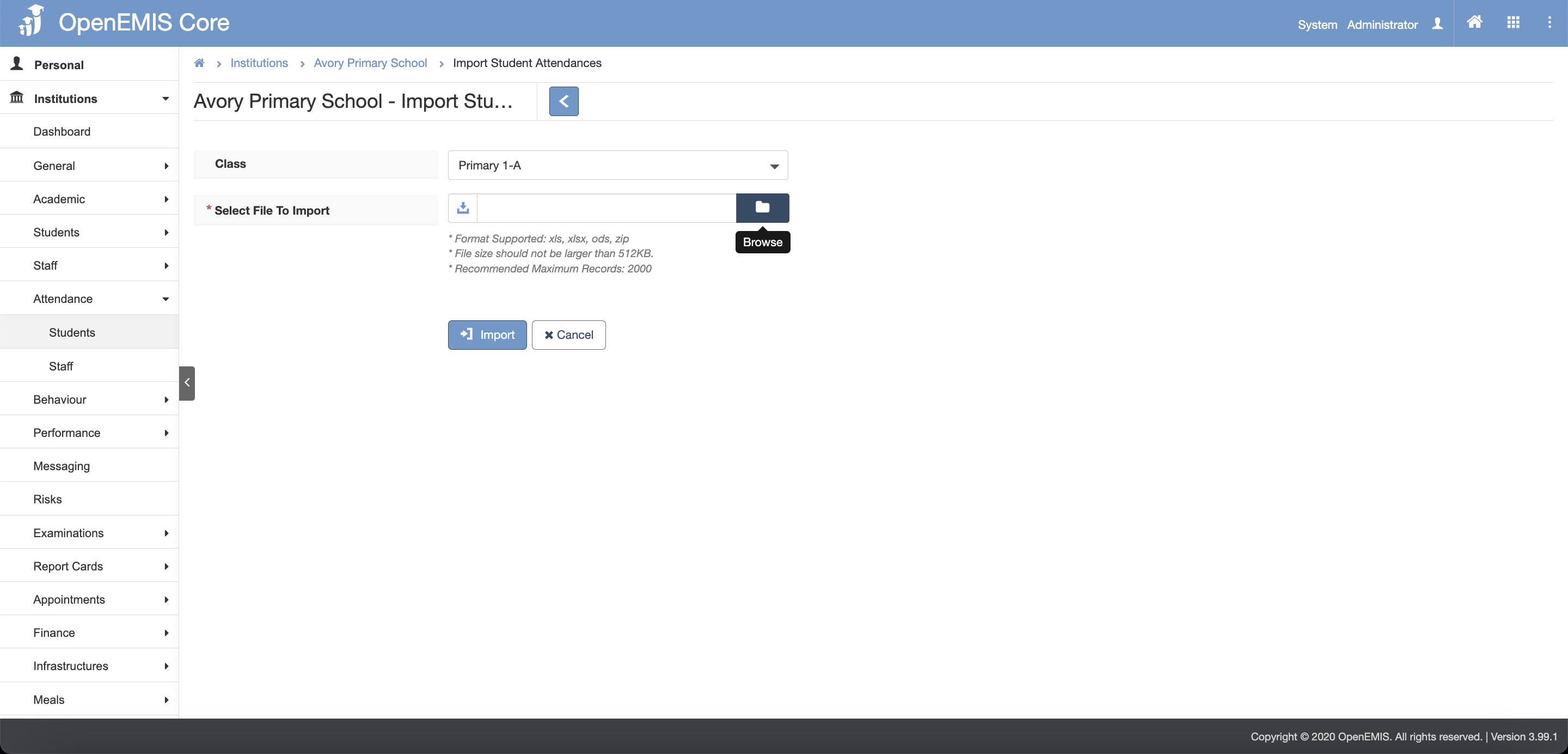
Step 6: Navigate to Import Student Absences page, click on the Browse button 
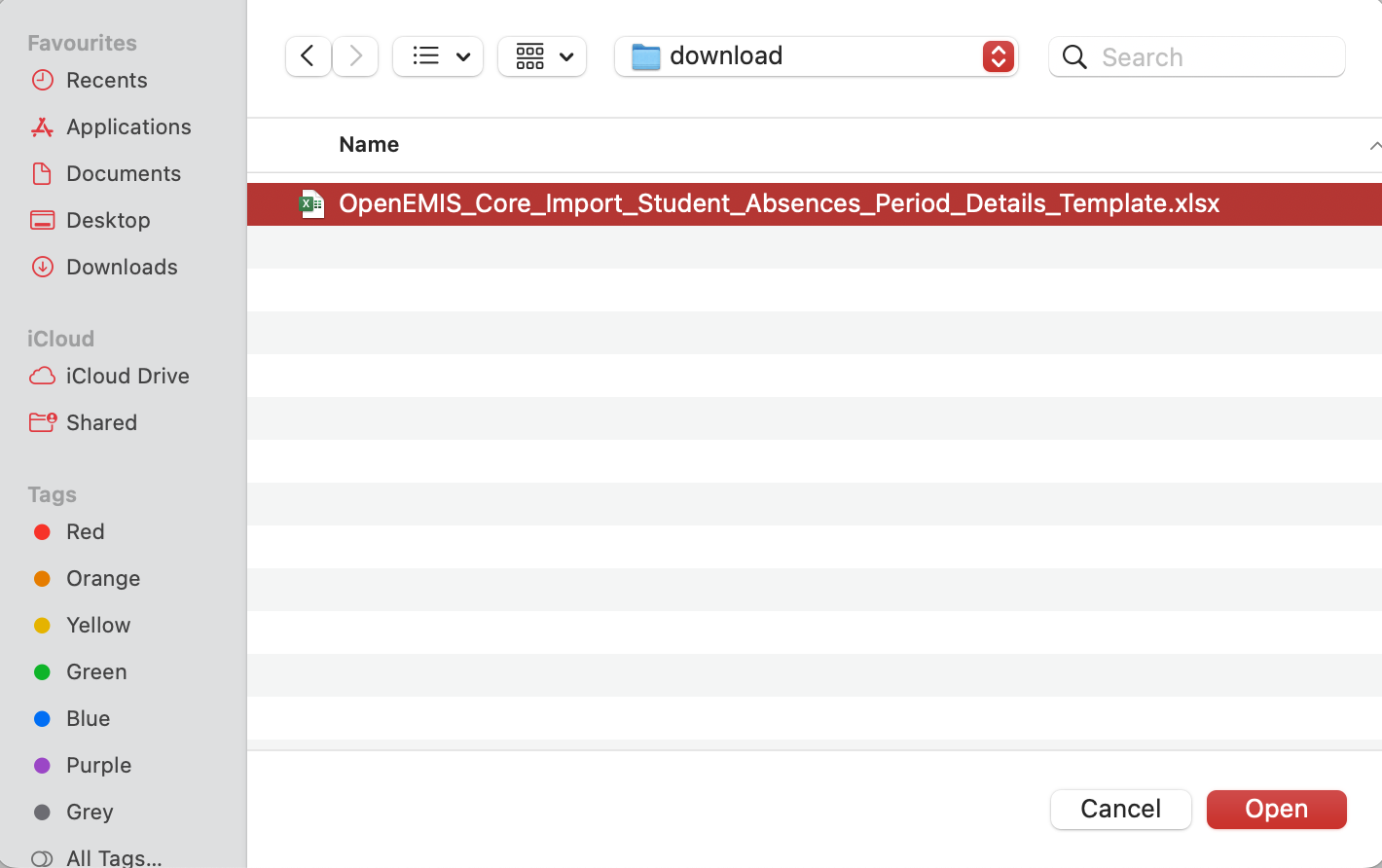
Step 7: Select the Import Student Absence template that you have fill in and click Open
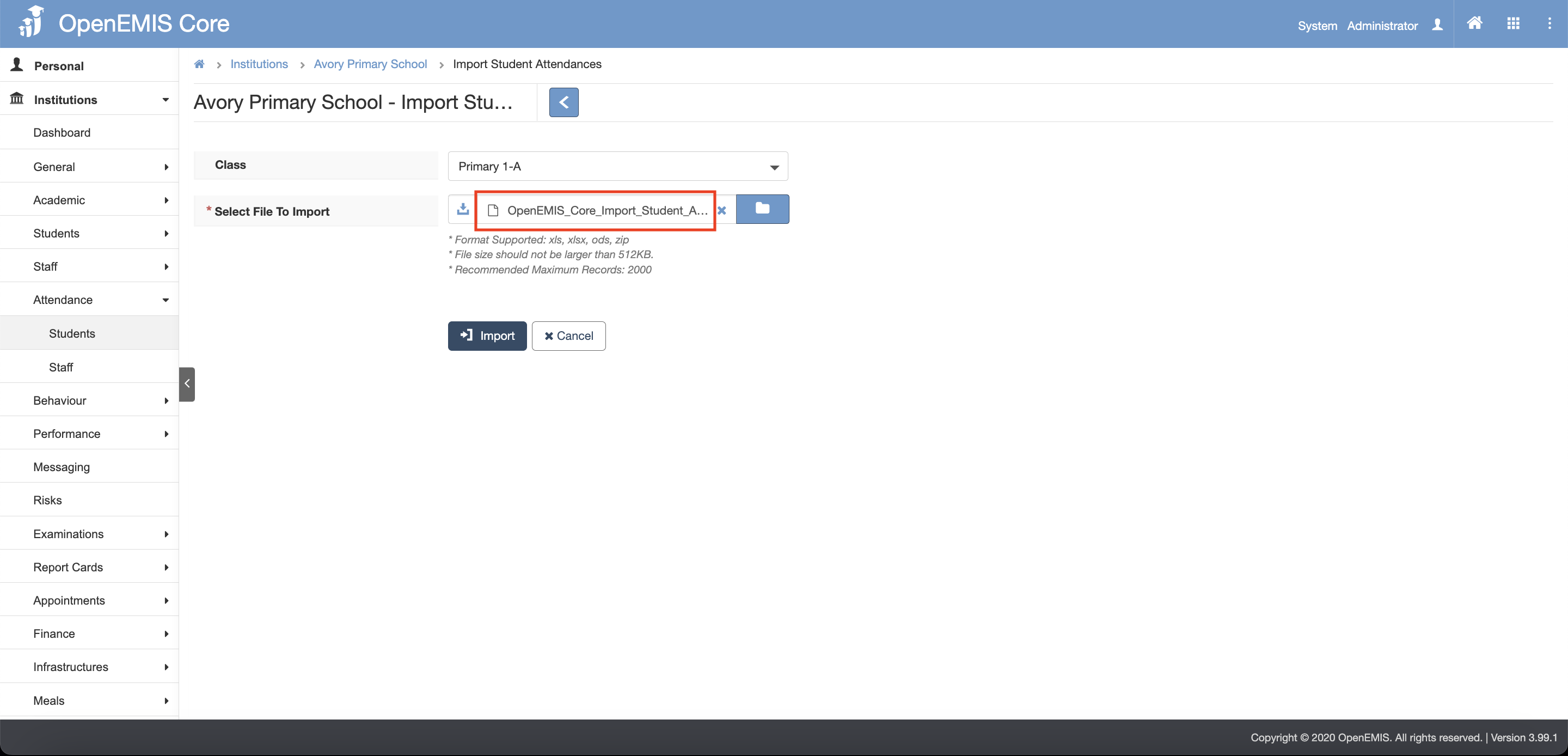
Step 8: The file will be uploaded. Then click on Import button 
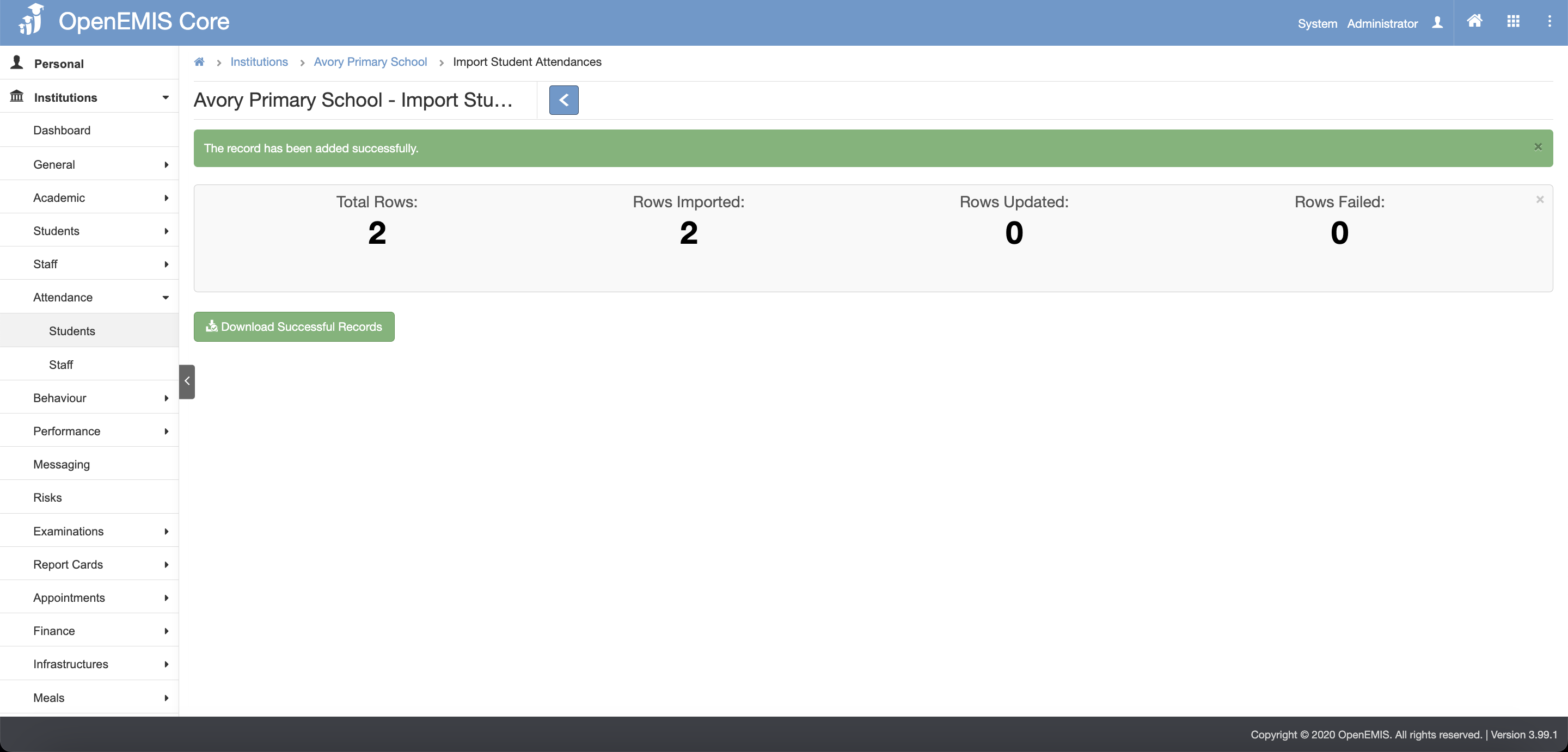
Step 9: A message will display indicating that record has been added successfully. You can also download successful records
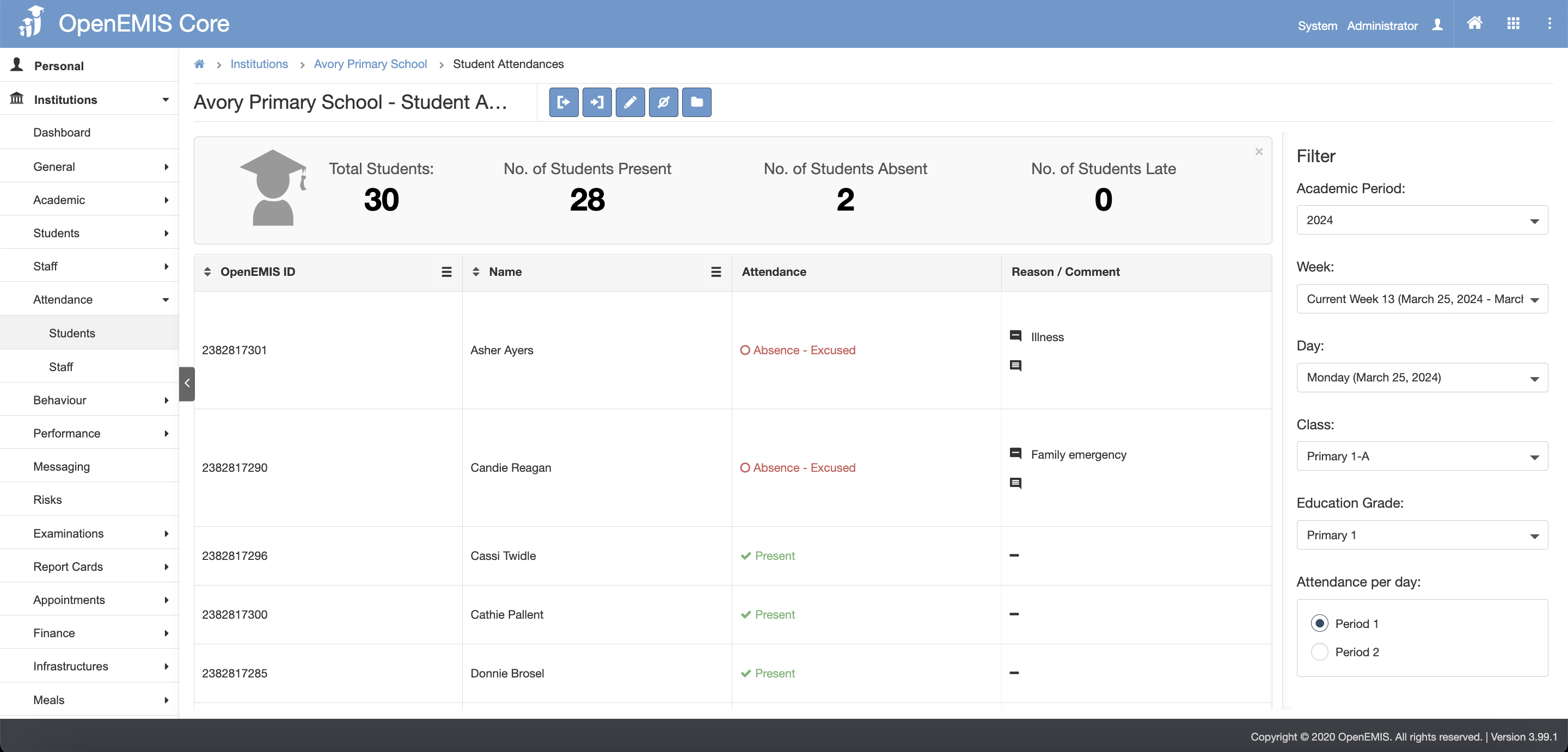
Step 10: Navigate to Import Student Absences page. Select the Academic Period, Week, Day, Class, Education Grade and Period(if applicable) dropdown in the filter on the right. You can see that records has been updated
Viewing Student Attendance
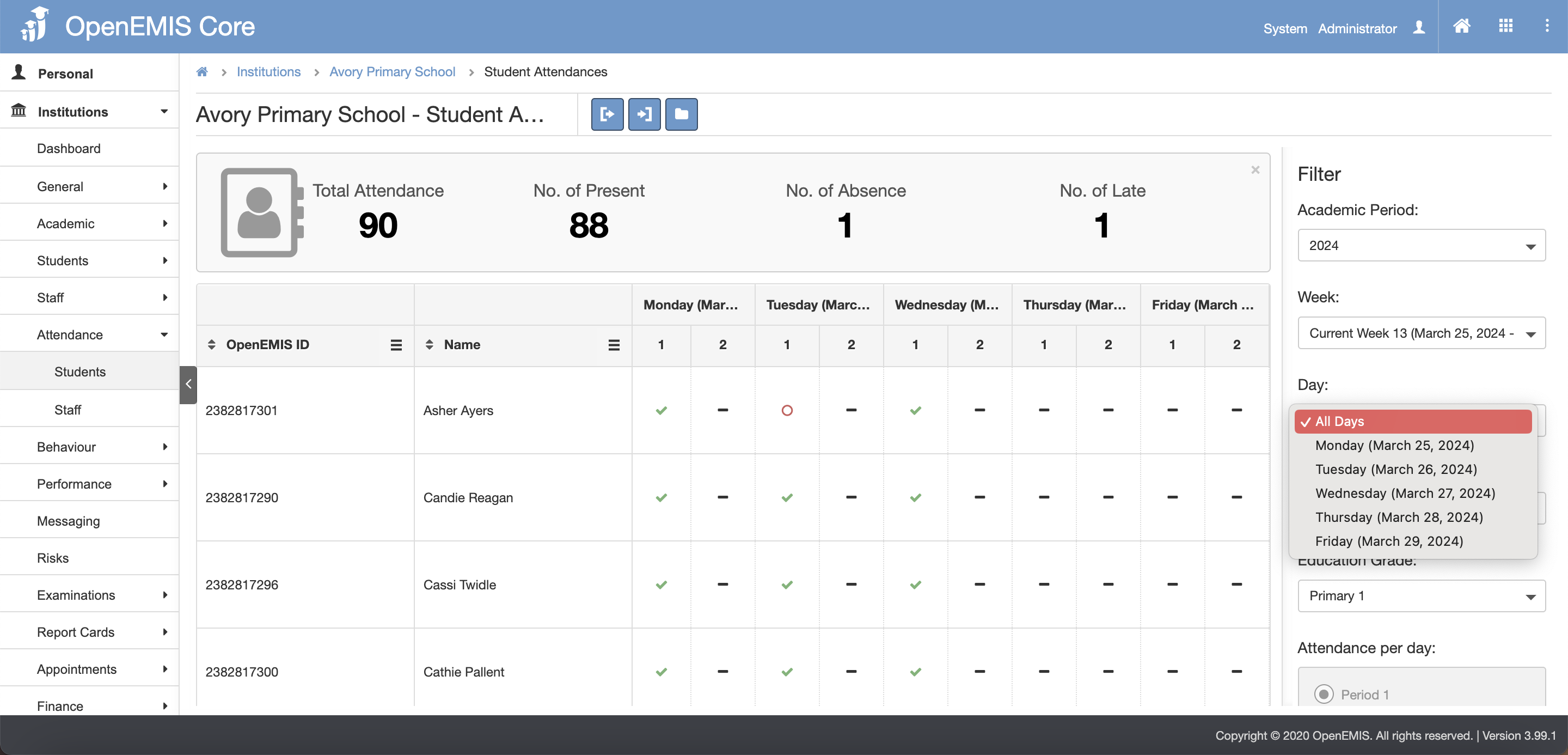
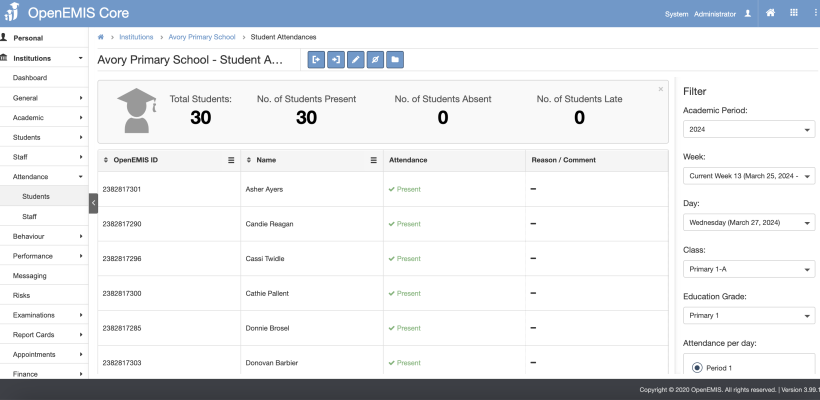
There are 2 types of view for student attendance. To change the view, select single day or all days in the filter. However user only able to edit in single day view.
1. Single day View
2. All days View