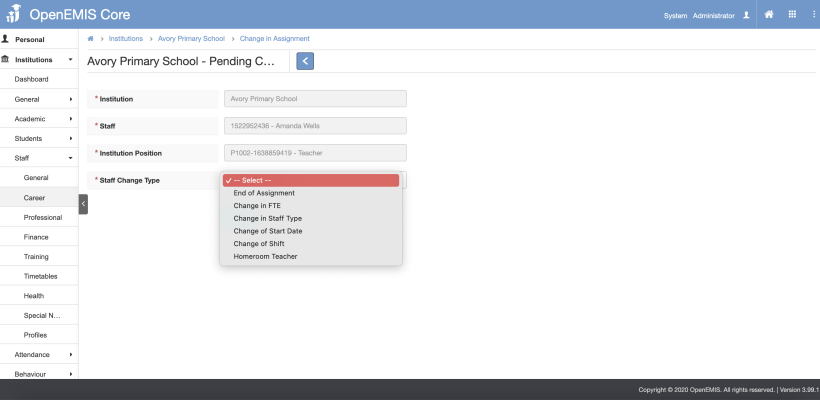
This knowledge base article covers the different Staff Update Functions like:
- End of Assignment
- Change in FTE
- Change in Staff Type
- Change of Start Date
- Change of Shift
- Homeroom Teacher
Change in Staff Type
Explanation: This function allow users to change staff type depending on the types of Staff Types configure in Field Option. For example, i want to change a staff type from Contract to Permanent.
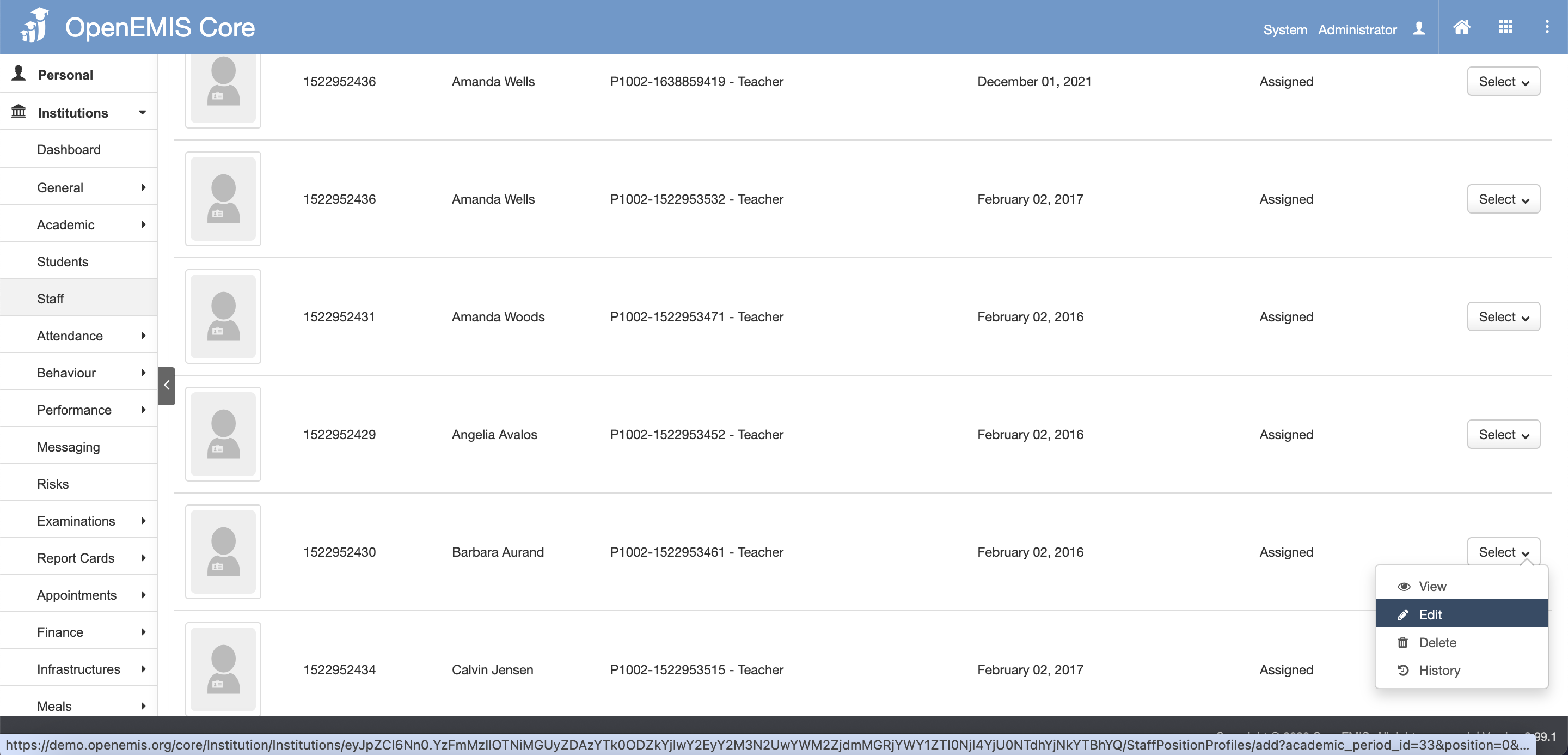
Step 1: Select Staff on the left panel/menu, find the staff record by scrolling through the list or using the search, then click on the record or choose Edit from the select option.
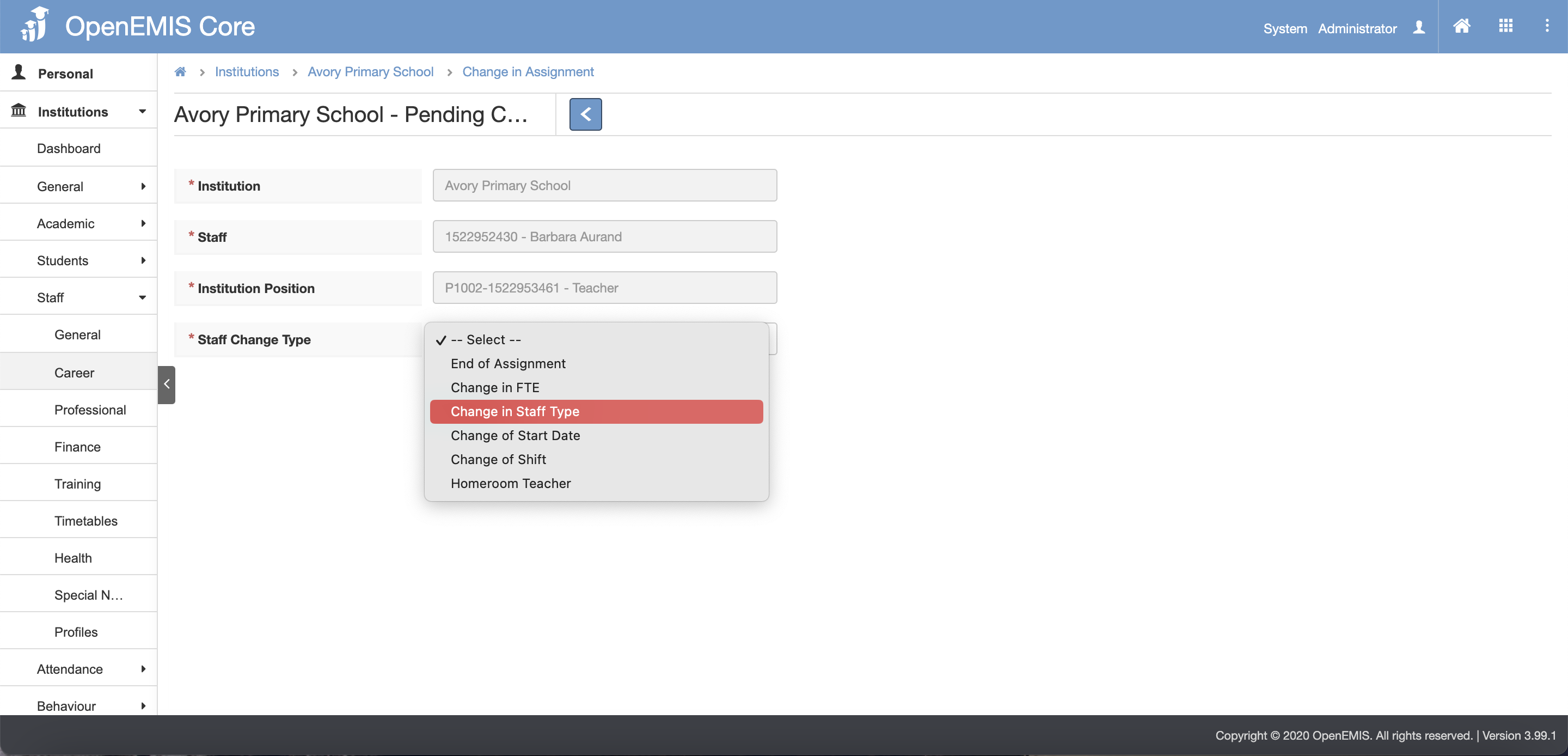
Step 2: Select Change in Staff Type from the dropdown field of Staff Change Type.
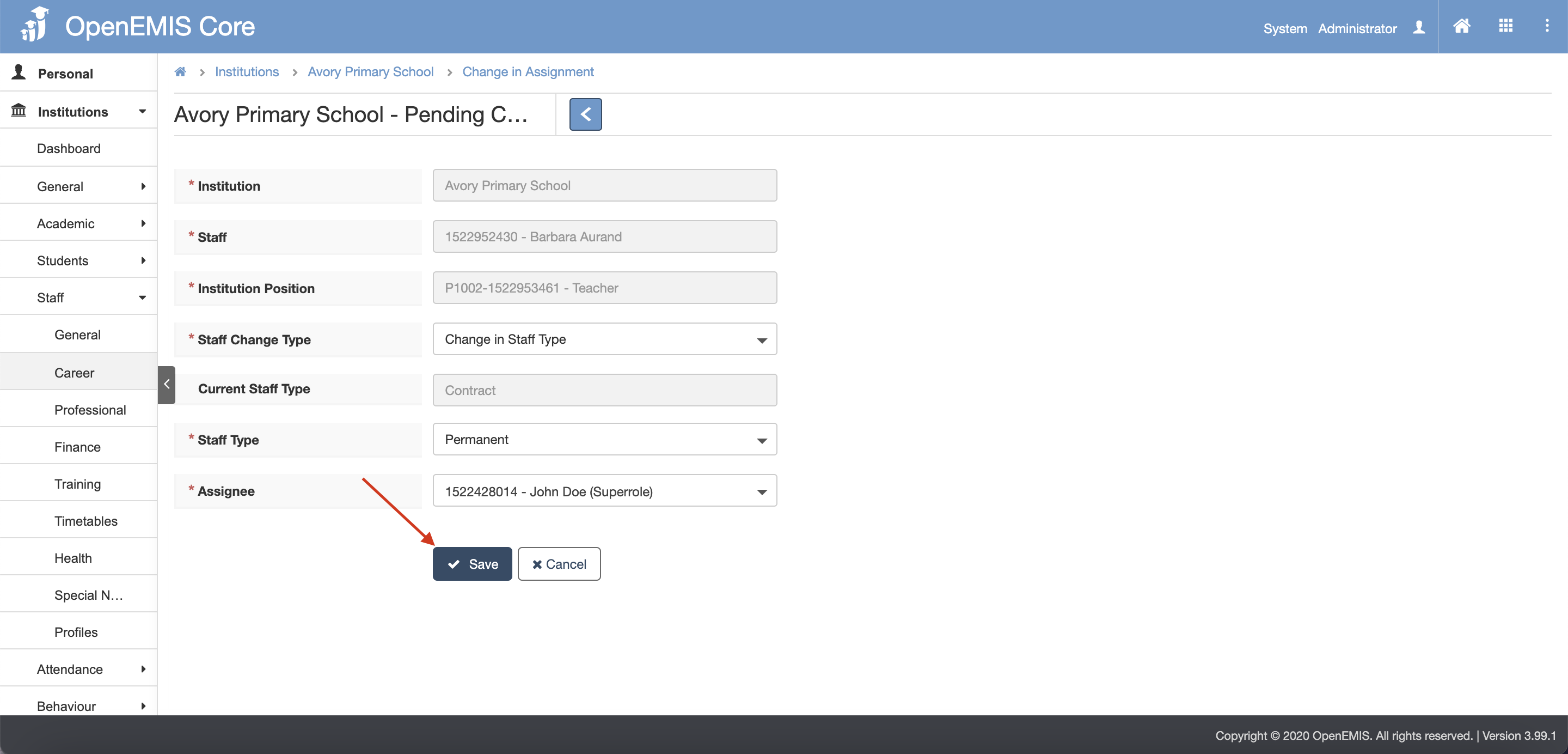
Step 3: Fill in the other fields. Select the options in the dropdown for the other fields.

Step 4: Click Save button.
Step 5: There will be message indicating that record has been added successfully and request for change in assignment is submitted successfully.
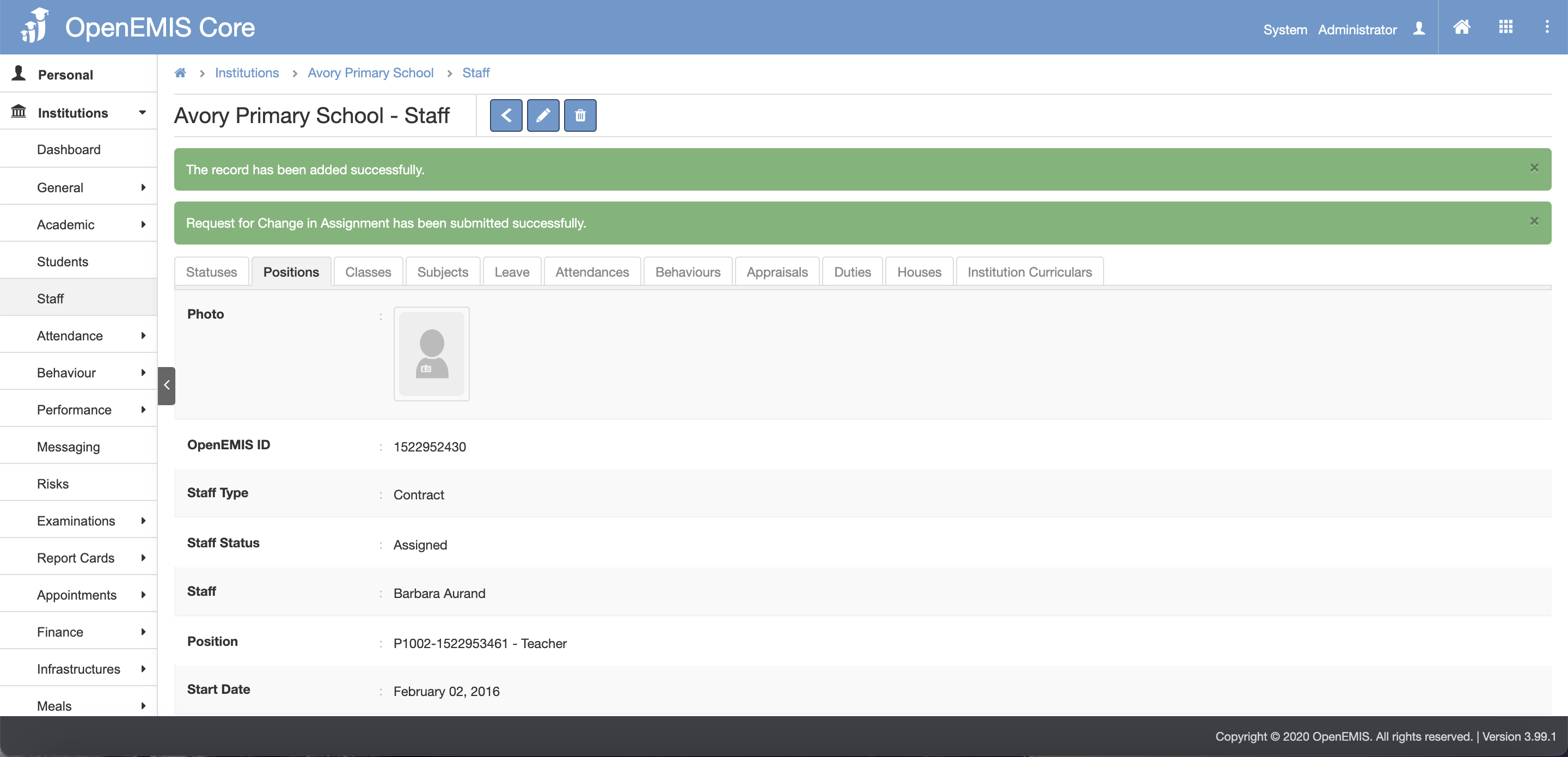
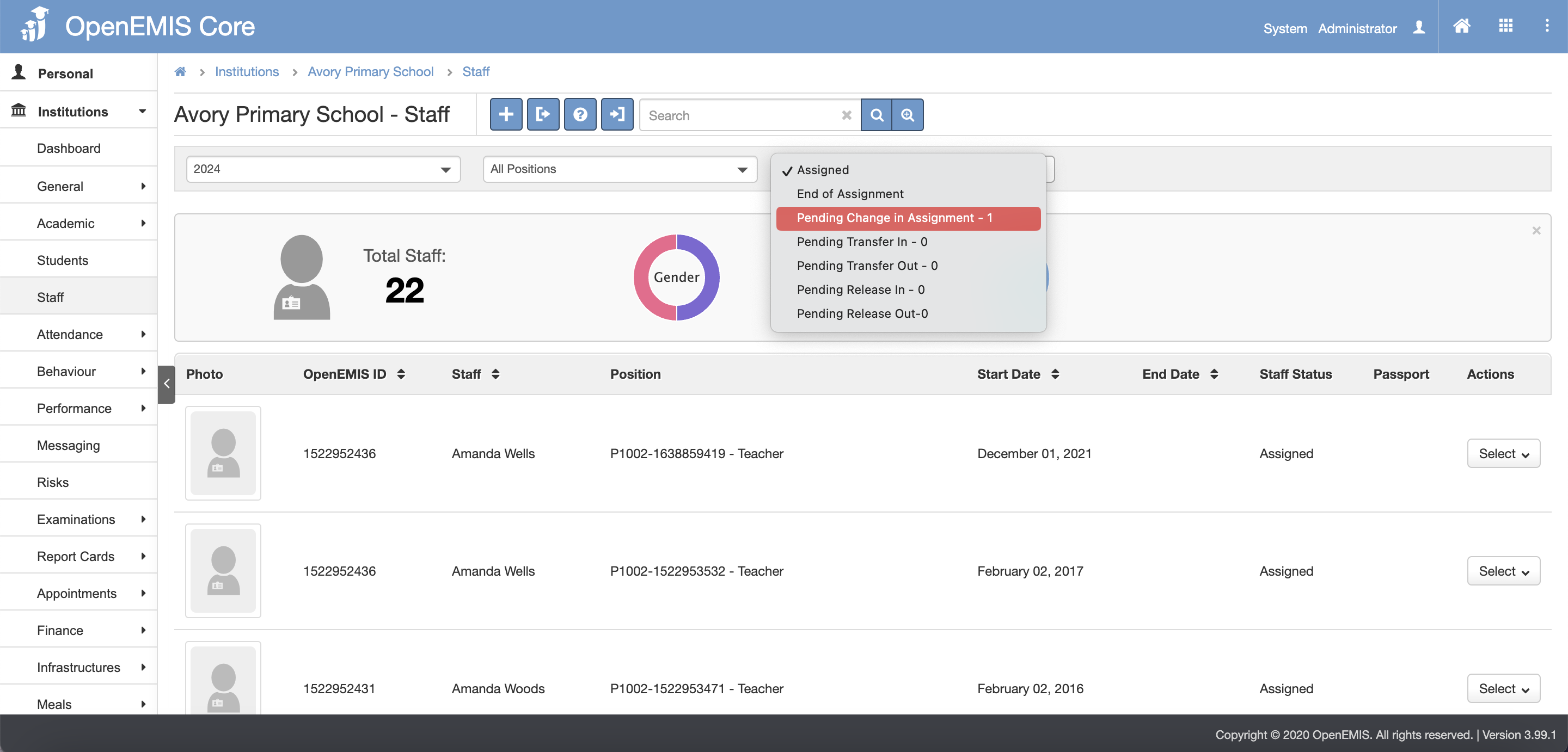
Step 6: Select Staff on the left panel/menu, in the dropdown option of staff status, select Pending Change in Assignment.
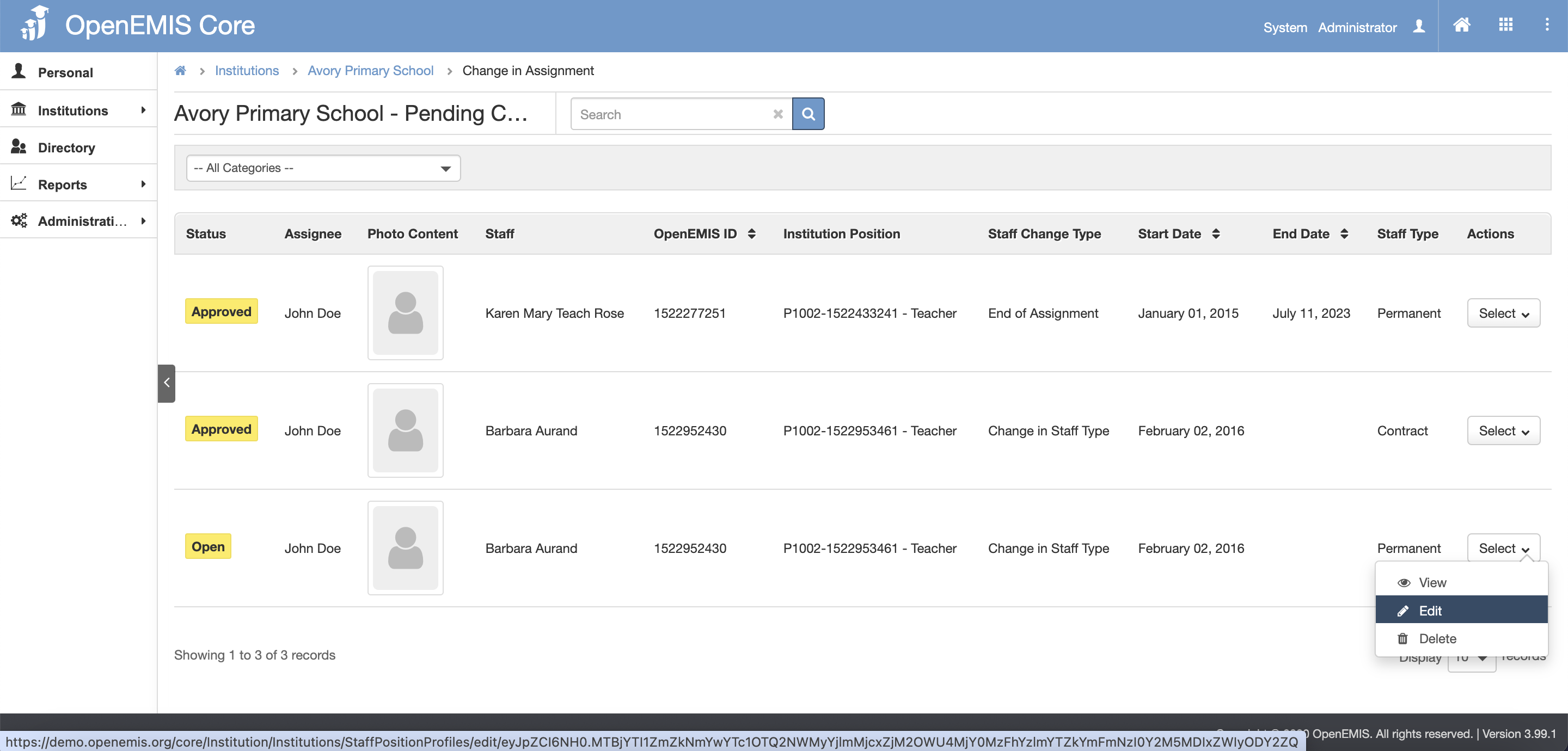
Step 7: Find and select the staff record by scrolling through the list or using the search, then click on the record or choose Edit from the select option.
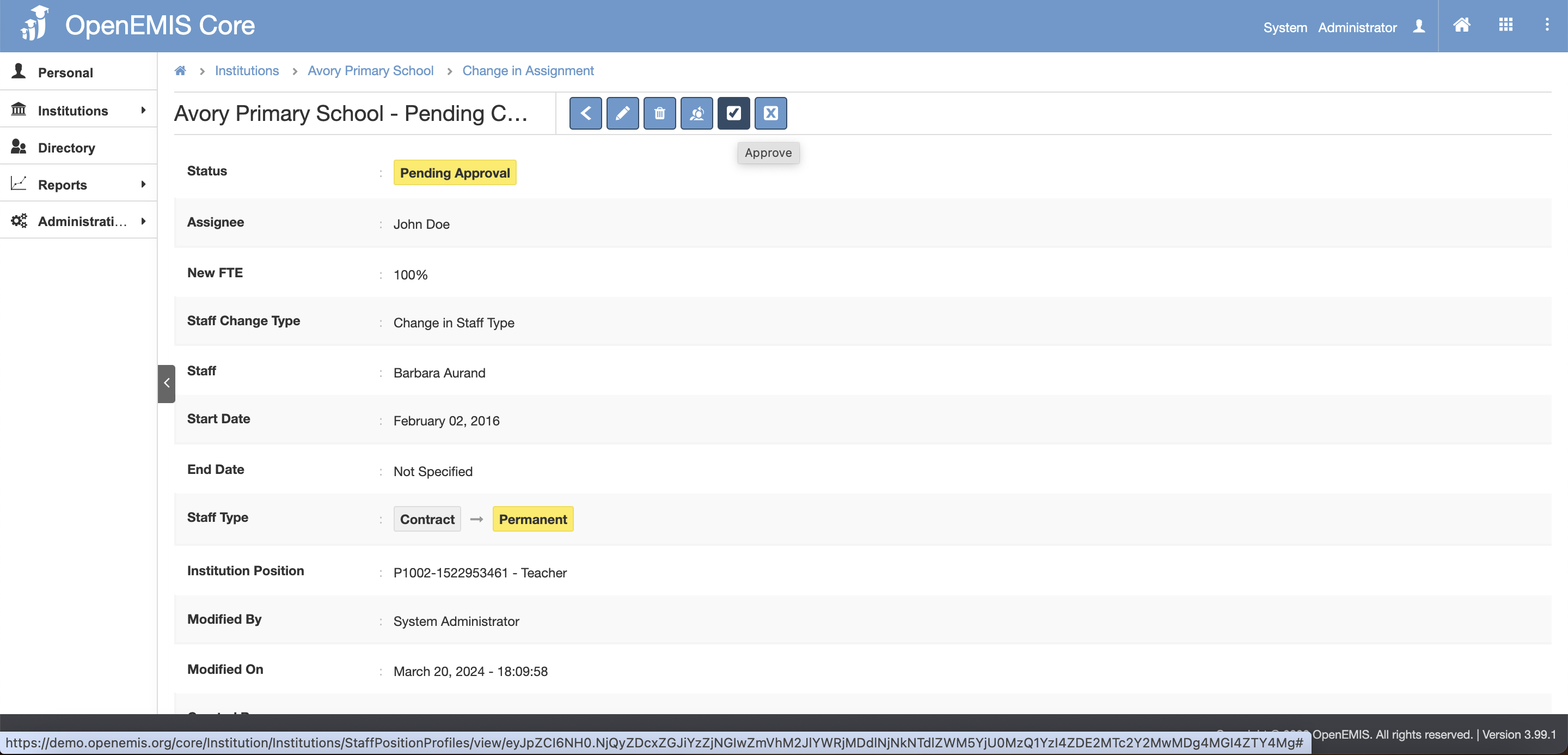
Step 8: Click the Submit For Approval button.

Step 9: Select Assignee then click Save button. Comments can be filled in too if required.

Step 10: There will be message indicating that record has been added successfully.

Step 11: Click the Approve button.
Step 12: Select Assignee then click Save button. Comments can be filled in too if required. (Please kindly take of the warning message at the bottom)
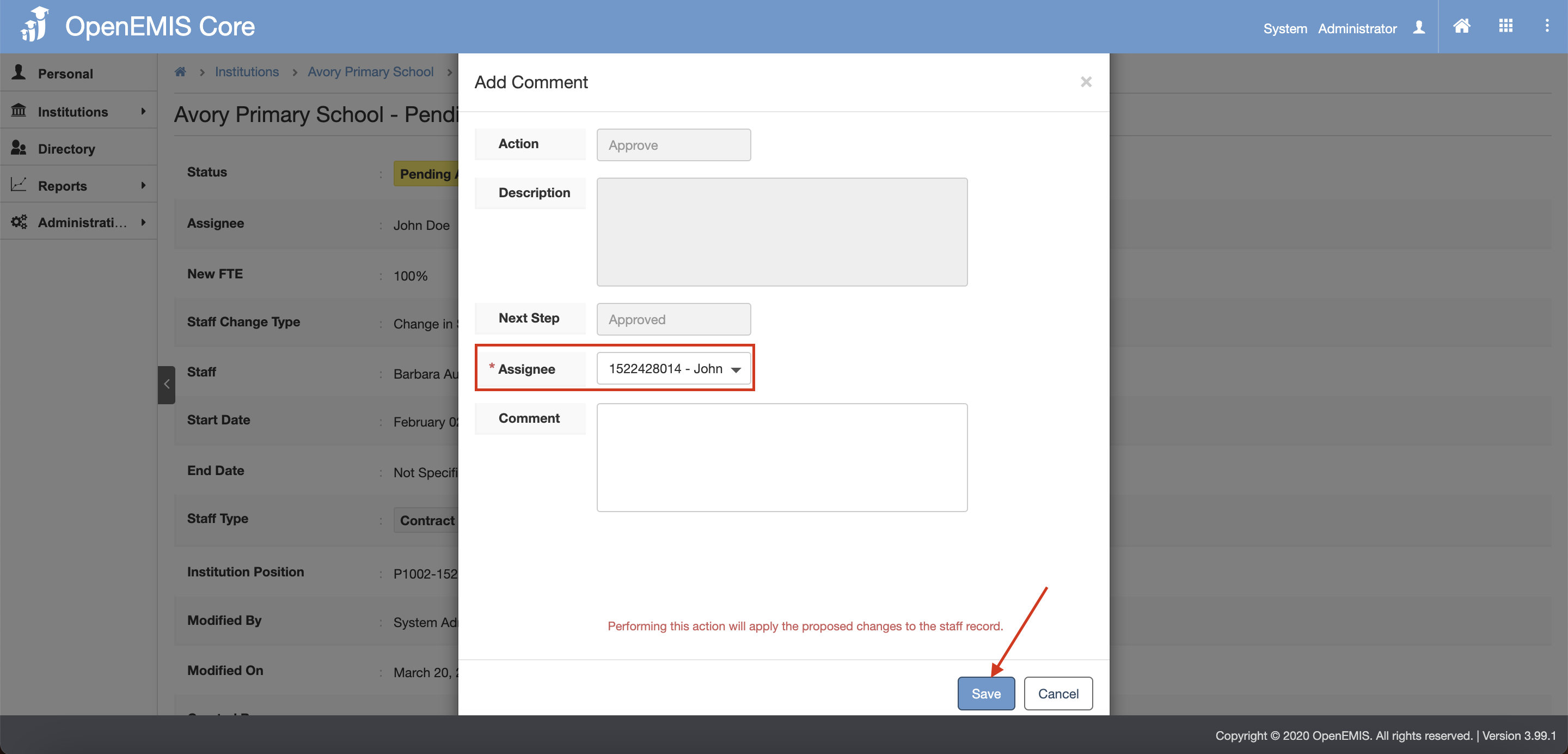
Step 13: There will be message indicating that record has been added successfully.

Change of Start Date
Explanation: This function allow users to change staff position start date.
Step 1: Select Staff on the left panel/menu, find the staff record by scrolling through the list or using the search, then click on the record or choose Edit from the select option.
Step 2: Select Change of Start Date from the dropdown field of Staff Change Type.
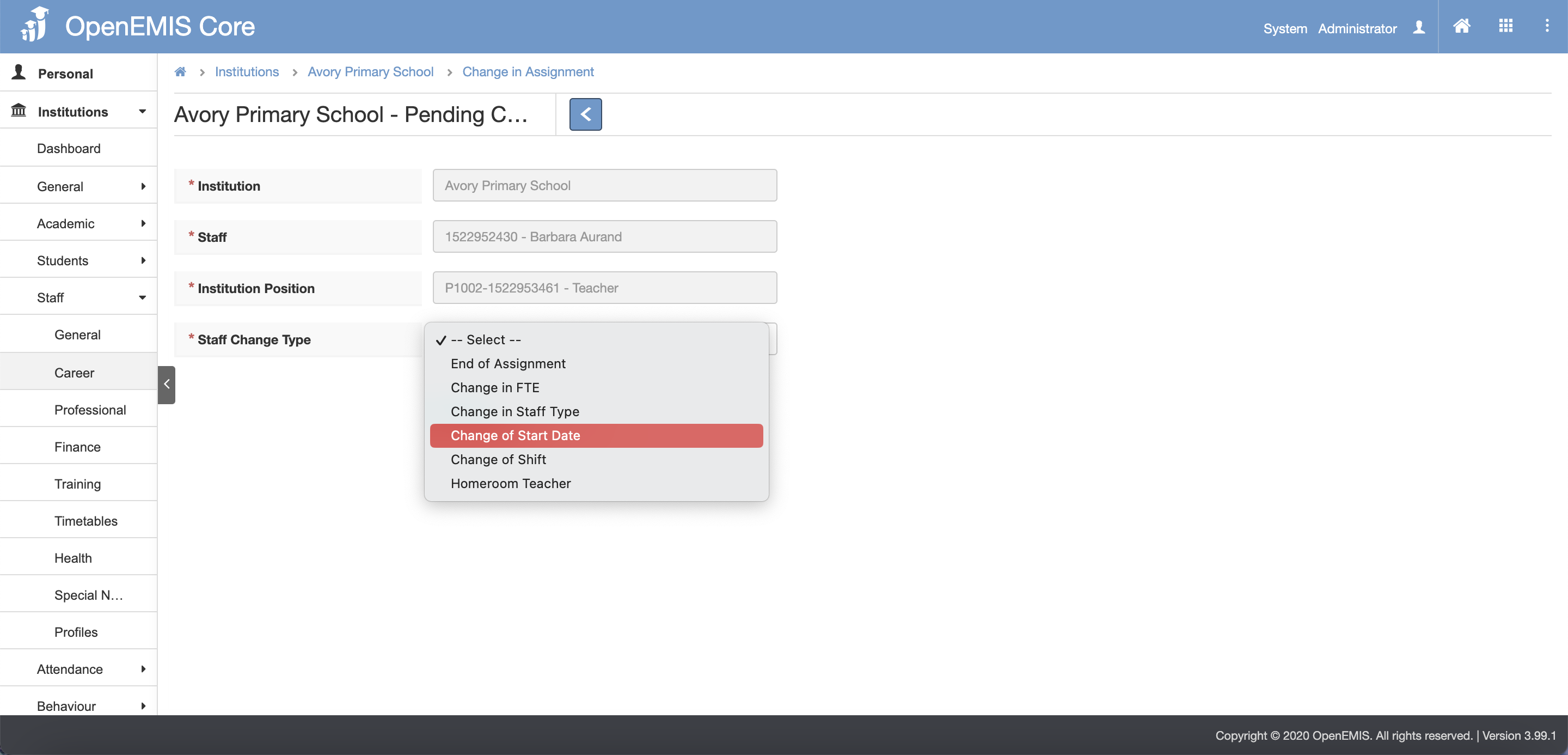
Step 3: Fill in the other fields.
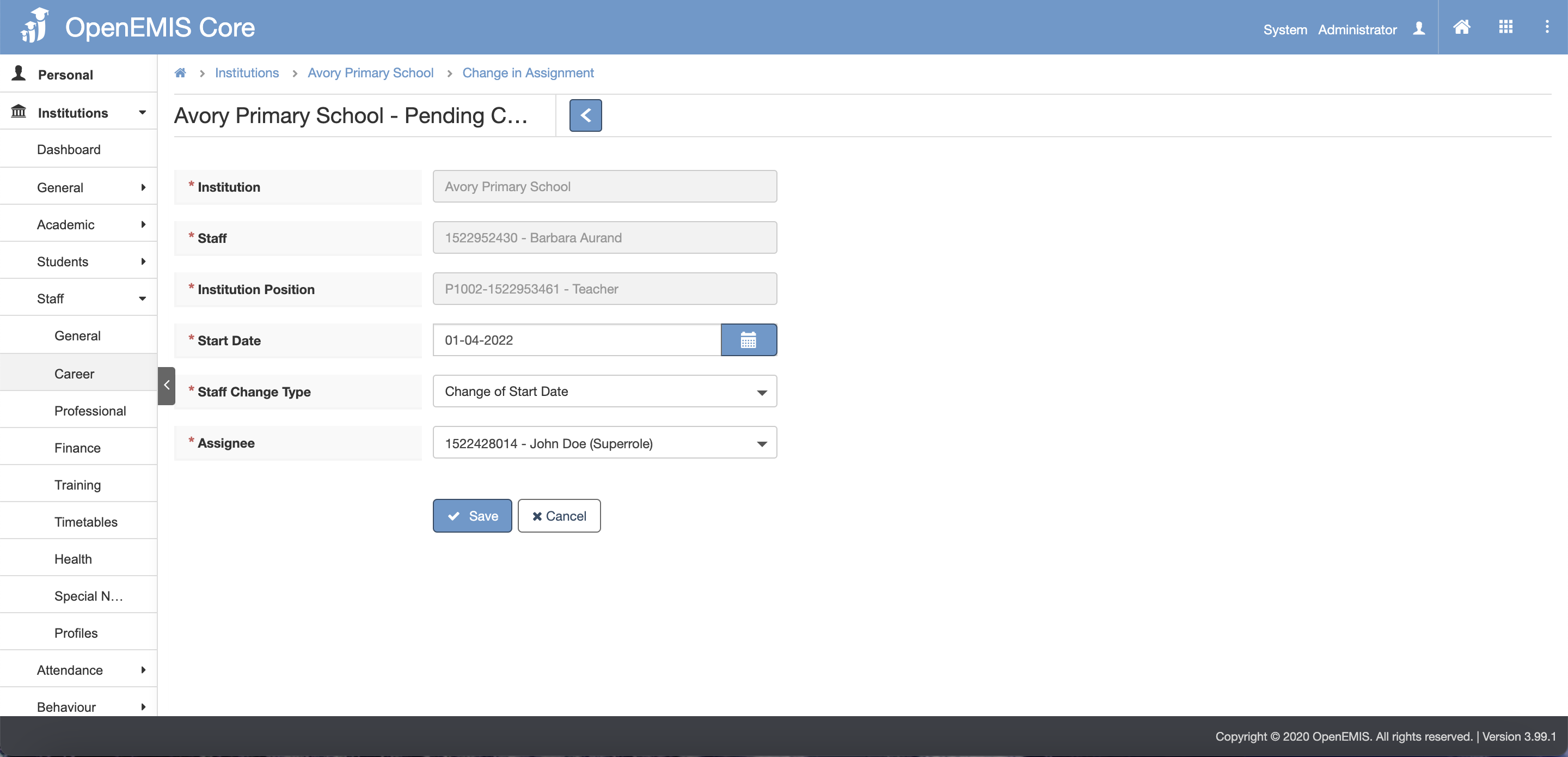
Step 4: Click Save button.

Step 5: There will be message indicating that record has been added successfully and request for change in assignment is submitted successfully.
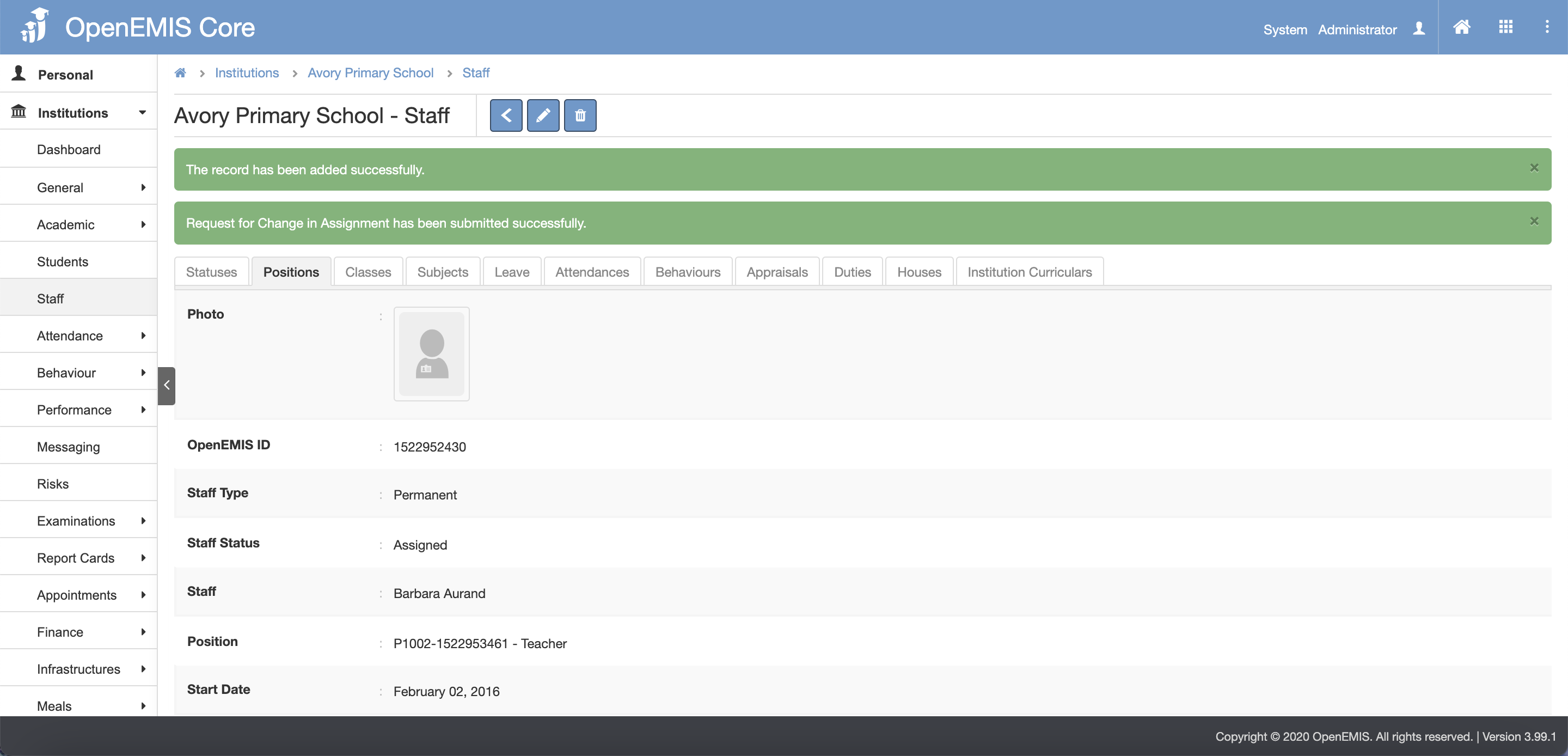
Step 6: Select Staff on the left panel/menu, in the dropdown option of staff status, select Pending Change in Assignment.
Step 7: Find and select the staff record by scrolling through the list or using the search, then click on the record or choose Edit from the select option.
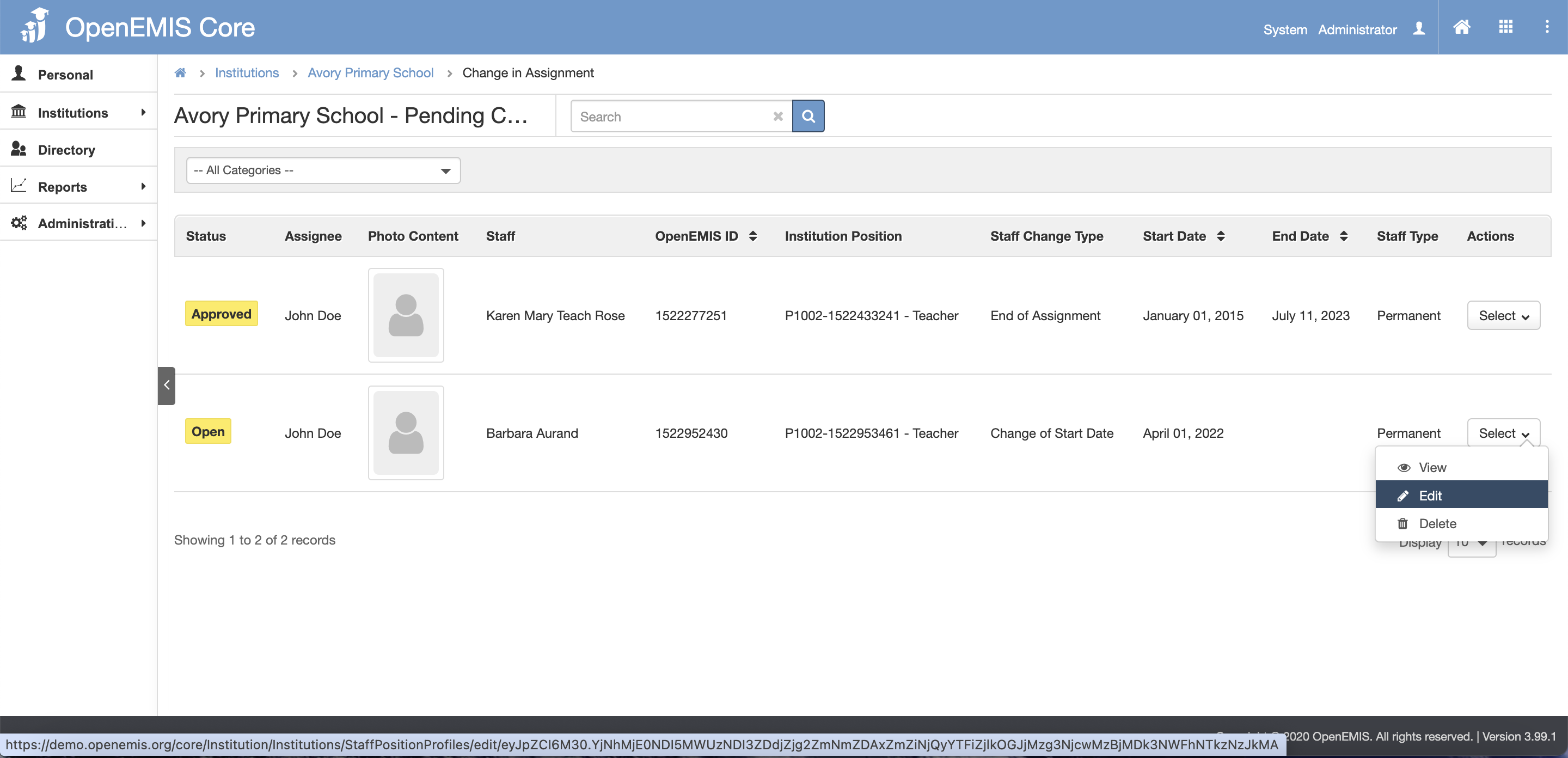
Step 8: Click the Submit For Approval button.

Step 9: Select Assignee then click Save button. Comments can be filled in too if required.

Step 10: There will be message indicating that record has been added successfully.

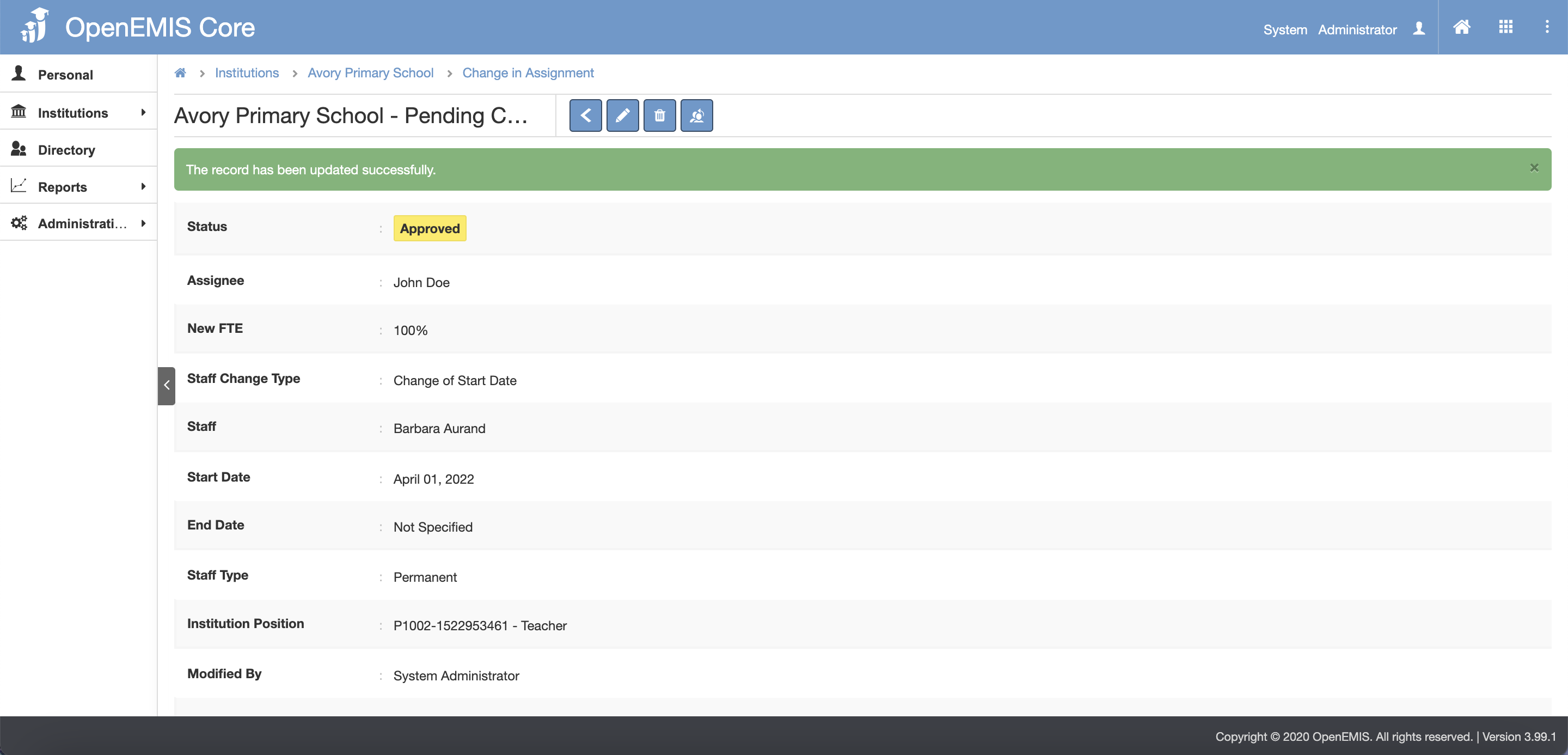
Step 11: Click the Approve button.

Step 12: Select Assignee then click Save button. Comments can be filled in too if required. (Please kindly take of the warning message at the bottom)

Step 13: There will be message indicating that record has been added successfully.
Change of Shift
Explanation: This function allow users to change staff shift. For example, i want to change a staff shift as now Institutions offers 2 shifts
Step 1: Select Staff on the left panel/menu, find the staff record by scrolling through the list or using the search, then click on the record or choose Edit from the select option.
Step 2: Select Change of Shift from the dropdown field of Staff Change Type.
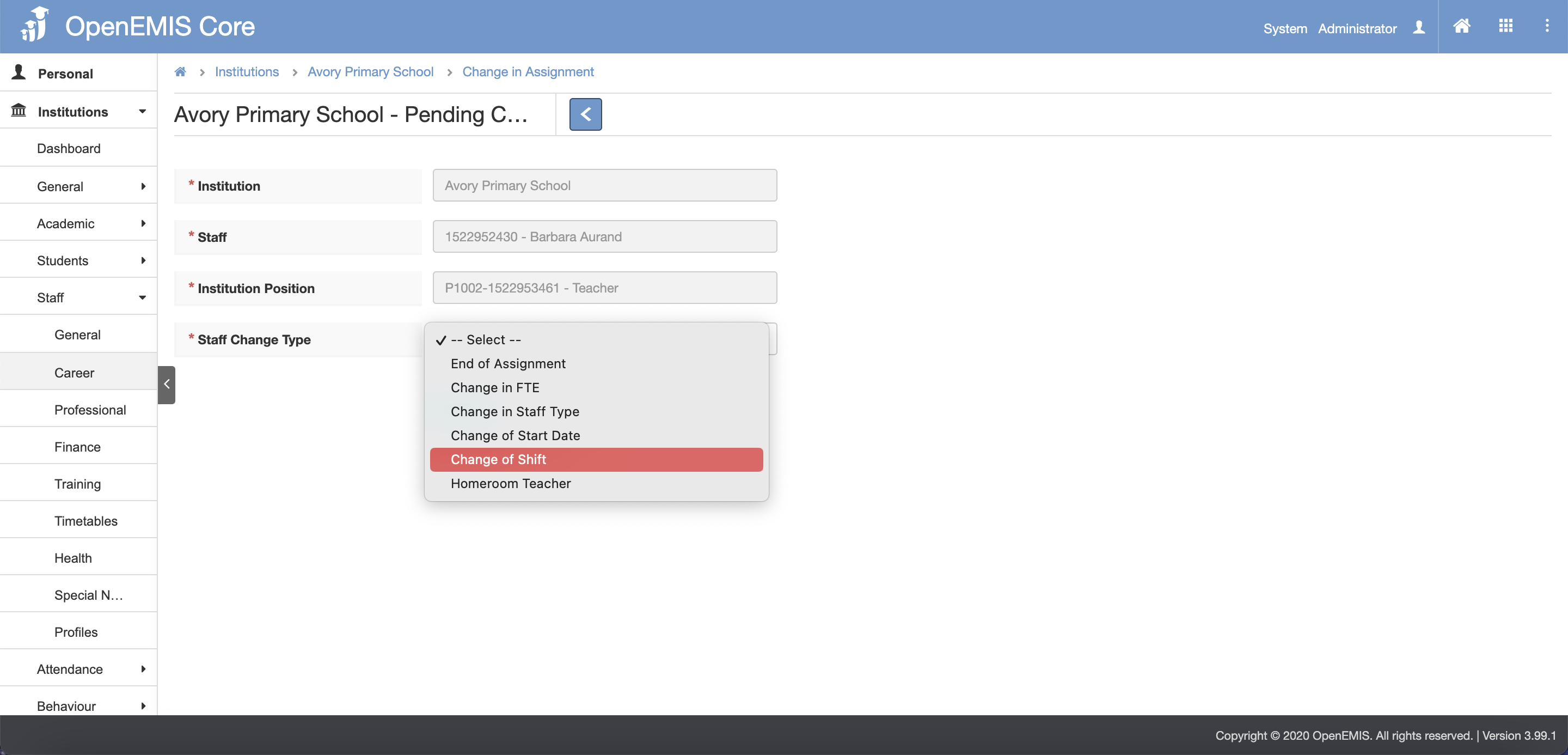
Step 3: Fill in the other fields. Select the options in the dropdown for the other fields.
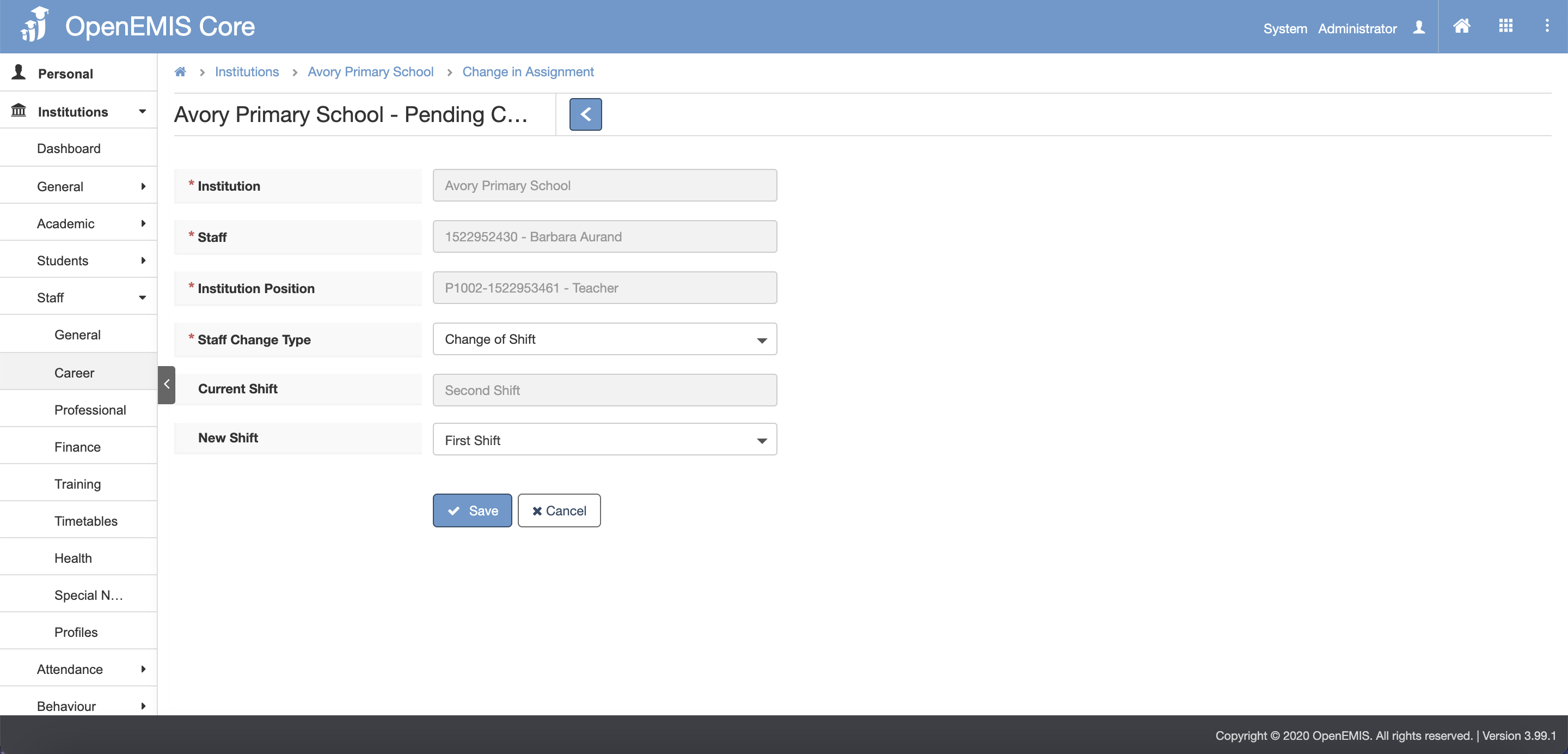
Step 4: Click Save button.

Step 5: There will be message indicating that record has been added successfully and request for change in assignment is submitted successfully.
Homeroom Teacher
Explanation: This function allow users to change staff homeroom teacher role. For example, i want to change a staff role to be from non-homeroom teacher to homeroom teacher
Step 1: Select Staff on the left panel/menu, find the staff record by scrolling through the list or using the search, then click on the record or choose Edit from the select option.
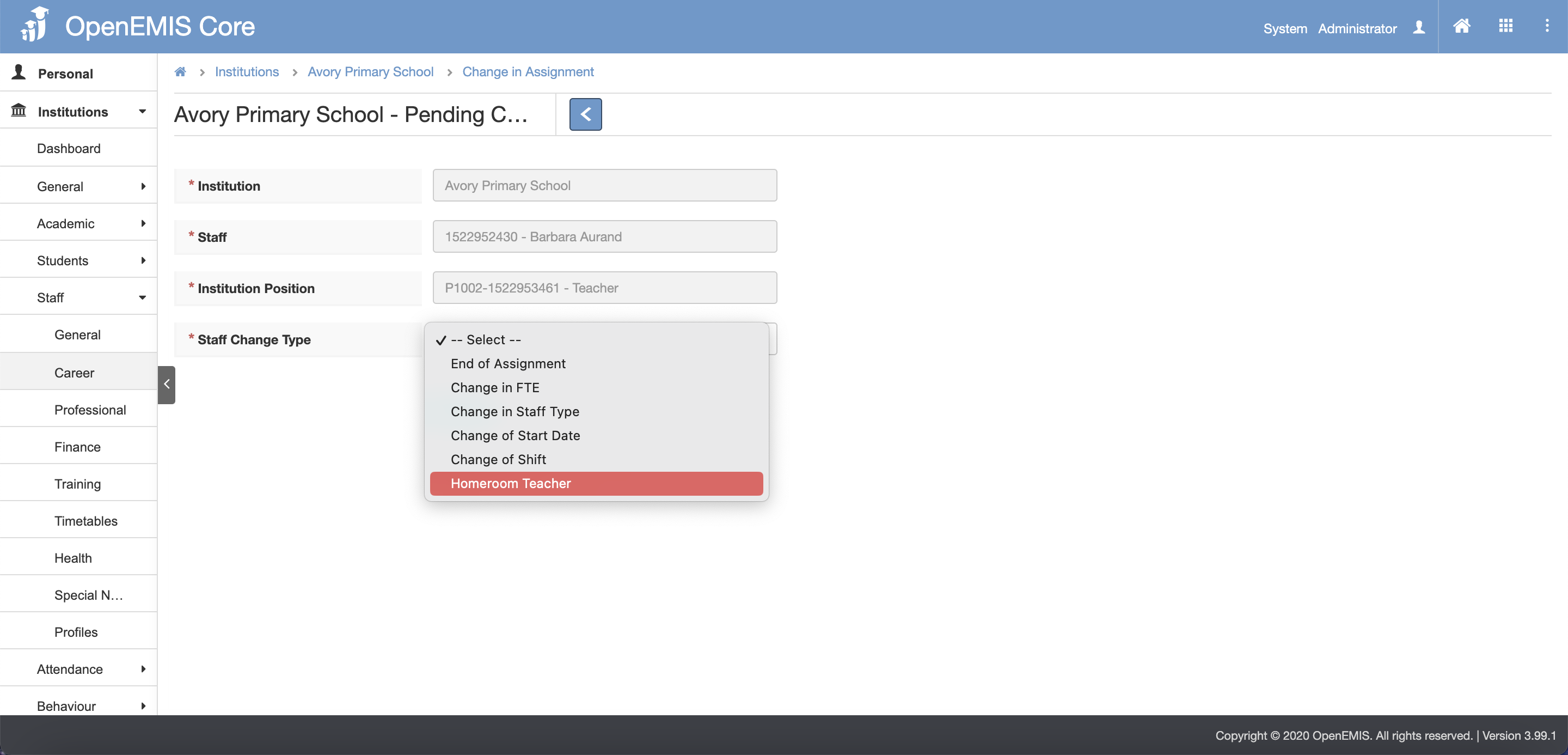
Step 2: Select Homeroom Teacher from the dropdown field of Staff Change Type.
Step 3: Fill in the other fields. Select the options in the dropdown for the other fields.
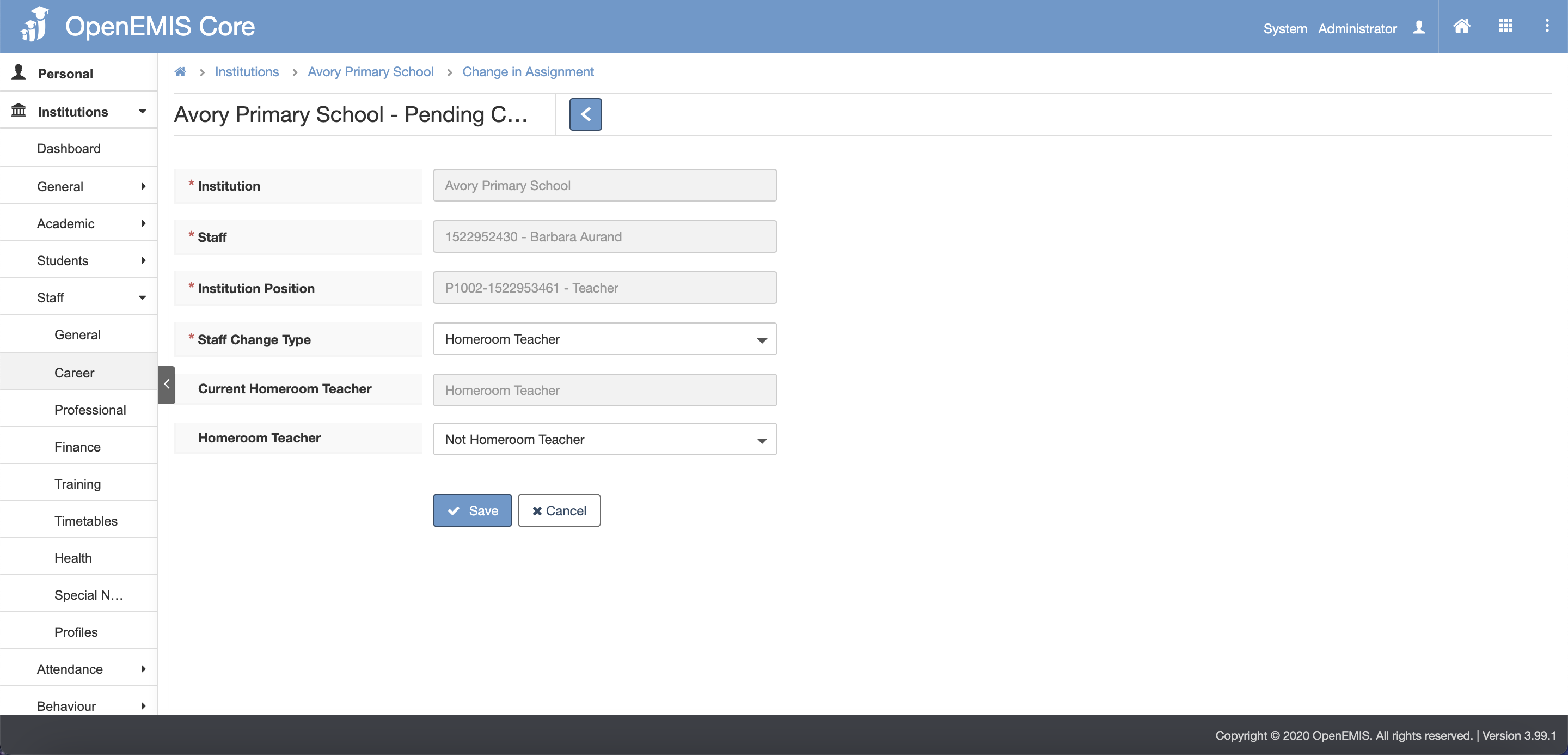
Step 4: Click Save button.

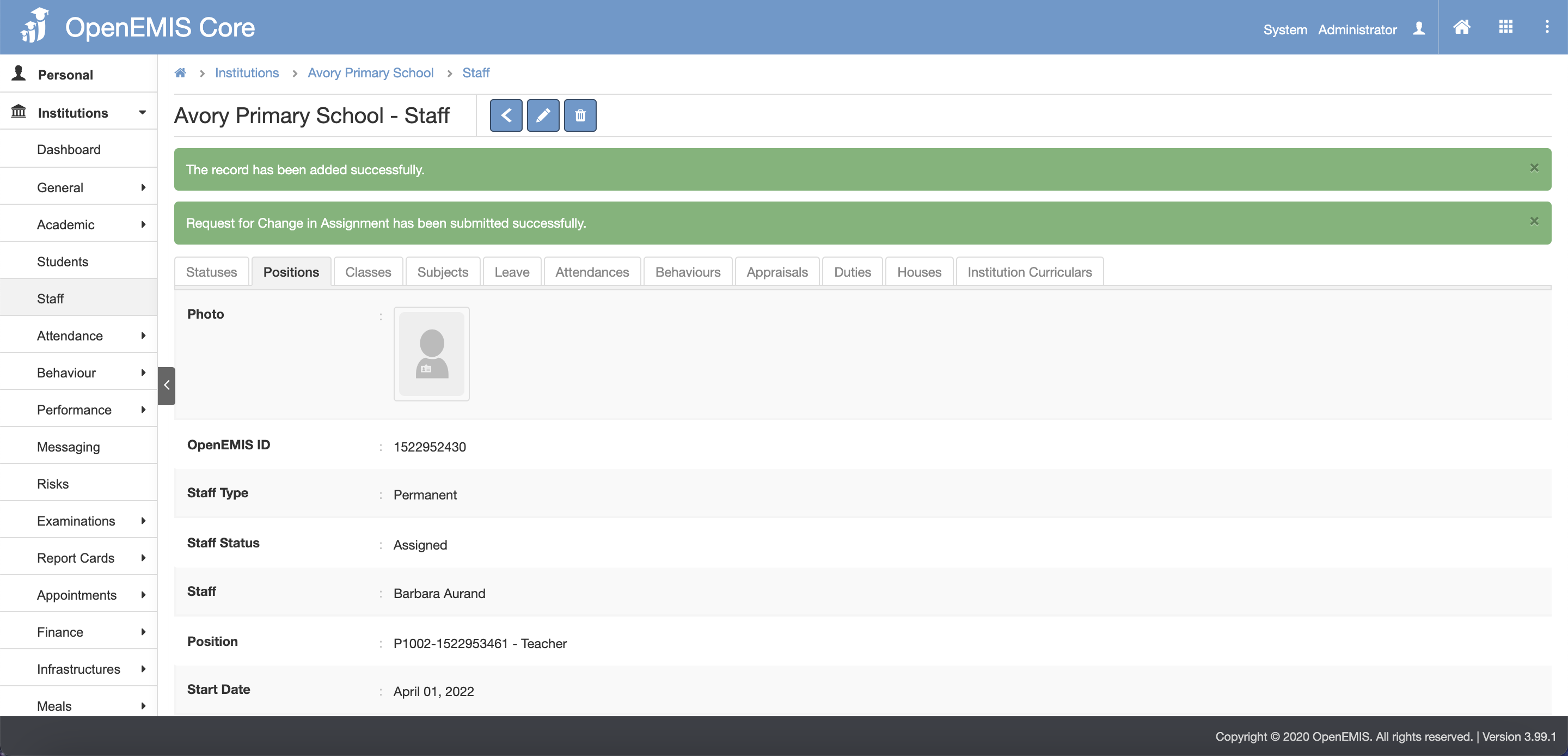
Step 5: There will be message indicating that record has been added successfully and request for change in assignment is submitted successfully.
