Article Name: Examination
Category/Module: Examinations
Tags: Examination, Exam, Register, Grades
Version: 4.20.0
Date Updated: 15 April 2025
The examinations feature enables you to coordinate the national level examinations for Institutions. They are also responsible for creating registration for students, setting up exam centers, and assigning students to exam centers. The following section will address the following features found in the Examinations.
- Viewing Examination Details
- View Examination Records
- View Student Registered for Exams
- Register eligible Students for Exams (Staff)
- Undo Bulk Student Registration (Staff)
- Undo Individual Student Registration (Staff)
- Export Student Exam Registration (Staff)
- Configuring Examinations (Administration)
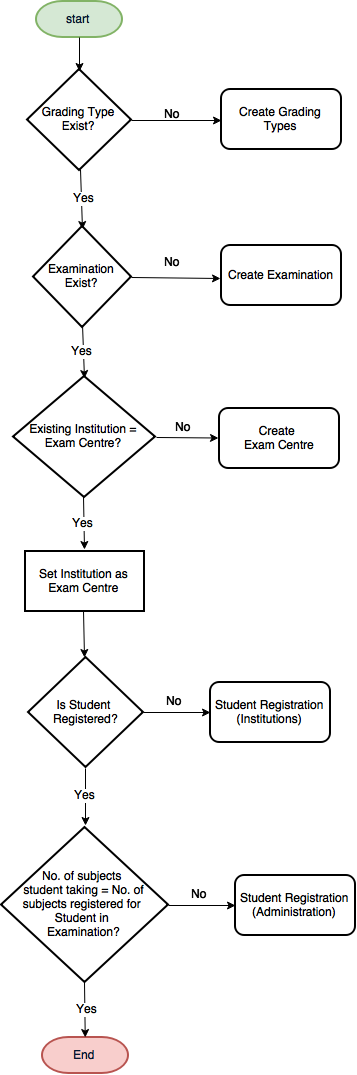
Viewing Examination Details
1. Navigate to Institutions > Examinations > Exams
2. Click on the View button

3. The details of the Examinations will display – Code, Name, Education Grade, Examination Subjects etc

Staff
Examination Records

1) Go to Institutions > (Search and select your institution) > Examination > Exams.
2) All the Exam Records are being displayed in the table.
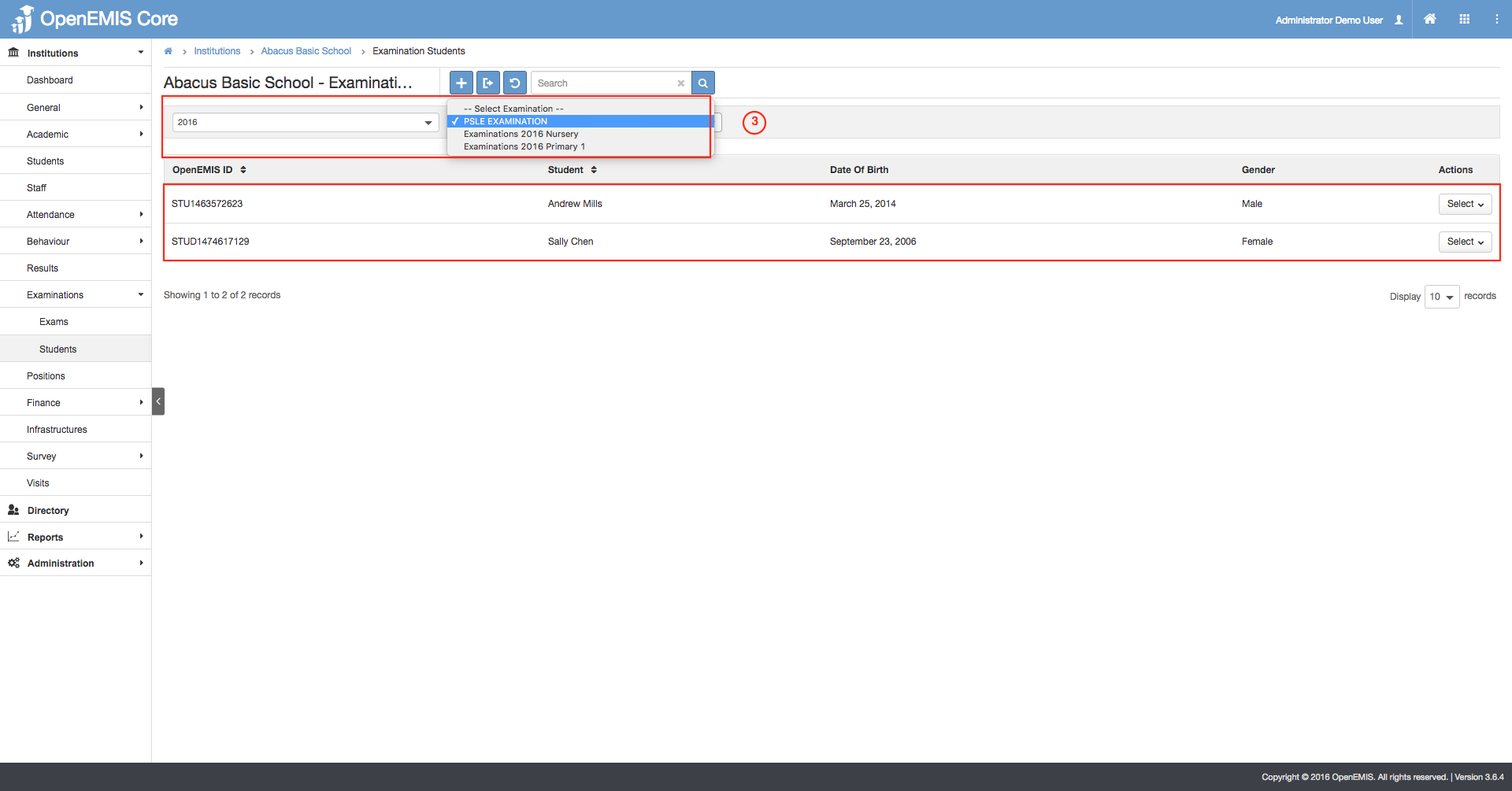
3) You can filter the records by the Academic Period and Examination.
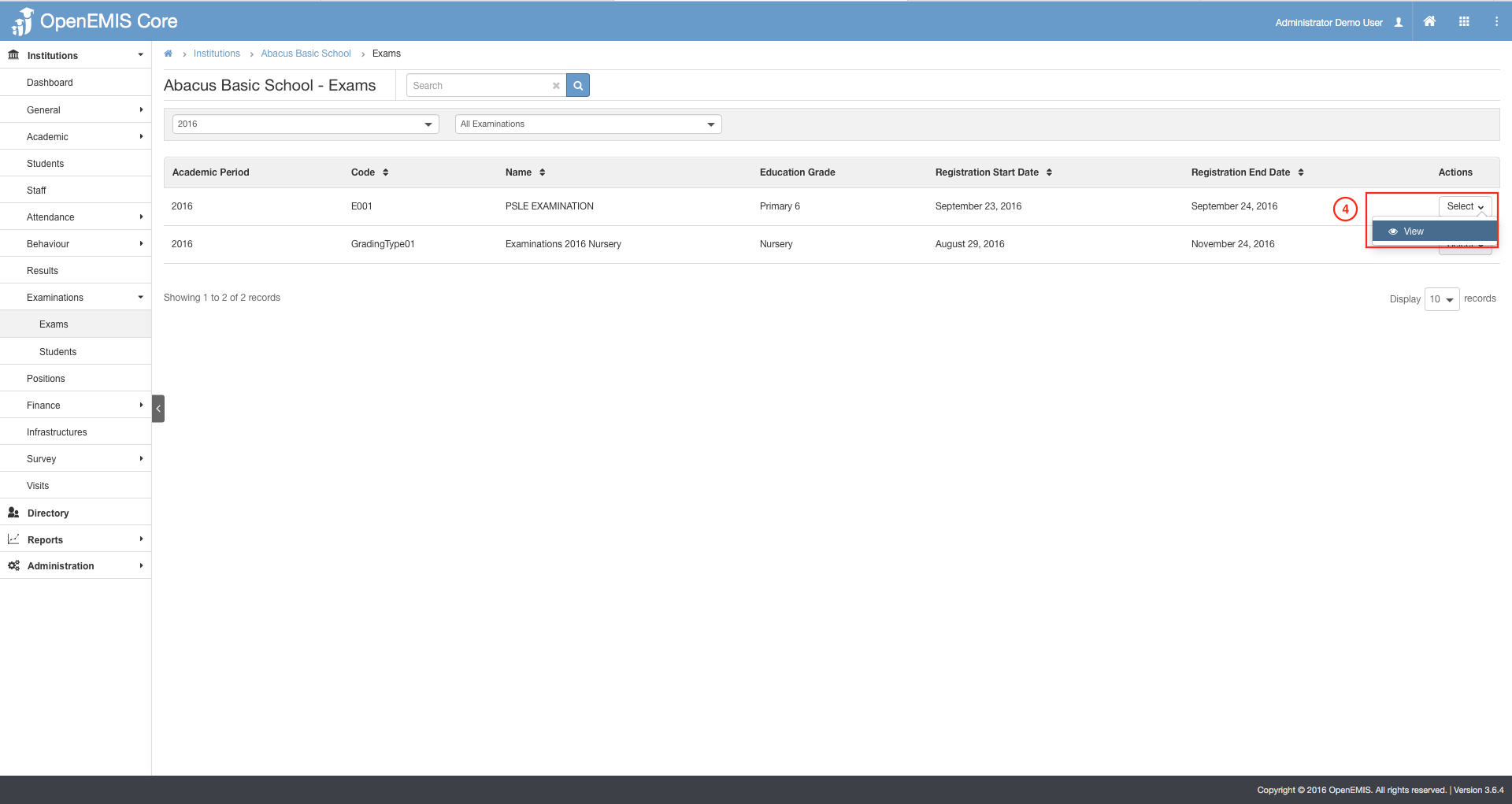
4) To view additional information, Go to Action Bar > View

5) Details of the Examination will be displayed.
Student Registration
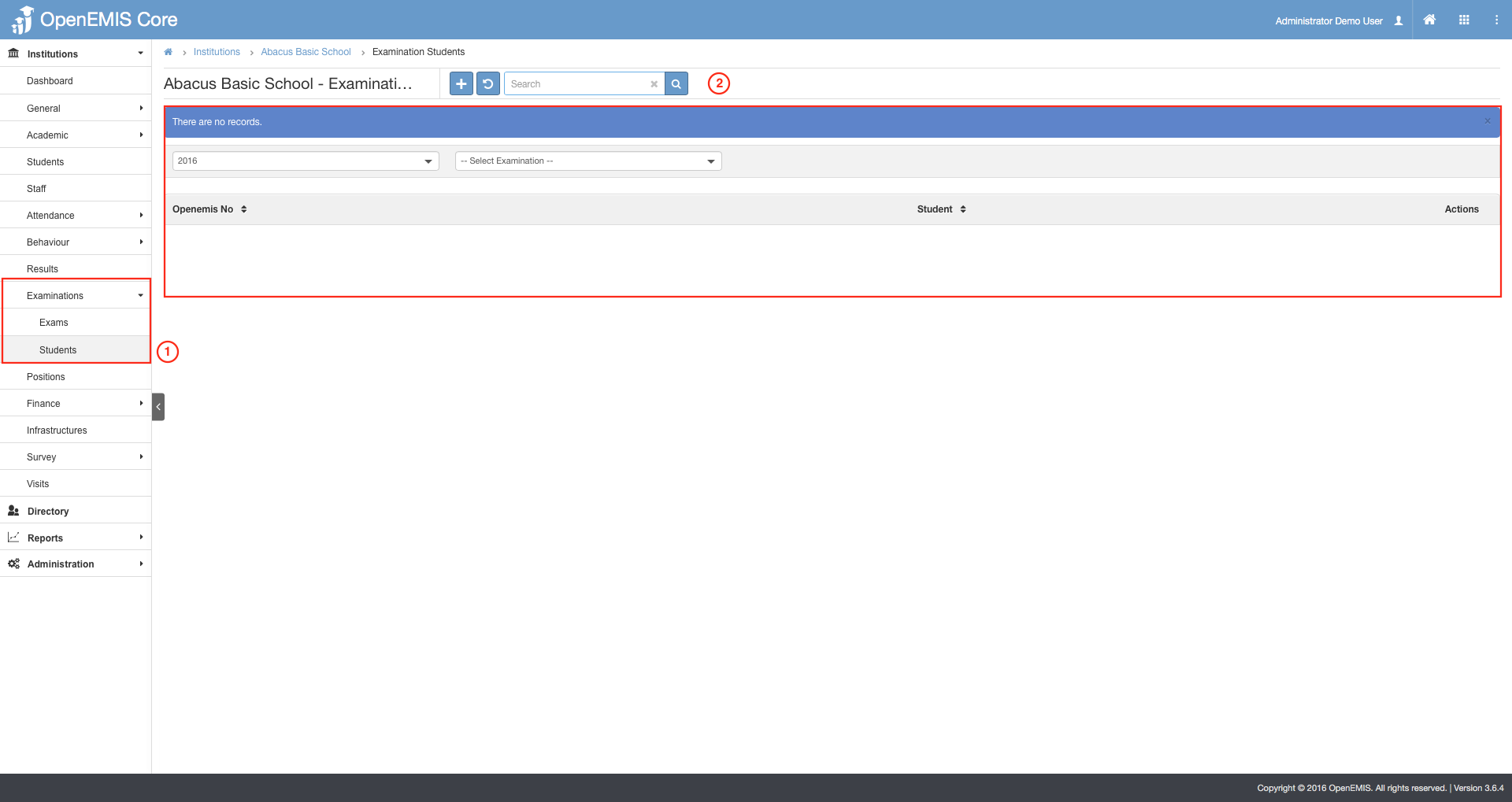
1) Go to Institutions > (Search and select your institution) > Examination > Students.
2) By default, no records will be shown.
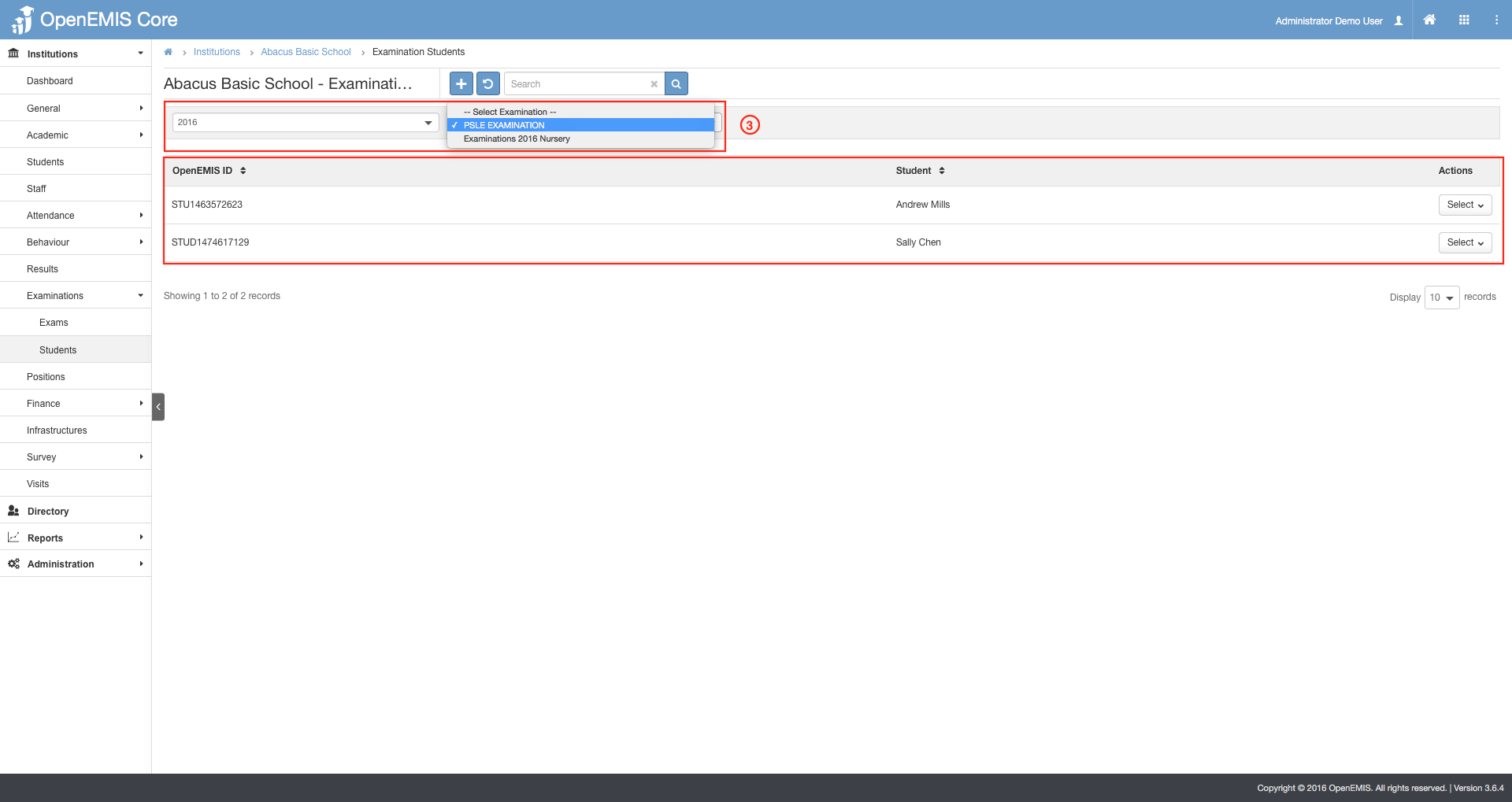
3) To view records, filter according to the Academic Period and Examination.
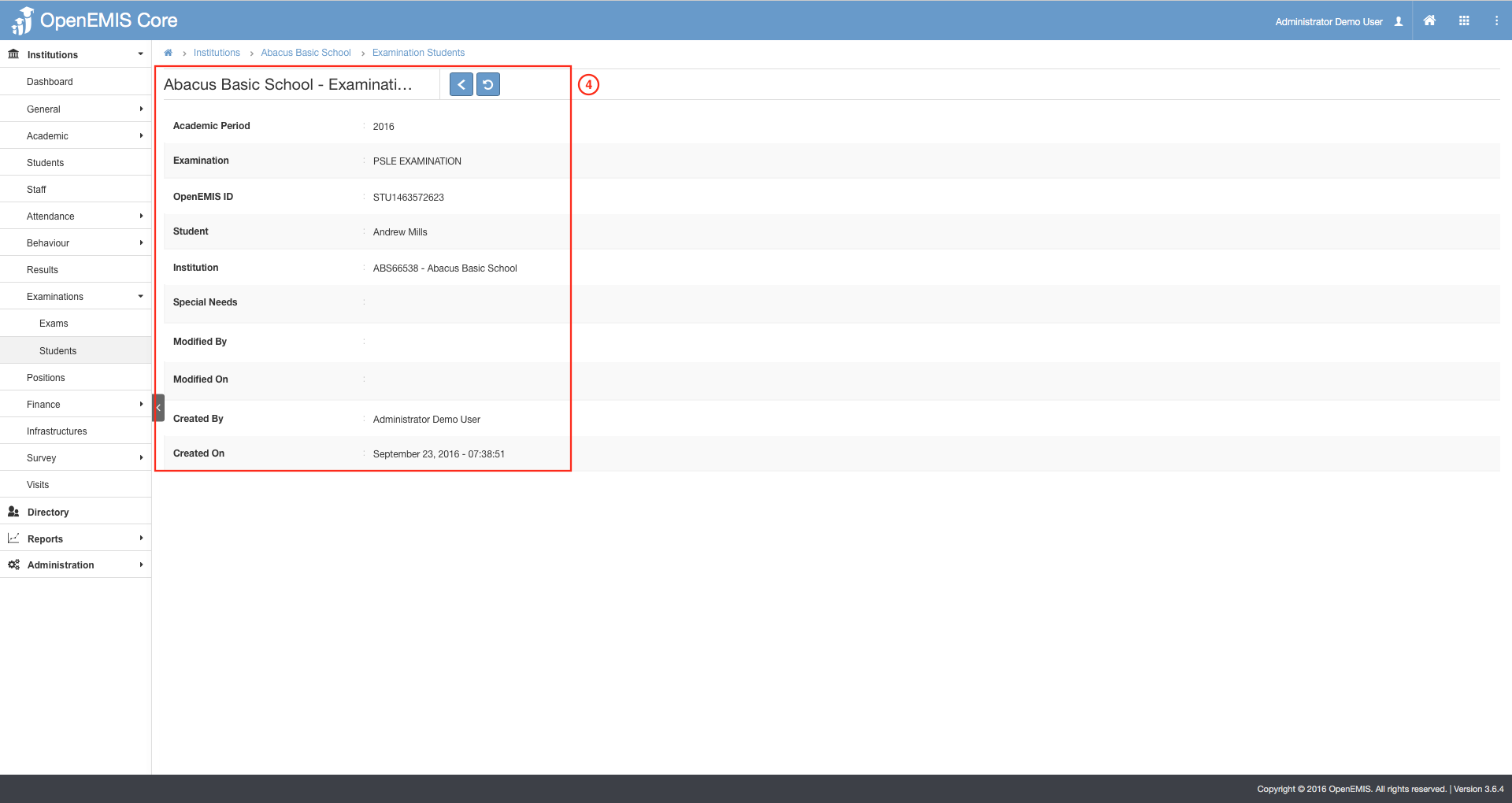
4) View Students Examination Details
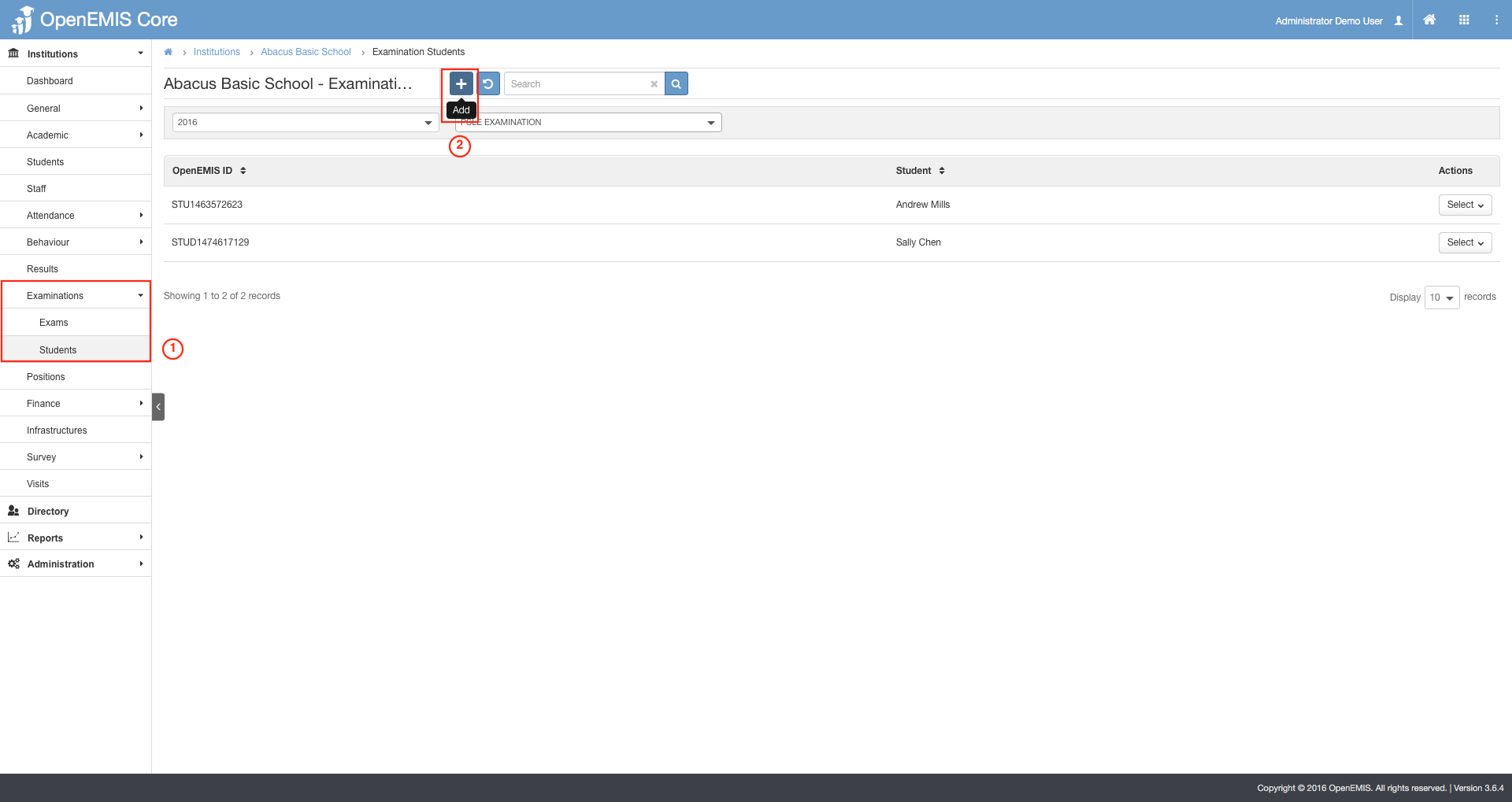
1) Go to Institutions > (Search and select your institution) > Examination > Students.
2) Select on the Add button.
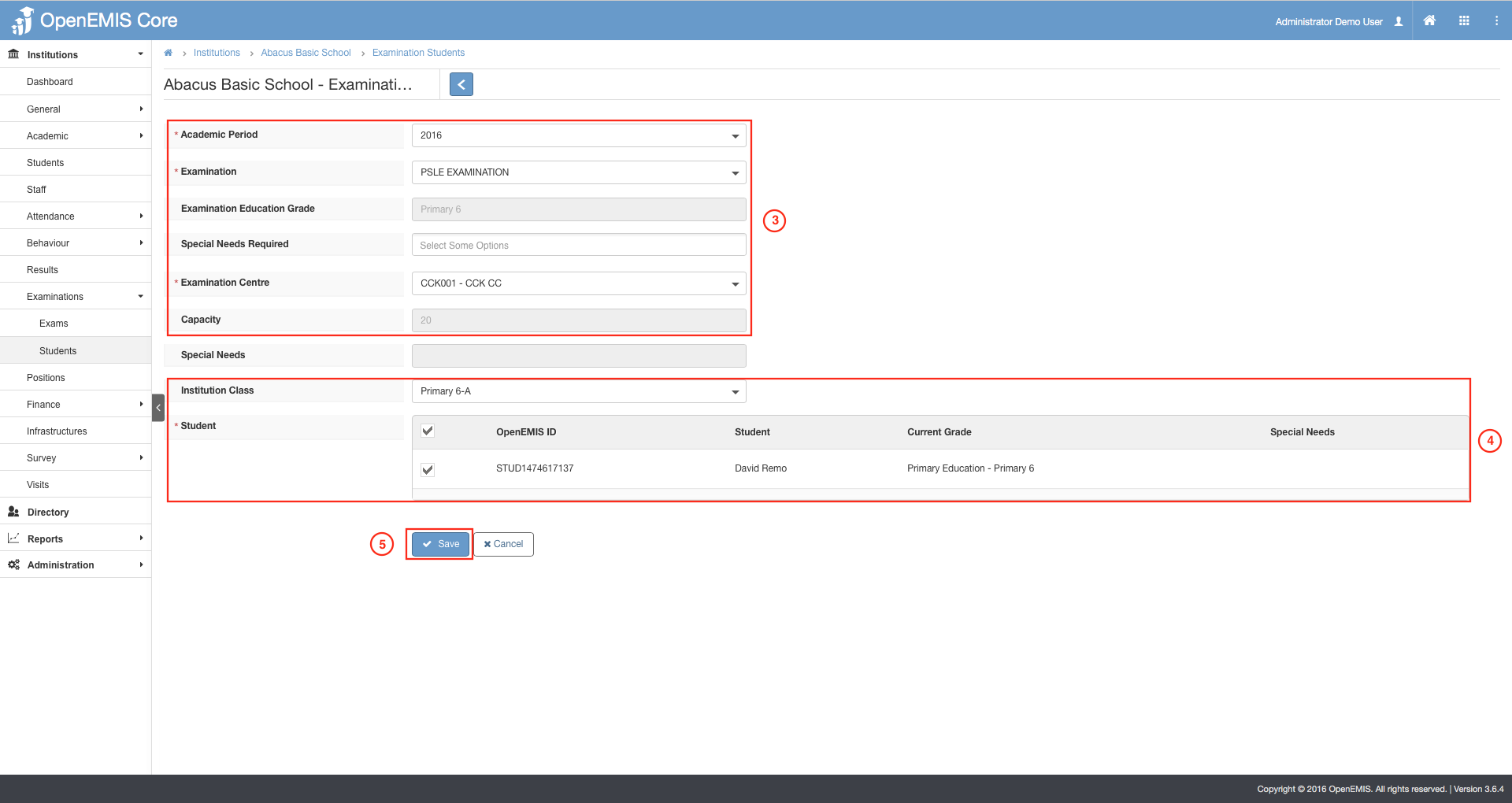
3) Specify the Academic Period, Examination,Examination Center and etc. The Education Grade and Capacity will be auto-displayed accordingly to the fields specified.
4) The Students will be displayed upon the selection of Institution Class. Select the Students that are to be registered.
5) Click on Save.
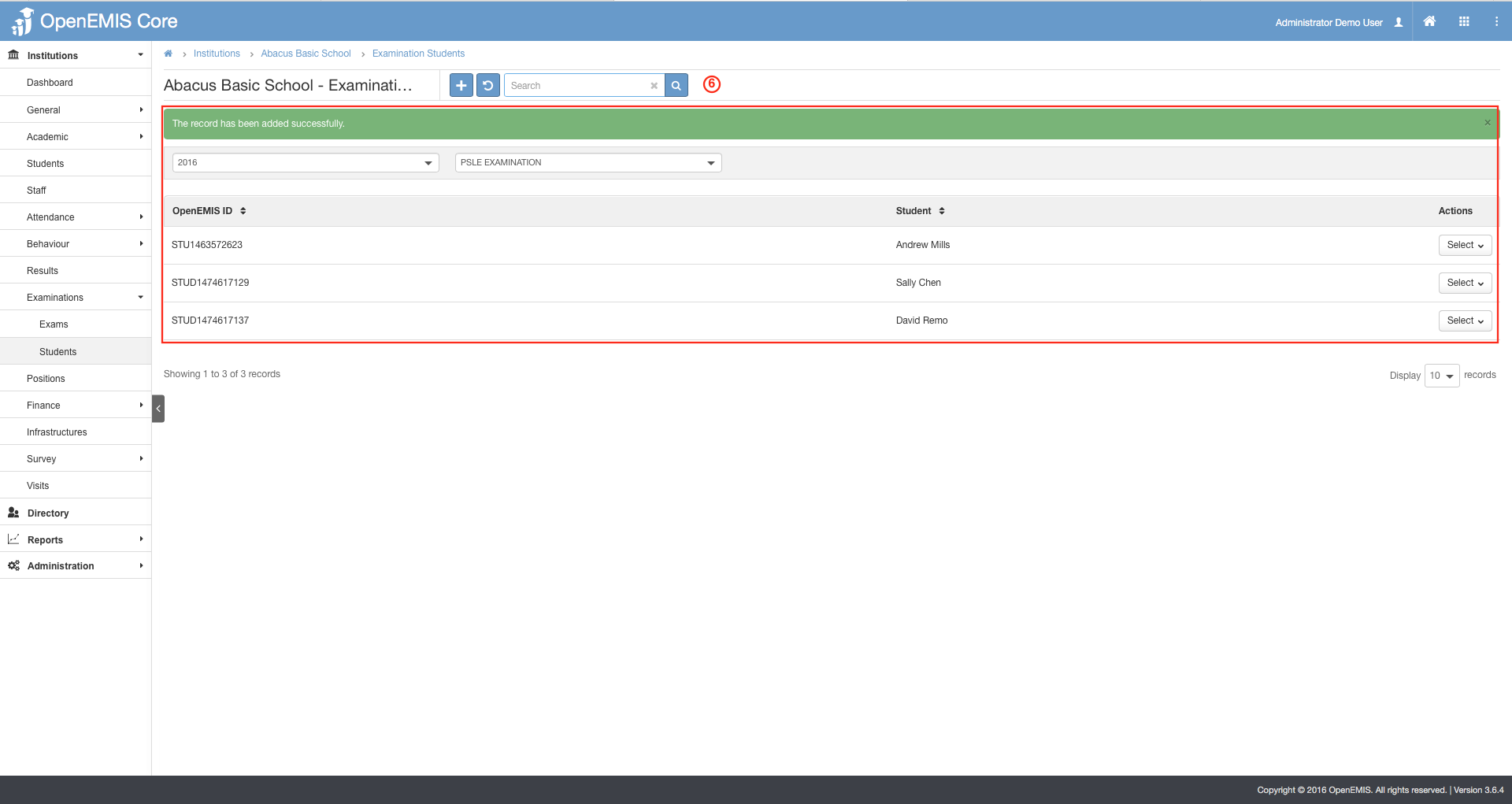
6) Successful message will be displayed upon student registered successfully.
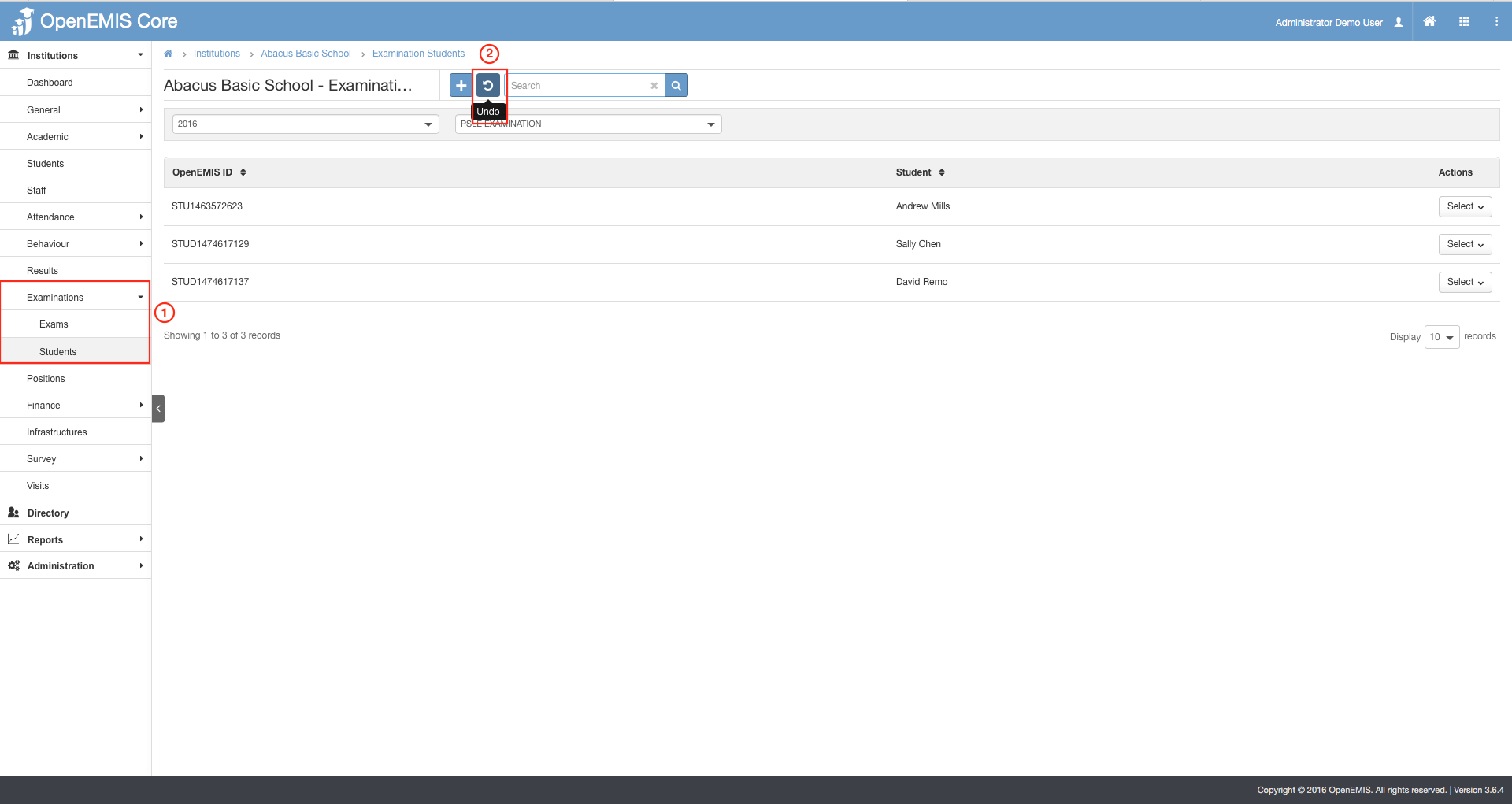
1) Go to Institutions > (Search and select your institution) > Examination > Students.
2) Select on the Undo button.
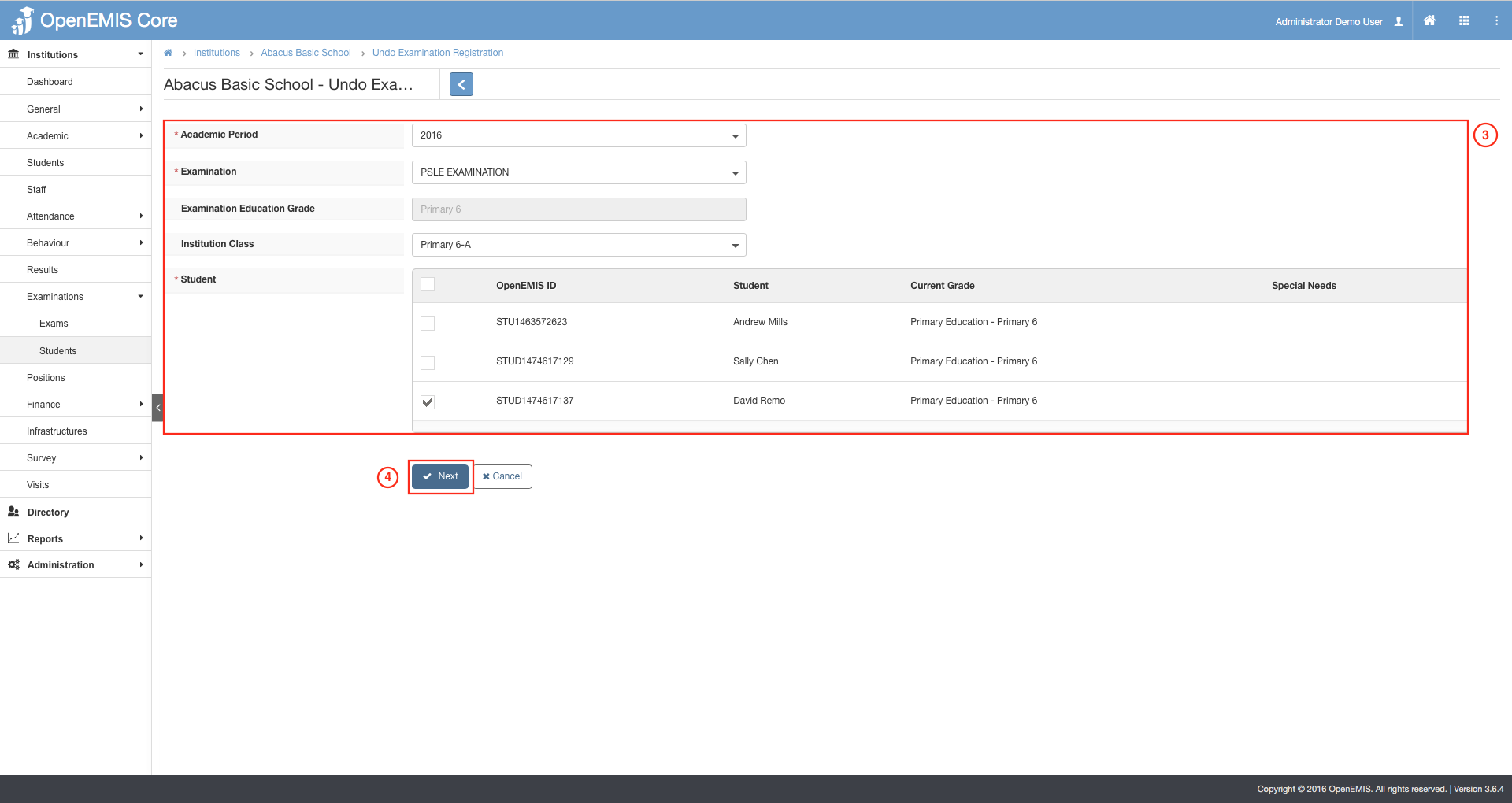
3) Specify the Academic Period, Examination and Students to un-register.
4) Select on Next.
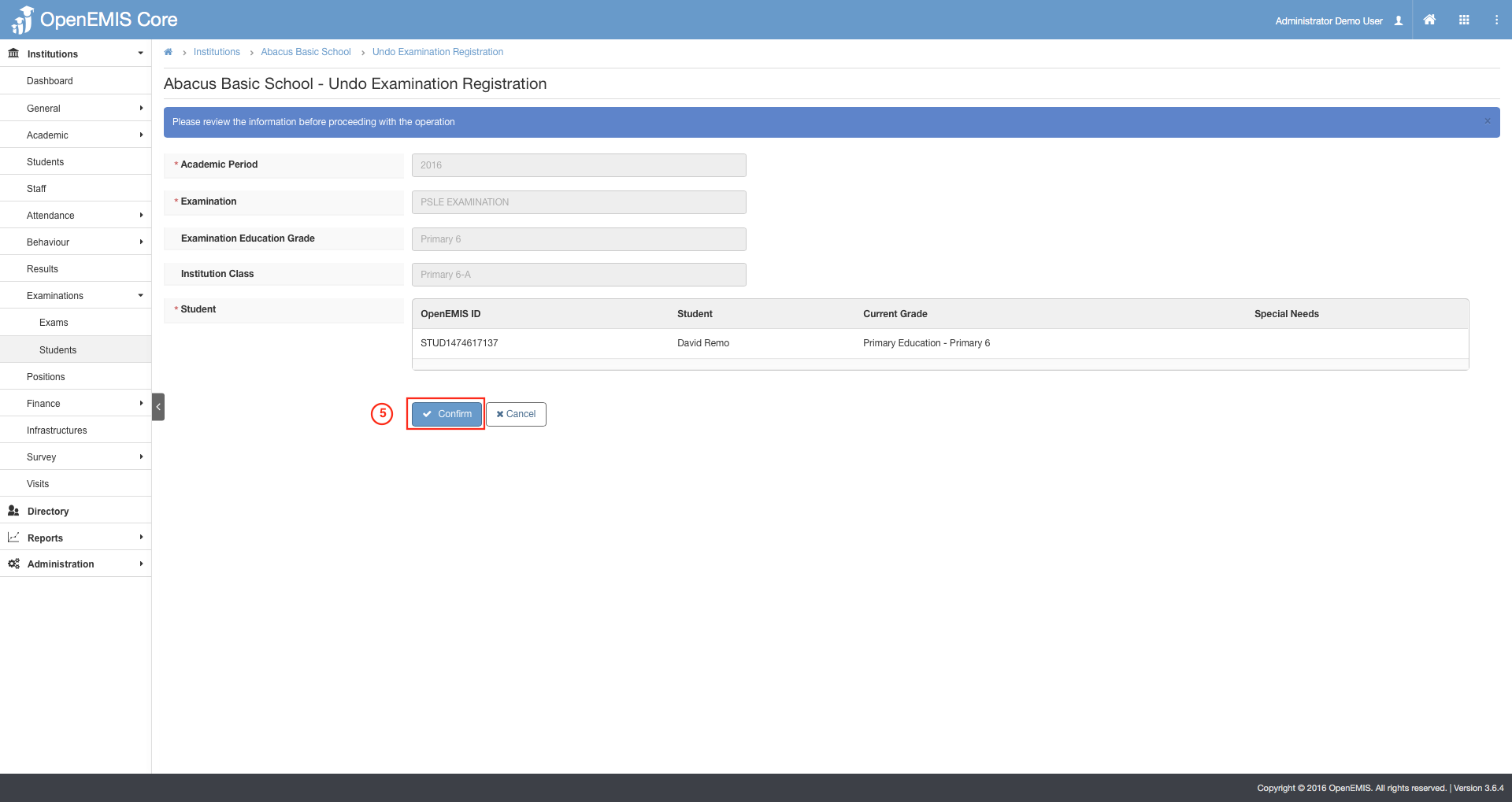
5) Select Confirm to undo the registration process.
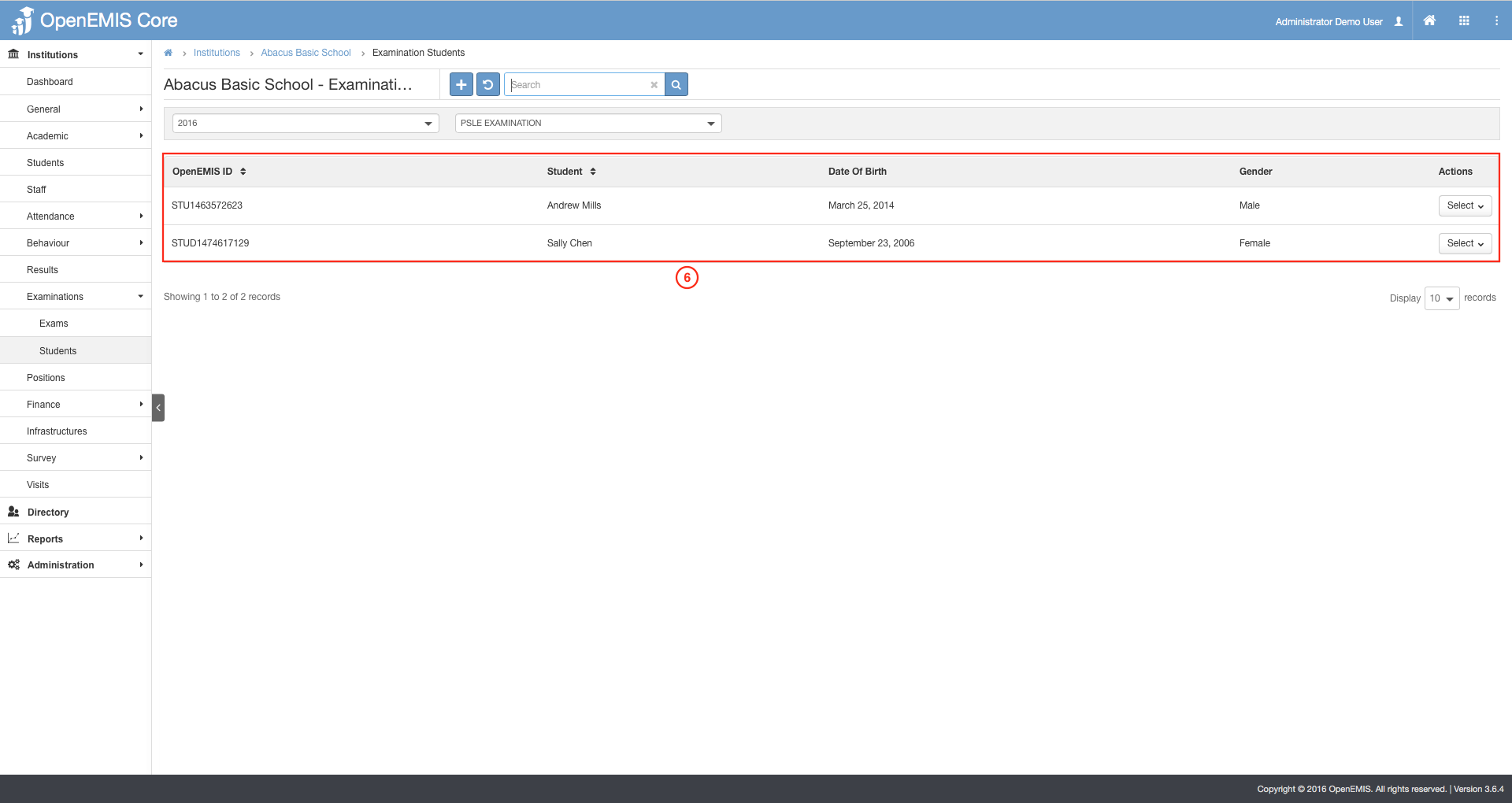
6) As shown in the image, the record has been removed in the registered student list.
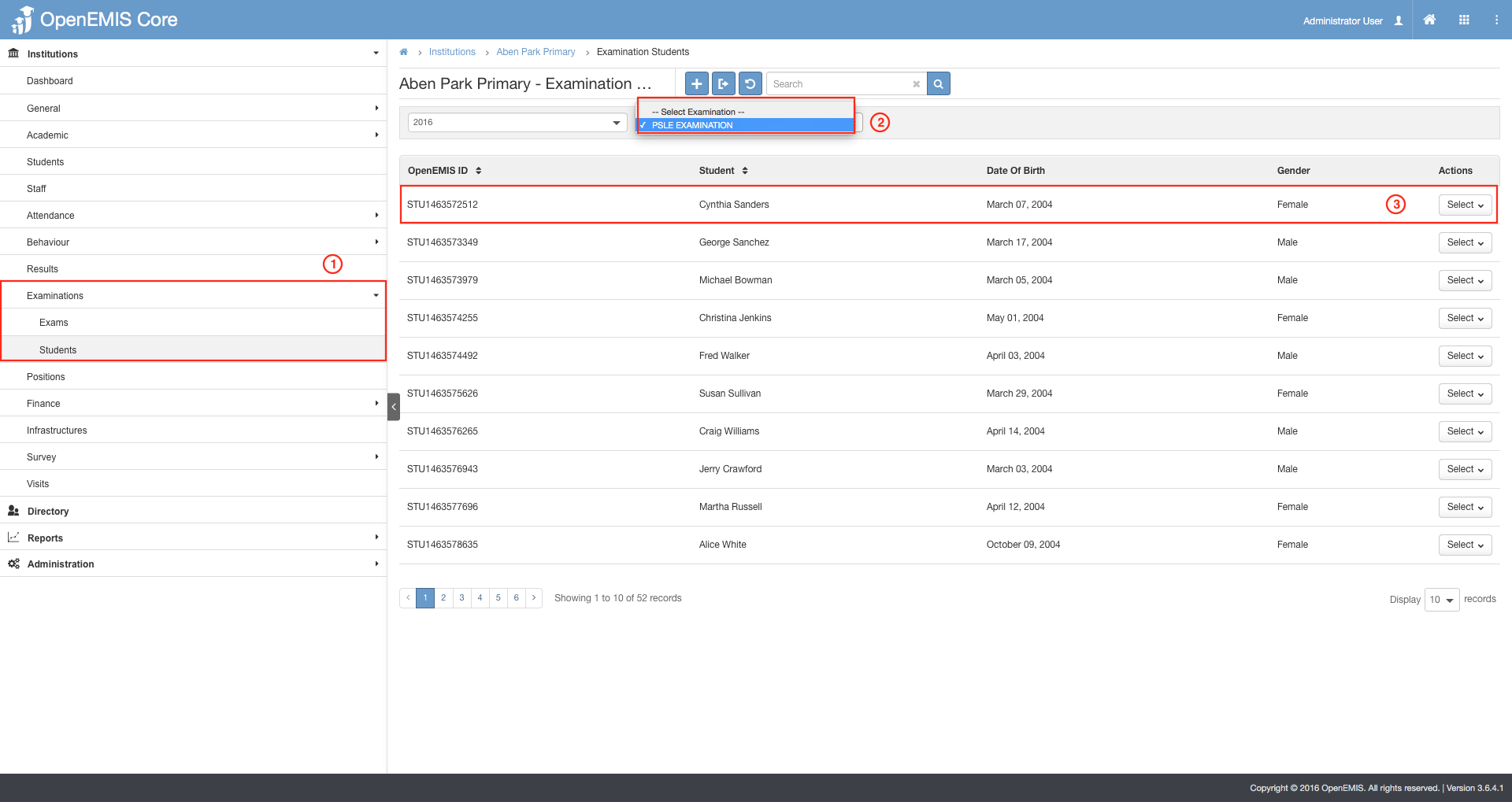
1) Go to Institutions > (Search and select your institution) > Examination > Students.
2) Choose the Examination you would like to view on the dropdown list.
3) Select on the Student, and the detailed view of the student will be displayed.
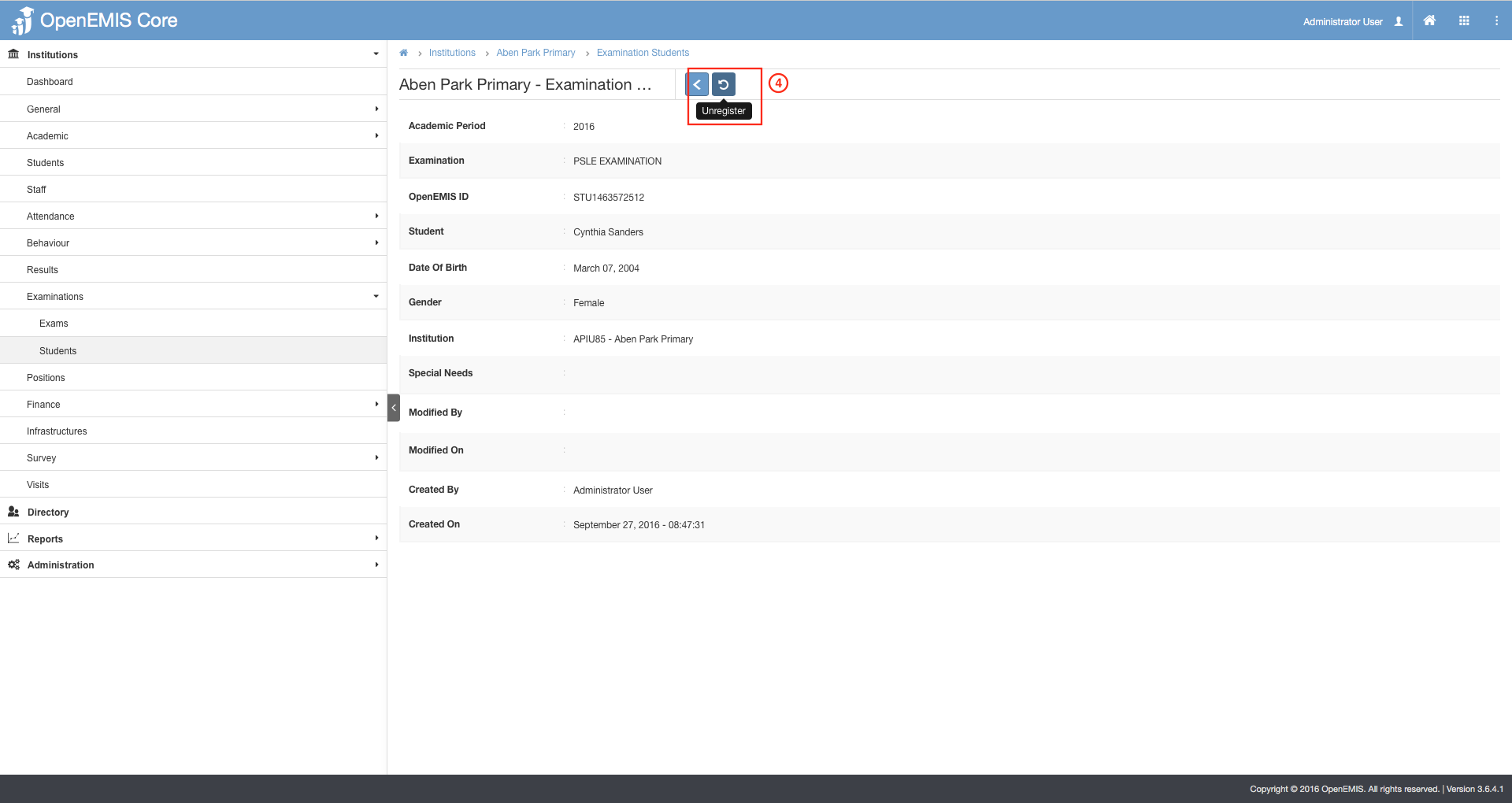
4) Click on the ‘Unregister’ button.
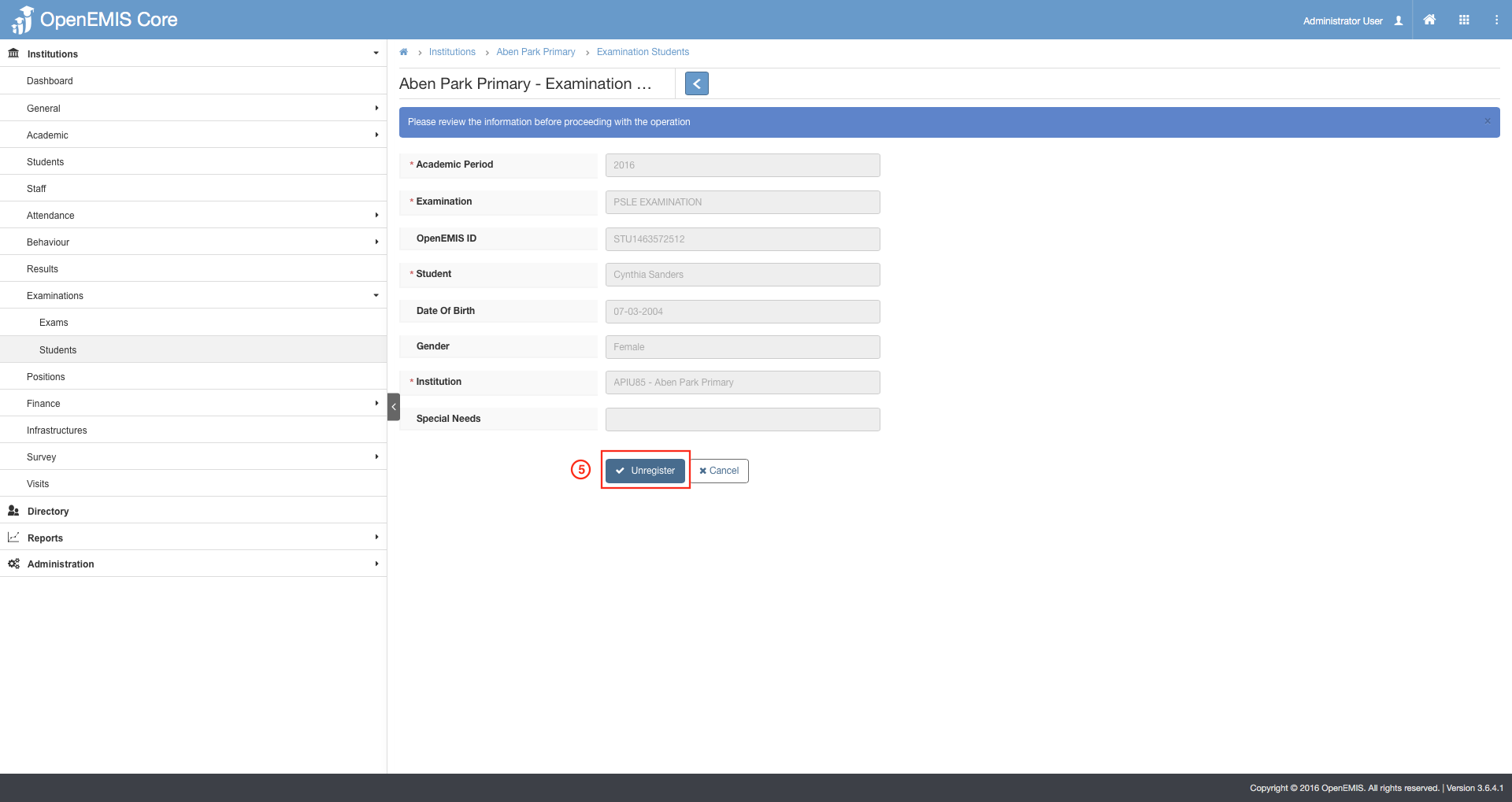
5) To confirm the process, select ‘Unregister’.
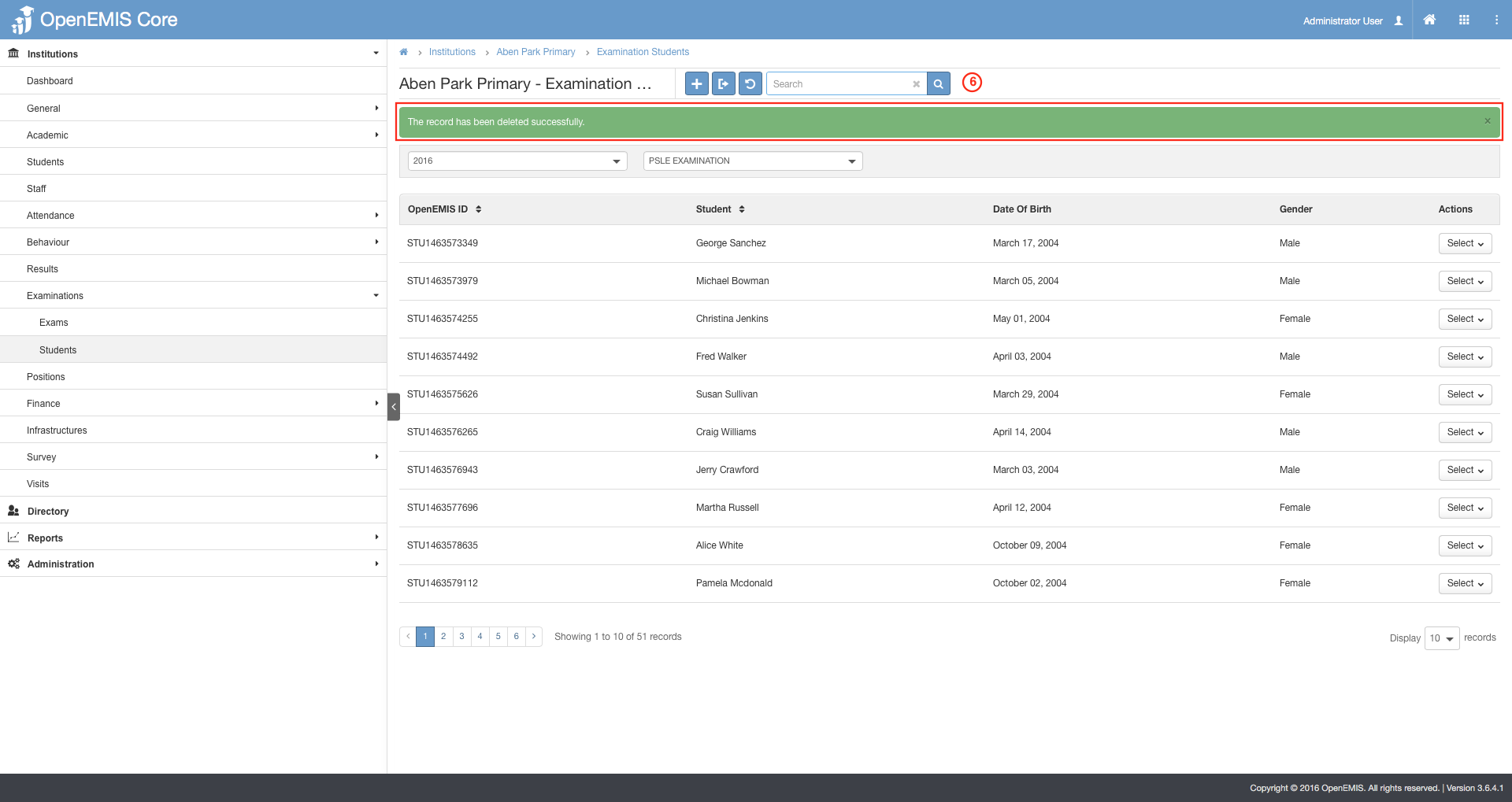
6) Successful message will be displayed upon unregistering the student.
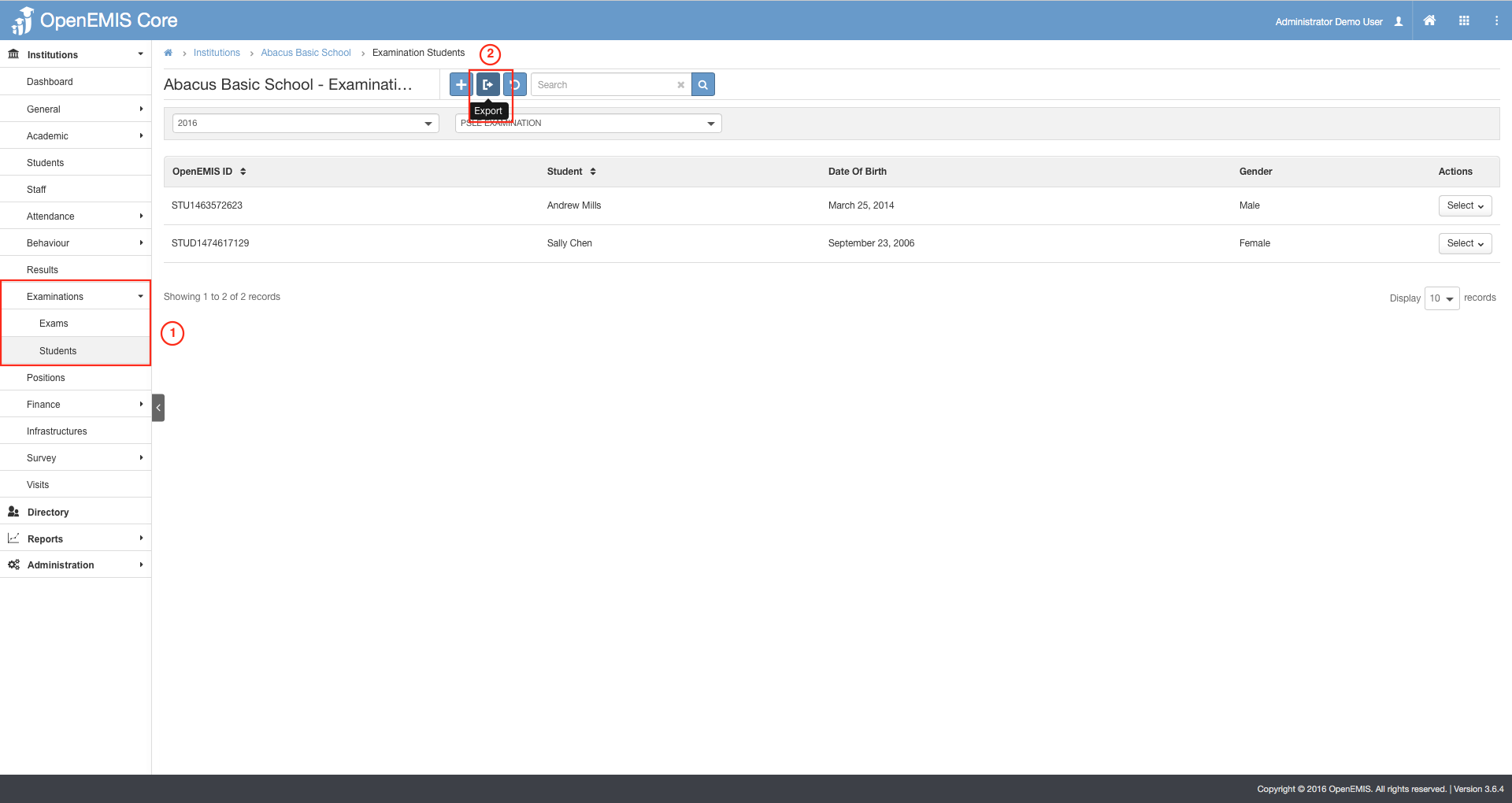
1) Go to Institutions > (Search and select your institution) > Examination > Students.
2) Select on the Export button.
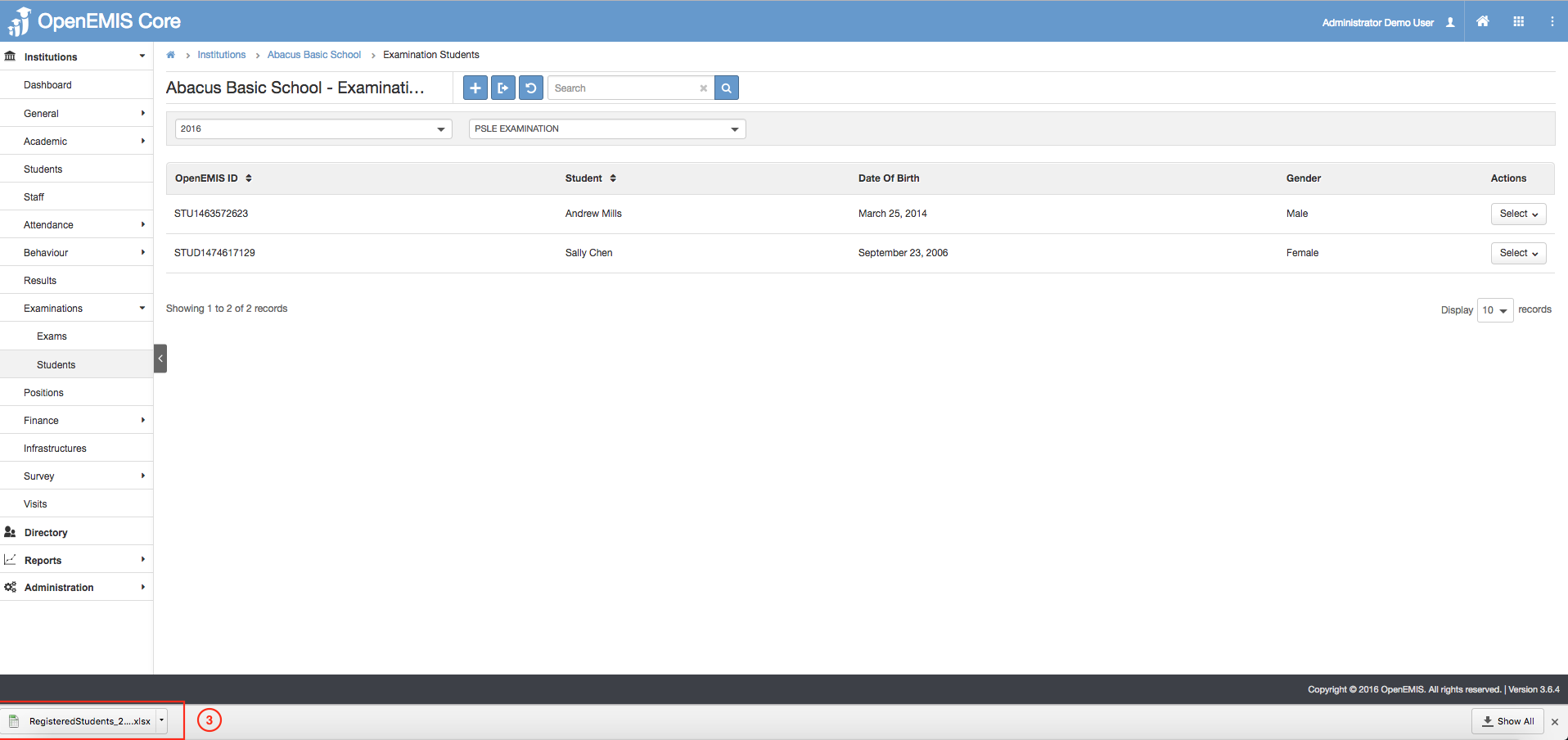
3) Student Exam Registration Report will be downloaded.